
1. Product Overview
The Keychron K3 Max is an advanced QMK/VIA wireless custom mechanical keyboard designed for versatility and performance. Featuring a compact 75% layout, it offers seamless connectivity across multiple devices and operating systems, including macOS, Windows, and Linux. Its ultra-slim design incorporates low-profile Gateron mechanical switches and double-shot PBT keycaps for a superior typing experience.
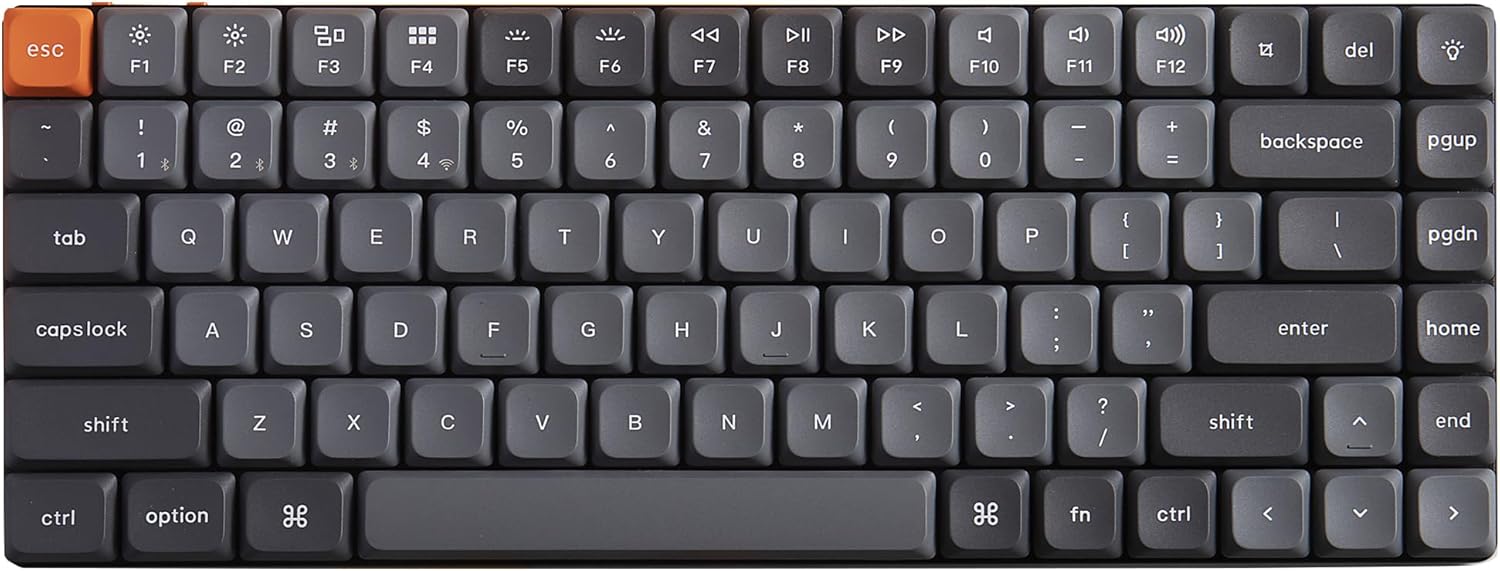
Figure 1: Keychron K3 Max QMK/VIA Wireless Mechanical Keyboard.
Key Features:
- QMK & VIA Programmability: Customize key assignments and macros with ease across macOS, Windows, and Linux.
- 3-Mode Connectivity: Supports 2.4 GHz wireless (1000 Hz polling rate), Bluetooth 5.1, and wired USB-C connections.
- Hot-Swappable Switches: Easily change low-profile Gateron mechanical switches without soldering.
- RGB Backlighting: Features charming RGB backlight with 22 types of settings and durable double-shot PBT keycaps.
- Ultra-Slim Design: Compact and ergonomic with three levels of adjustable typing angle.
2. Setup and Connection
2.1 Connection Modes
The Keychron K3 Max offers three versatile connection modes to suit various setups:
- 2.4 GHz Wireless: For optimal gaming performance with a rapid 1000 Hz polling rate. Connects via the included USB dongle.
- Bluetooth 5.1: Ideal for seamless multitasking across up to three devices (computer, phone, tablet).
- Wired USB-C: Provides a stable connection and charges the keyboard simultaneously.

Figure 2: Three-mode connection options.
2.2 Switching Between Modes and OS Layouts
Locate the physical switches on the side of the keyboard to select your desired connection mode and operating system layout.
- Use the G/Cable/BT switch to toggle between 2.4 GHz wireless (G), wired (Cable), and Bluetooth (BT) modes.
- Use the Win/Android Mac/iOS switch to select the appropriate key layout for your operating system. This ensures correct function key mapping and special character input.

Figure 3: Side switches for connection mode and OS layout.
For first-time Bluetooth pairing, ensure the keyboard is in Bluetooth mode, then search for "Keychron K3 Max" on your device's Bluetooth settings and connect.
3. Operating Instructions
3.1 QMK & VIA Programming
The K3 Max supports QMK and VIA, allowing for extensive customization of key functions and macros. To program your keyboard:
- Connect the keyboard to your computer via the USB-C cable.
- Download and open the VIA software from the official Keychron website.
- Within VIA, you can drag and drop to remap any key, create custom macros, and configure different layers for various operating systems or applications.

Figure 4: VIA software for keyboard customization.
3.2 Hot-Swappable Switches
The K3 Max features hot-swappable sockets, enabling you to change switches without soldering. This allows for easy customization of your typing feel.
- To remove a switch, use the included switch puller tool. Gently grip the switch and pull upwards.
- To install a new switch, align the pins of the new low-profile Gateron mechanical switch with the holes on the PCB and press down firmly until it clicks into place. Ensure pins are straight to avoid bending.

Figure 5: Hot-swappable switch functionality.
3.3 RGB Backlight Settings
The keyboard offers 22 types of RGB backlight settings. You can cycle through different lighting effects and static colors using the dedicated backlight key or through the VIA software.

Figure 6: Various RGB backlight settings.
3.4 Ergonomic Support
The K3 Max is designed with three levels of adjustable typing angle to provide ergonomic comfort during extended use. Adjust the feet on the underside of the keyboard to find your preferred typing position.

Figure 7: Adjustable typing angles for ergonomic support.
4. Maintenance
4.1 Cleaning the Keyboard
To maintain the longevity and appearance of your Keychron K3 Max, regular cleaning is recommended:
- Use a soft, lint-free cloth dampened with a small amount of water or a mild cleaning solution to wipe down the keycaps and frame.
- For deeper cleaning, you can remove the keycaps using the included keycap puller tool. Clean the exposed switches and plate with compressed air to remove dust and debris.
- Ensure the keyboard is powered off and disconnected from all devices before cleaning.
4.2 Switch and Keycap Replacement
Thanks to the hot-swappable design, replacing individual switches or keycaps is straightforward:
- Keycap Removal: Use the keycap puller to gently lift keycaps straight up.
- Switch Removal: As detailed in Section 3.2, use the switch puller to remove switches.
- Installation: Align new keycaps or switches and press them firmly into place. Ensure the switch pins are not bent before insertion.
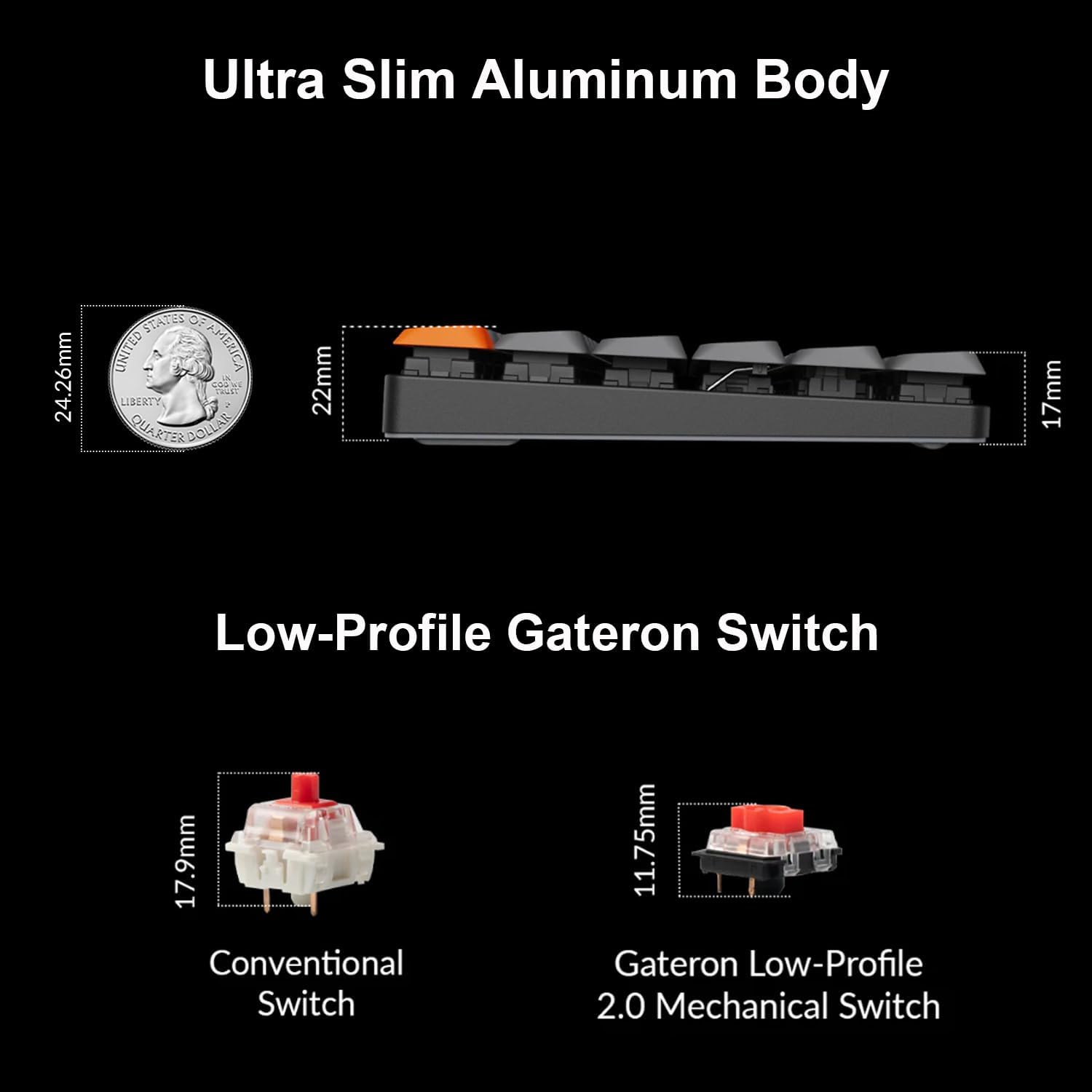
Figure 8: Components for maintenance and customization.
5. Troubleshooting
5.1 Connectivity Issues
- Bluetooth Disconnection: Ensure the keyboard is fully charged. Re-pair the keyboard with your device. Try forgetting the device on your computer/phone and re-pairing.
- 2.4 GHz Wireless Issues: Ensure the USB dongle is securely plugged into your computer. Try a different USB port. Reduce interference by moving other wireless devices away.
- Wired Connection Not Detected: Check the USB-C cable for damage and ensure it's properly connected to both the keyboard and your computer. Try a different USB-C cable or port.
5.2 Key Malfunctions or Double Inputs
- Stuck or Unresponsive Keys: Remove the keycap and inspect the switch for any debris. If the switch is faulty, replace it with a new one (refer to Section 3.2).
- Double Inputs: This can sometimes be resolved by updating the keyboard's firmware. Visit the official Keychron website for the latest firmware and instructions. If the issue persists, consider replacing the affected switch.
5.3 RGB Backlight Issues
- Backlight Not Working: Ensure the backlight is enabled via the dedicated key or VIA software. Check if the keyboard is in a low-power mode or needs charging.
- Inconsistent Lighting: This might indicate a software glitch. Try resetting the keyboard (refer to Keychron's support page for specific reset procedures for your model) or updating the firmware.
For further assistance, please refer to the official Keychron support resources or contact customer service.
6. Specifications
| Feature | Detail |
|---|---|
| Model Number | K3M-H3 |
| Product Dimensions | 0.79 x 1.18 x 0.5 inches |
| Item Weight | 1.85 pounds |
| Manufacturer | Keychron |
| Batteries | 1 Lithium Ion battery (included) |
| Connectivity Technology | USB-C, 2.4 GHz Wireless, Bluetooth 5.1 |
| Keyboard Description | Mechanical |
| Recommended Uses | Gaming |
| Special Features | Customizable Display Keys, Hot-Swappable |
| Color | Brown Switch (variant) |
| Number of Keys | 84 |
| Keyboard Backlighting | RGB |
| Compatible Devices | Laptop, PC, Tablet, Smartphone |
What's in the Box:
- Keychron K3 Max Keyboard
- USB-C Cable
- Keycap Puller
- Switch Puller
- User Manual (this document)
7. Warranty and Support
7.1 Manufacturer's Warranty
Keychron products are covered by a manufacturer's warranty against defects in materials and workmanship. The specific warranty period may vary by region and product. Please retain your proof of purchase for warranty claims.
7.2 Customer Support
For technical support, troubleshooting assistance, or warranty inquiries, please visit the official Keychron support website or contact their customer service team. You can typically find contact information and FAQs on their website:


