1. Product Overview
The Fire-Boltt Sphere is a sporty, rugged outdoor smartwatch designed for active lifestyles. It features a high-resolution HD display, a shockproof metal body, and Bluetooth calling capabilities. This manual provides essential information for setting up, operating, maintaining, and troubleshooting your device.

Image: The Fire-Boltt Sphere Smart Watch in Gold Black, showcasing its robust design and digital display.

Image: A promotional image highlighting the Fire-Boltt Sphere as a sporty and rugged smartwatch.
2. What's Included
Upon unboxing your Fire-Boltt Sphere Smart Watch, please ensure all the following items are present:
- 1U Fire-Boltt Sphere Smart Watch
- 1U Charging Cable
- 1U User Manual (this document)
- 1U Warranty Card
3. Setup Guide
3.1 Initial Charging
Before first use, fully charge your Fire-Boltt Sphere Smart Watch. Connect the provided charging cable to the charging port on the back of the watch and a compatible USB power adapter (not included). The watch will display a charging indicator. A full charge typically takes approximately 2 hours.
3.2 Powering On/Off
- To Power On: Press and hold the 'Power' button (usually the top right button) until the Fire-Boltt logo appears.
- To Power Off: Press and hold the 'Power' button, then select 'Power Off' on the screen.
3.3 Pairing with Your Smartphone
To unlock the full functionality of your smartwatch, pair it with your smartphone via Bluetooth.
- Download the official Fire-Boltt application from your smartphone's app store (Google Play Store for Android, Apple App Store for iOS).
- Ensure Bluetooth is enabled on your smartphone.
- Open the Fire-Boltt app and follow the on-screen instructions to create an account or log in.
- In the app, select 'Add Device' or a similar option to search for your Fire-Boltt Sphere.
- Select 'Fire-Boltt Sphere' from the list of available devices.
- Confirm the pairing request on both your smartphone and the smartwatch.
Once paired, your watch will synchronize data with the app and enable features like notifications and Bluetooth calling.
4. Operating the Smartwatch
4.1 Navigating the Interface
The Fire-Boltt Sphere features a 40.64mm (1.6 inch) HD touchscreen display with a resolution of 400x400 pixels. You can navigate the watch interface using touch gestures and the physical buttons.
- Swipe Up/Down/Left/Right: To access different menus, notifications, quick settings, and widgets.
- Tap: To select an item or open an application.
- Power Button: Typically used to return to the home screen or access the app menu.
- Sport Button: Dedicated button for quick access to sports modes.

Image: A quick view of the smartwatch display, highlighting its 1.6-inch HD screen with 400x400px resolution and Bluetooth calling feature.
4.2 Bluetooth Calling
With the built-in microphone and speaker, you can make and receive calls directly from your wrist when connected to your smartphone.
- Making a Call: Access the dialer or contact list on your watch to initiate a call.
- Receiving a Call: When a call comes in, you can answer or reject it directly from the watch screen.
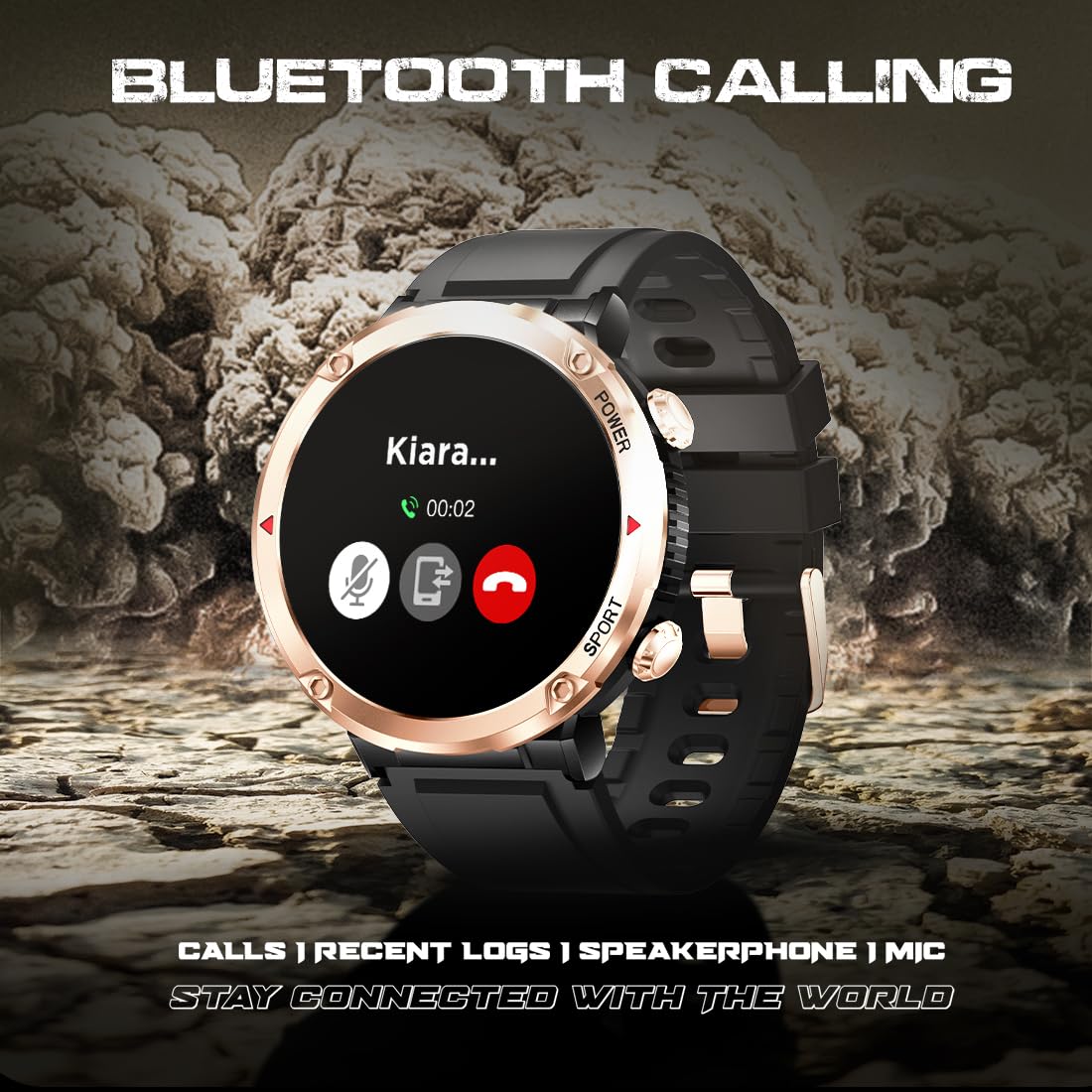
Image: The smartwatch display showing an incoming call, demonstrating the Bluetooth calling functionality.
4.3 Health Tracking
The Fire-Boltt Sphere includes various sensors to monitor your health metrics. Note: This device is not a medical device and should not be used for medical diagnosis or treatment.
- Heart Rate Tracking: Monitors your heart rate throughout the day.
- Sleep Tracking: Analyzes your sleep patterns (deep, light, wake times).
- SpO2 Monitoring: Measures your blood oxygen saturation levels.
- Activity Tracker: Records steps, distance, and calories burned.

Image: Three smartwatches displaying different health metrics: heart rate, sleep patterns, and SpO2 levels.
4.4 Multi-Sports Modes
The watch offers multiple sports modes to track various workout routines, providing data to help you enhance your performance.

Image: A smartwatch displaying a graph of activity data, with text indicating "Multiple Sports Modes Designed for Outdoors."
4.5 Smart Features
- Notifications: Receive alerts for calls, messages, and app notifications.
- Camera Control: Remotely control your smartphone's camera.
- Alarm Clock: Set alarms directly from your watch.
- Weather Updates: Get current weather information.
- Sedentary Reminders: Receive alerts to move after periods of inactivity.
- Music Player Control: Control music playback on your paired smartphone.
- Find Phone: Locate your paired smartphone.

Image: A composite image showing the smartwatch with IP68 water resistance, a drink water reminder feature, and various menu interfaces.
4.6 Watch Faces
Customize your watch's appearance with over 100 cloud-based watch faces available through the companion app.

Image: The Fire-Boltt Sphere smartwatch alongside a selection of diverse watch faces, illustrating customization options.
5. Care and Maintenance
5.1 Durability Features
- Shockproof Metal Body: The watch is designed with a durable metal body to withstand accidental impacts.
- Scratch-Resistant Glass: The display features specifically designed scratch-resistant glass for enhanced durability.
- IP68 Water Resistance: The device is protected against dust and can withstand immersion in water up to 1.5 meters for 30 minutes. It is suitable for daily use and light water activities but not for swimming or diving.

Image: A collage showing the smartwatch's IP68 rating, durable glass, 600 mAh battery, and multiple sports modes.

Image: A close-up of the smartwatch highlighting its scratch-resistant design.
5.2 Cleaning and Storage
- Wipe the watch regularly with a soft, dry cloth.
- Avoid using harsh chemicals or abrasive materials for cleaning.
- Store the watch in a cool, dry place away from direct sunlight and extreme temperatures.
6. Troubleshooting
If you encounter issues with your Fire-Boltt Sphere Smart Watch, refer to the following common solutions:
6.1 Connectivity Issues
- Watch not connecting to phone: Ensure Bluetooth is enabled on both devices. Restart both the watch and your phone. Try unpairing and re-pairing the device through the Fire-Boltt app.
- Notifications not appearing: Check app permissions on your smartphone to ensure the Fire-Boltt app has access to notifications. Verify that notifications are enabled within the Fire-Boltt app settings.
6.2 Battery Life Concerns
- Short battery life: Reduce screen brightness, disable continuous heart rate monitoring if not needed, and limit the number of active background apps. Ensure the watch is fully charged (2 hours).
- The 600 mAh battery provides approximately 8 days in classic mode, 25 days on standby, and 5 days with Bluetooth calling. Actual battery life may vary based on usage.

Image: The smartwatch display showing 100% battery, with text indicating 8 days in Classic Mode, 25 days Standby, and 5 days Bluetooth Calling.
6.3 Display Issues
- Screen unresponsive: Restart the watch. If the issue persists, ensure the screen is clean and dry.
- Display not bright enough: Adjust the brightness settings on the watch. The display offers 600 NITS peak brightness for visibility in various conditions.
7. Specifications
| Feature | Specification |
|---|---|
| Brand | Fire-Boltt |
| Model Name | Sphere |
| Model Number | BSW106 |
| Display Size | 40.64mm (1.6 inch) |
| Display Type | HD LCD |
| Resolution | 400 x 400 pixels |
| Brightness | 600 NITS Peak Brightness |
| Body Material | Metal (Shockproof) |
| Water Resistance | IP68 |
| Battery Capacity | 600 mAh Lithium Ion |
| Battery Life (Classic Mode) | Up to 8 Days |
| Battery Life (Standby) | Up to 25 Days |
| Battery Life (Bluetooth Calling) | Up to 5 Days |
| Charging Time | Approx. 2 Hours |
| Connectivity | Bluetooth |
| Compatible Devices | Smartphone |
| Item Weight | 60 g |
| Product Dimensions | 5.21 x 5.21 x 1.37 cm |

Image: Detailed specifications of the 1.6-inch HD display, including 600 NITS brightness and 400x400px resolution.
8. Warranty and Support
Your Fire-Boltt Sphere Smart Watch comes with a 1-year manufacturer's warranty. Please refer to the included Warranty Card for detailed terms and conditions.
For further assistance, technical support, or warranty claims, please contact Fire-Boltt customer service through their official website or the contact information provided on your warranty card.


