
Introduction
The Astrum KT210 is a versatile wireless keyboard featuring a multi-mode connection, integrated touchpad, and RGB backlighting. It is designed for seamless use across multiple devices such as laptops, PCs, tablets, and smartphones, supporting both Bluetooth and 2.4GHz wireless connections. This manual provides detailed instructions for setting up, operating, and maintaining your keyboard.
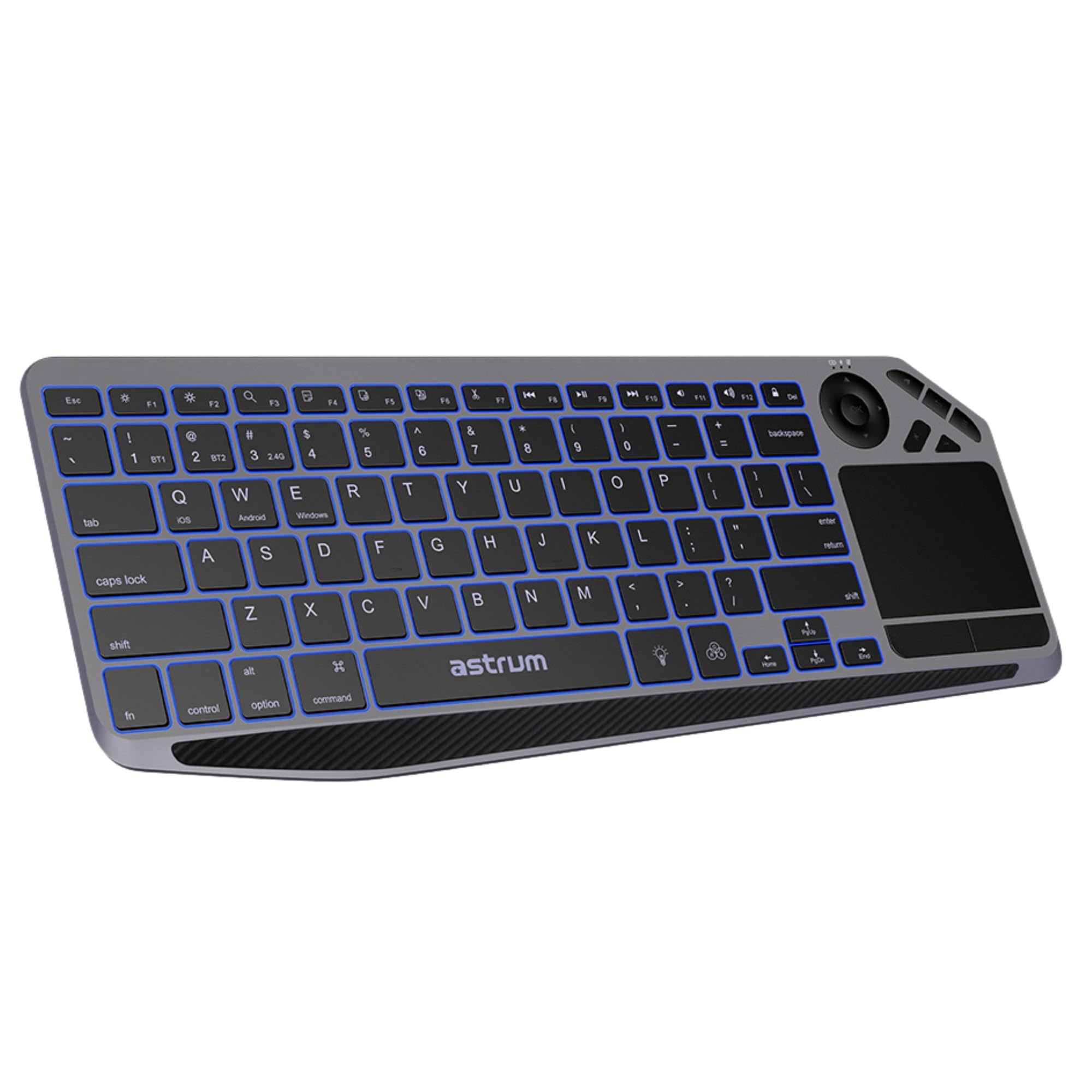
Image: Top view of the Astrum KT210 Wireless Touch Multi-mode Keyboard, showcasing its full layout including the integrated touchpad and multimedia keys.
Setup Instructions
Package Contents
- Astrum KT210 Wireless Touch Multi-mode Keyboard
- USB Charging Cable
- User Manual
Charging the Keyboard
Before first use, fully charge the keyboard. Connect the provided USB charging cable to the keyboard's charging port and to a USB power source (e.g., computer USB port, USB wall adapter). The charging indicator light will show the charging status and turn off when fully charged. A full charge provides up to 160 hours of working time.

Image: Close-up of the Astrum KT210 keyboard showing the USB charging port with a cable connected, indicating the charging process.
Powering On/Off
Locate the power switch on the keyboard. Slide the switch to the "ON" position to power on the keyboard. Slide it to "OFF" when not in use to conserve battery life.

Image: Illustration showing the location of the On/Off switch on the Astrum KT210 keyboard, emphasizing battery saving.
Connecting to Devices (Multi-mode Pairing)
The keyboard supports connecting up to three devices via Bluetooth. Use the dedicated function keys to switch between paired devices.
- Bluetooth Pairing:
- Press and hold Fn + BT1 (or BT2, BT3) for 3-5 seconds until the corresponding indicator light flashes rapidly. This indicates the keyboard is in pairing mode.
- On your device (laptop, tablet, smartphone), enable Bluetooth and search for available devices.
- Select "Astrum KT210" from the list of found devices.
- Follow any on-screen prompts to complete the pairing process. The indicator light will stop flashing once connected.
- Switching Between Devices:
- Once paired, simply press Fn + BT1, Fn + BT2, or Fn + BT3 to switch between your connected devices. The indicator light will illuminate steadily for the active connection.
Operating Instructions
Touchpad Functionality
The integrated multipoint touchpad allows for precise navigation and gesture control. Refer to your operating system's settings for specific multi-touch gesture configurations.
- Single Finger Tap: Left-click.
- Two Finger Tap: Right-click.
- Two Finger Scroll: Scroll up/down or left/right.
- Pinch to Zoom: Zoom in/out (if supported by application).

Image: The Astrum KT210 keyboard highlighting the multipoint touchpad and dedicated multimedia hotkeys for seamless control.
RGB Backlight Control
The keyboard features multi-color LED backlighting with adjustable brightness levels.
- Press the light bulb icon key (usually near the spacebar) to cycle through different backlight colors or turn the backlight on/off.
- Press Fn + Light Brightness Up/Down keys (often F11/F12 or dedicated keys) to adjust the backlight brightness through 3 levels.

Image: The Astrum KT210 keyboard displaying its multi-color LED backlighting feature with different color options.
Multimedia Hotkeys
The keyboard includes dedicated multimedia hotkeys for quick access to media controls. These are typically located in the function key row (F1-F12) and may require pressing the Fn key simultaneously.
- Fn + F1-F12: Control media playback, volume, and other system functions. Refer to the key legends for specific functions.
Operating System Compatibility
The Astrum KT210 keyboard is compatible with a wide range of operating systems:
- Windows
- Mac OS
- Chrome OS
- Linux
- Android
Some keys may have dual legends (e.g., Windows/Android, iOS/Mac). The keyboard automatically adapts to the connected operating system or can be manually switched using Fn + Q (iOS), Fn + W (Android), Fn + E (Windows).
Maintenance
Cleaning
To clean the keyboard, power it off and disconnect any cables. Use a soft, lint-free cloth slightly dampened with water or a mild cleaning solution. Avoid excessive moisture and harsh chemicals. Do not immerse the keyboard in liquid.
Spill Resistance
The keyboard features a spill-resistant design, offering protection against accidental liquid spills. In case of a spill, immediately power off the keyboard, disconnect it, and gently wipe away the liquid. Allow it to dry completely before powering on again. While spill-resistant, it is not waterproof; avoid intentional exposure to liquids.
Troubleshooting
| Problem | Solution |
|---|---|
| Keyboard does not power on. | Ensure the power switch is in the "ON" position. Charge the keyboard fully using the provided USB cable. |
| Unable to pair via Bluetooth. |
|
| Keys are not responding or typing incorrectly. |
|
| Backlight is not working or dim. |
|
| Touchpad is unresponsive. |
|
Specifications
| Brand | ASTRUM |
| Model Number | A51021-B (KT210) |
| Connectivity Technology | Bluetooth (Multi-mode) |
| Compatible Devices | Laptop, PC, Tablet, Smartphone |
| Operating System Compatibility | Windows, Mac OS, Chrome OS, Linux, Android |
| Special Features | Multi-Device Pairing and Switching, RGB Backlight (3 levels), Integrated Multipoint Touchpad, Spill-Resistant Design, Rechargeable Battery |
| Battery Type | Lithium Ion |
| Battery Life | Up to 160 hours (working time) |
| Colour | Black |
| Material | Plastic |
Warranty Information
The Astrum KT210 Wireless Touch Multi-mode Keyboard comes with a 12 Months Limited Warranty from the manufacturer. This warranty covers defects in materials and workmanship under normal use. It does not cover damage caused by misuse, accident, unauthorized modification, or external causes such as spills (beyond spill resistance), drops, or extreme temperatures.
Please retain your proof of purchase for warranty claims. For detailed warranty terms and conditions, refer to the warranty card included with your product or visit the official Astrum website.
Customer Support
For technical assistance, troubleshooting, or warranty inquiries, please contact Astrum customer support through their official website or the contact information provided in your product packaging.
Official Website: www.astrum.com
Please have your product model number (A51021-B) and proof of purchase ready when contacting support.
