1. Introduction
This manual provides detailed instructions for the safe and efficient operation of your YITRANIC 2500W Pure Sine Wave Inverter. Please read this manual thoroughly before installation and use, and retain it for future reference.
The YITRANIC 2500W Pure Sine Wave Inverter converts 12V DC battery power to 110V AC household power, suitable for various applications including home backup, camping, and vehicle use. It features a pure sine wave output, ensuring compatibility with sensitive electronics, and includes both wireless and wired LCD remote control options.
2. Safety Information
WARNING: Failure to follow these safety instructions may result in electric shock, fire, serious injury, or death. Always exercise caution when working with electrical equipment.
- Do not open the inverter casing. There are no user-serviceable parts inside.
- Ensure proper ventilation around the inverter to prevent overheating.
- Connect the inverter only to a 12V DC power source. Do not connect to 24V or higher DC systems.
- Always connect the inverter to the battery terminals with correct polarity (positive to positive, negative to negative). Reverse polarity connection will damage the inverter.
- Keep the inverter away from water, moisture, and flammable materials.
- Do not overload the inverter. The continuous output power is 2500W, with a peak surge power of 5000W.
- Disconnect the inverter from the battery before performing any maintenance or cleaning.
3. Package Contents
Verify that all items are present in the package:
- YITRANIC 2500W Pure Sine Wave Inverter Unit
- 2-in-1 Remote Controller (Wireless and Wired)
- DC Battery Cables (Red and Black)
- Backup Fuses
- USB Charging Cable (for remote controller)
- User Manual (this document)

Figure 3.1: Inverter unit with DC cables, remote controller, wireless receiver, USB cable, and fuses.
4. Product Overview and Features
4.1 Inverter Components

Figure 4.1: Front panel with AC outlets, USB ports, Type-C port, and remote connection. Side panel with DC input terminals and cooling fans.
- AC Outlets: Four standard US 110V AC outlets for connecting appliances.
- USB Ports: Dual 5V/3A QC3.0 USB fast charging ports.
- Type-C Port: One PD30W Type-C port for compatible devices.
- Remote Control Interface: Port for wired remote connection and wireless receiver.
- DC Input Terminals: Red (+) and Black (-) terminals for 12V DC battery connection.
- Cooling Fans: Dual temperature-controlled fans activate automatically when the internal temperature exceeds 45°C.
- ON/OFF Switch: Main power switch on the inverter unit.
4.2 Remote Controller
The inverter includes a versatile 2-in-1 remote controller, offering both wireless and wired operation for convenience.
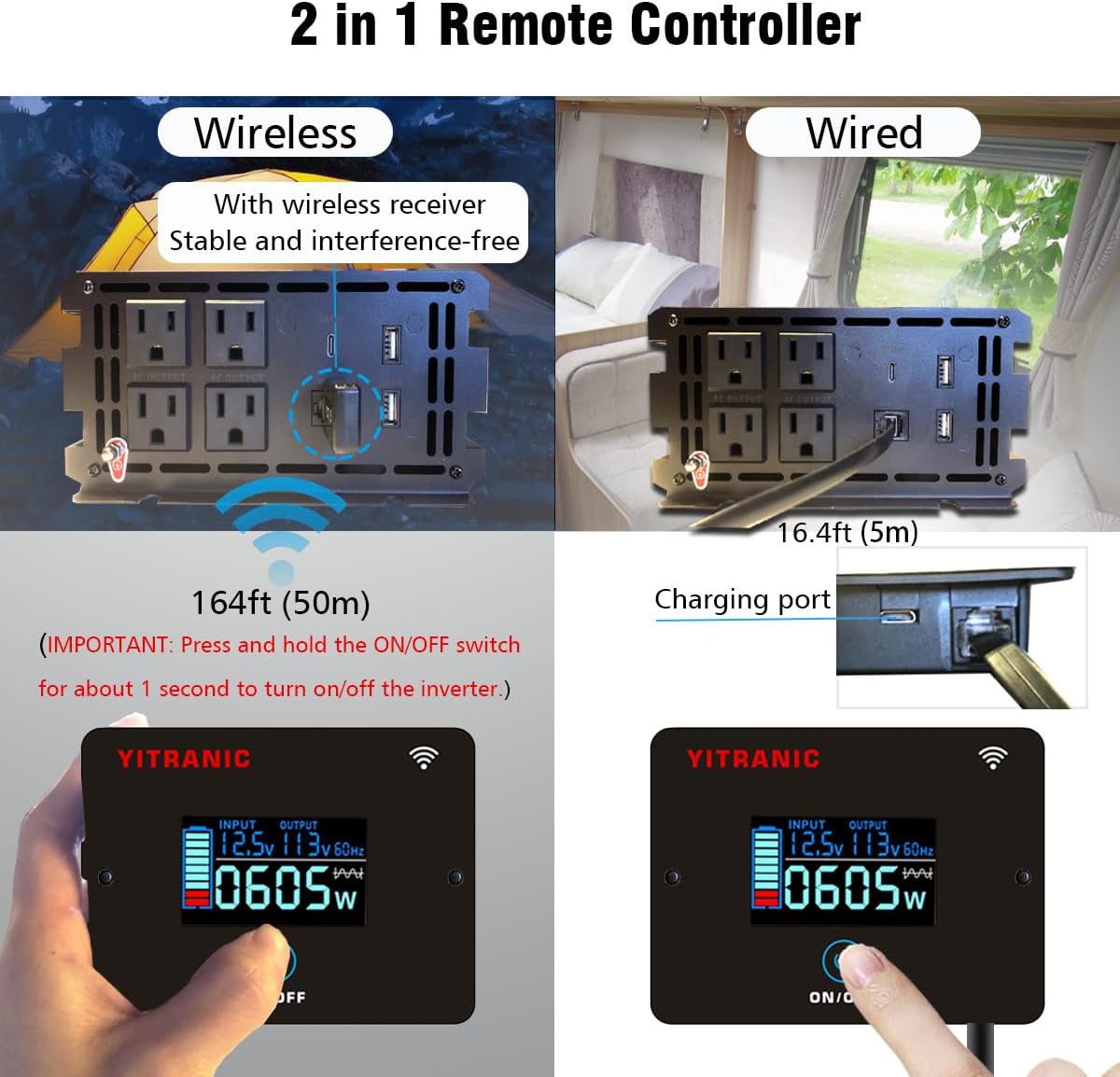
Figure 4.2: Remote controller showing wireless operation with receiver and wired connection via cable.
- Wireless Operation: Connect the wireless receiver to the inverter's remote port. The remote can operate up to 164 feet (50 meters) away.
- Wired Operation: Connect the remote directly to the inverter's remote port using the provided 16.4ft (5m) cable.
- LCD Display: Shows input voltage, output voltage, frequency, and power consumption.
- ON/OFF Button: Press and hold for approximately 1 second to turn the inverter on or off.
- Charging Port: The remote controller has a built-in rechargeable Li-Ion battery, charged via a USB cable.
4.3 Pure Sine Wave Output
This inverter produces a pure sine wave output, which is identical to the AC power supplied by utility grids. This ensures compatibility and safe operation for all types of electronic devices, including sensitive equipment like laptops, medical devices, and appliances with motors.

Figure 4.3: Pure Sine Wave compatibility with various appliances compared to modified sine wave.
4.4 Multiple Protection Features
The inverter is equipped with multiple safety features to protect both the device and connected equipment:

Figure 4.4: Visual representation of the inverter's built-in protection mechanisms.
- Overload Protection: Shuts down if connected load exceeds rated power.
- Overheating Protection: Activates cooling fans and shuts down if internal temperature is too high.
- Undervoltage Protection: Shuts down if input DC voltage drops too low.
- Overvoltage Protection: Shuts down if input DC voltage exceeds safe limits.
- Reverse Connection Protection: Protects against incorrect battery polarity connection.
- Short Circuit Protection: Protects against short circuits in the output.
5. Setup and Installation
5.1 Choosing an Installation Location
- Install the inverter in a dry, well-ventilated area, away from direct sunlight and heat sources.
- Ensure there is sufficient space around the inverter for proper airflow, especially around the cooling fans.
- Mount the inverter securely on a flat, stable surface.
5.2 Connecting to a 12V DC Battery
IMPORTANT: Before making any connections, ensure the inverter's main ON/OFF switch is in the OFF position.
- Identify the positive (+) and negative (-) terminals on your 12V DC battery.
- Connect the red DC cable to the red (+) terminal of the inverter.
- Connect the other end of the red DC cable to the positive (+) terminal of the battery.
- Connect the black DC cable to the black (-) terminal of the inverter.
- Connect the other end of the black DC cable to the negative (-) terminal of the battery.
- Ensure all connections are tight and secure to prevent loose contacts and arcing.

Figure 5.1: DC input terminals for battery connection.
5.3 Remote Controller Setup
Choose between wired or wireless operation for the remote controller:
- Wired Connection: Plug the remote cable into the "REMOTE" port on the inverter and the corresponding port on the remote controller.
- Wireless Connection: Plug the wireless receiver into the "REMOTE" port on the inverter. The remote controller will automatically pair with the receiver. Ensure the remote controller's battery is charged using the provided USB cable.
6. Operation
6.1 Turning the Inverter On/Off
- After connecting the battery, press and hold the ON/OFF button on the inverter unit or the remote controller for approximately 1 second.
- The LCD display on the remote controller will illuminate, showing input voltage, output voltage, and current power consumption.
- To turn off the inverter, press and hold the ON/OFF button again for approximately 1 second.
6.2 Connecting AC Appliances
- Ensure the total wattage of all connected AC appliances does not exceed the inverter's continuous output power of 2500W.
- Plug your AC appliances into the 110V AC outlets on the inverter's front panel.
- For appliances with high starting currents (e.g., motors, refrigerators), ensure their surge wattage is within the inverter's 5000W surge capacity.
6.3 Using USB and Type-C Ports
- Connect your USB-powered devices to the QC3.0 USB ports for fast charging.
- Connect compatible devices to the PD30W Type-C port for power delivery charging.
6.4 Understanding the LCD Display
The remote controller's LCD provides real-time operational status:

Figure 6.1: LCD display indicating input voltage, output voltage, power, and potential error codes (OV, LV, OT, OL, SC).
- INPUT: Displays the current DC input voltage from the battery.
- OUTPUT: Displays the AC output voltage and frequency (e.g., 110V 60Hz).
- WATTAGE: Shows the real-time power consumption of connected devices in watts.
- Battery Icon: Indicates the approximate charge level of the remote controller's internal battery.
- Error Codes: The display may show codes like OV (Overvoltage), LV (Low Voltage), OT (Over Temperature), OL (Overload), SC (Short Circuit) if a protection mechanism is triggered. Refer to the Troubleshooting section for details.
7. Maintenance
- Cleaning: Periodically clean the inverter's exterior with a dry, soft cloth. Ensure the cooling vents are free from dust and debris. Do not use liquid cleaners.
- Connections: Regularly check battery cable connections for tightness and corrosion. Clean any corrosion with a wire brush and baking soda solution.
- Storage: If storing the inverter for an extended period, disconnect it from the battery and store it in a cool, dry place.
- Fuse Replacement: The inverter contains internal fuses. If a fuse blows, it indicates a significant issue. Contact customer support for assistance; do not attempt to replace internal fuses yourself.
8. Troubleshooting
If the inverter is not functioning correctly, refer to the following table for common issues and solutions:
| Problem | Possible Cause | Solution |
|---|---|---|
| No power output, inverter OFF. | Loose battery connections, low battery voltage, inverter switch OFF. | Check and tighten battery cables. Charge battery. Press and hold ON/OFF switch for 1 second. |
| Inverter shuts down with "OL" (Overload) on LCD. | Connected load exceeds 2500W continuous or 5000W surge. | Reduce the total wattage of connected appliances. Restart inverter. |
| Inverter shuts down with "LV" (Low Voltage) on LCD. | Battery voltage is too low (below 10.5V). | Recharge or replace the battery. |
| Inverter shuts down with "OV" (Overvoltage) on LCD. | Battery voltage is too high (above 15.5V). | Disconnect from charging source. Check battery voltage. |
| Inverter shuts down with "OT" (Over Temperature) on LCD. | Inverter is overheating due to poor ventilation or excessive load. | Ensure adequate ventilation. Reduce load. Allow inverter to cool down. |
| No power from USB/Type-C ports. | Inverter is OFF, or device is incompatible. | Turn on the inverter. Check device compatibility. |
If the problem persists after attempting these solutions, please contact YITRANIC customer support.
9. Specifications
| Feature | Specification |
|---|---|
| Model | 2500W-12V |
| Continuous Power | 2500W |
| Surge Power | 5000W |
| DC Input Voltage | 12V |
| AC Output Voltage | 110V |
| AC Output Frequency | 60Hz |
| Output Waveform | Pure Sine Wave |
| USB Output | Dual 5V/3A QC3.0 |
| Type-C Output | PD30W |
| Efficiency | ≥ 90% |
| Product Dimensions | 15.75 x 3.54 x 7.09 inches (40 x 9 x 18 cm) |
| Item Weight | 10 pounds (4.5 kg) |
| Certifications | FCC Certified |
10. Warranty and Customer Support
YITRANIC products are designed and manufactured to high-quality standards. For warranty information, technical support, or any questions regarding your inverter, please contact YITRANIC customer support through the retailer where the product was purchased or visit the official YITRANIC website.
Please have your model number (2500W-12V) and purchase date available when contacting support.


