
Introduction
This manual provides comprehensive instructions for the installation, operation, and maintenance of your AINAVI 9-inch Portable Wireless CarPlay Car Stereo. This device enhances your driving experience by integrating smartphone functionalities directly onto a large, responsive touchscreen display in your vehicle. It supports both Apple CarPlay and Android Auto, offering seamless navigation, communication, and entertainment.
Key Features
- Wireless and Wired Apple CarPlay: Connect your iPhone wirelessly or via cable for direct access to apps, maps, and features, controllable via touchscreen or Siri voice commands.
- Wireless and Wired Android Auto: Connect your Android smartphone wirelessly (Android 11 and above) or via cable for access to Android Auto features through the touchscreen or Google Assistant.
- Online Maps Real-time GPS Navigation: Utilize popular map applications like Google Maps and Waze for real-time navigation, eliminating the need for frequent updates.
- Enhanced Stable Bluetooth AUX FM Transmission: Supports hands-free calling and audio streaming via Bluetooth. Audio can be transferred to car speakers via AUX or FM transmission.
- 9-inch Portable HD IPS Display: Features a 1024*600 resolution for crisp visuals and an ultra-sensitive touchscreen for effortless navigation.
- Easy Installation and Wide Compatibility: Designed for plug-and-play installation via cigarette lighter, suitable for most 7-32V motor vehicles without disassembling the car's original console.
- Customer Service and Technical Support: Includes 30-day Money-Back, 12-month Warranty, and lifetime Technical Support.
Setup
Package Contents
Before beginning, ensure all components are present:

Image: Contents of the product package including the 9-inch touch screen, AHD backup camera, 12V cigarette lighter cable, audio output cable, suction mount, adhesive mount, and user manual.
Mounting Options
The device offers multiple installation methods to suit various vehicle dashboards and preferences:

Image: Various installation methods for the portable car stereo, including dashboard suction mount, adhesive sticker, telescopic regulation, and windshield suction mount.
- Dashboard Suction Mount: Secure the suction cup base to a clean, flat area on your dashboard.
- Adhesive Sticker Bracket: For a more permanent fixture, use the adhesive base on a suitable surface.
- Telescopic Regulation: Adjust the mount's arm for optimal viewing angle and reach.
- Windshield Suction Mount: Attach the suction cup to your windshield for an elevated position.
Ensure the chosen mounting location does not obstruct your view or interfere with vehicle controls.
Initial Power-On
- Connect the 12V cigarette lighter cable to the device and then to your vehicle's cigarette lighter socket.
- Start your vehicle. The device should power on automatically.
Connecting to Your Phone (Wireless CarPlay/Android Auto)
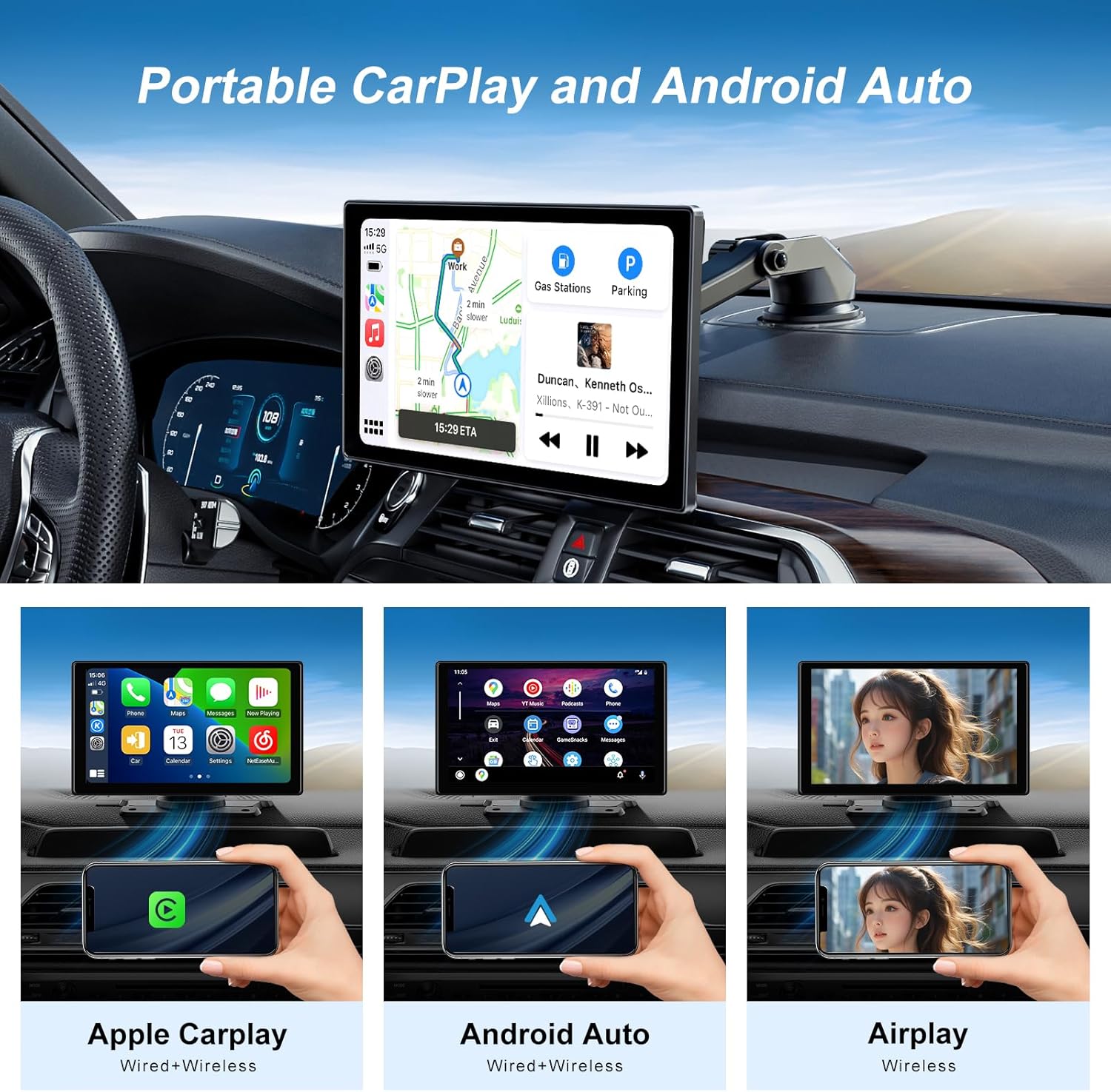
Image: Portable CarPlay and Android Auto functionality shown in a car interior.
- On the device's main screen, select either 'AirPlay' for Apple CarPlay or 'AutoLink' for Android Auto.
- Enable Bluetooth and Wi-Fi on your smartphone.
- Search for the device's Bluetooth name (usually 'AINAVI' or similar) on your phone and pair.
- Once paired via Bluetooth, the device will prompt you to connect via Wi-Fi for the full CarPlay/Android Auto experience. Accept the connection.
- For wired connection, simply connect your phone to the device using a compatible USB cable.
Operating Instructions
Apple CarPlay & Android Auto
Once connected, your smartphone's interface will be mirrored on the 9-inch display. You can interact with compatible apps directly from the touchscreen.
GPS Navigation
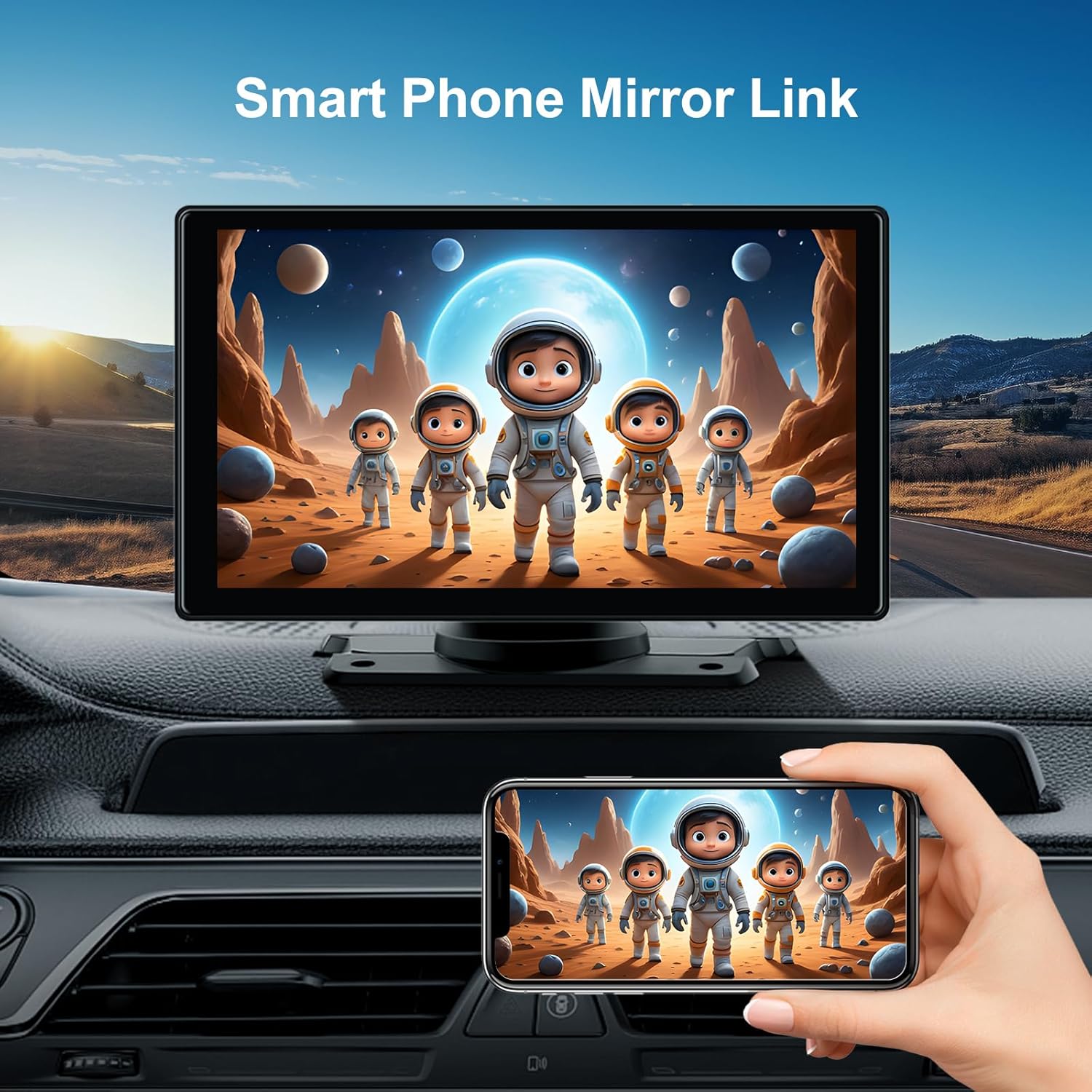
Image: Smart Phone Mirror Link feature displaying phone content on the car stereo screen.
Access your preferred navigation apps (e.g., Google Maps, Waze) directly from the CarPlay or Android Auto interface. The real-time GPS data from your smartphone ensures up-to-date mapping.
Audio Output Options

Image: Four different audio output options for the car stereo: Bluetooth, AUX, FM Transmitter, and Built-in Speaker.
- Bluetooth: For hands-free calls and audio streaming directly to the device's built-in speaker or your car's speakers if connected via Bluetooth to your car's original system.
- AUX Connected: Use the provided audio output cable to connect the device to your car's AUX input for high-quality audio.
- FM Transmitter: Tune the device and your car's FM radio to the same unused FM frequency to transmit audio wirelessly to your car's speakers.
- Built-in Speaker: The device has an integrated speaker for direct audio output.
Voice Control (Siri/Google Assistant)

Image: CarPlay screen demonstrating voice control and hands-free features with various app icons.
Activate Siri or Google Assistant through the device's interface or by using the voice command button on your steering wheel (if supported by your vehicle and connected). This allows for hands-free operation of navigation, calls, and music playback.
Maintenance
To ensure the longevity and optimal performance of your AINAVI Portable Wireless CarPlay Car Stereo, follow these maintenance guidelines:
- Cleaning: Use a soft, dry, lint-free cloth to clean the screen and exterior. For stubborn smudges, slightly dampen the cloth with water. Avoid harsh chemicals or abrasive materials.
- Temperature: Do not expose the device to extreme temperatures (hot or cold) for extended periods, as this can affect battery life and screen performance.
- Storage: If storing the device for a long time, disconnect it from the power source and store it in a cool, dry place.
- Cable Management: Ensure all cables are securely connected and not pinched or tangled to prevent damage.
Troubleshooting
If you encounter issues with your device, refer to the table below for common problems and their solutions:
| Problem | Possible Cause | Solution |
|---|---|---|
| Device does not power on. | No power from cigarette lighter; loose connection. | Check cigarette lighter fuse; ensure cable is securely plugged in. |
| CarPlay/Android Auto not connecting. | Bluetooth/Wi-Fi off; incorrect pairing; phone OS version. | Ensure Bluetooth/Wi-Fi are on; re-pair device; check phone's Android version (Android 11+ for wireless Android Auto). |
| No audio from car speakers. | Incorrect audio output setting; FM frequency interference; AUX cable issue. | Verify audio output setting (Bluetooth, AUX, FM); try different FM frequency; check AUX cable connection. |
| Touchscreen unresponsive. | Temporary software glitch. | Restart the device by unplugging and re-plugging the power cable. |
If the problem persists after trying these solutions, please contact customer support.
Specifications
| Feature | Detail |
|---|---|
| Screen Size | 9 Inches |
| Resolution | 1024 x 600 |
| Mounting Type | Dashboard Mount |
| Connectivity Technology | Android Mirroring+Apple Airplay, Wireless/Wire (CarPlay & Android Auto) |
| Special Features | Android Auto, Apple CarPlay, Built-In Bluetooth, Built-In Wi-Fi, Hands-Free Calling |
| Audio Output Mode | Surround Sound Stereo |
| Item Weight | 2.94 pounds |
| Package Dimensions | 10.31 x 6.65 x 3.62 inches |
| Visible Screen Diagonal | 9" / 23 cm |
Warranty and Support
Your AINAVI Portable Wireless CarPlay Car Stereo comes with a 12-month warranty from the date of purchase. We also offer a 30-day Money-Back Guarantee. For any technical assistance or warranty claims, please contact our professional tech team. We are committed to providing lifetime technical support to ensure your satisfaction.
For support, please refer to the contact information provided with your purchase or visit the AINAVI store on Amazon.