
Introduction
This manual provides instructions for the proper use and maintenance of your BoxWave AllReader SD Card Reader. Please read this manual thoroughly before using the device to ensure optimal performance and longevity. The AllReader SD Card Reader is designed to facilitate easy file transfer between various devices and SD/microSD cards.
Product Overview
The BoxWave AllReader SD Card Reader is a compact device featuring multiple interfaces for broad compatibility with various electronic devices. It supports both standard SD cards and microSD cards.
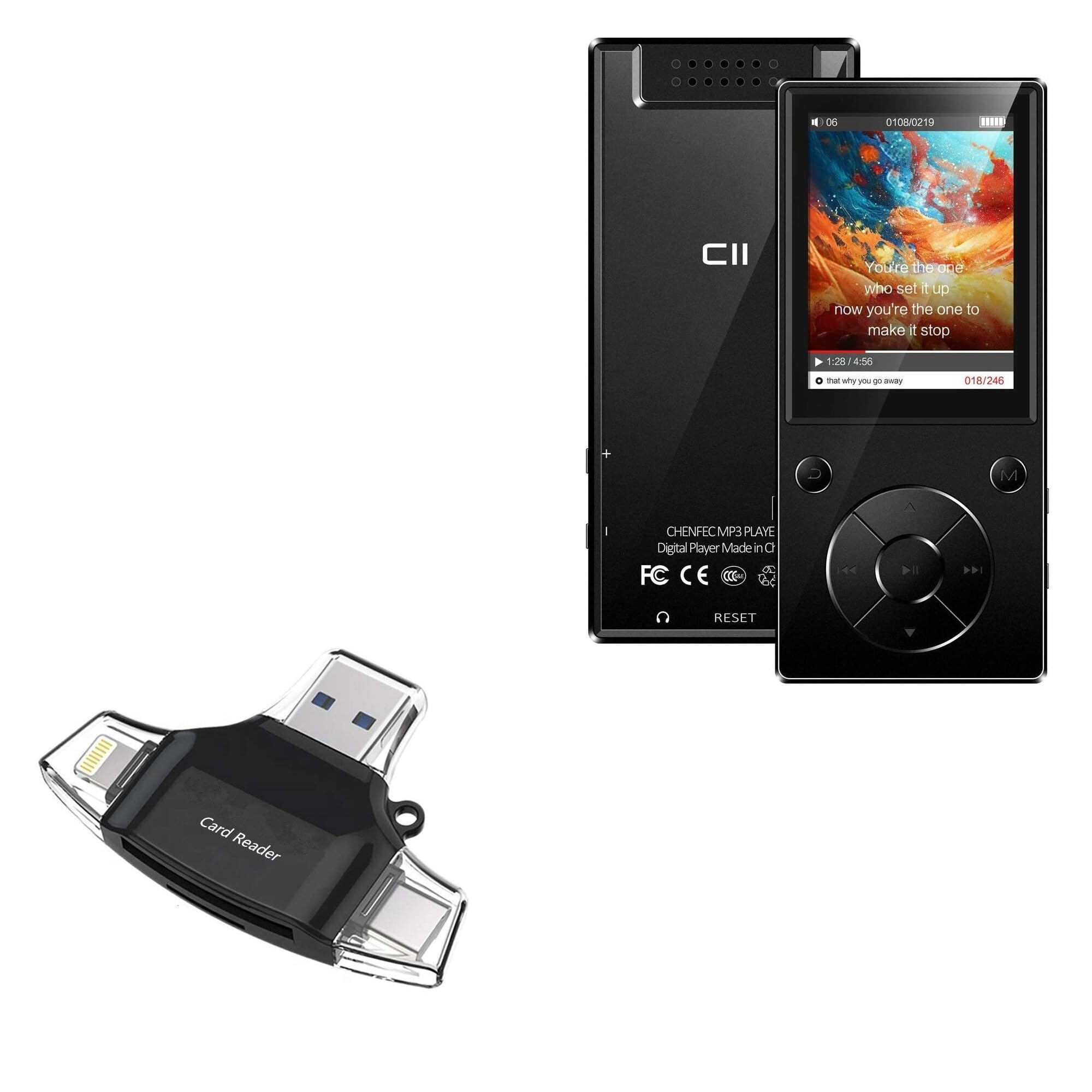
Image: The BoxWave AllReader SD Card Reader, showing its compact design and various connectors.
Key Features:
- Four Interfaces: Equipped with USB-C, USB-A, Micro-USB, and Apple (Lightning) connectors for wide device compatibility.
- Easy File Transfer: Enables direct transfer of files between memory cards and connected devices.
- Plug and Play: No drivers or software installation required for most operating systems.
- Compact Design: Small and portable for convenient use on the go.
- Memory Card Support: Compatible with both SD and microSD card formats.
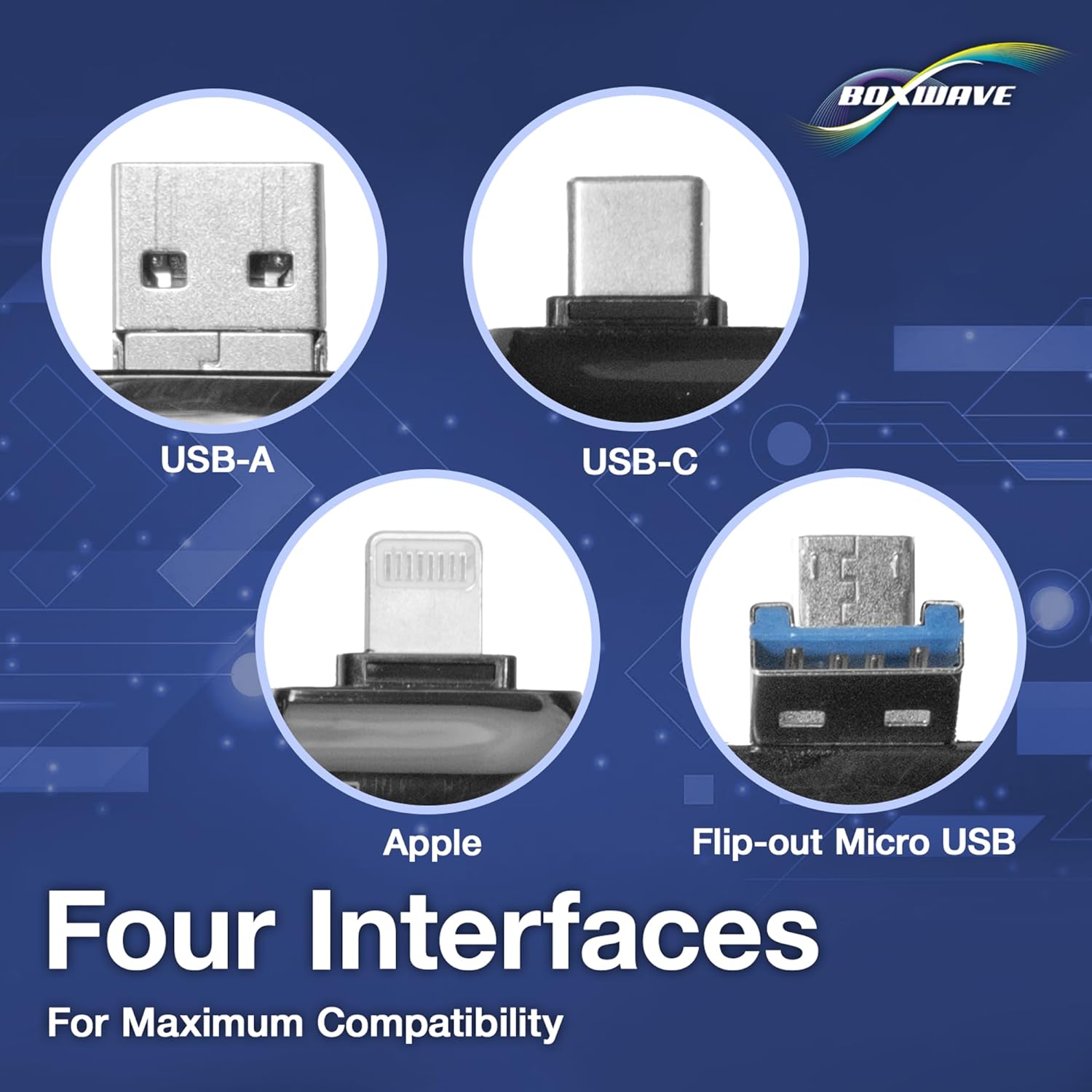
Image: Detailed view of the four integrated interfaces: USB-A, USB-C, Apple (Lightning), and Flip-out Micro USB.
Setup
- Insert Memory Card: Gently insert your SD or microSD card into the appropriate slot on the AllReader SD Card Reader until it clicks into place. Ensure the card is inserted in the correct orientation.
- Connect to Device: Select the appropriate connector (USB-C, USB-A, Micro-USB, or Apple Lightning) for your host device (e.g., smartphone, tablet, laptop, desktop PC). Plug the AllReader into your device's port.
- Device Recognition: Your device should automatically detect the card reader and the inserted memory card. A notification or file browser window may appear, indicating that the storage is ready for access.
Note: For some mobile devices, you may need to use a file management application to browse the contents of the connected memory card.

Image: The AllReader with an SD card inserted, connected to a tablet, illustrating the setup for file transfer.
Operating Instructions
Transferring Files:
- Ensure the AllReader is properly connected to your device and the memory card is inserted.
- Open your device's file manager or photo gallery application.
- Locate the external storage device, typically labeled as "USB Storage," "SD Card," or similar.
- Browse to the desired files on the memory card.
- Select the files you wish to transfer.
- Use the "Copy" or "Move" function within your device's file manager to transfer files to your device's internal storage or another connected storage.
- To transfer files from your device to the memory card, reverse the process: select files from your device's storage and copy/move them to the external storage (memory card).

Image: The AllReader connected to various devices including smartphones, tablets, laptops, and desktop PCs, demonstrating its versatility for file transfer.
Safely Removing the Device:
Before disconnecting the AllReader from your computer, always safely eject the device through your operating system's options (e.g., "Safely Remove Hardware" on Windows, "Eject" on macOS). For mobile devices, ensure no file transfers are active before unplugging.
Maintenance
- Cleaning: Use a soft, dry cloth to clean the exterior of the card reader. Avoid using liquid cleaners or solvents.
- Storage: Store the AllReader in a cool, dry place away from direct sunlight and extreme temperatures.
- Handling: Avoid dropping the device or subjecting it to strong impacts. Do not force memory cards or connectors into slots.
- Connector Care: Keep the connectors free from dust and debris. If necessary, use a soft brush or compressed air to clean them.
Troubleshooting
| Problem | Possible Solution |
|---|---|
| Device not recognized. |
|
| Cannot access files on the memory card. |
|
| Slow file transfer speeds. |
|
Specifications
- Model Name: AllReader SD Card Reader
- Brand: BoxWave
- Interfaces: USB-C, USB-A, Micro-USB, Apple (Lightning)
- Card Compatibility: SD, microSD
- Color: Jet Black
- Item Weight: 6 ounces
- ASIN: B0CNSDX7WD
- Date First Available: November 13, 2023
Warranty and Support
For warranty information and technical support, please refer to the official BoxWave website or contact their customer service directly. Keep your purchase receipt for warranty claims.
BoxWave Customer Service: www.boxwave.com/support