
WnewTools G1200 (PANN1593162)
G1200 Digital Microscope User Manual
Model: G1200 (PANN1593162)
Brand: WnewTools
Introduction
The WnewTools G1200 Digital Microscope is an advanced observation tool featuring a 7-inch HD LCD display and a 12-megapixel sensor, offering continuous magnification from 1X to 1200X. Designed for a wide range of applications, from electronics repair and jewelry identification to educational exploration, this microscope provides clear, detailed views of microscopic objects. Its robust aluminum alloy stand ensures stability during observation.
This manual provides comprehensive instructions for setting up, operating, and maintaining your G1200 Digital Microscope to ensure optimal performance and longevity.
Safety Information
- Always handle the microscope with care to avoid damage to optical components and the display screen.
- Ensure the power supply is compatible with the microscope's requirements before connecting.
- Do not expose the microscope to extreme temperatures, humidity, or direct sunlight.
- Keep the device away from water and other liquids to prevent electric shock or damage.
- For cleaning, refer to the "Maintenance" section. Do not use harsh chemicals or abrasive materials.
- Keep out of reach of small children to prevent accidental damage or injury.
Package Contents
Please check the package carefully to ensure all items are present:
- 1 x G1200 Digital Microscope Unit
- 1 x Aluminum Alloy Stand
- 1 x Power Adapter (EU Plug, specific to region)
- 1 x English User Manual (This document)
Product Overview
Familiarize yourself with the main components of your G1200 Digital Microscope:

Image: The G1200 Digital Microscope fully assembled, showing the 7-inch LCD screen, microscope lens, and aluminum alloy stand with a circuit board under observation.
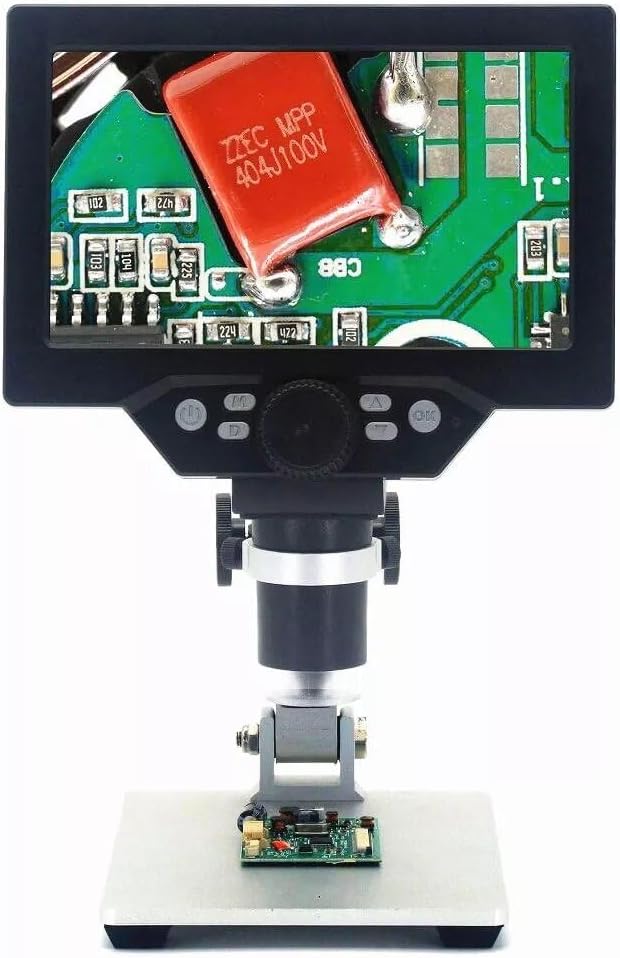
Image: Close-up front view of the G1200 Digital Microscope's 7-inch LCD screen, displaying a magnified view of a circuit board, with control buttons visible below the screen.
- 7-inch HD LCD Display: For real-time viewing of magnified images.
- Microscope Lens: The primary optical component for magnification.
- Focus Knob: Adjusts the clarity of the image.
- Magnification Adjustment: Controls the zoom level (1X-1200X continuous).
- Aluminum Alloy Stand: Provides stable support and allows for height adjustment.
- Control Buttons: For navigating menus, adjusting settings, capturing photos/videos.
- MicroSD Card Slot: For storage of captured images and videos.
Setup
- Assemble the Stand: Attach the microscope unit to the aluminum alloy stand. Ensure all screws are tightened securely to prevent wobbling.
- Insert MicroSD Card: Locate the MicroSD card slot (usually on the side or back of the display unit) and insert a Class 10 or higher speed MicroSD card (1-128GB supported) with the contacts facing down.
- Connect Power: Plug the provided power adapter into the microscope's power input port and then into a suitable wall outlet. The microscope is designed for continuous power supply and does not include an internal battery.
- Position the Object: Place the object you wish to observe on the base plate directly under the microscope lens.

Image: Side view of the G1200 Digital Microscope showing the adjustable arm and the base, illustrating how the microscope unit attaches to the stand.
Operating Instructions
Basic Operation
- Power On: Press and hold the power button to turn on the microscope. The 7-inch LCD screen will illuminate.
- Adjust Height: Use the adjustment knob on the stand to raise or lower the microscope unit until the object is roughly in focus on the screen.
- Focus: Use the fine-focus knob on the microscope unit to achieve a sharp image.
- Adjust Magnification: The G1200 features continuous amplification from 1X to 1200X. Adjust the distance between the lens and the object, and fine-tune with the focus knob to change magnification.

Image: The G1200 Digital Microscope displaying a circuit board, with text highlighting its "Continuous 1-1200X" magnification and "HD 12 MP Digital Microscope" capabilities.
Menu Navigation and Settings
Use the control buttons below the screen to navigate the menu and adjust settings. Common settings include:
- Resolution: In video mode, select 1080FHD, 720P, or VGA.
- Photo Pixels: For still images, choose from 1.3M, 2M, 5M, 8M, 10M, or 12M.
- Language Options: Supports 16 languages including English, Spanish, Russian, Korean, Japanese, Thai, Hebrew, Portuguese, German, French, Italian, Turkish, Czech, Polish, Traditional Chinese, and Simplified Chinese.
- Screen Saver: Set to Off, 30 sec, 1 min, or 2 min.
- Automatic Shutdown: Set to Off, 3 minutes, 5 minutes, or 10 minutes.
- Date Adjustment: Set year, month, day, hour, minute, and second.
- Exposure Compensation: 7 grades for adjustment.
- Photo Assist: Anti-hand shock on/off.
- Date Label: On/Off for displaying date on photos/videos.
Capturing Images and Videos
- To take a photo: Press the "OK" or "Capture" button once.
- To record a video: Press the "Mode" button to switch to video mode, then press "OK" or "Record" button to start/stop recording.
- Playback: Use the "Mode" button to switch to playback mode to review captured media.
Maintenance
- Cleaning the Lens: Use a soft, lint-free cloth specifically designed for optical lenses. For stubborn smudges, a small amount of lens cleaning solution can be applied to the cloth (not directly to the lens).
- Cleaning the Screen: Wipe the LCD screen gently with a soft, dry microfiber cloth. Avoid pressing too hard.
- General Cleaning: Use a soft, dry cloth to wipe the body of the microscope and stand. Do not use abrasive cleaners or solvents.
- Storage: When not in use, store the microscope in a clean, dry, and dust-free environment.
Troubleshooting
| Problem | Possible Cause | Solution |
|---|---|---|
| No image on screen / Screen is black | Not powered on; Loose power connection; Screen saver active. | Ensure power adapter is securely connected and plugged in. Press power button. Check screen saver settings. |
| Image is blurry | Incorrect focus; Object too far/close; Dirty lens. | Adjust the focus knob. Adjust the height of the microscope unit. Clean the lens as per maintenance instructions. |
| Cannot save photos/videos | No MicroSD card; MicroSD card full; MicroSD card not formatted or incompatible. | Insert a MicroSD card. Delete unnecessary files or use a new card. Format the MicroSD card via the microscope's menu (this will erase all data). Ensure it's Class 10+. |
| Microscope turns off unexpectedly | Automatic shutdown feature enabled; Power supply issue. | Check automatic shutdown settings in the menu. Ensure stable power connection. |
Specifications
| Feature | Detail |
|---|---|
| Model | G1200 (PANN1593162) |
| Display Screen | 7-inch HD LCD (1024x600 resolution) |
| Magnification | 1X - 1200X Continuous Amplification |
| Pixel | HD 12 Megapixel |
| Object Distance | 10mm to unlimited (varies with magnification) |
| Video Resolution | 1080FHD, 720P, VGA |
| Photo Pixels | 1.3M, 2M, 5M, 8M, 10M, 12M |
| Storage | MicroSD Card Slot (supports 1-128GB, Class10+ speed) |
| Language Options | 16 Languages (English, Spanish, Russian, Korean, Japanese, Thai, Hebrew, Portuguese, German, French, Italian, Turkish, Czech, Polish, Traditional Chinese, Simplified Chinese) |
| Power Supply | External Power Adapter (Power Supply Version) |
| Material | Aluminum (Stand) |
| Item Weight | 2.18 pounds |
| Package Dimensions | 8.66 x 5.91 x 3.15 inches |
Warranty and Support
For warranty information and technical support, please refer to the contact details provided by your retailer or visit the official WnewTools website. Keep your purchase receipt as proof of purchase for warranty claims.
Manufacturer: Wnew
Brand: WnewTools
Date First Available: November 21, 2023
Related documentsG1200 (PANN1593162)


Ask a question about this manual
Ask about setup, troubleshooting, compatibility, parts, safety, or missing instructions. Manuals+ will review the question and use this page’s manual context to help answer it.