
ODK ZJZ-1004
ODK L-Shaped Gaming Desk with Power Outlet and LED Lights User Manual
Model: ZJZ-1004
1. Safety Warnings
Caution: Due to the product's weight (27.8 kg / 61.3 lbs), assistance is recommended during assembly to ensure stability and safety. Always lift with proper technique or with help.
- Ensure all screws and fasteners are securely tightened before use.
- Do not overload the desk or shelves beyond their stated weight capacity.
- Keep liquids away from the power outlets and USB ports to prevent electrical hazards.
- Avoid placing hot items directly on the desk surface without protection.
- Regularly check for loose connections or damage to the power strip and LED lights.
2. Product Overview
The ODK L-Shaped Gaming Desk is designed to provide a versatile and functional workspace for gaming, studying, or home office use. It features a robust construction with a premium MDF panel and a sturdy metal frame, ensuring durability and stability.
Key Features:
- Integrated LED Lighting: Features 7 colors and 13 lighting modes for an immersive experience, with a memory function to recall the last setting.
- Convenient Power Hub: Equipped with 2 standard power outlets and 2 USB ports (5V/2A) for easy charging of devices.
- Reversible Design: Can be assembled as a left or right corner desk to fit various room layouts.
- Full Monitor Stand: Elevates your display for improved ergonomics and provides additional storage space underneath.
- Ample Storage: Includes a 2-tier grid design under a bookshelf, a computer tower stand, and adjustable 2-tier storage shelves to keep your workspace organized.
- Spacious Desktop: Offers a generous work surface and ample legroom for comfortable use.
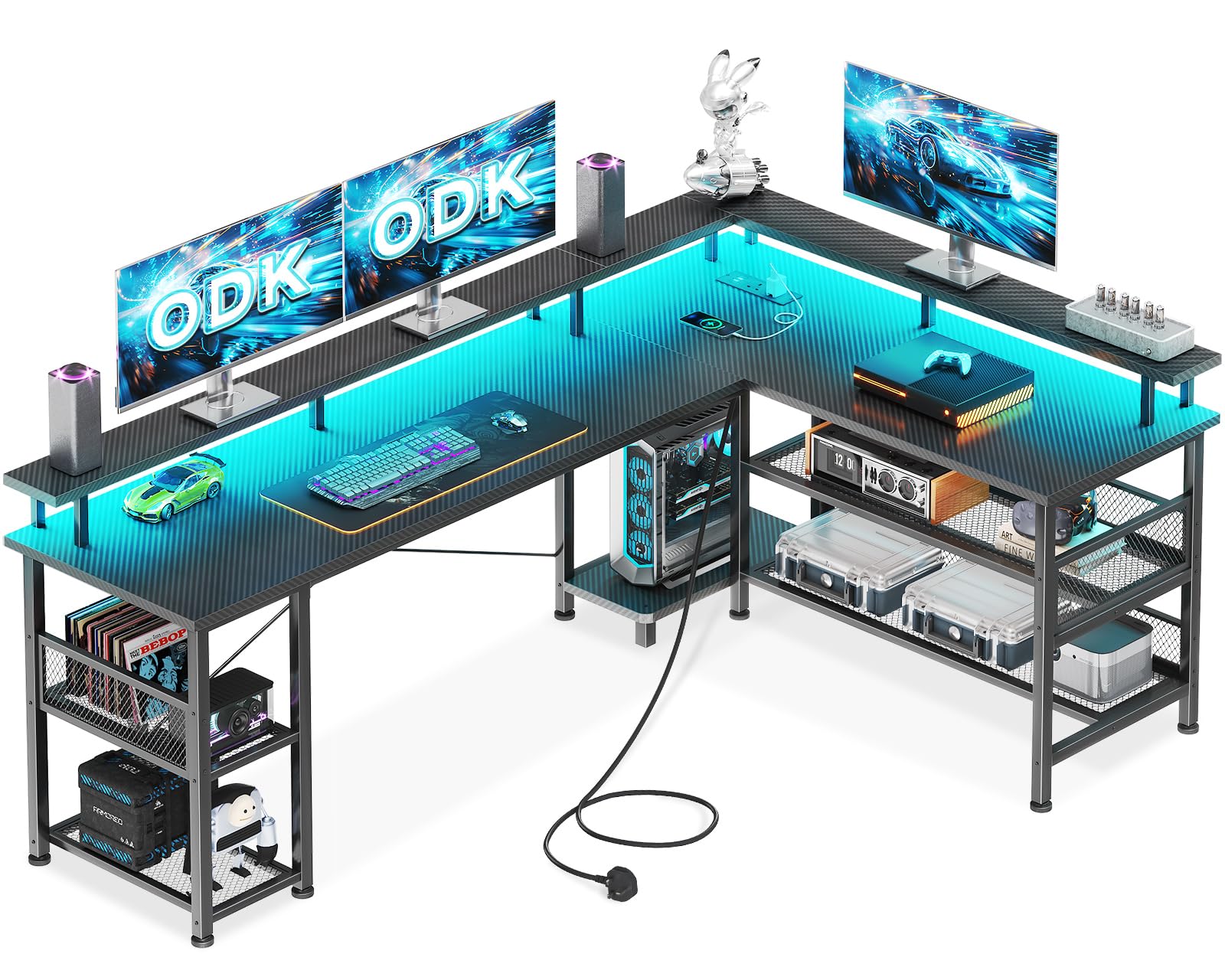
Image 2.1: The ODK L-Shaped Gaming Desk showcasing its design with LED lighting and multiple setup options.

Image 2.2: Illustration comparing the generous legroom of the ODK desk (89cm) to other desks (66cm).

Image 2.3: Visual representation of the desk's customizable storage space, including two-tier shelves and a dedicated computer tower stand.
3. Setup and Assembly
Before beginning assembly, ensure all parts are present and undamaged. It is recommended to assemble the desk in the room where it will be used. Due to the desk's weight, having a second person assist with assembly is highly recommended for safety and ease.
Reversible Design:
The ODK L-Shaped Gaming Desk features a reversible design, allowing you to configure it as either a left-corner or right-corner desk. Carefully review the assembly instructions provided in the package to choose your preferred orientation before starting.

Image 3.1: Detailed diagram illustrating the reversible configuration options and key dimensions of the L-shaped desk.
General Assembly Steps (Refer to included manual for detailed steps):
- Unpack all components and verify against the parts list.
- Identify the main frame sections and assemble them according to your desired left or right configuration.
- Attach the desktop panels, ensuring they are aligned and securely fastened.
- Install the monitor stand and storage shelves. The 2-tier storage is adjustable; choose the height that best suits your needs.
- Connect the LED light strips and the power outlet unit.
- Once fully assembled, gently move the desk to its final position.
- Double-check all connections and fasteners for tightness and stability.
4. Operating Instructions
4.1. LED Lighting System
The desk features integrated LED lighting to enhance your environment.
- Power On/Off: Locate the control button for the LED lights. Press once to turn on, press again to cycle through modes, and hold to turn off.
- Color and Mode Selection: The LED system offers 7 distinct colors and 13 lighting modes. Short press the control button to cycle through these options.
- Memory Function: The LED lights are equipped with a memory function, which will recall the last selected color and mode when the lights are turned back on.
4.2. Integrated Power Outlet and USB Ports
The desk includes a recessed power strip for convenient access to power.
- Standard Outlets: Two (2) standard AC outlets (110-240V/6A) are provided for powering your computer, monitors, or other electronic devices.
- USB Ports: Two (2) USB ports (5V/2A) are available for charging smartphones, tablets, gaming controllers, and other USB-powered devices.
- Power Cord: The power strip is connected via a 200cm power cord. Ensure it is plugged into a grounded wall outlet.
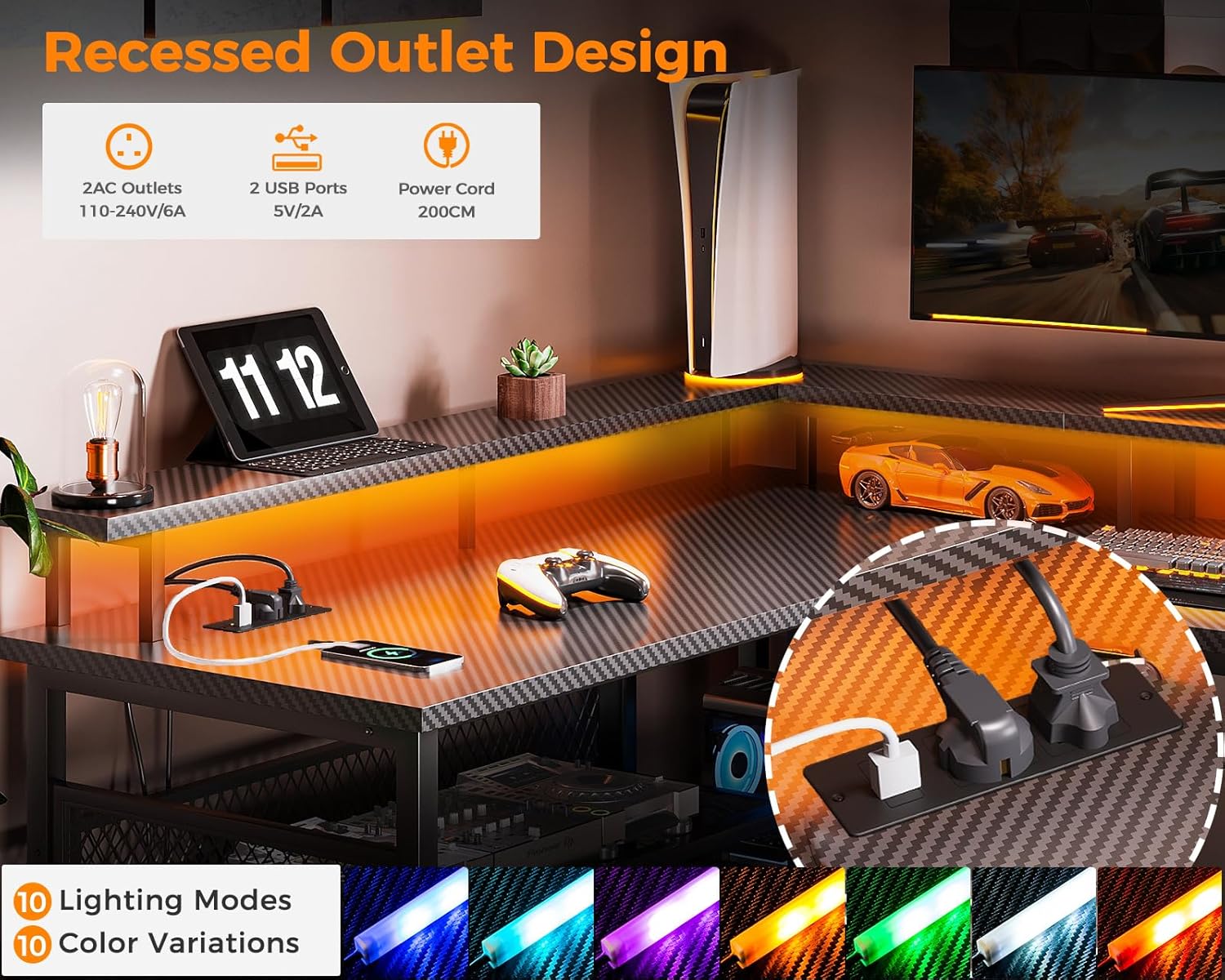
Image 4.1: The recessed power outlet featuring two AC sockets and two USB charging ports, alongside examples of the desk's LED lighting options.
4.3. Monitor Stand
The full-length monitor stand elevates your screen(s) to a more ergonomic viewing height, reducing neck and eye strain. It also creates additional space underneath for storing keyboards, mice, or other accessories when not in use.
5. Maintenance and Care
- Cleaning: Wipe the desk surfaces with a soft, damp cloth. Avoid using harsh chemicals or abrasive cleaners, as these can damage the finish.
- Spills: Immediately wipe up any spills to prevent liquid from seeping into the MDF or affecting electrical components.
- Tightness Check: Periodically check all screws and fasteners to ensure they remain tight. Re-tighten if necessary to maintain desk stability.
- Electrical Components: Keep the power outlets and USB ports free from dust and debris. Do not attempt to disassemble or repair the electrical components yourself.
- Weight Distribution: Distribute weight evenly across the desk surface and shelves to prevent stress on the frame.
6. Troubleshooting
| Problem | Possible Cause | Solution |
|---|---|---|
| LED lights do not turn on. |
|
|
| Power outlets or USB ports are not working. |
|
|
| Desk feels wobbly or unstable. |
|
|
7. Specifications
| Feature | Detail |
|---|---|
| Brand | ODK |
| Model Number | ZJZ-1004 |
| Color | Carbon Fiber Black |
| Overall Dimensions (L x W x H) | 168 x 120 x 76 cm (L-shape configuration, with 48cm depth for each section) |
| Material | Engineered Wood (MDF), Iron Frame |
| Item Weight | 27.8 kg (61.3 lbs) |
| Special Features | Integrated USB Outlet, Reversible Design, Monitor Stand, LED Lights |
| Power Outlets | 2 Standard AC Outlets (110-240V/6A) |
| USB Ports | 2 USB Ports (5V/2A) |
| LED Lighting | 7 Colors, 13 Modes, Memory Function |
| Desk Design | L-Shape Computer Desk |
| Room Type | Office, Study Room, Living Room |
8. Warranty and Support
For warranty information, technical support, or to inquire about replacement parts, please contact ODK customer service. Refer to the contact information provided with your purchase or visit the official ODK website.
Please have your model number (ZJZ-1004) and purchase date ready when contacting support.
Related documentsZJZ-1004


Ask a question about this manual
Ask about setup, troubleshooting, compatibility, parts, safety, or missing instructions. Manuals+ will review the question and use this page’s manual context to help answer it.