
Introduction
This manual provides detailed instructions for the setup, operation, maintenance, and troubleshooting of your Tera P161 Android 11 Barcode Scanner PDA. The P161 is a robust portable data terminal designed for various industrial and retail environments, featuring a Qualcomm processor, Android 11 operating system, and a high-performance Zebra SE4710 scan engine.
Key features include:
- Operating System: Android 11 for enhanced data protection and application compatibility.
- Processor: Qualcomm Octa-Core 2.0GHz for robust performance and stable connectivity.
- Scanner: Integrated Zebra SE4710 1D/2D/QR scan engine for fast and accurate barcode capture.
- Battery: 6700mAh hot-swappable battery with a 100mAh backup for continuous operation.
- Keypad: 37-key numeric keypad for easy operation, even with gloves.
- Durability: IP65 rated for water, dust, and drop resistance (up to 1.5 meters).
- Connectivity: Dual-band Wi-Fi (2.4G/5G), Bluetooth 5.0, GPS, and NFC.
Package Contents
Upon unpacking, please verify that all items listed below are present and in good condition:
- 1 x Tera P161 Android 11 Barcode Scanner PDA
- 1 x Pistol Grip
- 1 x Charging Cradle
- 1 x Hand Strap
- 1 x Charging Adapter
- 1 x QC Adapter
- 1 x Screen Protector
- 1 x SIM Card Ejector Tool
- 1 x USB Cable
- 1 x User Manual (this document)
- 1 x SDK (Software Development Kit)

Image: The Tera P161 PDA shown with its included pistol grip and charging cradle, illustrating the main components of the package.
Setup
1. Battery Installation and Charging
The Tera P161 is equipped with a 6700mAh removable battery and a 100mAh backup battery for hot-swapping. Before first use, fully charge the device.
- Locate the battery compartment on the back of the PDA.
- Insert the 6700mAh battery, ensuring proper alignment of the contacts.
- Place the PDA into the charging cradle or connect the USB cable directly to the device using the provided charging adapter.
- The charging indicator light will illuminate. A full charge typically takes approximately 3.5 hours.

Image: The Tera P161 PDA securely placed in its charging cradle, indicating the charging process.
2. SIM Card and MicroSD Card Installation (Optional)
If you plan to use cellular data or expand storage, install a SIM card or MicroSD card.
- Power off the device.
- Use the SIM ejector tool to open the SIM/MicroSD card tray.
- Insert the SIM card and/or MicroSD card into the tray with the contacts facing down.
- Carefully reinsert the tray into the device.
3. Attaching the Pistol Grip and Hand Strap (Optional)
The pistol grip provides ergonomic handling for extended scanning tasks, and the hand strap offers additional security.
- To attach the pistol grip: Align the connectors on the grip with the corresponding ports on the bottom of the PDA and secure it firmly.
- To attach the hand strap: Thread the strap through the designated loops on the PDA.
Operating Instructions
1. Power On/Off
- Power On: Press and hold the Power button on the side of the device until the screen illuminates.
- Power Off: Press and hold the Power button, then select "Power off" from the options that appear on the screen.
- Restart: Press and hold the Power button, then select "Restart" from the options.
2. Barcode Scanning
The Tera P161 features a Zebra SE4710 2D scan engine for efficient barcode reading.
- Open a scanning application or a field that requires barcode input.
- Point the scanner window at the barcode.
- Press the scan button (typically located on the side or the pistol grip) to activate the scanner.
- Ensure the red aiming beam covers the entire barcode for optimal reading.
- A successful scan will usually be indicated by an audible beep and/or a visual confirmation on the screen.
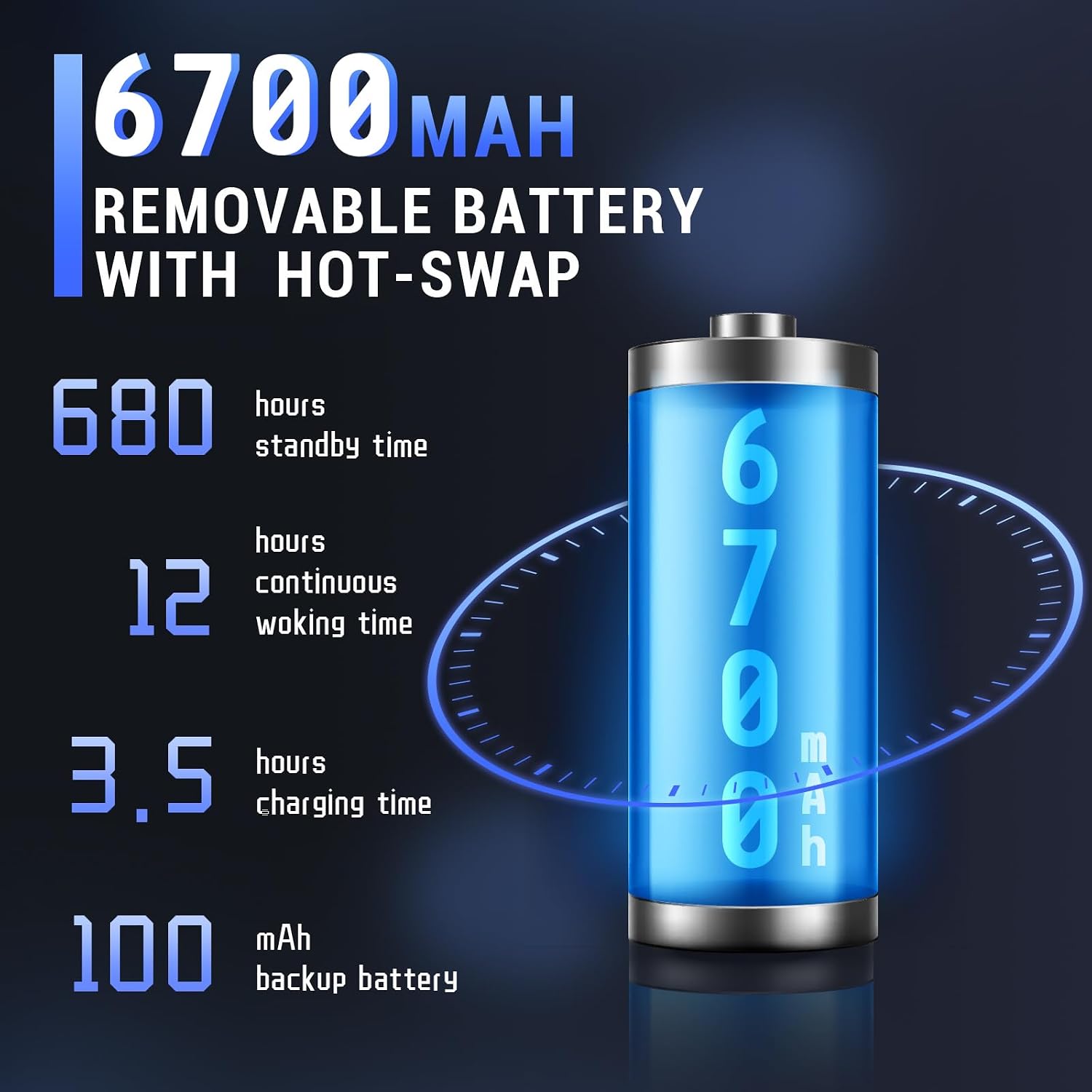
Image: The Tera P161 PDA actively scanning a barcode, demonstrating its primary function.
3. Keypad and Touchscreen Usage
The device combines a 4-inch touchscreen with a physical 37-key numeric keypad.
- Touchscreen: Navigate the Android interface by tapping, swiping, and pinching.
- Keypad: Use the physical keys for data entry, navigation, and quick access functions. The keypad is designed for use even with gloves.

Image: A detailed view of the Tera P161 PDA's 37-key physical keypad, highlighting its layout and design.
4. Connectivity
- Wi-Fi: Connect to available Wi-Fi networks via the Android settings menu. Supports 2.4G and 5G bands.
- Bluetooth: Pair with Bluetooth devices (e.g., headphones, printers) through the Bluetooth settings. The device uses Bluetooth 5.0 for faster data transfer.
- GPS: The integrated GPS module allows for location-based services and tracking.
- NFC: For Near Field Communication, ensure the pistol grip is removed for optimal performance. Access NFC settings in the Android menu.
Maintenance
1. Cleaning the Device
To maintain optimal performance and hygiene:
- Wipe the screen and body with a soft, lint-free cloth.
- For stubborn dirt, slightly dampen the cloth with water or a mild, non-abrasive cleaner.
- Do not use harsh chemicals, solvents, or abrasive materials.
- Ensure no liquid enters the ports or openings.
2. Battery Care
The 6700mAh battery is designed for long operational periods. The 100mAh backup battery allows for hot-swapping the main battery without losing data.
- Avoid fully discharging the battery frequently.
- Store the device in a cool, dry place when not in use for extended periods.
- If replacing the main battery, ensure the device is powered on and the backup battery is charged to facilitate a hot-swap.
3. Environmental Considerations
The Tera P161 has an IP65 rating, indicating resistance to dust and water jets, and can withstand drops up to 1.5 meters.
- While robust, avoid intentional exposure to extreme conditions.
- Ensure all port covers are securely closed to maintain water and dust resistance.
- Do not submerge the device in water.

Image: The Tera P161 PDA being shown to withstand drops and splashes, illustrating its IP65 durability rating.
Troubleshooting
If you encounter issues with your Tera P161, refer to the following common problems and solutions:
| Problem | Possible Cause | Solution |
|---|---|---|
| Device does not power on. | Low or depleted battery. | Connect the device to the charger and allow it to charge for at least 30 minutes before attempting to power on. |
| Barcode scanner not reading. | Barcode damaged, scanner window dirty, incorrect symbology settings, or scanner application not active. | Clean the scanner window. Ensure the barcode is clear and undamaged. Check scanner settings in the application. Verify the scanning application is open and active. |
| Wi-Fi or Bluetooth connectivity issues. | Out of range, incorrect password, or interference. | Move closer to the Wi-Fi router or Bluetooth device. Re-enter the password. Restart the device and try again. |
| Device is slow or unresponsive. | Too many applications running, low memory, or software glitch. | Close unnecessary applications. Restart the device. Clear cache if possible. |
| Forgotten PIN or password. | Security lock activated. | If you have forgotten your device PIN or password, you may need to perform a factory reset. Warning: A factory reset will erase all data on the device. Consult the online support resources or contact customer service for guidance before proceeding. |
If the problem persists after trying these solutions, please contact Tera customer support.
Specifications
| Feature | Detail |
|---|---|
| Model Number | FUN-PDA-P161-EU |
| Operating System | Android 11 |
| Processor | Qualcomm Octa-Core 2.0GHz |
| Scanner Engine | Zebra SE4710 (1D/2D/QR) |
| Display | 4-inch Touchscreen |
| Memory | 3GB RAM, 32GB ROM |
| Main Battery | 6700mAh (Removable, Hot-swappable) |
| Backup Battery | 100mAh |
| Charging Time | Approx. 3.5 hours |
| Keypad | 37-key Numeric Keypad |
| Connectivity | Wi-Fi (2.4G/5G), Bluetooth 5.0, GPS, NFC |
| Durability Rating | IP65 (Water, Dust, 1.5m Drop Resistance) |
| Power Source | Electric Cable |
Warranty and Support
Tera is committed to providing high-quality products and excellent customer service.
- Customer Support: 24/7 customer support is available for any inquiries or assistance.
- Technical Assistance: Comprehensive technical support is provided to help with setup, operation, and troubleshooting.
- SDK and Customization: SDKs are provided, and customization services are available to meet specific business needs.
- Contact Information: For support, please refer to the contact details provided with your product documentation or visit the official Tera website.
For more information about Tera products and services, you can visit the Tera Brand Store.


