
ODK ZJZ-1004
ODK L-Shaped Gaming Desk User Manual
Brand: ODK | Model: ZJZ-1004
1. Introduction
This manual provides detailed instructions for the assembly, operation, and maintenance of your ODK L-Shaped Gaming Desk. Please read this manual thoroughly before beginning assembly to ensure proper setup and safe use of the product.

Figure 1.1: The ODK L-Shaped Gaming Desk in a typical setup, showcasing its spacious design, integrated LED lighting, and multiple monitor support. The desk is black with blue LED illumination.
2. Safety Instructions
Adhere to the following safety guidelines to prevent injury or damage to the product:
- Ensure all components are securely fastened before use.
- Do not overload the desk or shelves beyond their stated weight capacity.
- Keep liquids away from electrical components, including power outlets and USB ports.
- Avoid placing hot items directly on the desk surface without protective padding.
- Keep small parts and packaging materials away from children to prevent choking hazards.
- If any parts are damaged or missing, do not proceed with assembly. Contact customer support.
3. Package Contents
Verify that all parts listed below are present and undamaged before beginning assembly. Refer to the assembly diagram for visual identification of components.
- Desk Panels (Main L-shaped top, monitor stand)
- Metal Frame Components (Legs, support beams)
- Storage Shelves (Mesh design)
- Power Outlet Module (with 2 AC outlets, 2 USB ports, power cord)
- LED Light Strips and Controller
- Assembly Hardware (Screws, bolts, Allen wrench)
- Instruction Manual

Figure 3.1: Exploded view of the desk components, illustrating the main desktop, monitor riser, and two-tier storage shelves.
4. Setup and Assembly
Assembly typically requires two people. Follow the numbered steps in the included paper manual for detailed instructions. The general process involves:
- Unpack all components and verify against the package contents list.
- Identify the main desk sections and determine your desired L-shape configuration (left or right).
- Assemble the metal frame structure according to the chosen configuration.
- Attach the desk panels to the assembled frame.
- Install the monitor stand onto the main desk surface.
- Secure the two-tier storage shelves to the designated areas.
- Integrate the power outlet module and LED light strips.
- Tighten all screws and connections to ensure stability.
4.1. Reversible L-Shape Configuration
The ODK L-Shaped Gaming Desk is designed for flexibility, allowing you to configure it as either a left-sided or right-sided L-shape. This adaptability ensures it fits seamlessly into various room layouts and personal preferences.

Figure 4.1: The reversible design allows for left or right corner placement. Dimensions are provided for both configurations.
4.2. Power Outlet and USB Hub Installation
The desk includes a recessed power outlet module for convenient access to power. This module features two standard AC outlets and two USB ports (5V/2A) for charging devices directly from your desk.
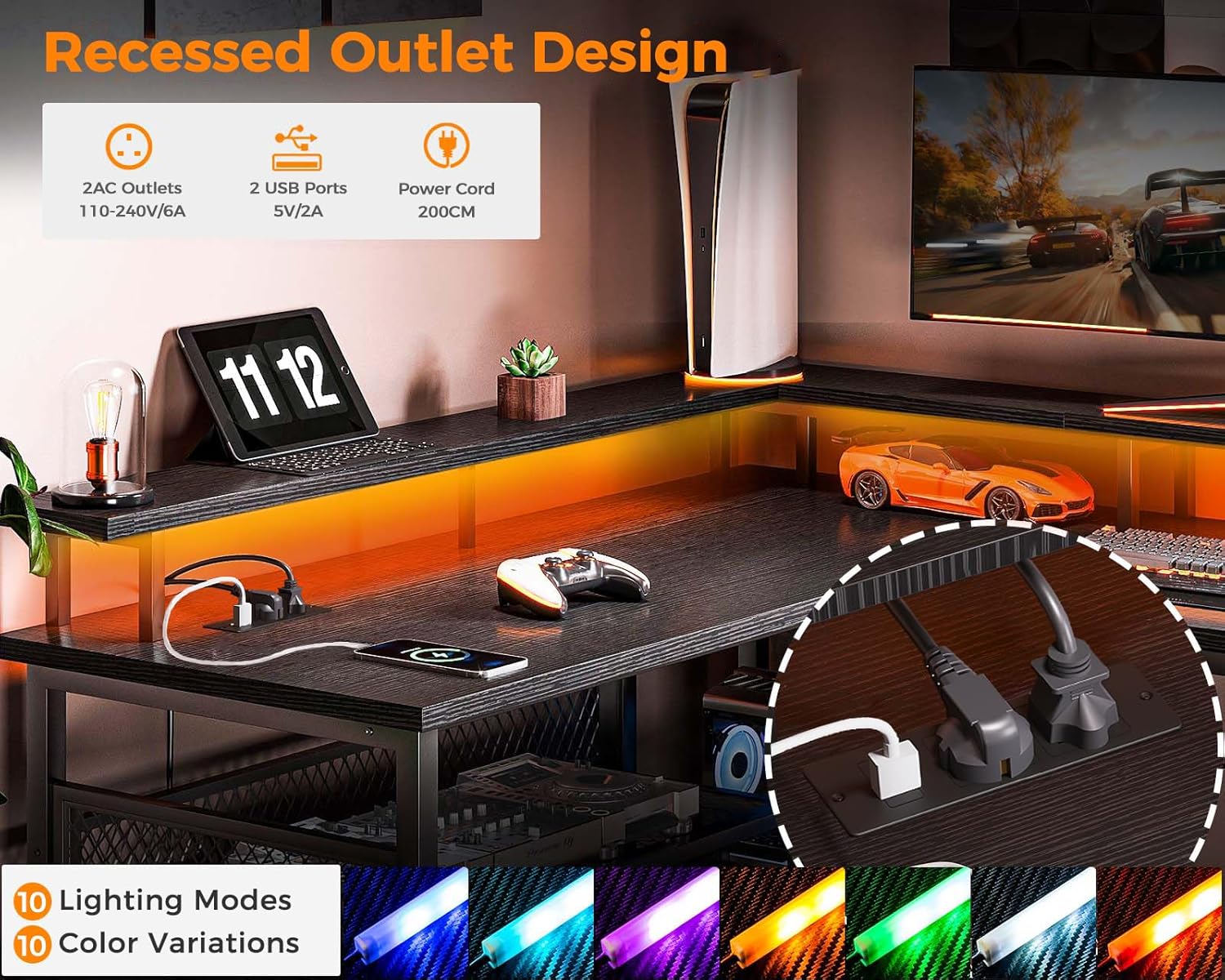
Figure 4.2: The integrated power hub provides easy access to charging for laptops, phones, and gaming equipment. The image also displays the range of LED lighting colors.
4.3. Storage Shelves Assembly
The desk is equipped with two-tier storage shelves, providing ample space for organizing books, computer towers, gaming consoles, and other accessories. These shelves are designed for efficient space utilization.
Figure 4.3: The multi-functional two-tier shelves offer flexible storage solutions, allowing users to organize their workspace effectively.
4.4. LED Lighting Setup
The integrated LED lighting system enhances the gaming atmosphere. Install the LED light strips along the designated channels on the desk and connect them to the provided controller. Ensure the controller is connected to a USB power source (e.g., one of the desk's USB ports).

Figure 4.4: The desk's LED lighting system creates an immersive gaming environment, with customizable colors to match your setup.
5. Operating Instructions
5.1. LED Lighting Operation
The LED lights offer various colors and lighting modes to customize your experience. Use the inline controller to manage the lighting:
- Power Button: Press to turn the lights On/Off.
- Mode Button: Cycle through 13 different lighting modes (e.g., static colors, dynamic effects).
- Color Button: Select from 7 distinct colors.
- Memory Function: The LED system retains the last selected lighting mode and color when powered off and on again.
5.2. Power Outlet and USB Ports Usage
The integrated power module provides convenient charging and power access:
- Plug the desk's main power cord into a standard wall outlet (110-240V/6A).
- Use the two AC outlets for powering monitors, laptops, or other electronic devices.
- Use the two USB ports (5V/2A) for charging smartphones, tablets, gaming controllers, and other USB-powered devices.
6. Maintenance
Regular maintenance will prolong the life and appearance of your desk:
- Cleaning: Wipe the desk surface with a soft, damp cloth. Avoid abrasive cleaners or harsh chemicals.
- Dusting: Regularly dust the desk and LED strips to maintain optimal light output and cleanliness.
- Hardware Check: Periodically check all screws and bolts to ensure they remain tight. Retighten if necessary.
- Cable Management: Organize cables to prevent tangles and reduce strain on ports.
7. Troubleshooting
Refer to the table below for common issues and their solutions:
| Problem | Possible Cause | Solution |
|---|---|---|
| Desk is wobbly. | Loose screws or uneven floor. | Tighten all assembly screws. Adjust leveling feet if present. |
| LED lights not working. | Power connection issue, faulty controller, or damaged strip. | Ensure USB power is connected. Check controller and strip connections. Test with another USB power source. |
| Power outlets/USB ports not working. | Desk power cord unplugged, circuit breaker tripped, or faulty module. | Verify the desk's main power cord is securely plugged into a working wall outlet. Check your home's circuit breaker. |
| Difficulty with assembly. | Incorrect part orientation or missing hardware. | Review the assembly manual carefully, paying attention to diagrams. Ensure parts are oriented correctly (e.g., reversible L-shape). Contact support if parts are missing. |
8. Product Specifications
Detailed specifications for the ODK L-Shaped Gaming Desk:
| Feature | Detail |
|---|---|
| Brand | ODK |
| Model Number | ZJZ-1004 |
| Color | Black |
| Product Dimensions | 150 x 102 x 76 cm (Overall L-shape, L x W x H) |
| Material | Engineered Wood (MDF) and Metal Frame |
| Special Features | Integrated Monitor Stand, Built-in USB Outlet, Reversible L-Shape, LED Lighting |
| Item Weight | 24.7 Kilograms |
| Item Shape | L-Shaped |
| Desk Design | Computer Desk |
| Room Type | Study Room |
| Number of Shelves | 2 (two-tier storage shelves) |

Figure 8.1: The desk offers generous legroom (71cm) for comfortable use, as shown in this comparison.
9. Warranty and Support
For warranty information, technical support, or to order replacement parts, please refer to the contact details provided on the product packaging or the official ODK website. Keep your purchase receipt for warranty claims.
ODK is committed to providing high-quality products and customer satisfaction. If you encounter any issues not covered in this manual, please do not hesitate to contact our support team.
Related documentsZJZ-1004


Ask a question about this manual
Ask about setup, troubleshooting, compatibility, parts, safety, or missing instructions. Manuals+ will review the question and use this page’s manual context to help answer it.