
1. Introduction
This manual provides detailed instructions for the safe operation, maintenance, and troubleshooting of your ATTOP W10 and X-PACK 18 Drones. Please read this manual thoroughly before operating the drone to ensure proper usage and to prevent damage or injury.
2. Package Contents
Before first use, please verify that all components listed below are present in your package.
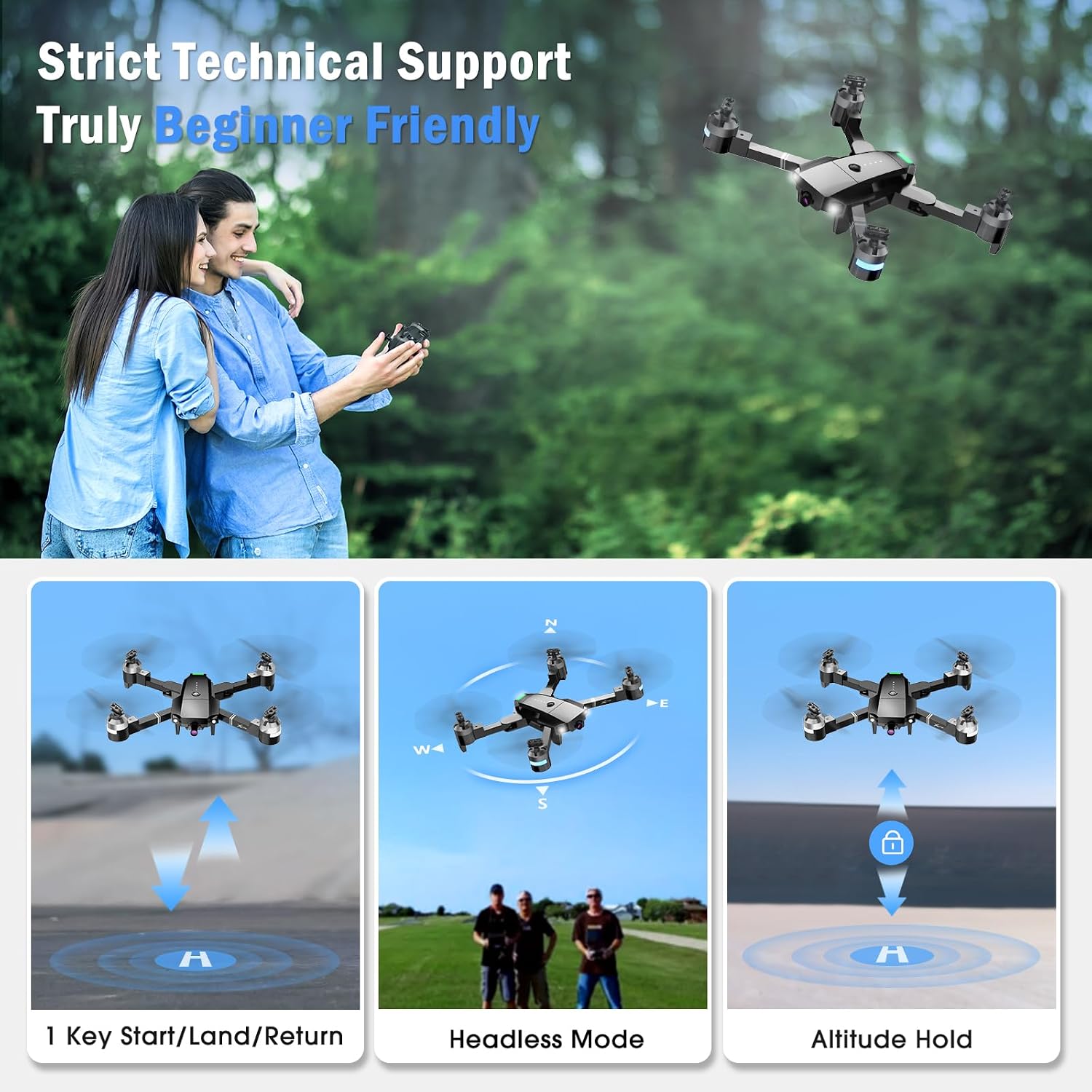
Image: The ATTOP W10 and X-PACK 18 drone, remote controller, two rechargeable batteries, spare propellers, propeller guards, USB charging cable, and a screwdriver are shown laid out.
- ATTOP W10 / X-PACK 18 Drone
- Remote Controller
- Rechargeable Drone Batteries (2 included)
- Spare Propellers
- Propeller Guards
- USB Charging Cable
- Screwdriver
- User Manual (this document)
- Carrying Case
3. Setup
3.1 Battery Installation and Charging
- Drone Battery: Insert the rechargeable drone battery into the battery compartment on the drone. Ensure it clicks securely into place.
- Remote Controller Batteries: Open the battery cover on the back of the remote controller and insert 3 AAA batteries (not included), observing correct polarity.
- Charging: Connect the drone battery to the USB charging cable and plug it into a USB power source (e.g., computer, USB wall adapter). The indicator light on the charging cable will show charging status. A full charge typically takes 60-90 minutes.
3.2 Propeller Installation
If propellers are not pre-installed or need replacement, match the 'A' and 'B' markings on the propellers with the corresponding motor shafts. Secure them firmly.
3.3 Propeller Guard Installation
Attach the propeller guards to the drone's arms for added protection during flight, especially for beginners.
3.4 App Installation
Download and install the "ATTOP CLUB" application on your smartphone or tablet. This app is required for FPV (First Person View) and advanced control features.
4. Operating Instructions
4.1 Power On and Pairing
- Place the drone on a flat, level surface.
- Press and hold the power button on the drone until the indicator lights turn on.
- Turn on the remote controller. The indicator lights on both the drone and controller will flash.
- Push the left joystick up then down. The lights will become solid, indicating successful pairing.
- Connect your smartphone to the drone's Wi-Fi network (usually named "ATTOP-XXXXXX") and open the "ATTOP CLUB" app.
4.2 Basic Flight Controls

Image: Three panels illustrating key flight features. The first shows a drone taking off/landing with a single button. The second shows a drone in Headless Mode, indicating orientation is relative to the pilot. The third shows a drone maintaining a stable altitude with Altitude Hold.
- One-Key Takeoff/Landing: Press the one-key takeoff/landing button on the remote controller or in the app to automatically launch or land the drone.
- Altitude Hold: The drone will automatically maintain its current altitude, allowing for stable hovering and easier control.
- Headless Mode: In Headless Mode, the drone's orientation is relative to the pilot, simplifying control by eliminating the need to adjust for the drone's front direction.
- Speed Settings: The drone offers 3 speed settings (low, medium, high) to accommodate different skill levels. Press the speed switch button on the remote to cycle through speeds.
4.3 Camera Operation (FPV)

Image: A close-up of the drone's front, highlighting its 120-degree wide-angle 1080P FPV camera. Insets compare the wide field of view (1080p) with a narrower view (Other).
The drone is equipped with a 1080P 120° wide-angle camera for real-time video transmission (FPV) to your connected smartphone via the "ATTOP CLUB" app. You can capture photos and record videos directly through the app interface.
4.4 Advanced Flying Functions

Image: Three panels illustrating advanced flight features. The top panel shows a smartphone screen with a drawn flight path that the drone follows. The middle panel depicts a drone changing speed settings. The bottom panel shows a drone performing a 360-degree flip in the air.
- Flight Route: Draw a custom flight path on the "ATTOP CLUB" app screen, and the drone will automatically follow the designated route.
- 360° Flip: Press the 360° flip button on the remote controller and move the right joystick in any direction to perform an aerial flip.
- Gesture Control: Make specific hand gestures (e.g., 'V' gesture for photos) in front of the drone's camera to trigger actions. Refer to the app for specific gesture commands.
- Voice Control: Use voice commands through the "ATTOP CLUB" app to control the drone's direction or actions (e.g., "Take off", "Forward").
- G-Sensor Mode: Compatible with VR glasses, this mode allows the drone to sync with your phone or iPad for an immersive 3D experience, controlling flight by tilting your device.

Image: Two panels demonstrating app-based controls. The top panel shows people using hand gestures to control the drone (Gesture Control). The bottom panel shows people using voice commands like "Take off" and "Forward" to control the drone (Voice Control).
4.5 Safety Features

Image: Two panels illustrating safety features. The left panel shows a drone performing an Emergency Stop, landing quickly. The right panel shows a pilot receiving a Low-Battery Warning from the remote controller, indicated by 'bi bi bi' sounds.
- Emergency Stop: In case of an emergency or loss of control, press the emergency stop button on the remote controller to immediately halt the drone's motors and land it.
- Low-Battery Warning: The remote controller will emit an audible warning (beeping) when the drone's battery is low, prompting you to land the drone safely before power is depleted.
- One-Key Return: Press the one-key return button, and the drone will automatically fly back towards its takeoff point.
5. Maintenance
5.1 Cleaning
Regularly clean the drone body, propellers, and camera lens with a soft, dry cloth. Avoid using harsh chemicals or liquids.
5.2 Propeller Replacement
If propellers are damaged or bent, replace them with new ones using the provided screwdriver. Ensure correct 'A' and 'B' propeller types are installed on the corresponding motor shafts.
5.3 Battery Care
- Do not overcharge or over-discharge batteries.
- Store batteries in a cool, dry place away from direct sunlight and extreme temperatures.
- If not used for an extended period, charge batteries to approximately 50% capacity before storage.
5.4 Storage

Image: The ATTOP W10/X-PACK 18 drone, remote controller, batteries, propellers, and charging cable are neatly arranged next to a black zippered carrying case, demonstrating its portability.
When not in use, fold the drone's arms and store it along with its accessories in the provided carrying case to protect it from dust and damage.
6. Troubleshooting
- Drone not responding to controller:
- Ensure both drone and controller are fully charged.
- Re-pair the drone and controller following the pairing instructions.
- Check for interference from other Wi-Fi devices. - Poor camera feed or no FPV:
- Ensure your smartphone is connected to the drone's Wi-Fi network.
- Close and reopen the "ATTOP CLUB" app.
- Check for strong Wi-Fi signal between the drone and your phone. - Drone drifts during flight:
- Perform a gyroscope calibration on a flat, level surface.
- Check for damaged propellers and replace if necessary. - Short flight time:
- Ensure batteries are fully charged.
- Battery life can decrease over time; consider replacing old batteries.
7. Specifications
| Feature | Specification |
|---|---|
| Brand | ATTOP |
| Model Name | W10, X-PACK 18 |
| Video Capture Resolution | 1080p |
| Video Output Resolution | 1920x1080 Pixels |
| Battery Capacity | 1100 Milliamp Hours (per battery) |
| Wireless Communication | Wi-Fi |
| Batteries Included | Yes (2 rechargeable drone batteries) |
8. Warranty and Support
ATTOP products are designed for reliability and performance. This product comes with a standard manufacturer's warranty against defects in materials and workmanship. For specific warranty terms, duration, and to register your product, please refer to the warranty card included in your package or visit the official ATTOP website.
For technical support, troubleshooting assistance, or spare parts, please contact ATTOP customer service through their official website or the contact information provided in your product packaging. When contacting support, please have your model number (W10 or X-PACK 18) and purchase details ready.


