
1. Introduction
This manual provides essential information for the safe and efficient use of your Infinix Hot 40i smartphone. Please read this guide thoroughly before operating your device to ensure optimal performance and longevity. Keep this manual for future reference.
2. Product Overview
Familiarize yourself with the main components of your Infinix Hot 40i smartphone.

Figure 2.1: Infinix Hot 40i showing both front display and rear camera module.
- Front Display: 6.6-inch HD+ Punch-Hole Screen with 90Hz refresh rate. Features the Magic Ring for notifications and status.
- Front Camera: 32MP Crystal-Clear Front Camera, located within the punch-hole cutout.
- Rear Camera Module: Houses the 50MP Dual AI Rear Camera system and LED flash.
- Power Button/Fingerprint Sensor: Located on the side, used to power on/off the device and for biometric authentication.
- Volume Buttons: Located on the side, used to adjust media and call volume.
- USB Type-C Port: For charging and data transfer.
- Speaker: Audio output.
- SIM/SD Card Tray: For inserting Nano-SIM cards and a microSD card for expandable storage.
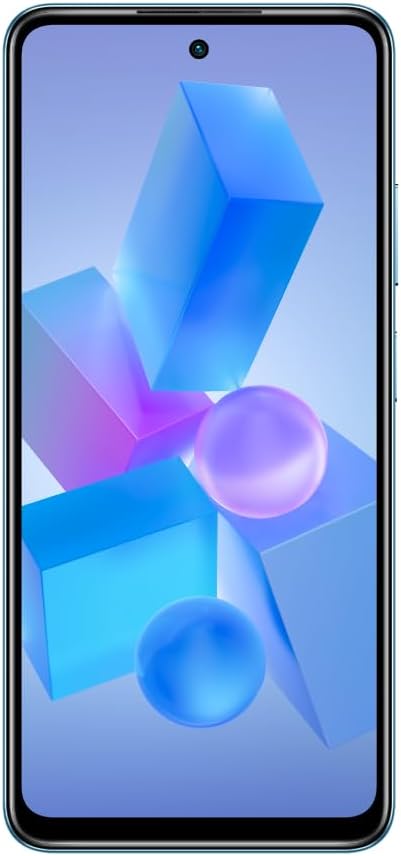
Figure 2.2: Front view of the Infinix Hot 40i, highlighting the display and front camera.

Figure 2.3: Back view of the Infinix Hot 40i, showing the camera array and Infinix branding.

Figure 2.4: Side view of the Infinix Hot 40i, illustrating the power and volume buttons.
3. Setup
3.1. Inserting SIM and SD Card
- Locate the SIM/SD card tray on the side of your device.
- Insert the SIM ejector tool into the small hole next to the tray and push gently until the tray pops out.
- Place your Nano-SIM card(s) and/or microSD card into the designated slots on the tray. Ensure the gold contacts face downwards.
- Carefully reinsert the tray into the device until it clicks into place.
3.2. Initial Power On and Setup
- Press and hold the Power button until the Infinix logo appears.
- Follow the on-screen instructions to select your language, connect to a Wi-Fi network, and set up your Google account.
- You will be guided through setting up security features like fingerprint unlock and a screen lock (PIN, pattern, or password).
3.3. Charging the Device
- Connect the USB Type-C cable to the charging port on your phone and the other end to the 18W fast charger.
- Plug the charger into a power outlet. The battery icon on the screen will indicate charging status.
- For optimal battery life, avoid completely draining the battery frequently.
4. Operating Instructions
4.1. Basic Navigation
- Touch Gestures: Swipe, tap, pinch, and spread to navigate the interface, open apps, zoom, and scroll.
- Home Screen: Access your apps, widgets, and notifications. Swipe down from the top for the notification panel and quick settings.
- App Drawer: Swipe up from the bottom of the home screen to access all installed applications.
4.2. Fingerprint Unlock
Your Infinix Hot 40i features a side-mounted fingerprint sensor for quick and secure unlocking. To set up:
- Go to Settings > Security > Fingerprint.
- Follow the on-screen prompts to register your fingerprint. Ensure your finger covers the entire sensor area during registration.
4.3. Camera Usage
The device is equipped with a 50MP Dual AI Rear Camera and a 32MP Crystal-Clear Front Camera.
- Open the Camera application from your home screen or app drawer.
- Switch between front and rear cameras using the camera toggle icon.
- Select different modes (e.g., Photo, Video, Portrait, Night) from the bottom menu.
- Tap the shutter button to capture photos or start/stop video recording.
4.4. Battery Management
Your phone features a 5000 mAh long-lasting battery with 18W Fast Charge support.
- To view battery usage and optimize settings, go to Settings > Battery.
- Enable Power Saving Mode to extend battery life when needed.
- Use the provided 18W charger for fast charging capabilities.
4.5. XBOOST Gaming Engine
The XBOOST Gaming Engine optimizes performance for a smoother gaming experience. It automatically activates when you launch supported games, prioritizing system resources.
4.6. Magic Ring
The Magic Ring feature around the front camera provides dynamic visual notifications for calls, charging status, and other alerts.
5. Maintenance
5.1. Cleaning Your Device
- Use a soft, lint-free cloth to wipe the screen and back panel.
- Avoid using harsh chemicals, abrasive materials, or aerosol sprays.
- Ensure no moisture enters ports or openings.
5.2. Software Updates
Regularly check for and install software updates to ensure your device has the latest features, security patches, and performance improvements.
- Go to Settings > System > System update.
- Connect to a stable Wi-Fi network before downloading updates.
5.3. Storage Management
Your device comes with 128GB of internal storage. To manage storage effectively:
- Go to Settings > Storage to see what is using space.
- Regularly clear cache data from apps.
- Transfer large files (photos, videos) to a computer or cloud storage.
- Utilize a microSD card for additional storage if needed.
6. Troubleshooting
This section addresses common issues you might encounter with your Infinix Hot 40i.
- Device not turning on: Ensure the battery is charged. Connect the charger and wait a few minutes before attempting to power on again. If unresponsive, press and hold the Power button for 10-15 seconds to force a restart.
- Apps crashing or freezing: Close the problematic app and reopen it. Clear the app's cache (Settings > Apps > [App Name] > Storage > Clear cache). If the issue persists, uninstall and reinstall the app.
- Poor Wi-Fi/Bluetooth connectivity: Toggle Wi-Fi/Bluetooth off and on. Restart your phone. Ensure you are within range of the network/device.
- Slow performance: Close unnecessary background apps. Clear cache and temporary files. Check for available storage space. Restart your device regularly.
- Fingerprint sensor not working: Ensure your finger is clean and dry. Re-register your fingerprint in Settings > Security > Fingerprint.
- Factory Reset (Last Resort): If issues persist, you may need to perform a factory reset. Warning: This will erase all data on your phone. Back up important data before proceeding. Go to Settings > System > Reset options > Erase all data (factory reset).
7. Specifications
Key technical specifications for the Infinix Hot 40i:
| Feature | Specification |
|---|---|
| Brand | Infinix |
| Model Name | Hot 40i |
| Operating System | Android 13.0 |
| Installed RAM Memory Size | 4 GB (Up to 8GB Extended RAM) |
| Memory Storage Capacity | 128 GB |
| CPU Model | Octa-Core Chipset (Snapdragon) |
| CPU Speed | 2.2 GHz |
| Screen Size | 6.56 Inches |
| Resolution | 1920 x 1080 |
| Refresh Rate | 90 Hz |
| Rear Camera | 50MP Dual AI Cam |
| Front Camera | 32MP Crystal-Clear |
| Battery Capacity | 5000 mAh |
| Charging | 18W Fast Charge |
| Security | Side-Mounted Fingerprint Unlock |
8. Warranty and Support
Your Infinix Hot 40i is covered by a limited warranty. For detailed warranty terms and conditions, please refer to the warranty card included in your product packaging or visit the official Infinix website.
For technical support, frequently asked questions, or to find service centers, please visit the official Infinix support website or contact their customer service. Keep your proof of purchase for warranty claims.


