
1. Introduction
The iRobot Roomba Vac Essential robot is designed to simplify floor cleaning with its powerful suction and smart navigation. This manual provides comprehensive instructions for setting up, operating, maintaining, and troubleshooting your Roomba Vac Essential robot.
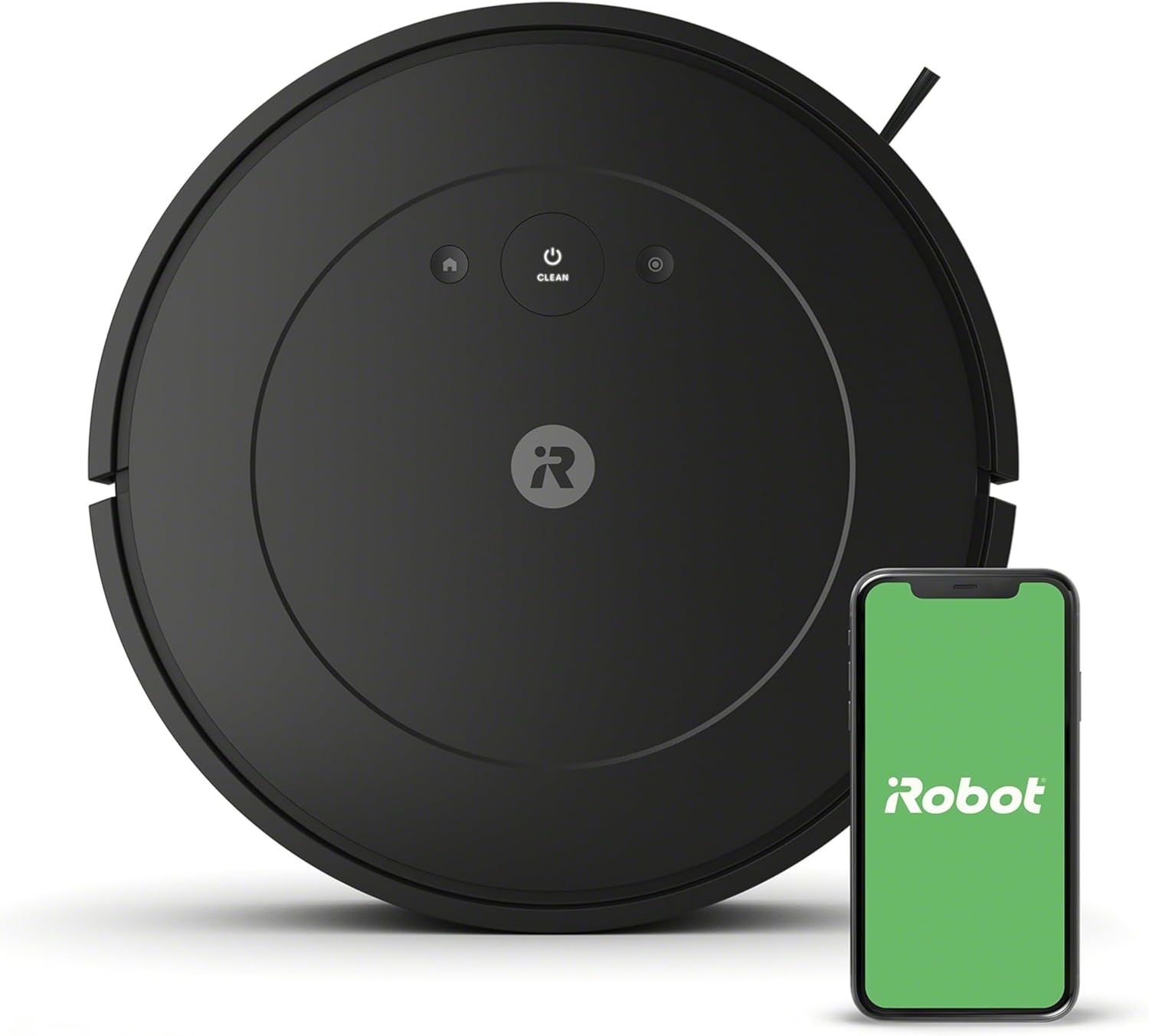
Image: The iRobot Roomba Vac Robot Vacuum (Q011) shown alongside a smartphone displaying the iRobot Home App, illustrating its smart capabilities.
2. Safety Information
Before using your Roomba Vac Essential robot, please read all safety instructions carefully. Failure to follow these instructions could result in electric shock, fire, or serious injury.
- Keep the robot and its charging station away from water or wet surfaces.
- Do not operate the robot if it has been damaged. Contact customer support.
- Ensure the charging station is placed on a level surface against a wall, with clear space around it.
- Keep hair, loose clothing, fingers, and all parts of the body away from openings and moving parts.
- Do not pick up anything that is burning or smoking, such as cigarettes, matches, or hot ashes.
- Use only as described in this manual. Use only manufacturer's recommended attachments.
3. What's in the Box
Your iRobot Roomba Vac Essential (Q011) package includes the following components:
- iRobot Roomba Vac Essential Robot Vacuum (Q011)
- Home Base Charging Station
- Line Cord
- Owner's Guide (this manual)
- 1 Lithium Ion battery (pre-installed)
4. Setup
4.1 Initial Charging
Before first use, place your Roomba Vac Essential robot on the Home Base charging station. Ensure the robot makes proper contact with the charging contacts. The robot will automatically return to its charging station when its battery is low, providing up to 120 minutes of cleaning on a single charge.
4.2 Connecting to the iRobot Home App
The iRobot Home App is essential for full functionality, including scheduling, monitoring, and advanced features. The robot requires a 2.4 GHz Wi-Fi network for setup and operation. Your phone can return to 5GHz after setup, but the robot must remain on 2.4GHz.
- Download the iRobot Home App from your device's app store.
- Follow the in-app instructions to connect your Roomba Vac Essential robot to your Wi-Fi network.
- Ensure your mobile device is connected to a 2.4 GHz Wi-Fi network during the setup process.

Image: A person setting up the Roomba Vac Essential robot in a home environment, highlighting its ease of use.
5. Operating Your Roomba Vac Essential
5.1 Starting a Cleaning Job
You can start a cleaning job in several ways:
- Press the CLEAN button: Press the large CLEAN button on top of the robot to start or pause a cleaning cycle.
- iRobot Home App: Use the app to start, stop, or schedule cleaning jobs from anywhere. The app also provides features like "Clean While I'm Away" and a "Clean Map report" to show where your robot has cleaned.
- Voice Assistant: Pair your robot with Alexa or Google Assistant-enabled devices and use voice commands like "Alexa, tell Roomba to vacuum."

Image: A woman using a voice assistant to command her Roomba to begin cleaning, demonstrating the convenience of smart home integration.
5.2 Cleaning Modes and Navigation
The Roomba Vac Essential robot utilizes smart navigation to methodically clean in neat rows. Its sensors help it navigate around furniture and avoid falling down stairs. The Edge-Sweeping Brush ensures thorough cleaning along walls and in corners.

Image: An aerial view of the Roomba Vac Essential robot cleaning a wooden floor in a systematic, neat row pattern.

Image: The Roomba Vac Essential robot positioned in a corner, demonstrating its ability to clean along edges and in tight spaces.

Image: The Roomba Vac Essential robot near a staircase, illustrating its anti-fall sensors preventing it from tumbling down stairs.

Image: The low-profile design of the Roomba Vac Essential robot allows it to navigate and clean effectively under furniture like sofas and tables.
5.3 Suction Levels and Spot Cleaning
The 3-Stage Cleaning System offers three levels of powerful suction for a custom clean. You can choose a quieter cleaning mode or a more powerful vacuum setting depending on your needs. For concentrated dirt, use the Spot Cleaning feature, where the robot spins in place, cleaning one spot for up to 2 minutes.

Image: The Roomba Vac Essential robot on a floor transitioning from carpet to hardwood, illustrating its adaptability to different surfaces and suction levels.

Image: The Roomba Vac Essential robot positioned near scattered debris, demonstrating its spot cleaning capability for concentrated messes.
6. Maintenance
Regular maintenance ensures your Roomba Vac Essential robot operates efficiently. The iRobot Home App includes a Health dashboard to monitor your robot's components and accessories, indicating when parts need attention or replacement.
6.1 Emptying the Dust Bin
Empty the dust bin after each cleaning cycle or when indicated by the robot or app. To empty, remove the bin from the robot and open the bin door to discard debris.
6.2 Cleaning the Filter
The filter should be cleaned regularly to maintain optimal suction. Tap the filter against a trash can to remove debris. Replace the filter every few months, or as indicated by the app, to ensure peak performance.
6.3 Cleaning Brushes and Wheels
Periodically remove hair and debris from the Multi-Surface Brushes and the Edge-Sweeping Brush. Also, check the front caster wheel and side wheels for any tangled hair or debris that could impede movement.

Image: A screenshot of the iRobot Home App's Product Health section, displaying the status of components like the filter and brushes.
7. Troubleshooting
If your Roomba Vac Essential robot encounters an issue, consult the iRobot Home App for detailed troubleshooting steps and support. Here are some common issues and general advice:
- Robot not charging: Ensure the robot is properly aligned on the Home Base and the charging contacts are clean.
- Robot not connecting to Wi-Fi: Verify your network is 2.4 GHz. Try restarting your router and the robot. A factory reset (holding all three buttons on top for ~10 seconds) may be necessary.
- Robot getting stuck: Clear obstacles like cords, loose rugs, or small items from the cleaning path. The low-profile design helps, but some furniture clearances might still pose a challenge.
- Poor cleaning performance: Empty the dust bin, clean or replace the filter, and remove any tangled hair from the brushes.
- Unusual noises: Check brushes and wheels for debris. If the noise persists, contact iRobot customer support.
For more specific error messages and solutions, refer to the comprehensive guides and repair manuals available within the iRobot Home App.
8. Specifications
| Feature | Detail |
|---|---|
| Brand | iRobot |
| Model Name | Essential Vac (Q011) |
| Product Dimensions | 13"L x 13"W x 3.1"H |
| Item Weight | 13.2 pounds |
| Battery Life | Up to 120 minutes |
| Control Method | App, Push Button |
| Special Features | Logical Navigation, Edge Cleaning, Eco Mode, Scheduling, Anti-Fall |
| Filter Type | Cartridge |
| Compatible Devices | Amazon Echo |
| UPC | 885155041852 |
9. Warranty and Support
iRobot provides a limited warranty for its products. For detailed warranty information, please refer to the warranty card included with your product or visit the official iRobot website. iRobot does not certify the quality or authenticity of products purchased from non-authorized resellers on Amazon and will only cover warranty claims, provide service or offer replacements for products purchased from authorized sellers.
For technical support, troubleshooting assistance, or to order replacement parts, please contact iRobot Customer Care or use the iRobot Home App's support features. You can also visit the official iRobot Store on Amazon for more information and authorized products.


