
UNITOPSCI A3040A4B6MI2
UNITOPSCI Android Car Stereo User Manual
Model: A3040A4B6MI2
Brand: UNITOPSCI
1. Introduction
This user manual provides comprehensive instructions for the installation, operation, and maintenance of your UNITOPSCI Android Car Stereo. Please read this manual thoroughly before using the product to ensure proper functionality and safety.
2. Product Overview
The UNITOPSCI Android Car Stereo is an advanced in-dash multimedia system designed for select Volkswagen, Seat, and Skoda vehicles. Featuring a 7-inch HD capacitive touch screen, Android 13 operating system, 2GB RAM, and 64GB ROM, it offers a wide range of functionalities including wireless CarPlay, Android Auto, GPS navigation, Bluetooth 4.2, FM/RDS radio, and support for AHD backup cameras.

Figure 2.1: Front view of the UNITOPSCI Android Car Stereo, highlighting its 7-inch display and control buttons.
3. Compatibility
This car stereo is compatible with various models. Please verify your vehicle's compatibility before installation.
For Seat:
- Altea ab 05/2004
- Toledo ab 12/2004
- Leon ab 09/2005
- Altea XL ab 04/2007
- Alhambra ab 2010
For VW:
- SAGITAR/JATTA/JETTA
- TIGUAN/TIGUAN GP
- MAGOTAN/MAGOTAN V6
- SHARAN/CADDY
- PASSAT B6/PASSAT V6
- MAGOTAN VARIANT
- PASSAT B7/PASSAT NMS
- PASSAT Variant
- PASSAT CC/PASSAT TSI
- TOURAN
- GOLF V/GOLF VI
- GOLF VARIANT
- POLO/EOS
- SCIROCCO/T5/TRANSPORTER
For Skoda:
- Fabia Limousine ab 02/2007 bis 2012
- Fabia Combi ab 04/2007 bis 2012
- Octavia II 2 & III 3
- Yeti ab 2009 bis 2012
- Superb/3 T ab 2008 bis 2012
4. What's in the Box
The package includes the following components:
- UNITOPSCI Android Car Stereo Unit
- AHD Backup Camera
- Power Cable
- RCA Input/Output Cables
- USB Cables (x2)
- GPS Antenna
- Microphone
- ISO Wiring Harness
- Radio Adaptor
- Camera Input Cable
- Canbus Decoder (if applicable for your vehicle)

Figure 4.1: Detailed view of the packing list and the dimensions of the car stereo unit.
5. Setup and Installation
Installation of the car stereo requires basic automotive electrical knowledge. If you are unsure, it is recommended to seek professional installation. Ensure the vehicle's battery is disconnected before beginning installation.
5.1 Wiring Connections:
Refer to the wiring diagram provided in Figure 4.1 for general connections. Key connections include:
- Power Cable: Connect to the vehicle's power supply (ACC, B+, GND).
- RCA Input/Output: For external amplifiers, subwoofers, or video output.
- USB Cables: For connecting USB devices, external storage, or wired CarPlay/Android Auto.
- GPS Antenna: Mount in a location with a clear view of the sky for optimal signal reception.
- Camera Input: Connect the AHD Backup Camera.
- Microphone: Connect the external microphone for improved call quality.
5.2 AHD Backup Camera Installation:
The AHD backup camera automatically displays the rear view when the vehicle is put into reverse gear.
- Connect the camera's video output to the "AHD IN" port on the car stereo.
- Connect the camera's power wire (red) to the vehicle's reverse light power supply.
- Connect the camera's ground wire (black) to a suitable ground point on the vehicle chassis.
- Connect the red trigger wire from the video cable to the reverse light power supply. This signal tells the head unit to switch to the camera view.
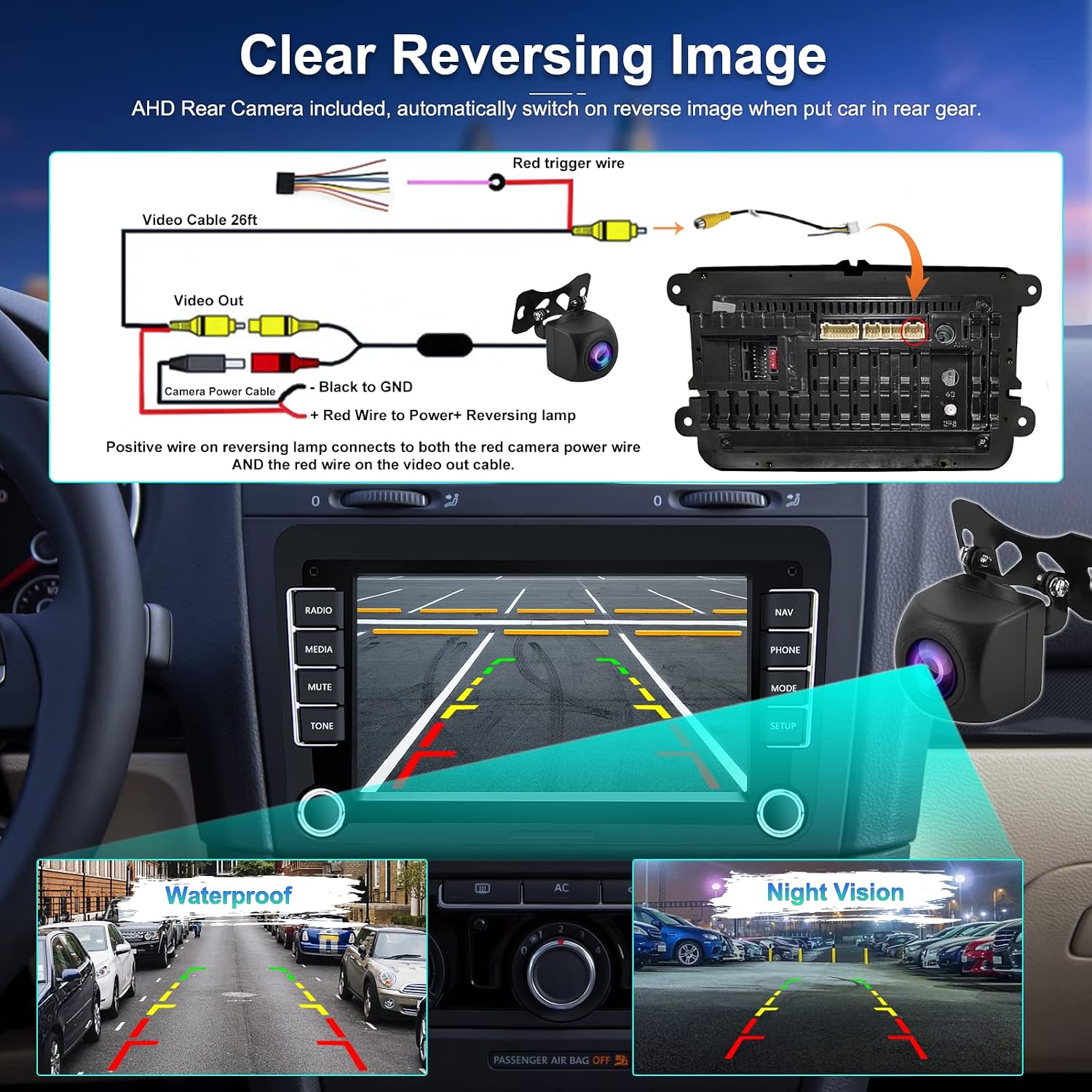
Figure 5.1: Wiring diagram for the AHD Backup Camera, including power and signal connections.
6. Operating Instructions
6.1 Wireless CarPlay and Android Auto:
Connect your smartphone wirelessly to access navigation, music, calls, and messages directly on the car stereo screen. This feature is compatible with Apple CarPlay and Google Assistant voice control. Note: Android Auto functionality may not work with all Samsung phone models.

Figure 6.1: Wireless CarPlay and Android Auto interface on the car stereo display.
6.2 GPS Navigation and WiFi:
The unit comes with built-in offline maps (Here WeGo) and supports online navigation via Google Maps, Waze, Sygic, etc. Connect to a WiFi hotspot to access real-time online functions, including browsing, streaming, and social media.

Figure 6.2: GPS Navigation and WiFi connectivity features.
6.3 Bluetooth 4.2:
Utilize Bluetooth 4.2 for hands-free calling, phonebook synchronization, and A2DP audio streaming. The built-in microphone and support for an external microphone ensure clear communication.

Figure 6.3: Bluetooth 4.2 interface for calls and music streaming.
6.4 FM/RDS Radio:
Access FM radio with 18 preset stations and RDS (Radio Data System) functionality for displaying station information.
6.5 AHD Backup Camera:
When reverse gear is engaged, the screen automatically switches to the AHD rear view camera feed. The camera offers night vision and a 170-degree viewing angle for enhanced parking safety.
Figure 6.4: AHD Backup Camera view and features.
6.6 Advanced Features:
- Split Screen: Run two applications simultaneously on the screen, such as navigation and music playback.
- HiFi EQ Setting: Customize audio output with a built-in equalizer for optimal sound quality.
- Steering Wheel Control: Integrate with your vehicle's steering wheel controls for convenient operation.
- Full Video Output: Output video to external monitors, such as headrest displays.

Figure 6.5: Overview of Split Screen, HiFi EQ, Steering Wheel Control, and Full Video Output features.
7. Maintenance
To ensure the longevity and optimal performance of your car stereo, follow these maintenance guidelines:
- Cleaning: Use a soft, dry cloth to clean the screen and unit. Avoid abrasive cleaners or solvents.
- Software Updates: Periodically check for and install software updates to improve performance and add new features.
- Temperature: Avoid exposing the unit to extreme temperatures.
- Connections: Ensure all cables are securely connected to prevent intermittent issues.
8. Troubleshooting
If you encounter issues with your car stereo, refer to the following common problems and solutions:
| Problem | Possible Cause | Solution |
|---|---|---|
| Unit does not power on. | Loose power connection, blown fuse, vehicle battery issue. | Check power cables and fuse. Ensure vehicle battery is charged. |
| No sound. | Volume too low, mute activated, speaker wiring issue. | Increase volume, check mute setting, verify speaker connections. |
| GPS signal weak or lost. | GPS antenna obstructed or improperly installed. | Ensure GPS antenna has a clear view of the sky and is securely connected. |
| CarPlay/Android Auto not connecting. | Incorrect phone settings, incompatible phone model, software glitch. | Check phone's CarPlay/Android Auto settings. Restart phone and stereo. Ensure phone is compatible. |
| Backup camera not displaying. | Incorrect wiring, camera malfunction, reverse trigger not detected. | Verify camera wiring (power, video, trigger). Check camera functionality. |
For issues not listed here, please contact customer support.
9. Specifications
| Feature | Detail |
|---|---|
| System | Android 13 |
| Chipset | 8227L-DEMO |
| Screen Size | 7 inches |
| Screen Resolution | 1024*600 |
| Memory (RAM+ROM) | 2GB (RAM) + 64GB (ROM) |
| Power Output | 4*45W |
| Power Amplifier Chip | TDA7388 |
| Radio Band | FM/RDS |
| Radio Chip | MT6625 |
| Reversing Input | AHD720 |
| External Microphone | Support |
| Split Screen | Support |
| Maps | Built-in offline maps (Here WeGo) |
| WiFi | Support |
| USB Interface | Double USB |
| Bluetooth | Bluetooth 4.2 |
| Work Temperature | -20℃ to 75℃ |
| Audio Format | APE/FLAC/WAV/MP3/WMA etc. |
| Video Format | MKV/RMVB/AVI/MP4/MDV etc. |
| Picture Format | PNG/JPEG/JPG/GIF/WBMP/BNP etc. |
| Languages | Chinese/English/French/Italian/Korean/Japanese/Arabic/Spanish/Portuguese/Russian/Turkish/Vietnamese/Hebrew/Polish/German |
10. Warranty and Support
For warranty information and technical support, please refer to the documentation included with your purchase or visit the official UNITOPSCI website. Keep your purchase receipt as proof of purchase for warranty claims.
Related documentsA3040A4B6MI2


Ask a question about this manual
Ask about setup, troubleshooting, compatibility, parts, safety, or missing instructions. Manuals+ will review the question and use this page’s manual context to help answer it.