
FanyiTek VS-TY2660H-V661
User Manual
FanyiTek 7 inch 1024x600 1000nit TFT LCD Screen and LVDS Controller Board
Model: VS-TY2660H-V661
1. Introduction
This manual provides detailed instructions for the setup, operation, and maintenance of your FanyiTek 7 inch 1024x600 1000nit TFT LCD Screen and VS-TY2660H-V661 HDMI LVDS Controller Board. Please read this manual thoroughly before use to ensure proper functionality and to prevent damage to the components.
2. Product Overview
The FanyiTek LCD screen and controller board combination is designed for various display applications requiring a compact, high-brightness, and high-resolution screen. The kit includes a 7-inch TFT LCD panel with 1024x600 resolution and 1000nit brightness, paired with a versatile LVDS controller board (VS-TY2660H-V661) that supports HDMI input and features audio output capabilities.
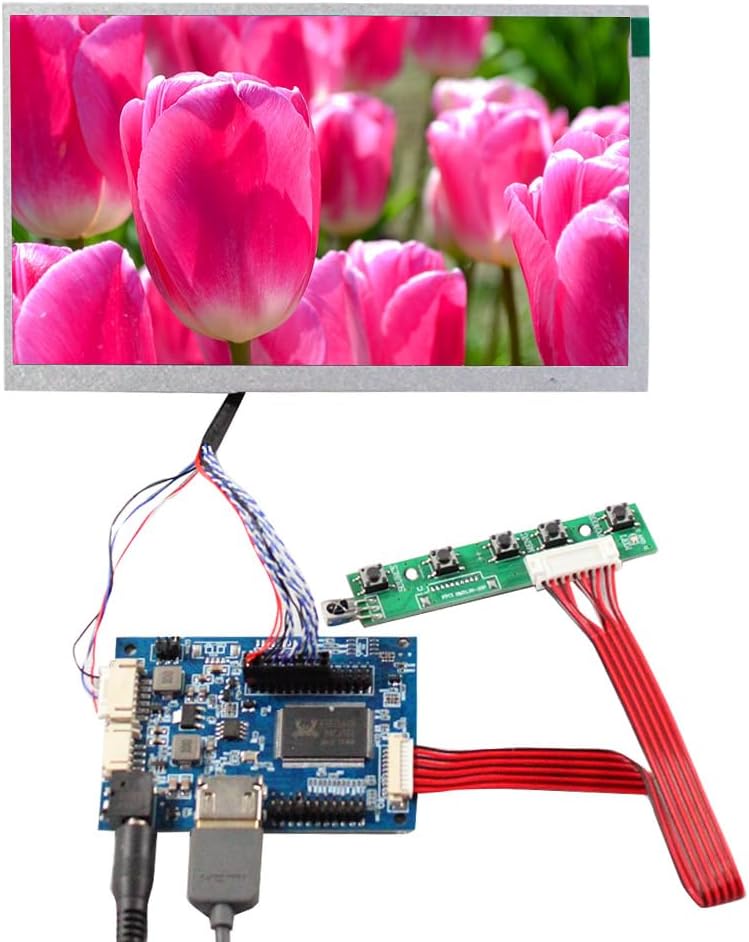
Figure 2.1: The FanyiTek 7 inch 1024x600 1000nit TFT LCD Screen and LVDS Controller Board connected.
Key Features:
- 7-inch 1024x600 resolution TFT LCD screen with 1000nit high brightness.
- LVDS (1ch 8bit) 20Pin signal interface.
- VS-TY2660H-V661 controller board with HDMI input.
- Audio output via Speaker (4Pin PH1.0 connector).
- OSD (On-Screen Display) menu for brightness, contrast, auto-adjustment, and language settings.
- Low standby power consumption (<1W).
3. Package Contents
Please verify that all items listed below are included in your package. If any items are missing or damaged, please contact your vendor.

Figure 3.1: All components included in the package.
- 1 × Audio LCD Controller Board VS-TY2660H-V661
- 1 × 7" VS-JH070BO20GK-1000 1024x600 1000nit Brightness LCD Screen
- 1 × LVDS Cable
- 1 × Keyboard With Cable
4. Setup Instructions
Follow these steps to correctly assemble and connect your LCD screen and controller board.
4.1 Connecting the LCD Screen to the Controller Board
- Carefully connect the LVDS cable to the 20-pin LVDS interface on the 7-inch LCD screen. Ensure the cable is oriented correctly to avoid damage.
- Connect the other end of the LVDS cable to the corresponding LVDS connector on the VS-TY2660H-V661 controller board.

Figure 4.1: LVDS cable connection between the LCD screen and controller board.
4.2 Connecting the Keyboard
- Connect the keyboard cable to the designated connector on the VS-TY2660H-V661 controller board. This keyboard is used for navigating the OSD menu.

Figure 4.2: Close-up view of the controller board, highlighting the keyboard connector.
4.3 Power Connection
- The controller board requires a 12V DC power adapter with a current rating of more than 2A. The power port size is 5.5x2.1mm. Ensure you use an appropriate power supply (not included).
- Connect the power adapter to the DC input jack on the controller board.
4.4 Signal Input
- Connect your video source (e.g., computer, media player) to the HDMI input port on the controller board.
Note: Ensure all connections are secure before applying power. The audio output speaker connector (4Pin PH1.0) should be used in an insulated environment.
5. Operating Instructions
5.1 Powering On
Once all connections are made, plug in the 12V DC power adapter. The screen should power on automatically or enter a standby mode if no signal is detected. The controller board will come out of standby when a signal is input.
5.2 OSD Menu Navigation
Use the provided keyboard with cable to navigate the On-Screen Display (OSD) menu. The OSD allows you to adjust various display settings:
- Brightness: Adjusts the overall luminance of the display.
- Contrast: Controls the difference between the lightest and darkest areas of the image.
- Auto: Automatically adjusts the display settings for optimal viewing.
- Language: Selects the OSD menu language (English, French, German, Spanish, Italian, etc.).
- Other settings may include aspect ratio, color temperature, and input selection.
Refer to the specific button functions on your keyboard for OSD access and navigation (e.g., MENU, UP, DOWN, SELECT, POWER).
6. Maintenance
Proper maintenance ensures the longevity and optimal performance of your LCD screen and controller board.
6.1 Cleaning the Screen
To clean the LCD screen, gently wipe it with a soft, lint-free cloth. For stubborn smudges, slightly dampen the cloth with water or a screen-specific cleaning solution. Avoid using harsh chemicals, abrasive materials, or excessive pressure, as these can damage the screen surface.
6.2 General Care
- Keep the components in a clean, dry environment, away from direct sunlight, extreme temperatures, and high humidity.
- Avoid dropping or subjecting the components to strong impacts.
- Do not block ventilation openings on the controller board, if any, to prevent overheating.
- When connecting or disconnecting cables, always hold the connector, not the cable itself, to prevent wire damage.
7. Troubleshooting
If you encounter issues with your FanyiTek LCD screen and controller board, refer to the following common problems and solutions:
7.1 No Display / Black Screen
- Check Power: Ensure the 12V DC power adapter is correctly connected and providing power to the controller board. Verify the power outlet is functional.
- Check LVDS Cable: Confirm that the LVDS cable is securely connected to both the LCD screen and the controller board, and that it is not damaged.
- Check Signal Source: Ensure your video source (e.g., computer, media player) is powered on and outputting a signal via HDMI. Try connecting the video source to another display to confirm it is working.
- Input Selection: If the OSD menu is accessible, verify that the correct input source (HDMI) is selected.
7.2 Distorted or Flickering Image
- Cable Connection: Re-seat the HDMI and LVDS cables to ensure a firm connection.
- Resolution/Refresh Rate: Ensure the output resolution and refresh rate from your video source are compatible with the LCD screen (1024x600).
- Power Supply: An unstable power supply can cause flickering. Ensure your 12V DC adapter provides stable power (more than 2A).
7.3 OSD Menu Not Responding
- Keyboard Connection: Verify that the keyboard cable is securely connected to the controller board.
- Keyboard Functionality: Check for any physical damage to the keyboard or its cable.
If the problem persists after trying these solutions, please contact customer support for further assistance.
8. Specifications
8.1 LCD Controller Board (VS-TY2660H-V661)
- Input Power Adapter: 12Vdc, >2A
- Standby Model: <1W
- Audio Output: Speaker (4Pin PH1.0 connector)
- OSD: Brightness, Contrast, Auto, Language, etc.
- Supported Languages: English, French, German, Spanish, Italian, etc.
- Board Size: 74mm x 53mm x 12mm
8.2 7" LCD Screen (VS-JH070BO20GK-1000)
- Display Mode: IPS, Normally Black, Transmissive
- Resolution: 1024(RGB)×600
- Outline Size: 164.9× 100×3.5mm (H×V×D)
- Display Area: 154.215×85.92mm (H×V)
- Brightness: 1000 cd/m² (Typ.)
- Contrast Ratio: 600:1 (Typ.) (TM)
- Viewing Angle: 85/85/85/65 (Typ.)(CR≥10) [Left / Right / Up / Down]
- Signal Interface: LVDS (1ch 8bit) 20Pin
- Backlight: WLED
- Input Voltage: 3.3V (Typ.)
8.3 General Product Specifications
- Package Dimensions: 11.8 x 8.26 x 1.18 inches
- Item Weight: 10.6 ounces
- Manufacturer: FanyiTek
- ASIN: B0CNG8ZLTL
- Date First Available: November 16, 2023
9. Warranty and Support
For warranty information and technical support, please refer to the documentation provided with your purchase or contact the seller directly. Keep your purchase receipt as proof of purchase.
For further assistance, you may visit the FanyiTek store on Amazon: FanyiTek Store
Ask a question about this manual
Ask about setup, troubleshooting, compatibility, parts, safety, or missing instructions. Manuals+ will review the question and use this page’s manual context to help answer it.