
1. Introduction
This manual provides detailed instructions for the operation and maintenance of your KOZWAY A10 Action Camera. The A10 is a high-performance action camera featuring 4K EIS Ultra HD video recording, 20MP photo capture, Wi-Fi connectivity, a 170-degree wide-angle lens, and a waterproof design up to 30 meters with its protective case. It includes a convenient dual-display system and a touch screen for intuitive control.

Image 1.1: The KOZWAY A10 Action Camera showcasing its front display and rear touch screen.
2. Setup
2.1 Unboxing and Components
Carefully unpack your KOZWAY A10 Action Camera and verify all components are present. The standard package typically includes:
- KOZWAY A10 Action Camera
- Waterproof Case
- Mounting Accessories (various clips, mounts, straps)
- USB Charging Cable
- User Manual
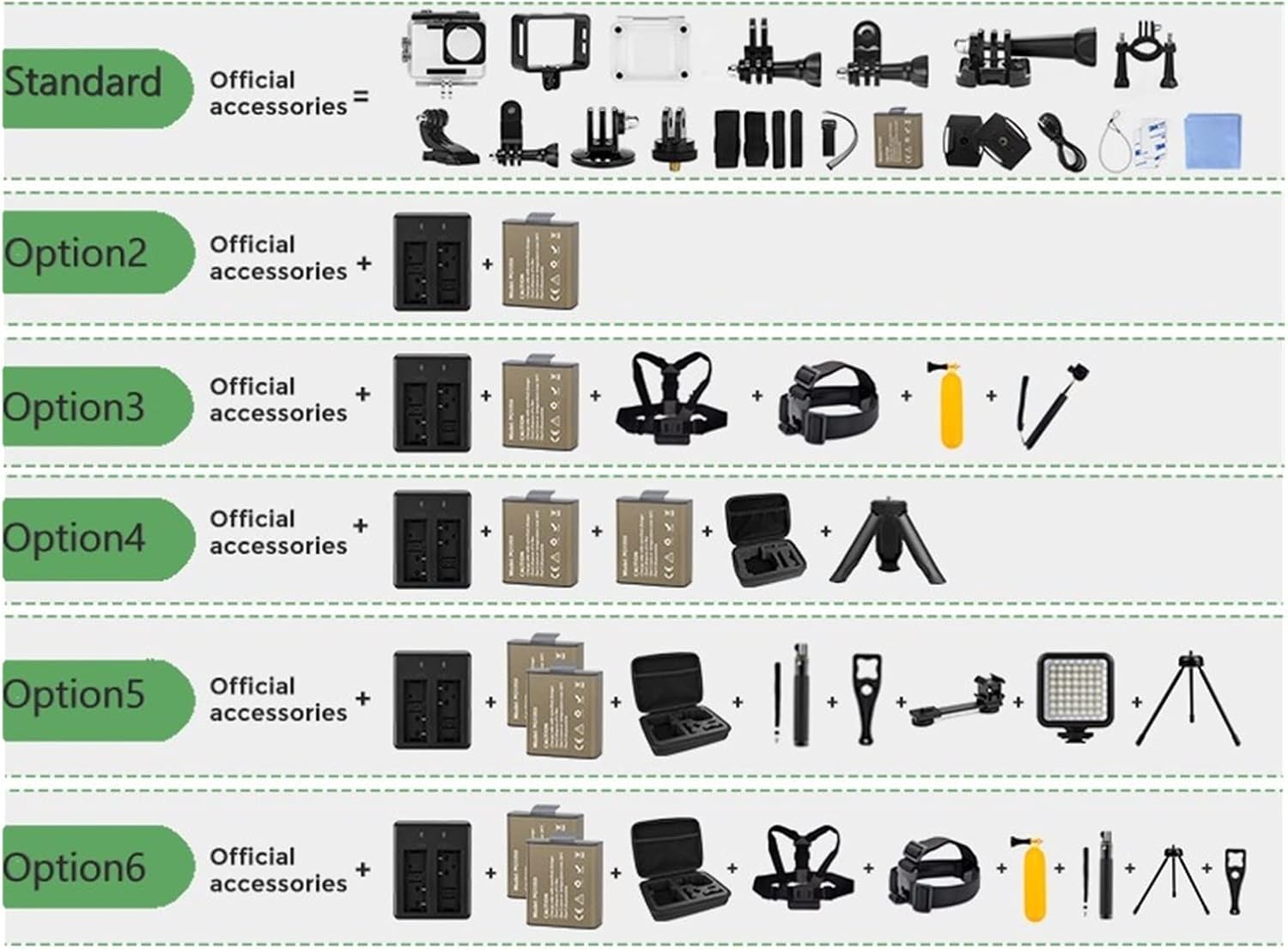
Image 2.1: An overview of the standard accessories that accompany the KOZWAY A10 Action Camera.
2.2 Battery Installation
Locate the battery compartment on the camera. Open the compartment cover, insert the battery according to the polarity indicators, and close the cover securely.
2.3 Memory Card Installation
The A10 camera supports microSD cards. Open the memory card slot cover, insert a compatible microSD card (Class 10 or higher recommended) with the contacts facing the correct direction, and close the cover. Ensure the card is properly seated.

Image 2.2: The KOZWAY A10 Action Camera shown with a 32GB MicroSD card, indicating memory card compatibility.
2.4 Charging the Battery
Connect the camera to a USB power source using the provided USB cable. The charging indicator light will illuminate. Once fully charged, the light will change or turn off. A full charge is recommended before first use.
2.5 Using the Waterproof Case
To use the camera underwater or in wet conditions, place it inside the waterproof case. Ensure the case is properly sealed before submersion. The case provides protection up to 30 meters depth.

Image 2.3: The KOZWAY A10 Action Camera securely enclosed within its waterproof case, ready for underwater use.
3. Operating Instructions
3.1 Power On/Off
Press and hold the Power/Mode button (usually on the front or top) for a few seconds to turn the camera on or off. A startup sound and screen display will confirm power status.
3.2 Navigating the Interface
The A10 features a rear touch screen for easy navigation. Swipe left/right or tap icons to switch between video, photo, and playback modes, and to access settings. The front display provides essential information during recording or when facing the camera.
3.3 Video Recording
In video mode, press the Shutter/Record button to start recording. Press it again to stop. The camera supports 4K resolution at 30 frames per second (4K/30FPS) and includes Electronic Image Stabilization (EIS) for smoother footage. The denoise feature helps reduce unwanted audio background noise.

Image 3.1: Visual representation of the camera's capabilities including 30M diving depth, 4K/30FPS recording, EIS anti-shake, and 4x digital zoom.
3.4 Photo Capture
In photo mode, press the Shutter/Record button to take a picture. The camera captures 20-megapixel images. Utilize the 4x digital zoom feature to get closer to your subject. The 170-degree wide-angle lens captures a broad field of view, and the lens distortion correction feature can be enabled in settings to reduce fish-eye effect.
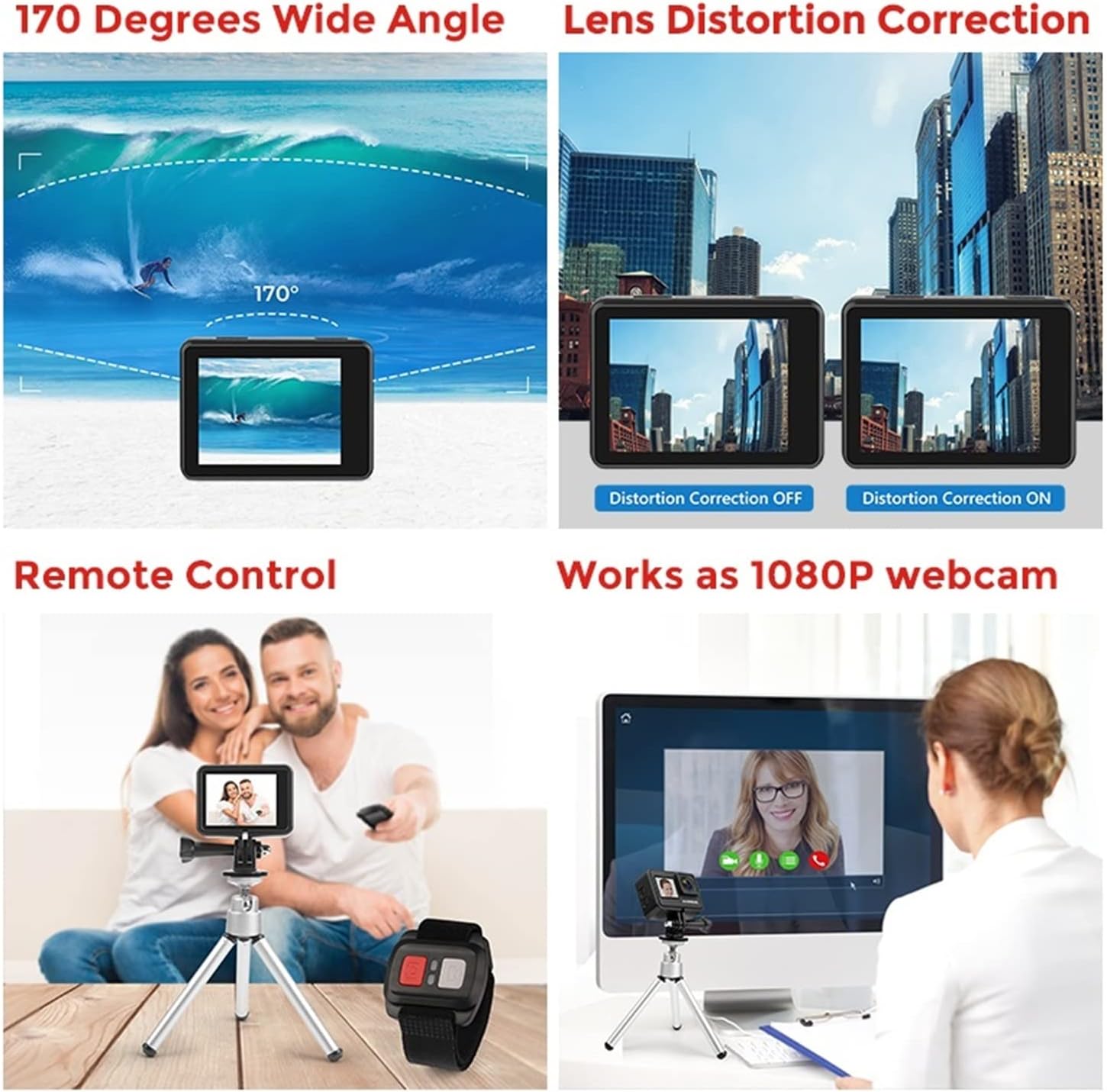
Image 3.2: Demonstrates the 170-degree wide-angle lens, lens distortion correction, remote control functionality, and the camera's ability to act as a 1080P webcam.
3.5 Wi-Fi and App Connectivity
Enable Wi-Fi in the camera settings. Download the official KOZWAY app on your smartphone. Connect your phone to the camera's Wi-Fi network. The app allows for remote control of the camera, live preview, and transfer of media files.
3.6 Remote Control
The camera supports an external remote control for convenient operation. Follow the remote control's instructions to pair it with your camera. This allows you to start/stop recording or take photos from a distance.
3.7 Webcam Functionality
Connect the camera to your computer via USB. Select 'Webcam Mode' on the camera's screen (if prompted). The camera will then function as a 1080P webcam for video calls or streaming.
4. Maintenance
4.1 Cleaning the Camera and Lens
Use a soft, lint-free cloth to clean the camera body and screen. For the lens, use a specialized lens cleaning cloth and solution. Avoid abrasive materials that could scratch the lens or screen.
4.2 Waterproof Case Care
After each use in water, rinse the waterproof case with fresh water and allow it to air dry. Inspect the O-ring seal for any debris or damage. Replace the O-ring if necessary to maintain waterproof integrity.
4.3 Battery Care
Store batteries in a cool, dry place. Avoid fully discharging batteries for extended periods. If not using the camera for a long time, charge the batteries to about 50% before storage.
4.4 Storage
Store the camera in a protective case or bag to prevent scratches and impacts. Keep it away from extreme temperatures, high humidity, and direct sunlight.
5. Troubleshooting
5.1 Camera Not Turning On
- Ensure the battery is fully charged.
- Check if the battery is inserted correctly.
- Try a different charged battery if available.
5.2 Recording Issues (Stuttering, Freezing)
- Ensure you are using a high-speed microSD card (Class 10 or UHS-I/UHS-3 recommended).
- Format the microSD card in the camera's settings.
- Check for available storage space on the microSD card.
5.3 Wi-Fi Connection Problems
- Ensure Wi-Fi is enabled on the camera and your smartphone.
- Restart both the camera and your smartphone.
- Ensure you are within the camera's Wi-Fi range.
5.4 Camera Overheating
It is normal for the camera to become warm during extended use, especially when recording in 4K. If it becomes excessively hot or shuts down, allow it to cool down before resuming use. Avoid direct sunlight exposure during operation.
6. Specifications
| Feature | Specification |
|---|---|
| Video Resolution | Up to 4K/30FPS |
| Photo Resolution | 20 Megapixels |
| Image Stabilization | Electronic Image Stabilization (EIS) |
| Waterproof Depth | 30 meters (with waterproof case) |
| Lens Angle | 170-degree Wide Angle |
| Display | Dual-display (Front & Rear Touch Screen) |
| Digital Zoom | 4x |
| Connectivity | Wi-Fi |
| Webcam Function | 1080P |