
Product Overview
The NIIMBOT D110 Label Maker Machine is a portable, wireless label printer designed for office, home, and organization use. It utilizes advanced thermal technology, eliminating the need for ink or toner, making it a cost-effective and environmentally friendly solution. Its compact size and rechargeable battery ensure convenience and portability.

Image: The NIIMBOT D110 Label Maker Machine in blue, showcasing its compact design and a label roll.
Key Features
- Portable & Wireless: Compact design with Bluetooth connectivity for easy use with smartphones.
- Inkless Thermal Printing: Utilizes BPA-Free Direct Thermal Technology, requiring no ink or toner.
- Powerful App Functions: Supports printing of various texts, numbers, graphics, symbols, logos, barcodes, and QR codes. Includes intelligent recognition of voices and pictures.
- Rechargeable Battery: Built-in 1500mAh durable battery provides long working time, up to 2 months on a single charge.
- High Print Quality: Equipped with high-speed chips and 203 DPI resolution for clear, high-definition labels.
- Versatile Applications: Ideal for organizing home supplies, food date marking, classifying items, school name labels, office file classification, cable identification, price tags, and more.
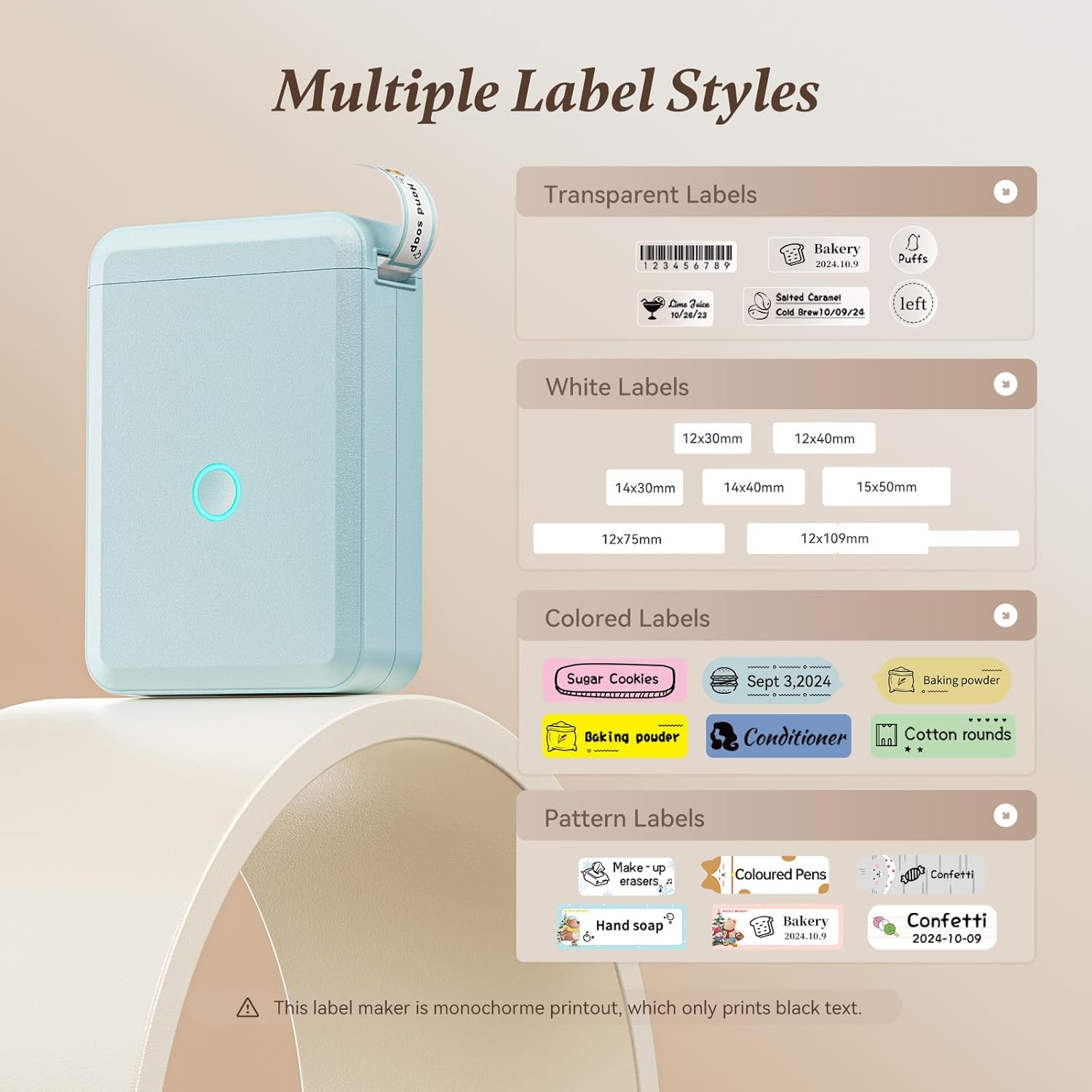
Image: Examples of various label styles and sizes that can be printed with the D110.

Image: Visual representation of the D110's inkless and rechargeable design, highlighting cost savings.
Setup Guide
1. Unboxing
Upon opening the package, ensure all components are present:
- NIIMBOT D110 Label Maker Machine
- Label Tape Roll (pre-installed or separate)
- USB Type-C Charging Cable
- Quick Start Guide / User Manual

Image: All items included in the NIIMBOT D110 product package.
2. Initial Setup & Charging
The D110 Label Maker comes with a built-in rechargeable lithium-ion battery. For first-time use, it is recommended to fully charge the device. Connect the provided USB Type-C cable to the charging port on the side of the label maker and plug the other end into a compatible USB power adapter (not included) or computer USB port. The indicator light will show charging status.
Indicator Light Status:
- Blue light (slowly flashing): Standby mode
- Blue light (fast flashing): Charging
- Steady Blue: Bluetooth connected
- Red light (slowly flashing): Battery low in Standby
- Red light (fast flashing): Battery low in Charging
- Steady Red: Battery low in Bluetooth connected

Image: Explanation of the D110's indicator light colors and their meanings.
3. App Download & Connection
The NIIMBOT D110 operates via a dedicated mobile application. Download the "NIIMBOT" app from your smartphone's app store (available on Apple App Store for iOS and Google Play Store for Android). Once installed:
- Turn on the label maker by long-pressing the power button.
- Enable Bluetooth on your smartphone.
- Open the NIIMBOT app and follow the on-screen prompts to connect to your D110 device via Bluetooth. The app will usually detect the printer automatically.
- Confirm the connection within the app.

Image: A user demonstrating the simple steps to connect the D110 to the mobile app.
Operating Instructions
1. Loading Label Paper
To load the label paper:
- Open the label compartment by sliding the top cover.
- Insert the label roll with the label side facing up, ensuring it aligns correctly with the feeder.
- Pull a small portion of the label paper out through the printing slot.
- Close the label compartment cover securely.

Image: Step-by-step visual guide on how to properly load label paper into the device.
2. Creating & Printing Labels
The NIIMBOT app offers extensive customization options for your labels:
- Text & Graphics: Input text, numbers, symbols, and add various graphics or logos. The app supports intelligent recognition of voices and pictures for easy content creation.
- Barcodes & QR Codes: Generate and print barcodes and QR codes directly from the app.
- Templates & Fonts: Utilize a wide selection of pre-designed templates and diverse fonts to personalize your labels.
- Adjustments: Customize label size, alignment, and density within the app before printing.
Once your design is complete, simply tap the "Print" button in the app. The label maker will quickly print your custom label.

Image: The NIIMBOT app interface showing options for designing and customizing labels.

Image: Practical applications of the D110 labels for organizing various household items.
Maintenance
1. Battery Care
The NIIMBOT D110 features a long-lasting rechargeable battery that can be used for up to 2 months on a single charge. To prolong battery life, avoid completely draining the battery frequently. Charge the device when the indicator light signals low battery.
2. Print Head Cleaning
Since the D110 uses thermal printing technology, it does not require ink or toner. However, it is good practice to occasionally clean the print head to ensure optimal print quality. Use a soft, lint-free cloth lightly dampened with rubbing alcohol to gently wipe the print head. Ensure the device is off and completely dry before use.
3. Label Quality
For the best print results and durability, it is recommended to use official NIIMBOT label tapes. These labels are designed to be waterproof, oil-proof, BPA-free, and leave no residue upon removal.

Image: Detailed breakdown of NIIMBOT label tape layers and its durable properties.
Troubleshooting
- Printer not connecting via Bluetooth:
- Ensure the label maker is turned on and charged.
- Verify Bluetooth is enabled on your smartphone.
- Restart both the label maker and the app.
- Try reconnecting through the app's device connection settings.
- Poor print quality or blurry labels:
- Check if the label paper is inserted correctly and is not jammed.
- Ensure you are using genuine NIIMBOT label paper.
- Clean the print head as described in the Maintenance section.
- Adjust print density settings within the NIIMBOT app.
- Labels not feeding correctly:
- Make sure the label roll is properly seated in the compartment.
- Ensure no foreign objects are obstructing the paper path.
- Check if the label paper is compatible with the D110 model.
- Device not turning on:
- Connect the label maker to a power source to check if the battery is completely drained.
- If the issue persists, contact customer support.
Product Specifications
| Feature | Detail |
|---|---|
| Brand | NIIMBOT |
| Model Number | D110-LB |
| Product Dimensions | 0.8"D x 2.7"W x 3.9"H |
| Item Weight | 10.2 ounces |
| Connectivity Technology | Bluetooth |
| Printing Technology | Thermal |
| Resolution | 203 x 203 DPI |
| Battery | 1500 milliamp_hours Lithium Ion (included) |
| Compatible Devices | Smartphones (Android, iOS) |
Warranty and Support
For any warranty claims, technical support, or further inquiries, please refer to the contact information provided in your product's Quick Start Guide or visit the official NIIMBOT website. Keep your purchase receipt as proof of purchase for warranty purposes.