
D-Bugg dbugg
D-Bugg Dual Car Security Dash Cam User Manual
Brand: D-Bugg | Model: dbugg
1. Introduction
Thank you for choosing the D-Bugg Dual Car Security Dash Cam. This manual provides essential information for the proper installation, operation, and maintenance of your device. This dash cam is designed to enhance your road safety by providing reliable video recording of your journeys and parking incidents.
It features a three-lens DVR system, an integrated microphone, and an automatic parking monitor function, ensuring comprehensive coverage and peace of mind while driving and when your vehicle is parked.
2. Package Contents
Please verify that all items are present in your package:
- D-Bugg Dual Car Security Dash Cam
- Suction Mount
- Power Cable (Car Charger)
- User Manual (this document)

The product packaging box for the D-Bugg Dual Car Security Dash Cam, featuring illustrations of the camera, key features like night vision, easy installation, 180-degree rotation, dual recording, and sound recording, along with "1080P FULL HD" and "Model: MDB-01". It also notes "128 GB SD Card *NOT INCLUDED*".
3. Setup
3.1 Mounting the Dash Cam
The dash cam comes with a suction mount for easy installation on your vehicle's windshield.
- Clean the area on your windshield where you intend to mount the dash cam. Ensure it is free of dust and grease.
- Attach the suction mount to the dash cam.
- Press the suction cup firmly against the windshield and flip the lever down to secure it.
- Adjust the angle of the dash cam to ensure a clear view of the road ahead.

This image shows the D-Bugg Dual Car Security Dash Cam from a front-side angle, highlighting its main camera lens, integrated microphone area, and the attached suction cup mount for windshield installation.
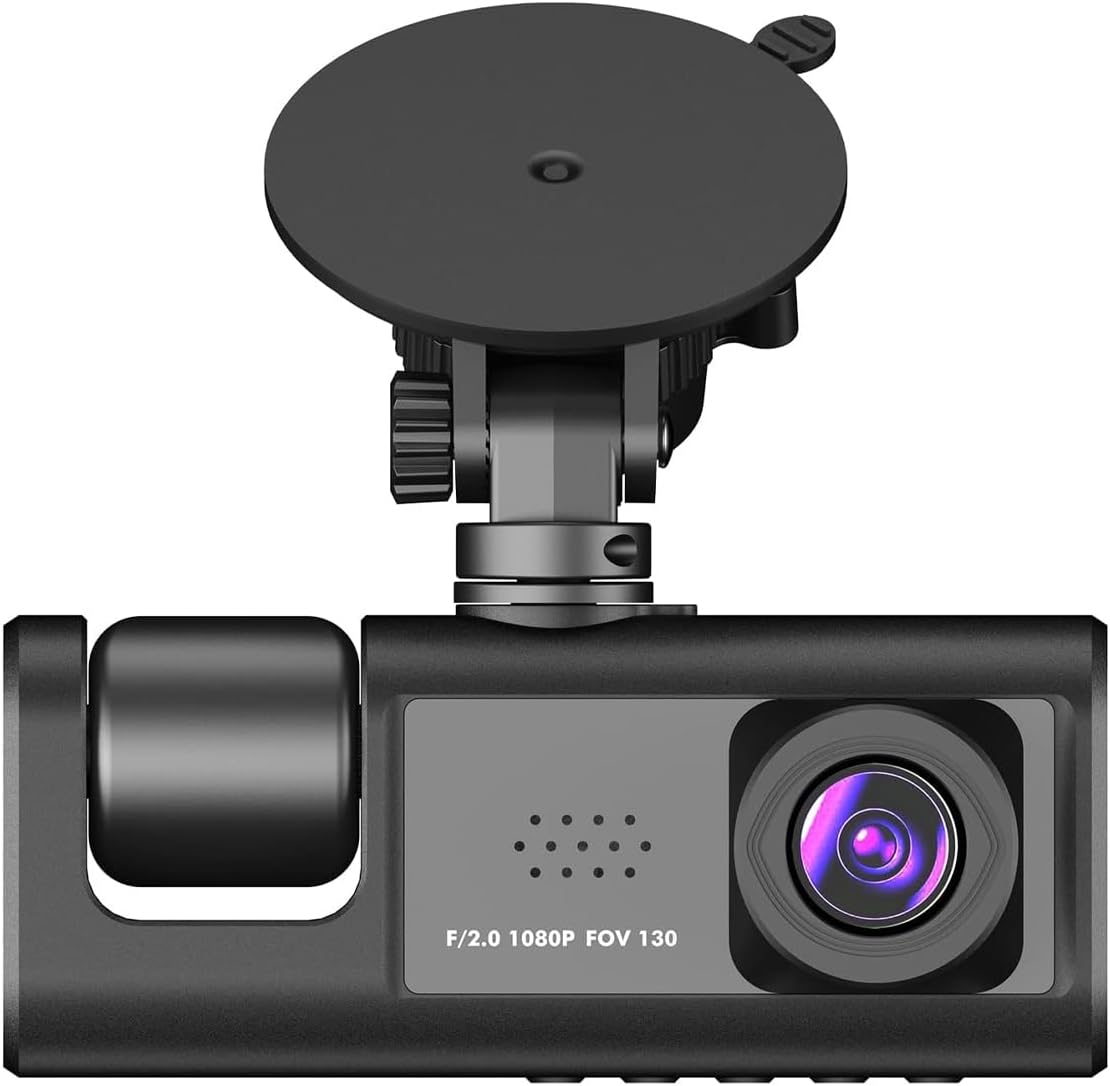
A direct front view of the D-Bugg Dual Car Security Dash Cam, showcasing the main camera lens, the F/2.0 1080P FOV 130 specifications printed on the body, and the suction mount positioned above.

This image displays the D-Bugg Dual Car Security Dash Cam from a rear-side perspective, revealing its LCD screen which shows a road view, the main camera lens, and control buttons below the screen. The suction mount is visible at the top.
3.2 Powering On
Connect the provided car charger to the dash cam's power input port and plug the other end into your vehicle's cigarette lighter socket. The dash cam will typically power on automatically when the vehicle's ignition is turned on.
3.3 Inserting the Memory Card
A microSD card (not included) is required for recording. Insert the microSD card into the designated slot on the dash cam until it clicks into place. Ensure the card is inserted correctly to avoid damage. It is recommended to use a high-speed Class 10 or higher microSD card for optimal performance.
4. Operating Instructions
4.1 Basic Operation
Once powered on, the dash cam will automatically begin recording. The LCD screen will display the live view from the cameras. The parking monitor feature will activate automatically when the vehicle is turned off, detecting impacts and initiating recording.
4.2 Video Recording
The dash cam records video in 1080p resolution. It typically uses loop recording, meaning when the memory card is full, the oldest unlocked files will be overwritten by new recordings. Important footage can be manually locked to prevent overwriting.
4.3 Playback
To view recorded videos, navigate to the playback mode on the dash cam's LCD screen using the control buttons. You can browse through recorded files and play them directly on the device. Alternatively, you can remove the microSD card and view files on a computer.
4.4 Settings
Access the settings menu to customize various options, including:
- Video resolution
- Loop recording duration
- G-sensor sensitivity
- Parking monitor settings
- Date and time
- Audio recording (integrated microphone)
- Display brightness
5. Maintenance
5.1 Cleaning
Use a soft, dry cloth to clean the dash cam's body and lenses. Do not use liquid cleaners or abrasive materials, as they may damage the device.
5.2 Memory Card Formatting
It is recommended to format the microSD card regularly (e.g., once a month) to maintain optimal performance and prevent data corruption. This can usually be done through the dash cam's settings menu.
6. Troubleshooting
If you encounter issues with your D-Bugg Dash Cam, please refer to the following common problems and solutions:
- Dash Cam does not power on: Ensure the power cable is securely connected to both the dash cam and the vehicle's power outlet. Check if the vehicle's power outlet is functioning.
- Recording stops or freezes: Ensure you are using a high-speed (Class 10 or higher) microSD card. Format the memory card. If the issue persists, try a different memory card.
- Poor video quality: Clean the camera lenses. Ensure the windshield is clean where the camera is mounted. Check the video resolution settings.
- Memory card full error: Enable loop recording in the settings. Format the memory card.
- Parking monitor not working: Ensure the parking monitor feature is enabled in the settings. Check the G-sensor sensitivity.
If the problem persists after trying these solutions, please contact D-Bugg customer support.
7. Specifications
| Feature | Detail |
|---|---|
| Brand | D-Bugg |
| Model Name | dbugg |
| Compatible Devices | Car |
| Special Features | Integrated Microphone |
| Mounting Accessories | Car Mount |
| Display Type | LCD |
| Video Capture Resolution | 1080p |
| Mounting Type | Suction Mount |
| Product Dimensions | 5 x 12 x 10 cm |
8. Warranty and Support
For warranty information or technical support, please refer to the contact details provided with your purchase documentation or visit the official D-Bugg website. Keep your proof of purchase for warranty claims.
Related documentsdbugg

Ask a question about this manual
Ask about setup, troubleshooting, compatibility, parts, safety, or missing instructions. Manuals+ will review the question and use this page’s manual context to help answer it.