
KYOCERA PA4500ci
KYOCERA TASKalfa PA4500ci Color Laser Printer User Manual
Model: PA4500ci
1. Introduction
This manual provides essential instructions for the safe and efficient operation of your KYOCERA TASKalfa PA4500ci Color Laser Printer. Please read this manual thoroughly before using the printer and keep it in a safe place for future reference. The KYOCERA TASKalfa PA4500ci is a high-performance color laser printer designed for professional environments, offering speeds up to 47 pages per minute, 1200 dpi resolution, Gigabit Ethernet connectivity, and HyPAS capability, all controlled via a 4.3-inch touchscreen panel.
2. Setup
2.1 Unpacking and Component Identification
Carefully remove the printer from its packaging. Ensure all protective materials, tapes, and inserts are removed from the exterior and interior of the device. Verify that all components listed in the packing materials are present.

Figure 2.1: Front view of the KYOCERA TASKalfa PA4500ci Color Laser Printer. This image displays the front of the KYOCERA TASKalfa PA4500ci printer, highlighting its control panel, paper trays, and output bin.
2.2 Initial Power-On
- Connect the power cord to the printer and then to a grounded electrical outlet.
- Press the power button, typically located on the side or front panel, to turn on the printer.
- Follow the on-screen instructions on the 4.3-inch touchscreen panel to complete the initial setup, including language selection and date/time settings.
2.3 Software and Driver Installation
To enable full functionality, install the printer drivers and utility software on your computer. Drivers can typically be found on the KYOCERA official website or on an included installation CD. For network connectivity, ensure your printer is connected to the network via an Ethernet cable. The printer supports Gigabit Ethernet.
3. Operating the Printer
3.1 Basic Printing
- Load paper into the paper tray. Ensure the paper guides are adjusted correctly to prevent jams. The printer has a maximum input sheet capacity of 650 sheets across two trays.
- From your computer, open the document you wish to print.
- Select 'Print' from the application's menu.
- Choose the KYOCERA TASKalfa PA4500ci from the list of available printers.
- Adjust print settings as needed (e.g., number of copies, paper size, color/monochrome).
- Click 'Print'.
3.2 Advanced Features
The TASKalfa PA4500ci offers various advanced features to enhance productivity:
- Duplex Printing: The printer supports automatic dual-sided printing. This option can be selected in the printer driver settings.
- Color Management: Utilize the printer's color settings to achieve desired output quality. The printer produces high-quality output at 1200 x 1200 dpi.
- Touchscreen Panel: The 4.3-inch touchscreen panel provides intuitive access to printer functions, status monitoring, and job management.
- HyPAS Capable: The printer is HyPAS compatible, allowing for integration with custom business applications and enhanced workflow solutions.

Figure 3.1: Printer capabilities highlighting 47 ppm speed and double-sided printing. This image illustrates the printer's capabilities, including print speeds up to 47 pages per minute and double-sided printing, copying, scanning, and faxing functions.

Figure 3.2: Mobile printing and simple setup. This image emphasizes the intuitive experience of the printer, featuring simple setup and maintenance, along with mobile scan and print capabilities.
4. Maintenance
4.1 Toner Replacement
When a toner cartridge is low or empty, a message will appear on the control panel. Follow these general steps to replace a toner cartridge:
- Open the front cover of the printer.
- Carefully remove the empty toner cartridge by pulling it towards you.
- Unpack the new toner cartridge and shake it gently to distribute the toner evenly.
- Insert the new cartridge into the corresponding slot until it clicks into place.
- Close the front cover.

Figure 4.1: Cost-friendly color printing and toner management. This image highlights the printer's cost-effective color printing, managed through a Tiered Color Monitor to control toner expenses.
4.2 Cleaning the Printer
Regular cleaning helps maintain print quality and extends the life of your printer.
- Exterior: Wipe the exterior surfaces with a soft, damp, lint-free cloth. Do not use abrasive cleaners or solvents.
- Interior: Refer to the on-screen instructions or the full service manual for detailed instructions on cleaning internal components such as the print head or paper path.
4.3 Paper Loading
Ensure paper is loaded correctly in the trays. Fan the paper stack before loading to prevent misfeeds. Do not overfill the paper trays. The printer supports various media types including card stock, plain paper, and transparencies, with a maximum media size of 8.5 x 14 inches (Legal).
5. Troubleshooting
This section addresses common issues you might encounter with your KYOCERA TASKalfa PA4500ci printer.
5.1 Common Issues and Solutions
- Paper Jam: If a paper jam occurs, the control panel will display an error message indicating the location of the jam. Carefully open the indicated covers and remove the jammed paper following the on-screen instructions.
- Poor Print Quality: Check toner levels. Ensure the correct paper type is selected in the print settings. Perform a cleaning cycle or calibration from the printer's control panel.
- Printer Not Responding: Verify the printer is powered on and connected to the computer or network. Restart both the printer and the computer. Check network cable connections.
- Error Codes: Refer to the printer's display for specific error codes. Consult the comprehensive online manual or KYOCERA support for detailed explanations and solutions for specific codes.
6. Specifications
| Feature | Specification |
|---|---|
| Model Name | TASKalfa PA4500ci |
| Printing Technology | Laser |
| Printer Output | Color |
| Maximum Print Speed (Color) | 47 ppm |
| Maximum Print Speed (Monochrome) | 47 ppm |
| Maximum Color Print Resolution | 1200 x 1200 dpi |
| Maximum Black and White Print Resolution | 1200 x 1200 dpi |
| Controller Type | Button Control, 4.3" Touchscreen Panel |
| Connectivity Technology | Ethernet, USB |
| Hardware Interface | Ethernet, USB 2.0 (2 ports) |
| Special Feature | Auto-Duplex, HyPAS Capable |
| Max Input Sheet Capacity | 650 sheets (2 trays) |
| Maximum Media Size | 8.5 x 14 inch (Legal) |
| Supported Media Types | Card stock, Paper (plain), Transparencies |
| Memory Storage Capacity | 512 MB |
| Product Dimensions | 20.9"D x 15.5"W x 17.5"H |
| Item Weight | 86 pounds |
| Wattage | 1302.4 watts |
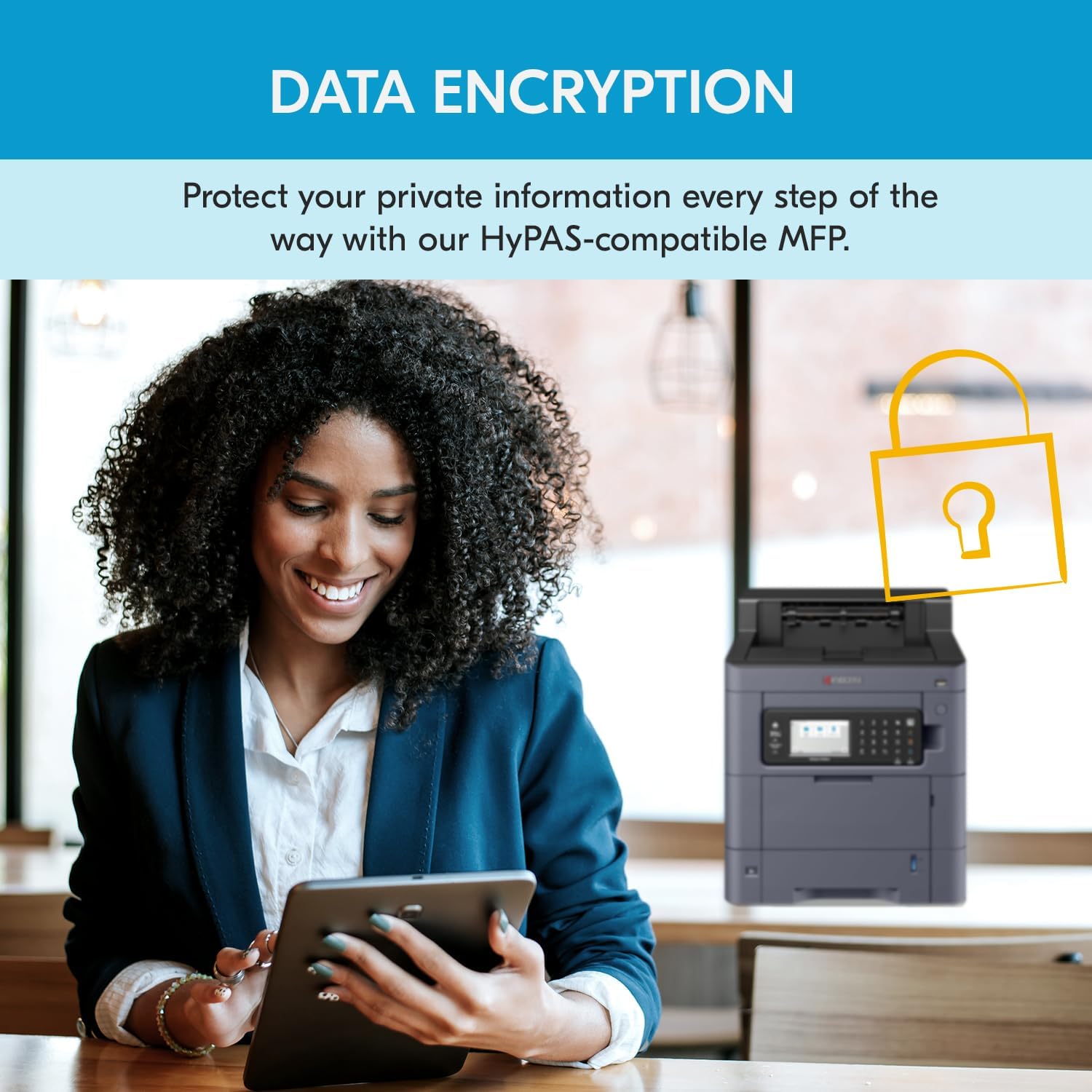
Figure 6.1: Data encryption features. This image signifies the data encryption features of the HyPAS-compatible MFP, designed to protect private information.
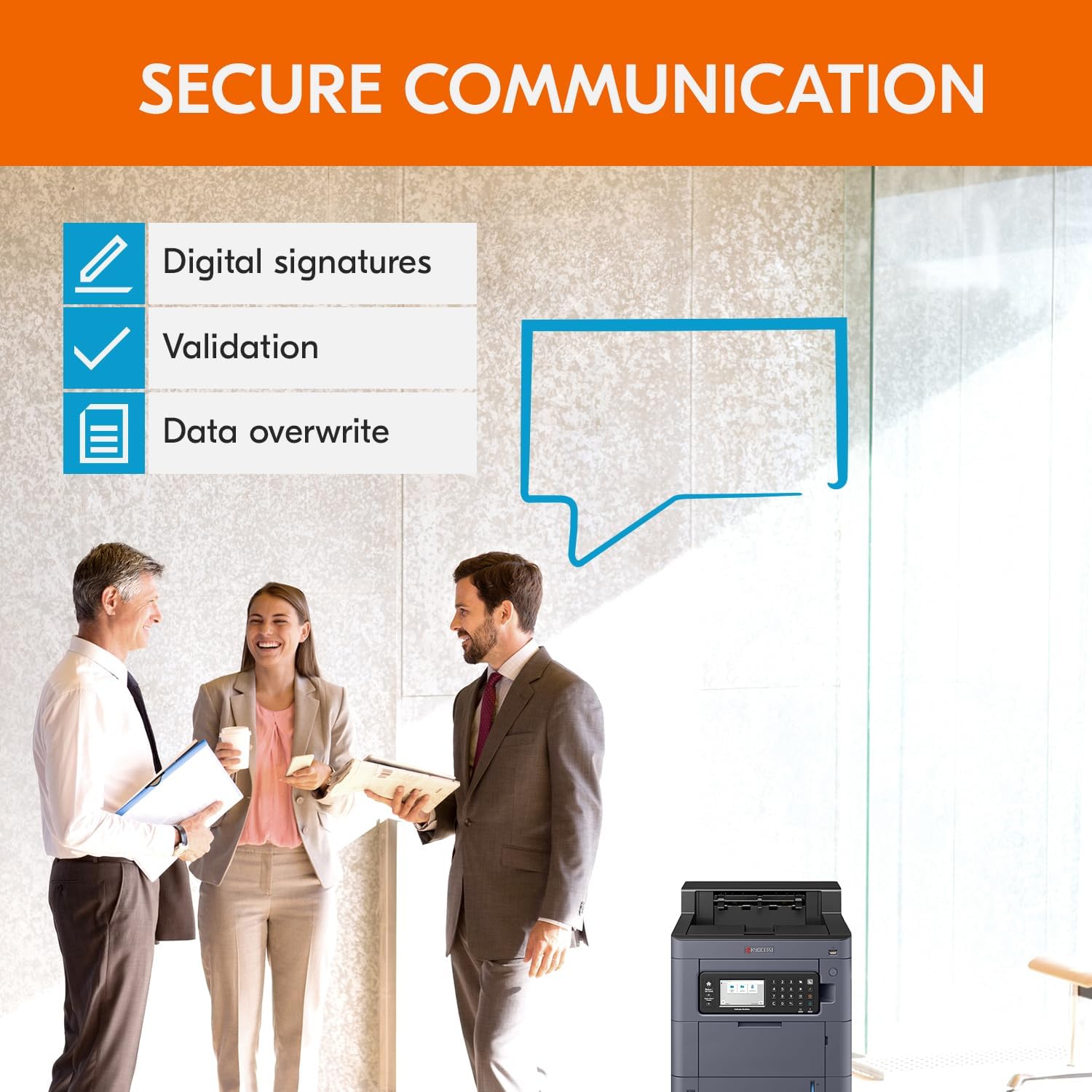
Figure 6.2: Secure communication features. This image illustrates the secure communication capabilities, including digital signatures, validation, and data overwrite, ensuring data integrity.
7. Warranty Information
The KYOCERA TASKalfa PA4500ci Color Laser Printer comes with a Limited Warranty or Full Warranty. For specific details regarding the warranty period, coverage, and terms and conditions, please refer to the warranty documentation included with your product or visit the official KYOCERA website. Proof of purchase may be required for warranty claims.
8. Customer Support
For further assistance, technical support, or to access additional resources such as updated drivers and comprehensive manuals, please visit the official KYOCERA Document Solutions website or contact their customer service department. Contact information can typically be found on the KYOCERA website or in the documentation provided with your printer.
Related documentsPA4500ci


Ask a question about this manual
Ask about setup, troubleshooting, compatibility, parts, safety, or missing instructions. Manuals+ will review the question and use this page’s manual context to help answer it.