
CHACON 2-IPCAM-DM02
CHACON 2-IPCAM-DM02 Wireless Outdoor Rotating WiFi Camera with Solar Panel
User Instruction Manual
Introduction
This manual provides comprehensive instructions for the installation, operation, and maintenance of your CHACON 2-IPCAM-DM02 Wireless Outdoor Rotating WiFi Camera with Solar Panel. Please read this manual thoroughly before using the product to ensure proper functionality and safety.
The CHACON 2-IPCAM-DM02 is designed for outdoor surveillance, offering wireless connectivity, rotating capabilities, and a solar panel for continuous power. It allows you to monitor your property remotely via your smartphone.
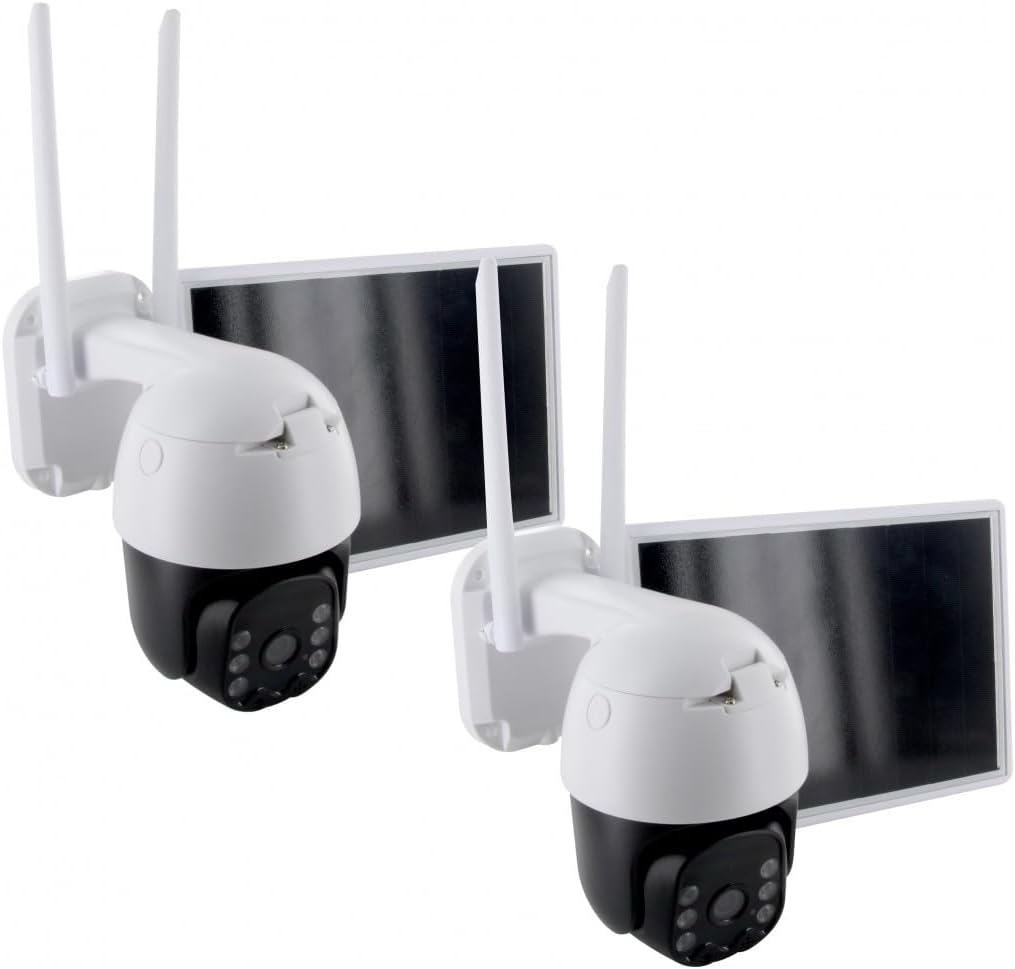
Figure 1: Two CHACON 2-IPCAM-DM02 cameras, each with an integrated solar panel, designed for outdoor surveillance.
Product Features
- Wireless Connectivity: Connects to your home Wi-Fi network for remote access.
- Solar Powered: Equipped with a 7.8W solar panel and a 13200mAh battery for continuous operation without external power.
- Rotating Camera: Offers a horizontal rotation of 320 degrees and a vertical rotation of 90 degrees for wide area coverage.
- High Definition Video: Features a 2MP 1/2.9'' CMOS lens for clear 1080p video recording.
- Night Vision: Provides clear visibility up to 25 meters in low-light conditions.
- Two-Way Audio: Built-in microphone and speaker for bidirectional communication.
- Outdoor Durability: Constructed with metal material suitable for outdoor environments.

Figure 2: Key features of the CHACON camera, including wireless operation, solar power, HD video, and rotating capabilities.
Package Contents
The CHACON 2-IPCAM-DM02 package includes the following items:
- 2 x CHACON 2-IPCAM-DM02 Wireless Outdoor Rotating WiFi Camera with Solar Panel
- 2 x Mounting Kits (screws, wall plugs)
- 1 x User Manual (this document)
- Other accessories as specified by the manufacturer
Setup
1. Charging the Battery
Before initial use, ensure the camera's internal battery is sufficiently charged. While the solar panel provides continuous power, a full charge before installation is recommended. Connect the camera to a standard USB power adapter (not included) using the provided cable, or place the solar panel in direct sunlight for several hours.
2. App Installation and Account Creation
- Download the official CHACON smart home application from your smartphone's app store (iOS App Store or Android Google Play Store).
- Open the app and follow the on-screen instructions to create a new account or log in if you already have one.
3. Adding the Camera to the App
- Ensure your smartphone is connected to a 2.4GHz Wi-Fi network. The camera does not support 5GHz Wi-Fi.
- In the app, tap the "Add Device" or "+" icon.
- Select "Security Camera" or "Smart Camera" from the device list.
- Power on the camera. The camera will enter pairing mode, indicated by a flashing LED light.
- Follow the app's instructions to connect the camera to your Wi-Fi network. This typically involves scanning a QR code displayed on your phone screen with the camera's lens.
- Once connected, you can name your camera and configure initial settings.
4. Mounting the Camera
Choose a suitable location for mounting the camera, ensuring it has a clear view of the area you wish to monitor and that the solar panel receives adequate direct sunlight throughout the day. The camera is designed for wall mounting.
- Mark the drilling points on the wall using the camera's mounting bracket as a template.
- Drill holes at the marked positions. Insert wall plugs if mounting on masonry.
- Secure the mounting bracket to the wall using the provided screws.
- Attach the camera to the mounting bracket, ensuring it is firmly secured.
- Adjust the angle of the camera and solar panel for optimal coverage and sunlight exposure.

Figure 3: Example of the CHACON camera mounted on an exterior wall, demonstrating its outdoor placement and solar panel orientation.

Figure 4: Overhead view illustrating the camera and its solar panel positioned on a flat surface, highlighting the connection cable.
Operating the Camera
Live View and Remote Control
- Open the CHACON app on your smartphone.
- Select the desired camera from your device list to access its live video feed.
- Use the on-screen controls to pan (horizontal 320°) and tilt (vertical 90°) the camera remotely.
- Tap the microphone icon to use the two-way audio feature for communication.
- Tap the speaker icon to listen to audio from the camera's location.
Recording and Playback
- The camera supports motion-activated recording. Configure motion detection sensitivity and recording schedules in the app settings.
- Recorded footage is typically stored on a microSD card (not included) inserted into the camera or via cloud storage (subscription may be required).
- Access recorded videos through the "Playback" or "History" section within the app.
Night Vision
The camera automatically switches to night vision mode in low-light conditions, providing clear black and white images up to 25 meters. This feature ensures continuous surveillance around the clock.
Maintenance
- Cleaning: Periodically clean the camera lens and solar panel with a soft, damp cloth to ensure optimal performance. Avoid abrasive cleaners.
- Firmware Updates: Regularly check the CHACON app for available firmware updates for your camera. Keeping the firmware updated ensures the latest features and security patches.
- Battery Health: While solar-powered, prolonged periods of low sunlight may affect battery charge. Ensure the solar panel is free from obstructions (e.g., leaves, snow) for efficient charging.
- Mounting Security: Periodically check the mounting screws and bracket to ensure the camera remains securely attached to its mounting surface.
Troubleshooting
| Problem | Possible Cause | Solution |
|---|---|---|
| Camera offline / Cannot connect to Wi-Fi | Incorrect Wi-Fi password; Camera too far from router; Router is 5GHz only; Network congestion. | Verify Wi-Fi password. Move camera closer to router or use a Wi-Fi extender. Ensure router supports 2.4GHz. Restart router and camera. |
| Poor video quality | Dirty lens; Low network bandwidth; Insufficient lighting. | Clean the camera lens. Check your internet speed. Ensure adequate lighting or verify night vision is active. |
| Battery not charging / Camera losing power | Insufficient sunlight on solar panel; Solar panel obstructed; Faulty solar panel/battery. | Relocate solar panel to receive more direct sunlight. Clear any obstructions. Contact support if issue persists. |
| Motion detection not working | Sensitivity settings too low; Detection zone not configured; Obstructions in view. | Adjust motion detection sensitivity in the app. Configure detection zones. Ensure clear line of sight. |
Specifications
| Feature | Detail |
|---|---|
| Model Number | 2-IPCAM-DM02 |
| Connectivity Protocol | Wi-Fi (2.4GHz) |
| Mounting Type | Wall Mount |
| Included Components | 2 x CHACON 2-IPCAM-DM02 Cameras with Solar Panels |
| Number of Channels | 2 |
| Material | Metal |
| Solar Panel Wattage | 7.8 watts |
| Battery Capacity | 13200mAh (included) |
| Item Dimensions (L x W x H) | 28.5 x 41 x 18 cm |
| Item Weight | 3.96 kg |
| Viewing Angle | 100 degrees |
| Rotation Angle | Horizontal 320° / Vertical 90° |
| Lens | 2MP 1/2.9'' CMOS |
| Night Vision Range | 25 meters |
| Audio | Bidirectional (Two-way) |
| Recommended Use | Outdoor Surveillance, Night Vision |
Warranty Information
CHACON products are designed and manufactured to the highest quality standards. For specific warranty terms and conditions, please refer to the warranty card included with your product or visit the official CHACON website. Keep your purchase receipt as proof of purchase for warranty claims.
Customer Support
If you encounter any issues or have questions regarding your CHACON 2-IPCAM-DM02 camera, please contact CHACON customer support through the following channels:
- Website: Visit the official CHACON website for FAQs, support articles, and contact forms.
- Email: Refer to your product packaging or the CHACON website for the customer support email address.
- Phone: Check the CHACON website for regional customer service phone numbers.
When contacting support, please have your product model number (2-IPCAM-DM02) and purchase details ready.
Related documents2-IPCAM-DM02


Ask a question about this manual
Ask about setup, troubleshooting, compatibility, parts, safety, or missing instructions. Manuals+ will review the question and use this page’s manual context to help answer it.