
Introduction
This manual provides essential information for setting up, operating, and maintaining your Apple iPhone 15 Pro. Please read this guide thoroughly to ensure optimal performance and longevity of your device.

The iPhone 15 Pro features a 6.1-inch Super Retina XDR display with ProMotion technology, powered by the A17 Pro chip. It includes an advanced triple-camera system and supports 5G connectivity. This device is a renewed product, meaning it has been inspected, tested, and refurbished to be fully functional.
Setup
1. Initial Power-On
To power on your iPhone 15 Pro, press and hold the Side button on the right side of the device until the Apple logo appears. If the device does not power on, ensure it is charged using the provided USB-C cable.
2. SIM Card / eSIM Activation
The iPhone 15 Pro supports Dual eSIM. For models sold in the United States, a physical SIM card slot is not present. Contact your carrier for eSIM activation. For international models, insert your physical Nano-SIM card into the SIM tray located on the left side of the device.
3. Initial Setup Process
Follow the on-screen instructions to complete the initial setup:
- Select your language and region.
- Connect to a Wi-Fi network.
- Set up Face ID for secure authentication.
- Create a passcode.
- Sign in with your Apple ID or create a new one.
- Review and agree to the Terms and Conditions.
- Set up Siri, Screen Time, and other services.
4. Data Transfer
You can transfer data from an old iPhone or Android device during the setup process using Quick Start, iCloud Backup, iTunes/Finder, or the Move to iOS app for Android.
Operating the Device
1. Display and Interaction
The iPhone 15 Pro features a 6.1-inch LTPO Super Retina XDR OLED display with a 120Hz ProMotion refresh rate, HDR10, and Dolby Vision. This provides a smooth and vibrant visual experience.
2. Dynamic Island
The Dynamic Island is an interactive area at the top of your display that adapts to show alerts, notifications, and ongoing activities, such as calls, timers, and Face ID authentication.
3. Action Button
The new Action button, located above the volume buttons, can be customized to quickly access various functions like Silent Mode, Camera, Flashlight, Voice Memos, Focus modes, Translate, and Accessibility features.
4. Camera System
Your iPhone 15 Pro is equipped with an advanced triple-camera system:
- Main Camera: 48MP, f/1.8 (wide) for high-resolution photos.
- Telephoto Camera: 12MP, f/2.8 with 3x optical zoom.
- Ultra-Wide Camera: 12MP, f/2.2 for expansive shots.
- Front Camera: 12MP, f/1.9 (wide) for selfies and video calls.
The camera supports features like 4K video recording, Cinematic mode, and Photographic Styles.
5. Performance and Software
The device is powered by the Apple A17 Pro chip, offering exceptional speed and efficiency for demanding applications and gaming. It runs on iOS 17, with planned upgrades to future iOS versions.
6. Connectivity
The iPhone 15 Pro supports a wide range of connectivity options:
- 5G: For high-speed cellular data.
- Wi-Fi: For wireless internet access.
- Bluetooth: For connecting wireless accessories.
- NFC: For Apple Pay and other contactless functions.
- USB-C: For charging and data transfer.
Maintenance
1. Cleaning Your Device
To clean your iPhone, use a soft, lint-free cloth. Avoid abrasive materials, aerosols, and cleaning sprays. Do not submerge your iPhone in cleaning agents.
2. Battery Care
To maximize battery lifespan, avoid extreme temperatures. Optimize battery charging in Settings to reduce battery aging. For renewed devices, battery health is typically 80% or higher of the original capacity.
3. Software Updates
Regularly update your iPhone's software to the latest iOS version to ensure you have the newest features, security updates, and performance improvements. Go to Settings > General > Software Update.
4. Data Backup
Regularly back up your iPhone data to iCloud or a computer to prevent data loss. This can be done via Settings > [Your Name] > iCloud > iCloud Backup or by connecting to a computer and using Finder (macOS Catalina or later) or iTunes (macOS Mojave or earlier, or Windows PC).
Troubleshooting
1. Device Not Responding
If your iPhone is unresponsive, perform a force restart:
- Press and quickly release the Volume Up button.
- Press and quickly release the Volume Down button.
- Press and hold the Side button until the Apple logo appears.
2. Battery Drain
If you experience unusual battery drain, check Settings > Battery to identify apps consuming the most power. Consider reducing screen brightness, disabling background app refresh for non-essential apps, or updating apps.
3. Network Connectivity Issues
For Wi-Fi or cellular issues, try toggling Airplane Mode on and off. You can also reset network settings by going to Settings > General > Transfer or Reset iPhone > Reset > Reset Network Settings.
4. Factory Reset
As a last resort for persistent issues, you may need to perform a factory reset. Warning: This will erase all data on your iPhone. Ensure you have a backup. Go to Settings > General > Transfer or Reset iPhone > Erase All Content and Settings.
Specifications
| Feature | Detail |
|---|---|
| Model Name | iPhone 15 Pro |
| Display | 6.1-inch LTPO Super Retina XDR OLED, 120Hz ProMotion, HDR10, Dolby Vision |
| Resolution | 1179x2556 pixels |
| Processor | Apple A17 Pro (3 nm), Hexa-core CPU, Apple GPU (6-core graphics) |
| Internal Storage | 128GB |
| RAM | 8GB |
| Rear Camera | 48MP (wide), 12MP (telephoto, 3x optical zoom), 12MP (ultrawide) |
| Front Camera | 12MP (wide) |
| Battery Capacity | 3274 mAh |
| Operating System | iOS 17 (upgradable) |
| Connectivity | 5G, Wi-Fi, Bluetooth, NFC, USB-C |
| Dimensions | 5.77 x 2.78 x 0.33 inches |
| Weight | 6.6 ounces |
| Special Features | Dynamic Island, Action Button, Face ID, Fast Charging, Wireless Charging, Built-In GPS |
Warranty and Support
This Apple iPhone 15 Pro is a renewed product. Renewed products undergo inspection, diagnostic tests, thorough cleaning, and refurbishment to ensure full functionality. They typically come with generic or original accessories and packaging, and a battery life of greater than 80% of the original capacity.
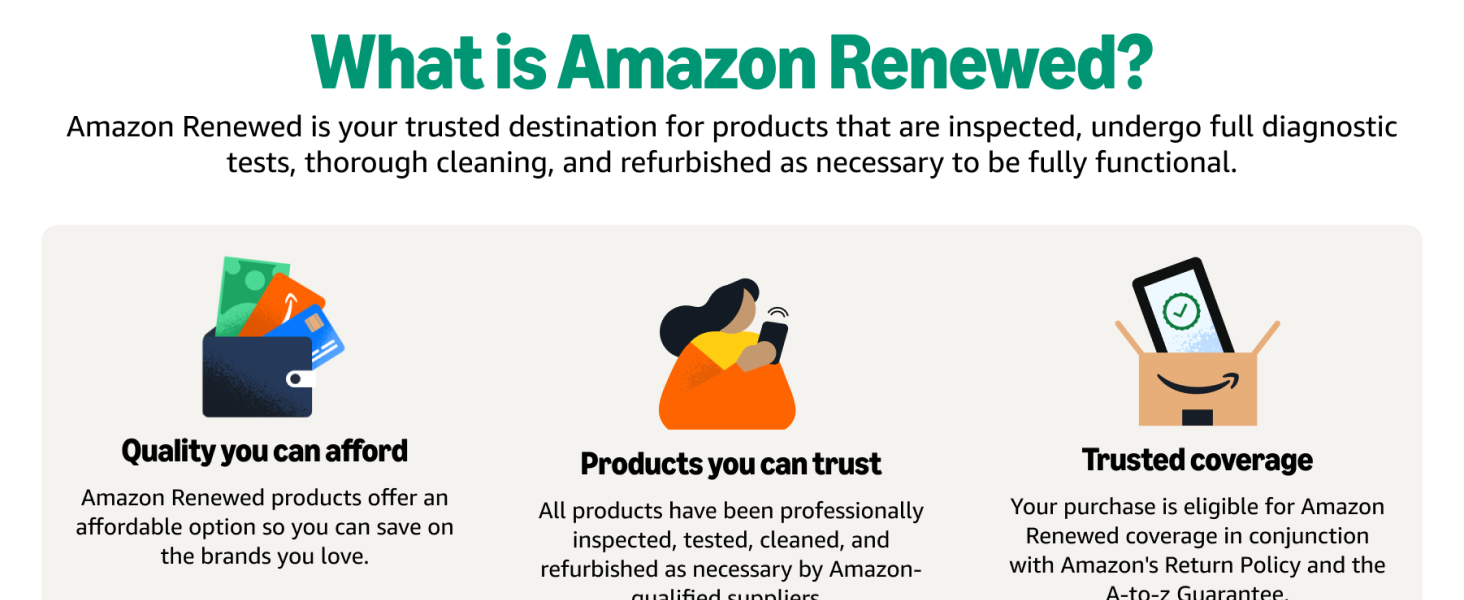
For specific warranty details and support for your renewed device, please refer to the documentation provided with your purchase or visit the Amazon Renewed Store. For general product support, visit the official Apple Support website.


