
1. Introduction
The BITFUNX PS2 HDMI Adapter allows you to connect your PlayStation 2 console to modern televisions and monitors via an HDMI input. This adapter supports both RGB and Component video output modes from the PS2, providing a clear digital signal with zero transmission loss. It is designed for plug-and-play functionality, making it easy to integrate your classic console into a contemporary home entertainment setup.
2. Package Contents
Please verify that all items listed below are included in your package:
- 1 x BITFUNX PS2 HDMI Adapter
- 1 x HDMI Cable
- 1 x Micro USB Power Cable
- 1 x Quick Start Guide

Figure 2.1: Package Contents. This image displays the BITFUNX PS2 HDMI Adapter, an HDMI cable, a micro USB power cable, and a quick start guide, all neatly arranged as they would appear in the product packaging.
3. Product Overview
The BITFUNX PS2 HDMI Adapter is a compact device designed to convert the analog video output of your PlayStation 2 console into a digital HDMI signal. It features a built-in switch to select between RGB and YPbPr (Component) video modes, ensuring compatibility with various PS2 models and display settings.

Figure 3.1: Adapter Ports. This image highlights the key connection points on the BITFUNX PS2 HDMI Adapter: the HDMI output port, the Micro USB port for power, and the PS2 video input connector.

Figure 3.2: Adapter Features. This image illustrates the main features of the adapter, including its support for various PS2 video resolutions and its RGB to YPbPr switch.
4. Specifications
| Device Dimensions | L: 6cm W: 4cm H: 1.5cm |
| Cable Length (Adapter) | 24cm (approx. 10.2 inches) |
| Weight | 42g (approx. 8.8 ounces) |
| Power Consumption | Below 2W |
| Supported PS2 Video Input Modes | 480i, 480p, PAL 576i |
| Supported HDMI Output Modes | RGB and Component Output |
| Connector Type | HDMI |
| Compatible Devices | PlayStation 2 Console, Monitor, Television |

Figure 4.1: Product Dimensions. This image provides a visual representation of the lengths for the adapter itself, the HDMI cable, and the Micro USB power cable.
5. Setup Instructions
Follow these steps to connect your BITFUNX PS2 HDMI Adapter to your PlayStation 2 console and television:
- Disconnect Previous Cables: Remove any existing A/V cables from your PlayStation 2 console.
- Connect Adapter to PS2: Plug the BITFUNX PS2 HDMI Adapter directly into the A/V Multi Out port on the back of your PS2 console.
- Connect HDMI Cable: Plug one end of the HDMI cable into the HDMI output port on the BITFUNX adapter. Connect the other end of the HDMI cable to a free HDMI input socket on your television or monitor.
- Connect Power Cable: Plug the Micro USB power cable into the Micro USB port on the adapter. Connect the USB-A end of this cable to an available USB port on your PS2 console or a 5V USB power adapter (not included).
- Select RGB Mode: Locate the slider switch on the BITFUNX PS2 HDMI Adapter and set it to the 'RGB' position.
- Power On: Turn on your PlayStation 2 console and your television.
- Select TV Input: Ensure your TV's input source is switched to the correct HDMI input where the PS2 is connected.
- Verify Display: You should now see the PS2 picture on your TV. The LED indicator on the BITFUNX HDMI adapter should be green.
- Configure PS2 (if necessary): If the image is not optimal or you wish to use Component output, navigate to the PS2 configuration menu. Change the 'Component Video Out' setting to Y Cb/Pb Cr/Pr.
- Select YPbPr Mode: After changing the PS2 setting, switch the slider on the BITFUNX PS2 HDMI Adapter to the 'YPbPr' position.

Figure 5.1: Connection Diagram. This diagram visually guides the user through the process of connecting the adapter to the PS2 console and the television.
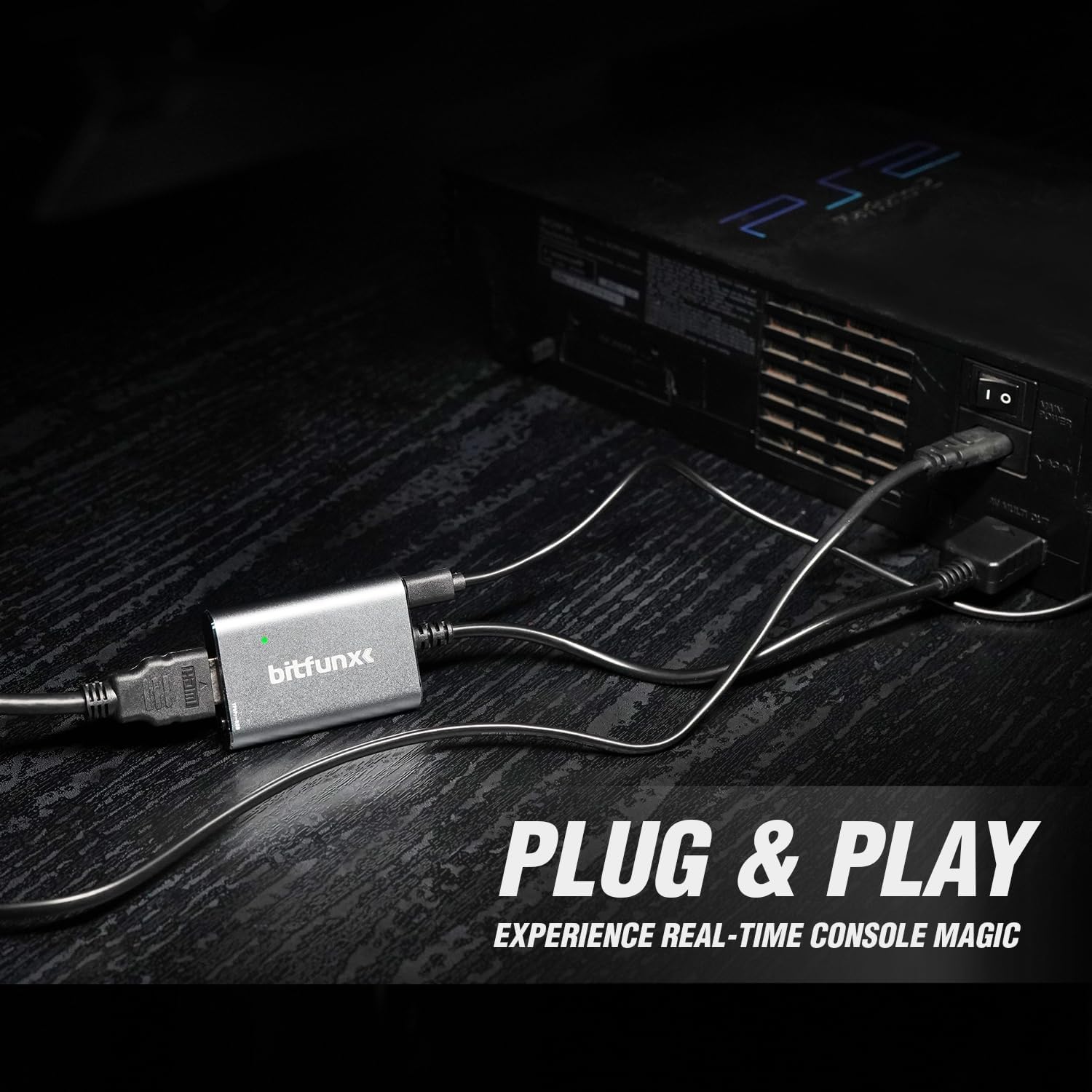
Figure 5.2: Connected Adapter. This image demonstrates the adapter fully connected to a PS2 console, ready for use.
6. Operating Instructions
Once the BITFUNX PS2 HDMI Adapter is correctly installed and configured, operating it is straightforward:
- Power On: Simply power on your PlayStation 2 console and your television. The adapter will automatically convert the PS2's video signal to HDMI.
- Input Selection: Ensure your television is set to the correct HDMI input channel where the adapter is connected.
- RGB/YPbPr Switch: Use the slider switch on the adapter to toggle between RGB and YPbPr (Component) output modes. This switch should correspond to the 'Component Video Out' setting in your PS2's system configuration menu for optimal display.
- No Upscaling: Please note that this adapter provides a direct conversion of the PS2's native resolution to HDMI and does not perform video upscaling or image enhancement. The output resolution will match the PS2's original display mode (e.g., 480i, 480p, PAL 576i).

Figure 6.1: Visual Output Comparison. This image illustrates the difference in visual quality between standard AV output and the HDMI output provided by the adapter.
7. Troubleshooting
If you encounter issues while using your BITFUNX PS2 HDMI Adapter, please refer to the following common problems and solutions:
- No Picture or Distorted Image:
- Ensure the HDMI cable is securely connected to both the adapter and your TV.
- Verify that the Micro USB power cable is connected and providing power to the adapter (the LED should be green).
- Check that your TV is set to the correct HDMI input source.
- Incorrect RGB/YPbPr Setting: If you experience green screens or distorted images, it is highly probable that the RGB/YPbPr slider on the adapter does not match the 'Component Video Out' setting in your PS2's configuration menu. Adjust both settings to match (either both to RGB or both to YPbPr).
- No Audio:
- Confirm your TV's volume is not muted or set too low.
- Ensure the HDMI cable is fully seated.
- Intermittent Signal / Screen Blackouts:
- This can sometimes be caused by an unstable power supply. Try connecting the Micro USB power cable to a dedicated 5V USB wall adapter instead of the PS2's USB port, if available.
- Ensure the PS2's A/V Multi Out port is clean and free of debris.
- Test with a different HDMI cable if possible.
- Image Quality Not Improved:
- Remember that the adapter does not upscale the image. It converts the native PS2 signal to HDMI. The visual improvement comes from using a digital signal over analog, which can reduce noise and improve clarity on modern displays.
8. Maintenance
To ensure the longevity and optimal performance of your BITFUNX PS2 HDMI Adapter, follow these simple maintenance guidelines:
- Cleaning: Use a soft, dry cloth to clean the adapter. Avoid using liquid cleaners or abrasive materials.
- Storage: When not in use, store the adapter in a cool, dry place away from direct sunlight and extreme temperatures.
- Handling: Handle the adapter and its cables with care. Avoid bending or pulling cables excessively, which can damage internal wiring.
- Power: Always ensure the adapter is powered correctly via the Micro USB cable.
9. Warranty and Support
For warranty information or technical support regarding your BITFUNX PS2 HDMI Adapter, please refer to the documentation included with your purchase or contact BITFUNX customer service directly through their official website or the retailer where the product was purchased. Please have your product model number (PS2-HDMI-Adapter) and purchase details ready when contacting support.
