
EVTSCAN B0CMZ89NCL
EVTSCAN 1080P Outdoor WiFi Smart Camera User Manual
Model: B0CMZ89NCL
Introduction
This manual provides comprehensive instructions for the installation, operation, and maintenance of your EVTSCAN 1080P Outdoor WiFi Smart Camera. Please read this manual thoroughly before using the product to ensure proper functionality and safety.
Package Contents
Verify that all items are present in the package:
- 1 x EVTSCAN WiFi Smart Camera
- 1 x Power Adapter
- 2 x Mounting Screws
- 2 x Wall Plugs
- 1 x User Manual (this document)
- 1 x Card Pin (for reset/SD card access)
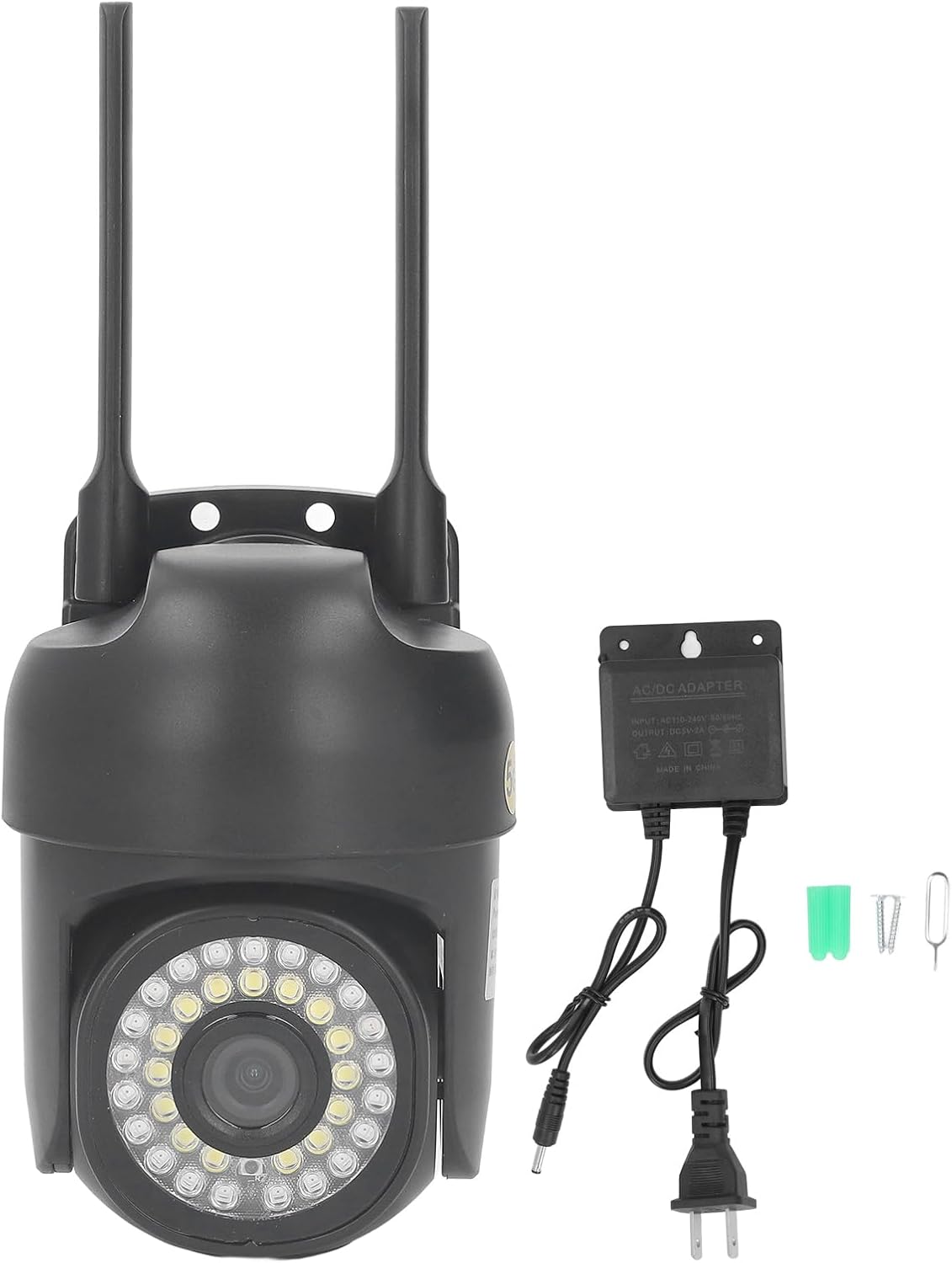
Image Description: The image displays the EVTSCAN WiFi Smart Camera along with its included accessories: a power adapter, two mounting screws, two wall plugs, and a card pin. The camera itself is black with two antennas and a prominent lens surrounded by LEDs.
Setup and Installation
1. Choose a Mounting Location
Select a suitable outdoor location for the camera, ensuring it has a clear view of the area you wish to monitor and is within range of your 2.4GHz or 5GHz WiFi network. The camera is IP66 weatherproof, suitable for outdoor use.

Image Description: An EVTSCAN WiFi Smart Camera is shown mounted high on an indoor wall, demonstrating a typical installation scenario. The camera is black with two antennas pointing upwards.
2. Physical Installation
- Mark Drilling Points: Hold the camera's mounting base against the desired surface and mark the positions for the two screw holes.
- Drill Holes: Use an appropriate drill bit to drill holes at the marked positions. Insert the wall plugs into the drilled holes.
- Mount Camera: Align the camera's mounting base with the wall plugs and secure it using the provided screws.

Image Description: This image shows the underside of the EVTSCAN WiFi Smart Camera, highlighting the two screw holes on its mounting base for secure installation.
3. Power Connection
Connect the power adapter to the camera's power input port and then plug the adapter into a power outlet. The camera will power on and initiate its startup sequence.

Image Description: A close-up view of the power input jack on the EVTSCAN WiFi Smart Camera, illustrating where the power adapter should be connected.
4. App Installation and WiFi Connection
- Download App: Download the recommended surveillance camera app from your device's app store (available for iOS and Android).
- Create Account: Open the app and follow the on-screen instructions to create a new user account.
- Add Device: Select "Add Device" or a similar option within the app. Follow the in-app prompts to connect your camera to your 2.4GHz or 5GHz WiFi network. This typically involves scanning a QR code on the camera or entering WiFi credentials.
Operating Instructions
Remote Monitoring and Control
Once connected to the app, you can remotely view live footage, control the camera's pan (350°) and tilt (90°) movements, and access recorded videos from your smartphone.

Image Description: A direct front view of the EVTSCAN WiFi Smart Camera, showcasing its lens and the surrounding array of LEDs. The camera is black with two antennas.
Motion Tracking and Alerts
Enable motion detection and tracking in the app settings. When motion is detected, the camera will automatically begin recording and track the moving object. You will receive instant notifications on your connected device.
Night Viewing Modes
The camera offers multiple night viewing options:
- Infrared Mode: Standard black and white night vision using IR LEDs.
- Full Color Mode: Utilizes integrated floodlights to provide full-color images even in dark environments.
- Automatic Mode: The camera intelligently switches between infrared and full-color modes based on ambient light conditions.

Image Description: A detailed close-up of the EVTSCAN WiFi Smart Camera's lens, clearly showing the array of infrared and white light LEDs surrounding it, which enable various night vision modes.
Two-Way Audio
The built-in microphone and speaker allow for two-way communication. Use the app to speak through the camera and listen to audio from the camera's location.

Image Description: An illustrative image depicting the two-way audio functionality of the EVTSCAN WiFi Smart Camera. It shows a person speaking into a smartphone and a child near the camera, with speech bubbles indicating communication.
Video Storage
The camera supports local storage via a small memory card (16-128GB, not included). Insert the memory card into the designated slot. Cloud storage options may also be available through the app (subscription may be required).
Maintenance
- Cleaning: Periodically clean the camera lens and housing with a soft, damp cloth. Do not use harsh chemicals or abrasive cleaners.
- Firmware Updates: Check the app regularly for firmware updates to ensure optimal performance and security.
- Power Cycle: If the camera experiences issues, try power cycling it by unplugging and replugging the power adapter.
Troubleshooting
| Problem | Possible Solution |
|---|---|
| Camera fails to connect to WiFi. |
|
| No image or poor image quality. |
|
| Motion detection not working. |
|
| Two-way audio issues. |
|
Specifications
| Feature | Detail |
|---|---|
| Item Type | WiFi Smart Camera |
| Material | ABS |
| Pixels | 2MP |
| Resolution | 1920x1080 (1080P) |
| Network Mode | WIFI wireless (2.4GHz/5GHz) |
| Image Sensor | CMOS |
| Horizontal Definition | 1080P |
| Lens | Approx. 3.6mm / 0.14in |
| Video Saving | Small memory card (supports 16-128GB, not included) |
| Color | Black |
| Viewing Angle | 350° Horizontal, 90° Vertical Swivelling |
| Weatherproof Rating | IP66 |
| Audio | Two-way audio (built-in microphone and speaker) |
| Motion Tracking | Supported |
| Night Viewing | Infrared, Full Color, Automatic |
| Mounting Type | Wall Mount |
| Compatible Devices | Smartphone (iOS, Android) |
| Item Weight | 0.37 Kilograms (approx. 13 ounces) |
Warranty and Support
For warranty information and technical support, please refer to the official EVTSCAN website or contact their customer service directly. Contact details are typically found on the product packaging or the brand's official online presence.
You can visit the EVTSCAN Store for more information: EVTSCAN Store on Amazon
Ask a question about this manual
Ask about setup, troubleshooting, compatibility, parts, safety, or missing instructions. Manuals+ will review the question and use this page’s manual context to help answer it.