
1. Introduction
The Snom HD350W is a robust and antibacterial Hotel SIP IP Phone designed for hospitality environments. It offers reliable communication with advanced features such as Wi-Fi connectivity, Power over Ethernet (PoE) support, and programmable keys. This manual provides detailed instructions for the setup, operation, and maintenance of your Snom HD350W phone.
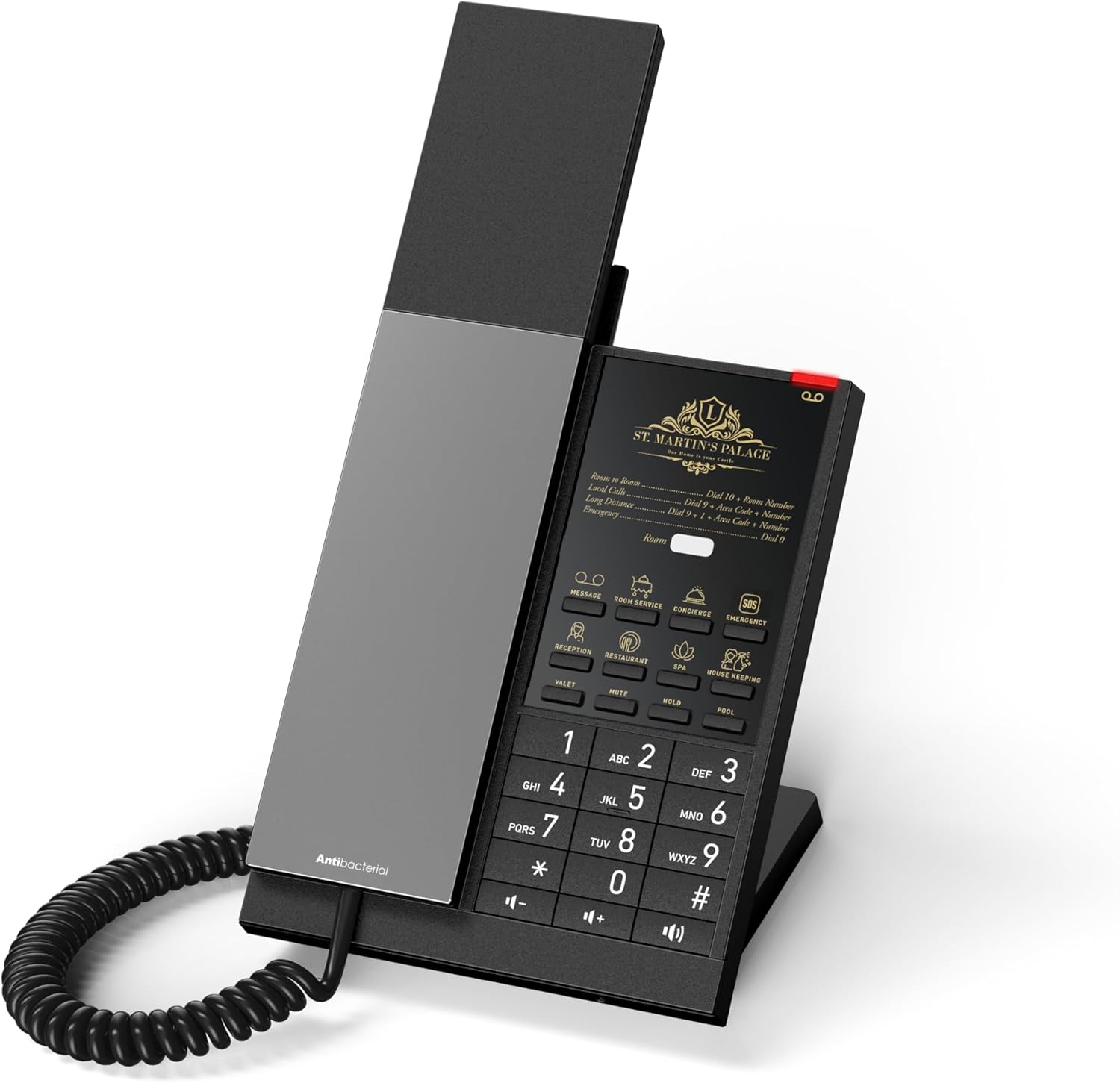
Figure 1: Front view of the Snom HD350W Hotel SIP IP Phone. This image shows the handset, keypad, and display area.
2. Package Contents
Please verify that your package contains the following items:
- Snom HD350W IP Phone unit
- Handset
- Handset cord
- Ethernet cable
- Desk stand / Wall mount kit
- Quick Installation Guide (this document)
- Power adapter (if not using PoE)
If any items are missing or damaged, please contact your vendor or Snom support immediately.
3. Physical Overview
Familiarize yourself with the various components and ports of your Snom HD350W phone.
3.1 Front and Keypad
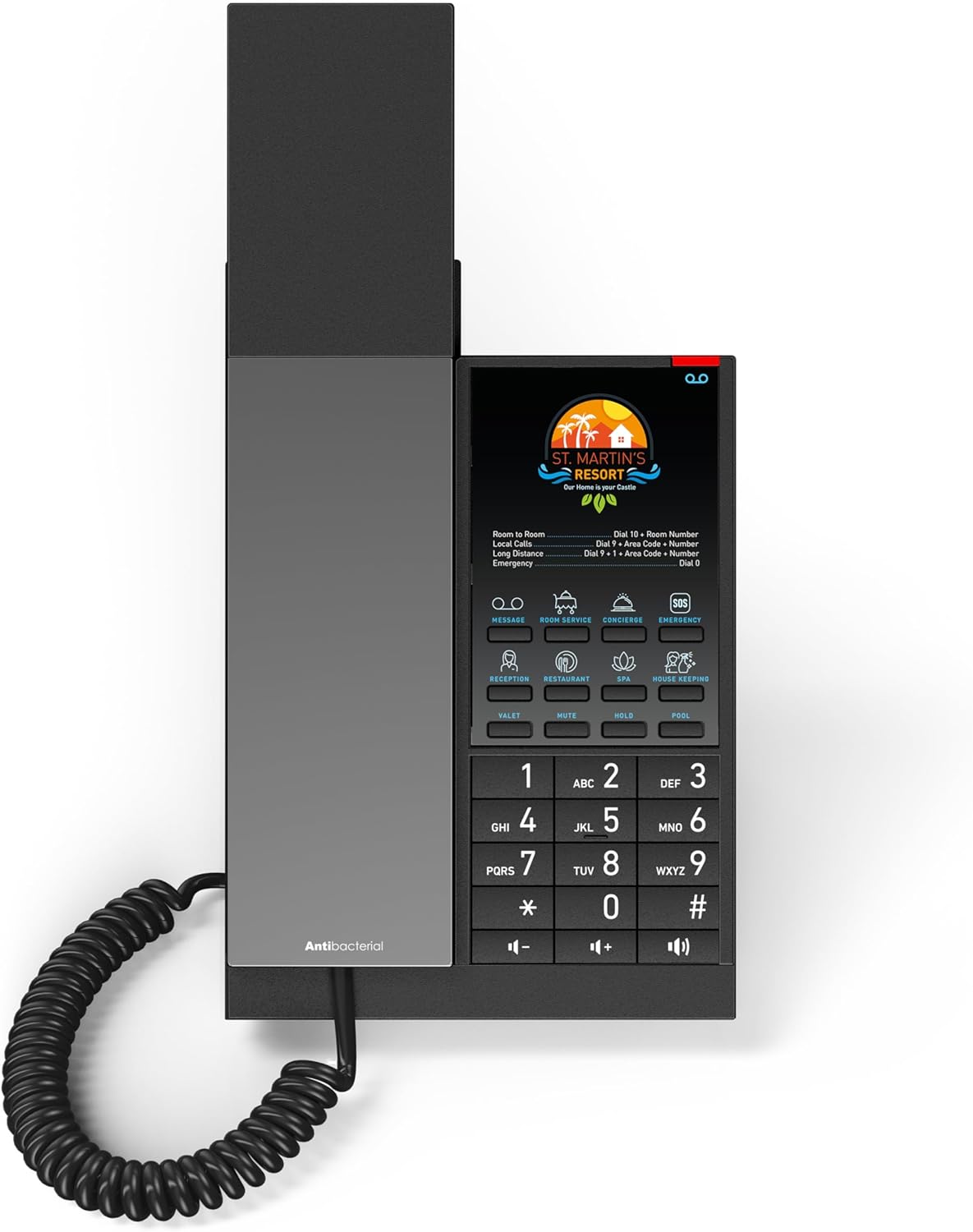
Figure 2: Top-down view of the Snom HD350W keypad and display. This image highlights the numerical keypad, function keys, and the customizable display area.
- Display Area: Customizable area for hotel branding and quick dialing instructions.
- Programmable Keys: Up to 8 keys for quick calls or specific functions (e.g., Message, Room Service, Concierge, Emergency).
- Numeric Keypad: Standard 0-9, *, # keys for dialing.
- Function Keys: Dedicated keys for Speaker, Mute, Volume control, etc.
3.2 Rear Ports

Figure 3: Rear view of the Snom HD350W, showing the connection ports. This image displays the Ethernet ports and power input.
- Handset Port: Connects the coiled handset cord.
- Ethernet Ports (2x Gigabit): For network connection and Power over Ethernet (PoE).
- Power Adapter Port: For connecting the external power supply (if not using PoE).
4. Setup and Installation
4.1 Mounting the Phone
The Snom HD350W can be installed on a desk or mounted on a wall.
4.1.1 Desk Mount Installation
- Attach the supplied desk stand to the back of the phone unit. Ensure it clicks securely into place.
- Place the phone on a flat, stable surface.
4.1.2 Wall Mount Installation
- Use the included wall mount kit.
- Secure the wall mount bracket to the desired wall location using appropriate screws (not included).
- Attach the phone unit to the wall mount bracket, ensuring it is firmly secured.
4.2 Connecting the Handset
Connect one end of the coiled handset cord to the handset and the other end to the handset port on the phone unit.
4.3 Power and Network Connection
The Snom HD350W supports both Power over Ethernet (PoE) and external power adapter, as well as Wi-Fi for network connectivity.
4.3.1 Power over Ethernet (PoE)
- Connect an Ethernet cable from a PoE-enabled network switch or injector to one of the Gigabit Ethernet ports on the back of the phone.
- The phone will power on automatically.
4.3.2 External Power Adapter
- If PoE is not available, connect the supplied power adapter to the power adapter port on the phone.
- Plug the power adapter into a wall outlet.
- The phone will power on.
4.3.3 Wi-Fi Connection
- The Snom HD350W is natively equipped with Wi-Fi.
- Upon initial power-up, the phone will attempt to connect to a configured Wi-Fi network or prompt for Wi-Fi setup.
- Follow the on-screen instructions or consult your network administrator for Wi-Fi configuration details.
4.3.4 Wired Ethernet Connection (without PoE)
- Connect an Ethernet cable from your network router or switch to one of the Gigabit Ethernet ports on the back of the phone.
- Ensure the phone is powered via the external power adapter as described in 4.3.2.
4.4 Initial Configuration
The Snom HD350W is typically provisioned by your service provider or IT administrator. Once connected to the network, it should automatically register with the SIP server. If manual configuration is required, please refer to the Snom administration guide or contact your system administrator.
5. Operating Instructions
5.1 Making a Call
- Pick up the handset, or press the Speaker button for hands-free mode.
- Dial the desired phone number using the numeric keypad.
- The call will connect automatically after dialing, or press the Dial button (if available on display).
5.2 Answering a Call
- When the phone rings, pick up the handset, or press the Speaker button to answer in hands-free mode.
5.3 Using Programmable Keys
The Snom HD350W features up to 8 programmable keys, typically configured for quick access to hotel services or frequently dialed numbers. Simply press the desired key to activate its function (e.g., "Reception", "Room Service", "Emergency").

Figure 4: Multiple Snom HD350W phones demonstrating customizable display inserts for programmable keys. This image shows different branding and service options.
5.4 Volume Adjustment
- During a call, use the Volume Up (+) and Volume Down (-) buttons to adjust the handset or speaker volume.
- When idle, these buttons may adjust the ringer volume.
5.5 Mute Function
- Press the Mute button to mute your microphone during a call. The button will typically illuminate to indicate mute is active.
- Press it again to unmute.
6. Maintenance
The Snom HD350W features an antibacterial housing for enhanced hygiene.
6.1 Cleaning the Phone
- Regularly clean the phone surface with a soft, damp cloth.
- For disinfection, use a mild, non-abrasive cleaning solution. Avoid harsh chemicals or abrasive materials that could damage the antibacterial coating or phone surface.
- Ensure the phone is disconnected from power before cleaning.
6.2 Firmware Updates
Firmware updates are typically managed by your system administrator to ensure optimal performance and security. Do not attempt to update firmware manually unless instructed by Snom support or your administrator.
7. Troubleshooting
If you encounter issues with your Snom HD350W, try the following basic troubleshooting steps:
- No Power:
- Check if the power adapter is securely connected to the phone and the wall outlet.
- If using PoE, ensure the Ethernet cable is connected to a PoE-enabled port and the switch is powered on.
- No Dial Tone / Cannot Make Calls:
- Verify the Ethernet or Wi-Fi connection is active.
- Ensure the phone is registered with the SIP server (check the display for registration status, if available).
- Contact your system administrator to confirm SIP account status.
- Poor Audio Quality:
- Check the handset and speaker volume settings.
- Ensure the handset cord is securely connected.
- Verify network stability.
- Phone Not Responding:
- Disconnect the power adapter or Ethernet cable (if using PoE) for 10 seconds, then reconnect to restart the phone.
For persistent issues, please contact your system administrator or Snom technical support.
8. Technical Specifications
| Model | HD350W |
| Item Model Number | 00007008 |
| Brand | Snom |
| Telephone Type | VoIP SIP IP Phone |
| SIP Accounts | 1 |
| Connectivity | Wi-Fi, 2x Gigabit Ethernet (PoE support) |
| Power Source | Corded Electric (Power Adapter) or PoE |
| Material | Acrylonitrile Butadiene Styrene (ABS) with antibacterial coating |
| Color | Black |
| Item Weight | 500 Grams |
| Parcel Dimensions | 20 x 15 x 10 cm |
| Manufacturer | Snom Technology AG |
| Country of Origin | Germany |
9. Warranty and Support
9.1 Warranty Information
The Snom HD350W comes with an EU Spare Part Availability Duration of 2 Years. For specific warranty terms and conditions, please refer to the warranty card included with your product or visit the official Snom website.
9.2 Technical Support
For technical assistance, troubleshooting beyond this manual, or further inquiries, please contact your Snom product vendor or visit the official Snom support website for contact information and resources.
Official Snom Website: www.snom.com


