
MINIX H1
MINIX H1 Wireless HDMI Extender User Manual
Model: H1
1. Introduction
The MINIX H1 Wireless HDMI Extender provides a seamless, plug-and-play solution for wirelessly transmitting high-definition video and audio. This system consists of a transmitter and a receiver, designed for easy connection to laptops, PCs, cameras, gaming consoles (like PS5), and output devices such as monitors, TVs, and projectors. It supports 1080P HD transfer with a robust 2.4/5GHz transmission protocol, offering extended range and low latency for various applications including business presentations, classroom use, and home entertainment.
2. Package Contents
Please verify that all items are present in your package:
- MINIX H1 Wireless HDMI Transmitter Unit
- MINIX H1 Wireless HDMI Receiver Unit
- USB-A to USB-C Power Cable (for Receiver)
- User Manual

Figure 2.1: The MINIX H1 Wireless HDMI Extender package contents, showing the transmitter and receiver units.
3. Product Overview
The MINIX H1 system comprises two main components: a Transmitter (TX) and a Receiver (RX). Both units feature an HDMI connector and a USB connector for power. The Receiver unit also includes a Pair/Reset button on its side.
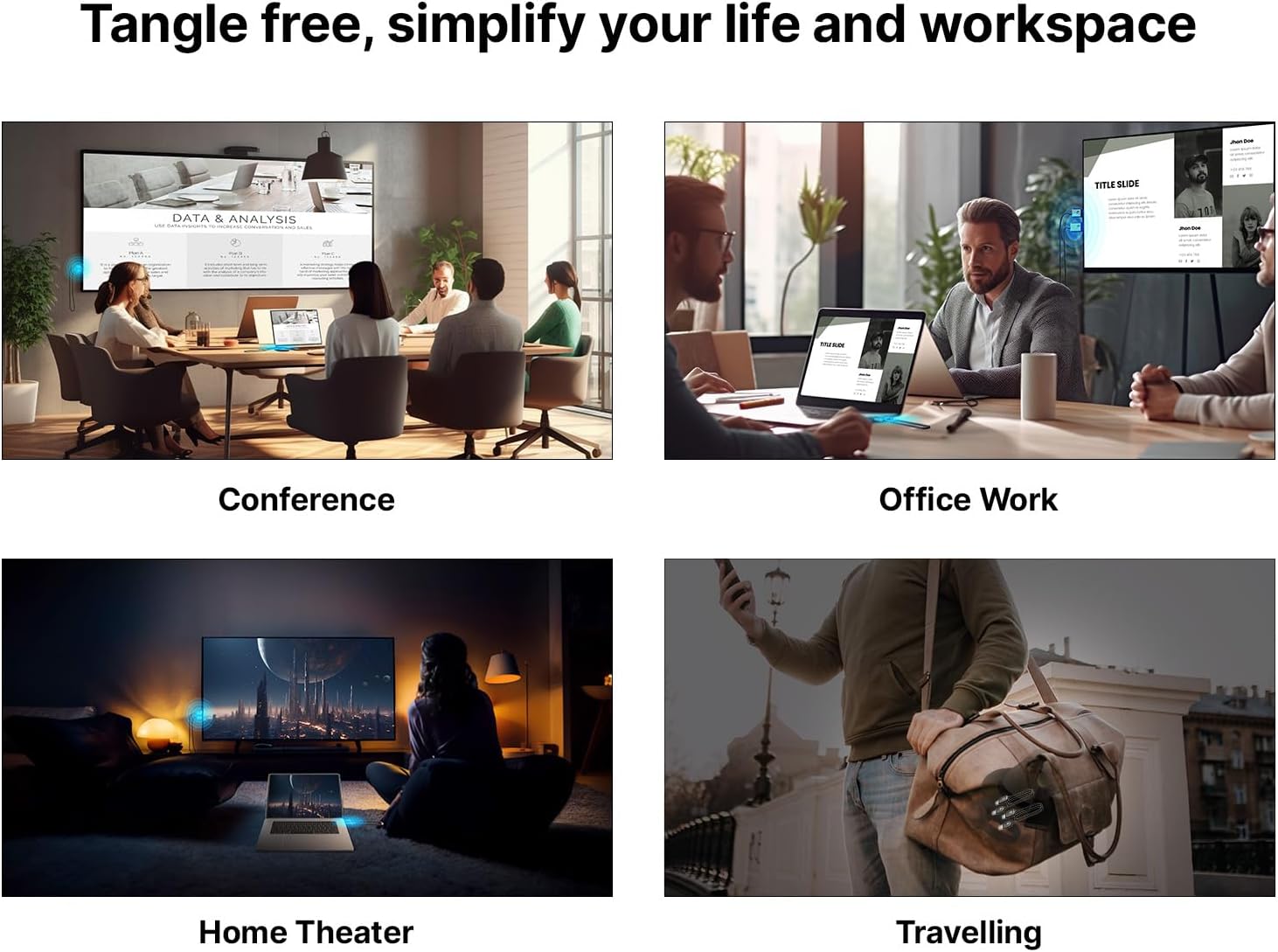
Figure 3.1: Detailed diagram showing the HDMI and USB ports on both the Transmitter and Receiver units. The Pair/Reset button is located on the side of the Receiver. The cable length is approximately 693mm.
4. Setup
The MINIX H1 is designed for seamless plug-and-play operation, requiring no drivers or apps. Follow these steps for quick setup:
- Connect the Transmitter (TX): Plug the HDMI connector of the Transmitter unit into the HDMI output port of your source device (e.g., laptop, PC, gaming console).
- Power the Transmitter (TX): Plug the USB connector of the Transmitter unit into a USB-A port on your source device or a separate 5V/0.5A USB power adapter.
- Connect the Receiver (RX): Plug the HDMI connector of the Receiver unit into an available HDMI input port on your display device (e.g., TV, monitor, projector).
- Power the Receiver (RX): Plug the USB connector of the Receiver unit into a USB-A port on your display device or a separate 5V/0.5A USB power adapter. Note: The Receiver requires an external USB-A power source with a minimum of 5V/0.5A output.
- Automatic Connection: The transmitter and receiver units will automatically pair and establish a connection within approximately 12 seconds.

Figure 4.1: Visual representation of the plug-and-play setup, highlighting no drivers, no apps, and no login required.

Figure 4.2: The MINIX H1 offers an extended wireless transmission range of up to 50 meters (164 feet) in an open environment. For optimal performance, it is best used within 25 meters. When transmitting signals through walls, the effective distance is within 10 meters (32 feet).
5. Operating Instructions
Once connected, the MINIX H1 will automatically mirror your source device's display to the connected monitor or TV. You can typically switch between mirroring and extending your display directly from your source device's operating system settings.
- Mirror Mode: Duplicates your source device's screen on the external display.
- Extend Mode: Extends your desktop across both displays, allowing for more screen real estate.

Figure 5.1: The MINIX H1 provides flexible display options, allowing you to mirror your screen or extend your desktop across multiple displays.
The system delivers Full HD 1080P resolution at 60Hz, ensuring sharp and vibrant visuals with swift and low-latency 5GHz transmission.
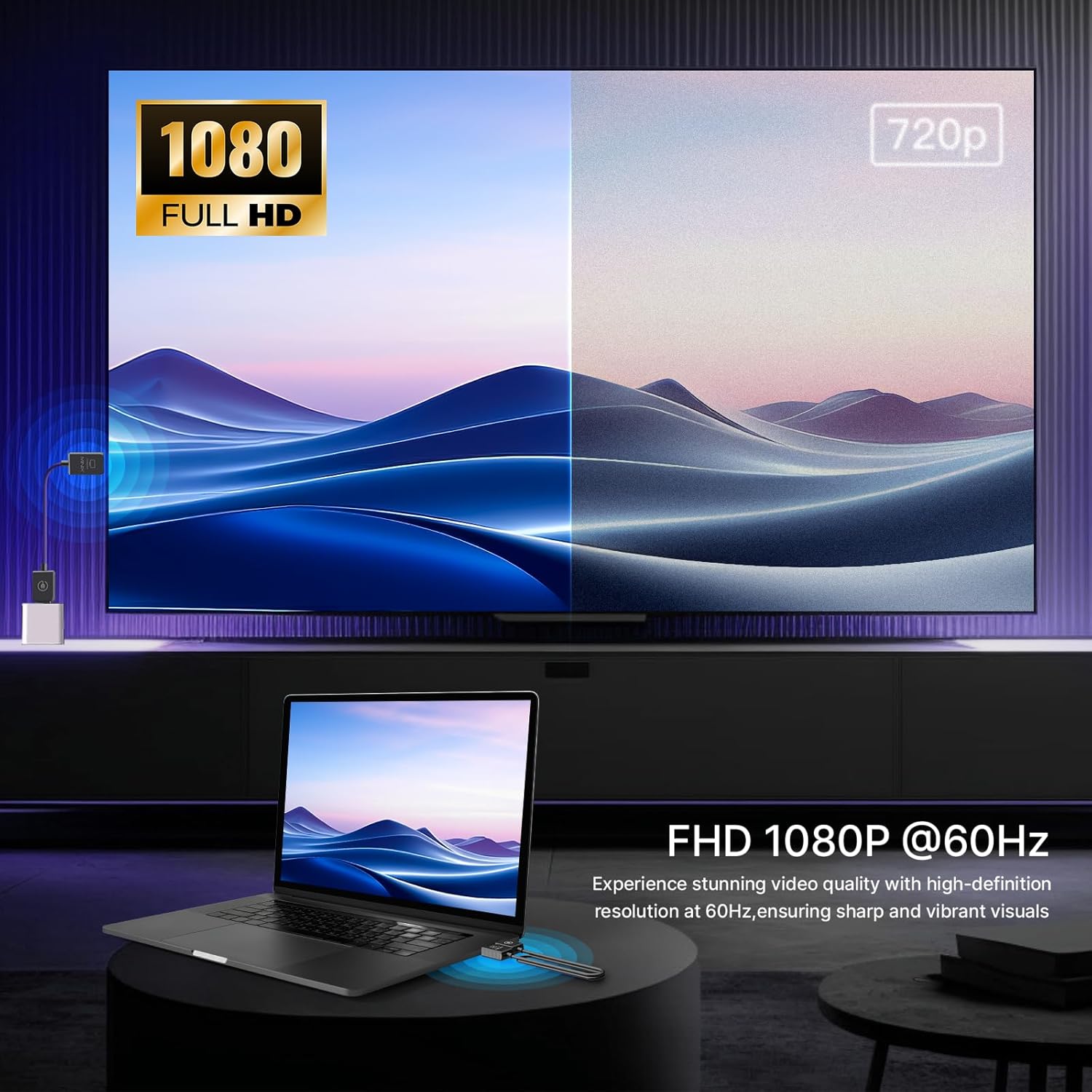
Figure 5.2: The MINIX H1 provides Full HD 1080P resolution at 60Hz for high-definition video quality.
Official Product Video:
Video 5.1: An official product video demonstrating the MINIX H1 Wireless HDMI Extender in use, highlighting its plug-and-play functionality and seamless display mirroring.
6. Specifications
| Feature | Detail |
|---|---|
| Product Dimensions | 26.9 x 0.7 x 0.35 inches |
| Item Weight | 1.23 ounces |
| Model Number | H1 |
| Brand | MINIX |
| Color | Black |
| Connector Type | HDMI |
| Compatible Devices | Personal Computer |
| Wireless Transmission Protocol | 2.4/5GHz |
| Max Wireless Range (Open Environment) | 50m (164ft) |
| Max Wireless Range (Through Walls) | 10m (32ft) |
| Video Resolution | Full HD 1080P @ 60Hz |
| Operating Temperature Range | 23°F to 158°F (-5°C to +70°C) |
7. Troubleshooting
- No Signal/Pixelation/Freezing:
Ensure both the Transmitter and Receiver units are properly powered (Receiver requires 5V/0.5A external power). Check that HDMI connections are secure. Reduce the distance between the transmitter and receiver, especially if there are obstacles like walls. Unplug and reconnect both units to reset the connection.
- Lag/Delay in Video:
While designed for low latency, some minor lag may occur, particularly with fast-paced content like competitive gaming. Ensure units are within optimal range (preferably under 25m). Minimize interference from other 2.4/5GHz wireless devices.
- Device Becomes Warm During Use:
It is normal for the device to become warm during usage under normal operating conditions, as stated in the product features. This does not indicate a malfunction.
8. Maintenance
To ensure the longevity and optimal performance of your MINIX H1 Wireless HDMI Extender, follow these simple maintenance guidelines:
- Keep the units clean by wiping them with a soft, dry cloth.
- Avoid exposing the units to extreme temperatures, humidity, or direct sunlight.
- Do not attempt to disassemble or repair the units yourself, as this will void the warranty.
- Store the units in a cool, dry place when not in use.
9. Warranty and Support
For warranty information and technical support, please refer to the official MINIX website or contact their customer service directly. Details can typically be found on the product packaging or the manufacturer's official online resources.
Official MINIX Website: www.minix.com.hk
MINIX Forum: www.theminixforum.com
Facebook: www.facebook.com/minixtech
Related documentsH1


Ask a question about this manual
Ask about setup, troubleshooting, compatibility, parts, safety, or missing instructions. Manuals+ will review the question and use this page’s manual context to help answer it.