
FASTWD Z10
FASTWD Android 14 Tablet 10 Inch User Manual
Model: Z10 | Brand: FASTWD
1. Introduction
This manual provides comprehensive instructions for the FASTWD Z10 Android 14 Tablet. It covers essential information regarding product features, setup, operation, maintenance, and troubleshooting to ensure optimal performance and user experience. The FASTWD Z10 is a versatile 10-inch tablet featuring Android 14, a powerful processor, ample memory, and a long-lasting battery, designed for both productivity and entertainment.

Image: The FASTWD Z10 tablet shown with its accompanying accessories, including a keyboard, mouse, and stylus, highlighting its 2-in-1 functionality.
2. What's in the Box
Upon unboxing your FASTWD Z10 Tablet, please verify that all the following items are included:
- FASTWD Z10 Tablet
- Mouse
- Bluetooth Keyboard
- OTG Adapter
- Touch Screen Stylus
- Charger
- Leather Case

Image: A visual representation of all items included in the FASTWD Z10 Tablet package, neatly arranged.
3. Initial Setup
3.1 Charging the Tablet
Before first use, it is recommended to fully charge your FASTWD Z10 Tablet.
- Connect the provided charger to the Type-C port on the tablet.
- Plug the charger into a power outlet.
- The charging indicator will illuminate. Allow the tablet to charge until the battery is full.

Image: The tablet connected to a charger via its Type-C port, illustrating the charging process.
3.2 Powering On/Off
- To Power On: Press and hold the Power button until the FASTWD logo appears on the screen.
- To Power Off: Press and hold the Power button until the power options menu appears, then select "Power Off".
3.3 Initial Android Setup
Follow the on-screen prompts to complete the initial setup of your Android 14 tablet, including language selection, Wi-Fi connection, Google account login, and security settings.
3.4 Connecting Accessories
The FASTWD Z10 Tablet comes with a Bluetooth keyboard, mouse, and stylus for enhanced functionality.
- Bluetooth Keyboard/Mouse:
- Ensure the keyboard/mouse is charged and powered on.
- On your tablet, go to Settings > Connected devices > Bluetooth.
- Turn on Bluetooth and scan for available devices.
- Select the keyboard/mouse from the list and follow pairing instructions.
- OTG Adapter: Use the OTG adapter to connect USB devices such as flash drives or external hard drives to your tablet.
- Stylus: The provided stylus can be used for precise input and navigation on the touchscreen.

Image: Demonstrates the tablet's connectivity with a Bluetooth keyboard and mouse, showcasing its versatility.
4. Operating Your Tablet
4.1 Display Features
The FASTWD Z10 features a 10.1-inch IPS Full View HD display with 1280 x 800 resolution and T color enhancement technology. It also includes an anti-blue light screen for comfortable viewing.
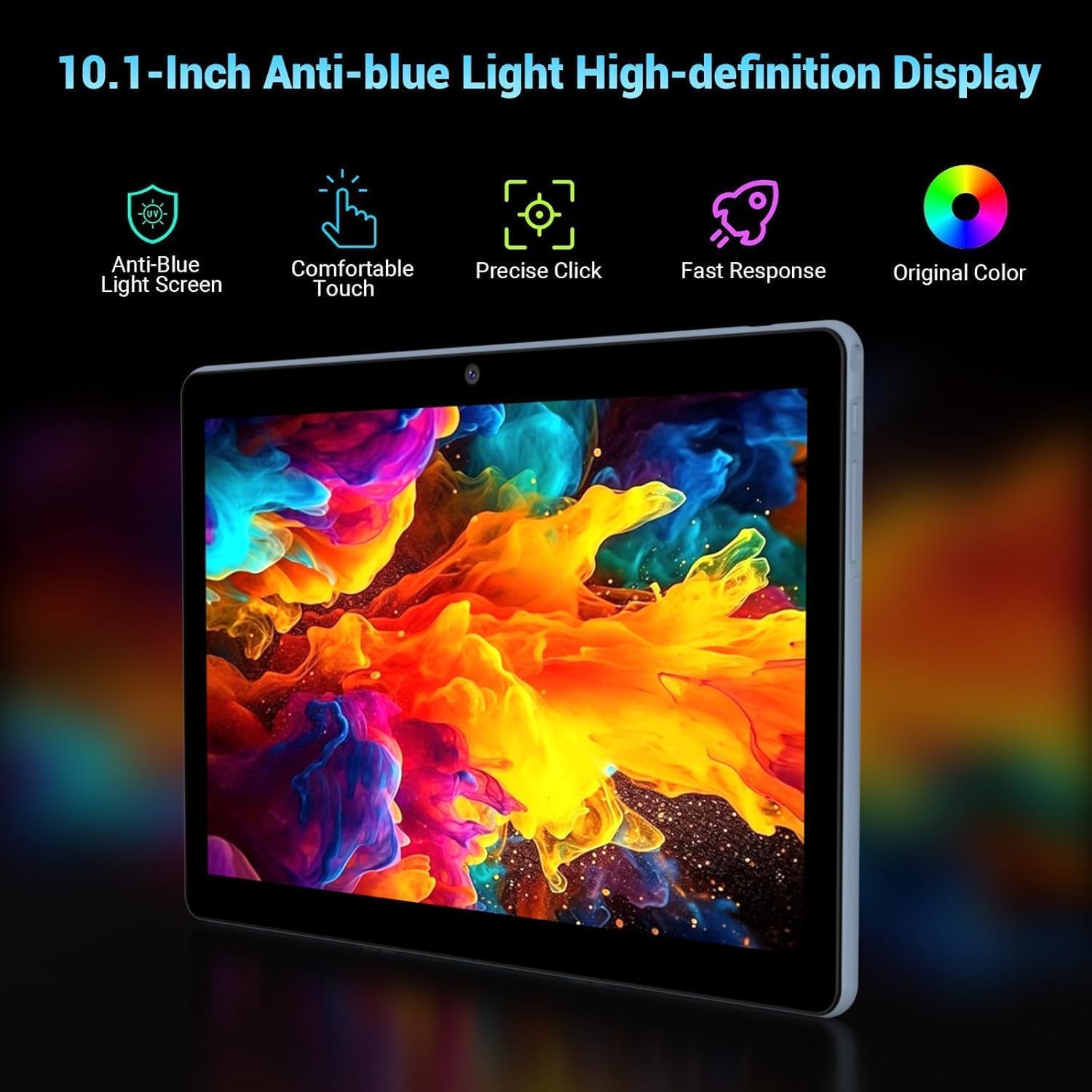
Image: Close-up of the tablet's 10.1-inch display, emphasizing its anti-blue light and high-definition capabilities.
4.2 Performance and Storage
Equipped with 36GB RAM (12GB + 24GB virtual memory) and 128GB internal storage, the tablet ensures smooth multitasking and ample space for your files. Storage can be expanded via a 1TB Micro SD card (not included).

Image: Illustrates the tablet's substantial 36GB RAM and 128GB ROM, with an indication of 1TB expandable storage.
4.3 Connectivity
The tablet supports 2.4 GHz / 5.0 GHz dual-band high-speed WiFi and Bluetooth 5.0 for reliable wireless connections.

Image: The tablet displaying various apps, emphasizing its fast 2.4G/5G Dual-Band WiFi connectivity.
4.4 Camera and Audio
Capture moments with the 8MP rear camera and 5MP front camera. Experience immersive sound with symmetrical stereo speakers and 5 built-in sound holes.

Image: Diagram illustrating the tablet's 8MP rear and 5MP front cameras, along with its immersive dual stereo speakers.
4.5 Android 14 Features
Leverage the latest Android 14 operating system with features such as:
- Customizing app icons and adding desktop widgets.
- Split screen functionality for multitasking.
- PC mode for a desktop-like experience.
- Parental control options.
- Password unlock and various theme choices.

Image: Visual representation of various Android 14 features, including split screen, PC mode, parental control, password unlock, and theme choices.

Image: Depicts the tablet being used in various scenarios such as watching movies, playing games, reading, and working, showcasing its versatility.
5. Maintenance
5.1 Battery Care
The 8000mAh battery provides approximately 8 hours of online video playback. To maximize battery life:
- Utilize AI intelligent power management settings.
- Enable dark theme and night light mode to reduce power consumption.
- Avoid extreme temperatures.
- Do not let the battery completely drain frequently.

Image: Visual representation of the tablet's 8000mAh battery and estimated usage times for standby, music, gaming, and web browsing.
5.2 Cleaning Your Tablet
- Use a soft, lint-free cloth to clean the screen and body.
- Avoid using harsh chemicals or abrasive materials.
- Do not spray cleaners directly onto the screen.
5.3 Storage Management
Regularly manage your tablet's storage by deleting unnecessary files and apps. Consider using a Micro SD card for additional storage of media and documents.
Image: A close-up showing a Micro SD card being inserted into the tablet's dedicated slot, demonstrating storage expansion.
6. Troubleshooting
This section addresses common issues you might encounter with your FASTWD Z10 Tablet.
6.1 Tablet Not Powering On
- Ensure the tablet is sufficiently charged. Connect it to the charger and wait a few minutes before attempting to power on again.
- Press and hold the Power button for at least 10-15 seconds to perform a forced restart.
6.2 Wi-Fi Connectivity Issues
- Check if Wi-Fi is enabled in Settings.
- Restart your Wi-Fi router.
- Forget the network in tablet settings and reconnect.
- Ensure you are within range of the Wi-Fi signal.
6.3 Slow Performance
- Close unused applications running in the background.
- Clear cache data for apps.
- Ensure sufficient free storage space.
- Restart the tablet periodically.
6.4 Accessories Not Connecting
- For Bluetooth accessories, ensure they are in pairing mode and fully charged.
- Verify Bluetooth is enabled on the tablet.
- For OTG devices, ensure they are compatible and properly connected.
If you encounter issues not covered here, please refer to the Warranty & Support section for assistance.
7. Specifications
| Brand | FASTWD |
| Model Name | Z10 |
| Operating System | Android 14 |
| Screen Size | 10.1 Inches |
| Screen Resolution | 1280 x 800 pixels (IPS HD) |
| RAM Size | 36 GB (12GB + 24GB virtual) |
| Memory Storage Capacity | 128 GB (Expandable via 1TB Micro SD) |
| Rear Webcam Resolution | 8 MP |
| Front Webcam Resolution | 5 MP |
| Connectivity Type | Cellular, Bluetooth 5.0, Wi-Fi (2.4G/5G 802.11ac) |
| Battery Capacity | 8000 mAh |
| Average Battery Life | 8 Hours (online video playback) |
| Item Weight | 1.32 kg |
| Colour | Blue |
8. Warranty and Support
FASTWD is committed to providing excellent customer service and support for your Z10 Tablet.
- Return Policy: Enjoy a 30-day no-reason return policy for your purchase.
- Product Warranty: The tablet benefits from a repair service in case of quality problems within two years of purchase.
- Technical Support: FASTWD offers 2 years of technical support.
- Customer Service: 24-hour online reply for any product-related inquiries or issues.
For any quality problems or support needs, please contact FASTWD technical support or return service directly.
Related documentsZ10

Ask a question about this manual
Ask about setup, troubleshooting, compatibility, parts, safety, or missing instructions. Manuals+ will review the question and use this page’s manual context to help answer it.