
1. Introduction
The BoxWave AllReader SD Card Reader is a compact and versatile device designed for easy data transfer between SD/microSD memory cards and various electronic devices. It features multiple interfaces for broad compatibility, allowing you to access and manage your files efficiently across smartphones, tablets, laptops, and desktop computers.
2. Product Overview
2.1 Key Features
- Four Interfaces: Equipped with USB-C, USB-A, Micro-USB, and Lightning connectors for maximum device compatibility.
- SD and MicroSD Card Slots: Supports both standard SD cards and smaller microSD cards.
- Plug and Play: No drivers or software installation required for most operating systems.
- Compact Design: Portable and easy to carry, fitting conveniently in a pocket or bag.
- Easy File Transfer: Facilitates quick and straightforward transfer of photos, videos, music, and other files.
2.2 Components
The AllReader SD Card Reader includes the following components:
- USB-A Connector
- USB-C Connector
- Micro-USB Connector (often integrated or flip-out from USB-A)
- Lightning Connector
- SD Card Slot
- MicroSD Card Slot
- Keyring Loop (for portability)

Image: The BoxWave AllReader SD Card Reader, highlighting its USB-A, USB-C, Micro-USB, and Lightning connectors, and dedicated slots for SD and microSD cards.
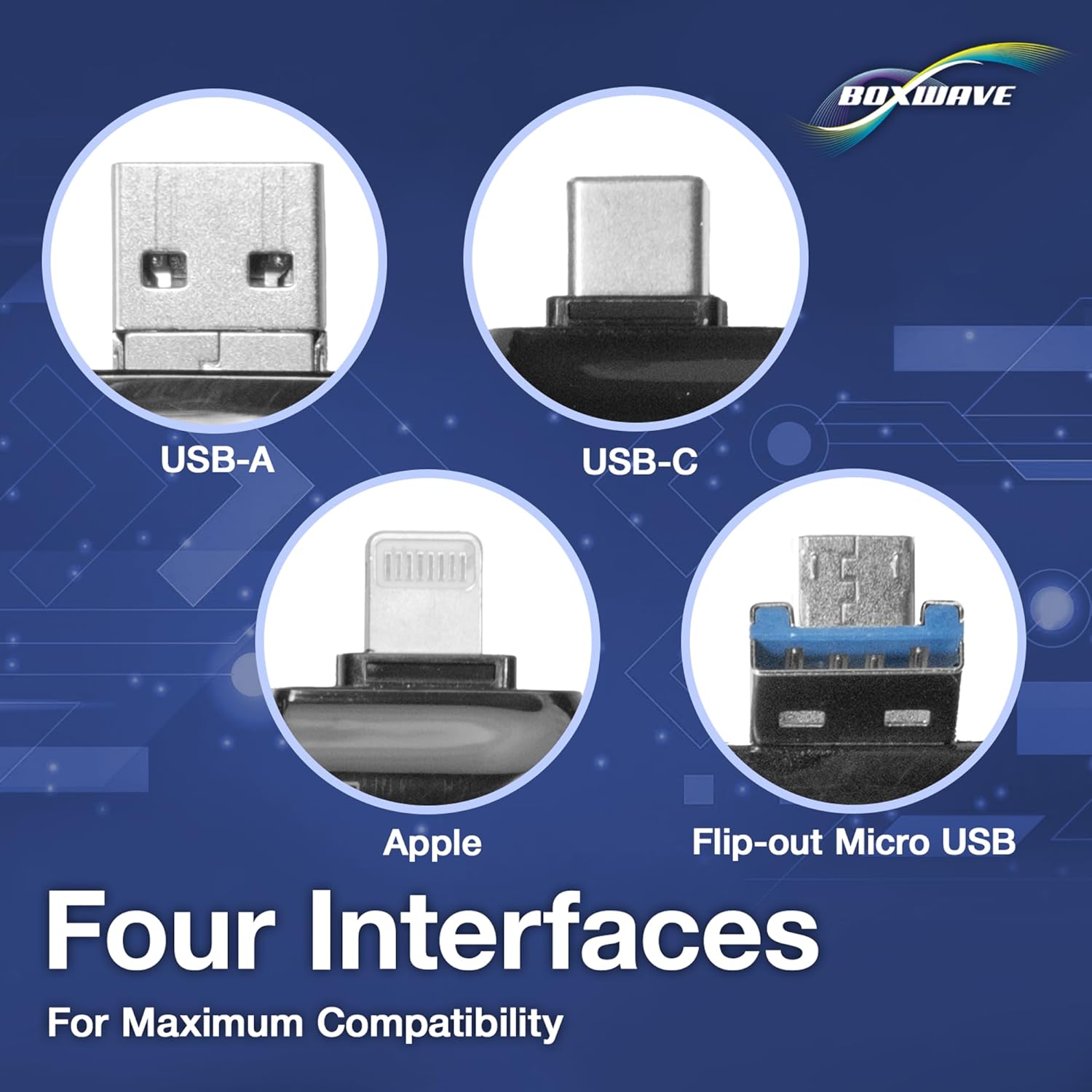
Image: Detailed view of the four interfaces: USB-A, USB-C, Apple (Lightning), and a flip-out Micro-USB connector, demonstrating the reader's broad compatibility.

Image: The AllReader SD Card Reader held in a person's hand, emphasizing its small and portable design.
3. Setup
- Insert Memory Card: Gently insert your SD or microSD card into the corresponding slot on the AllReader. Ensure the card is fully seated. Do not force the card, as this may cause damage.
- Connect to Device:
- For devices with a USB-C port (e.g., newer smartphones, tablets, laptops), use the USB-C connector.
- For devices with a standard USB-A port (e.g., desktop PCs, older laptops), use the USB-A connector.
- For devices with a Micro-USB port (e.g., some older Android phones/tablets), use the Micro-USB connector. Note that the Micro-USB connector may be integrated into the USB-A connector or a separate flip-out design.
- For Apple devices with a Lightning port, use the Lightning connector.
- Device Recognition: Your device should automatically detect the AllReader as an external storage device. No additional drivers are typically required.

Image: The AllReader SD Card Reader with an SD card inserted, connected to a tablet, demonstrating the readiness for file transfer.
4. Operating Instructions
- Accessing Files: Once connected, navigate to your device's file manager or photo gallery application. The inserted memory card will appear as an external drive or storage device.
- Transferring Files:
- From Card to Device: Select the files you wish to transfer from the memory card, then use your device's copy/move function to save them to your device's internal storage or another connected storage.
- From Device to Card: Select the files from your device's storage, then use the copy/move function to save them to the memory card via the AllReader.
- Ejecting Safely: Before disconnecting the AllReader, ensure all file transfers are complete. On computers, safely eject the device through the operating system's options to prevent data corruption. For mobile devices, simply unplugging after transfers are complete is generally safe, but confirm no files are actively being accessed.

Image: The AllReader SD Card Reader facilitating file transfers across various devices including smartphones, tablets, laptops, and desktop PCs.
5. Maintenance
- Cleaning: Use a soft, dry, lint-free cloth to clean the exterior of the card reader. Avoid using liquid cleaners or solvents.
- Storage: Store the AllReader in a cool, dry place away from direct sunlight and extreme temperatures. Keep it free from dust and moisture.
- Handling: Avoid dropping the device or subjecting it to strong impacts. Do not bend or apply excessive force to the connectors or card slots.
6. Troubleshooting
- Issue: Card Reader not recognized by device.
- Solution:
- Ensure the card reader is fully inserted into the device's port.
- Try connecting to a different port on your device or a different device to rule out port issues.
- Verify that the memory card is correctly inserted into the AllReader.
- Restart your device and try again.
- Issue: Files not appearing or accessible.
- Solution:
- Check if the memory card is properly formatted and contains files.
- Ensure your device's file manager or photo application has permission to access external storage.
- Try the card in another reader or device to confirm the card itself is functional.
- Issue: Slow file transfer speeds.
- Solution:
- Transfer speeds can vary based on the memory card's speed class, the device's USB port version (e.g., USB 2.0 vs. USB 3.0), and the size/number of files.
- Ensure you are using a high-speed memory card for optimal performance.
- Avoid running multiple data-intensive tasks during transfer.
7. Specifications
| Feature | Detail |
|---|---|
| Brand | BoxWave |
| Model | AllReader SD Card Reader |
| Connectivity Technology | USB (USB-A, USB-C, Micro-USB, Lightning) |
| Media Type Supported | SD Card, MicroSD Card |
| Color | Jet Black |
| Item Weight | 6 ounces |
| ASIN | B0CMVXLTVH |
8. Warranty Information
BoxWave products are typically covered by a manufacturer's warranty. For specific details regarding the warranty period and terms for your AllReader SD Card Reader, please refer to the warranty card included with your purchase or visit the official BoxWave website. Proof of purchase may be required for warranty claims.
9. Support
If you encounter any issues or have questions not covered in this manual, please visit the official BoxWave support website for further assistance. You may find FAQs, additional resources, and contact information for customer service there.