
Introduction
Thank you for choosing the HyperGear Bunny Tracks Kids Bluetooth Wireless Headphones. These headphones are designed to provide a fun and immersive audio experience for children, featuring wireless Bluetooth connectivity, LED rabbit ears, and multiple playback options. This manual provides essential information for setting up, operating, and maintaining your headphones to ensure optimal performance and longevity.

The image displays the HyperGear Bunny Tracks Kids Bluetooth Wireless Headphones in white, featuring LED rabbit ears. The product packaging is also visible, highlighting key features like Bluetooth connectivity, kid-friendly sizing, comfortable fit, and mic/volume control.
Product Overview
Key Features
- Wireless Bluetooth Connectivity: Seamless audio streaming from compatible devices.
- LED Rabbit Ears: Fun, illuminated design element.
- Foldable Design: Enhances portability and storage.
- Built-in Microphone: For hands-free calls and online communication.
- Multi-Mode Playback: Supports Bluetooth, 3.5mm Aux, microSD card, and FM radio.
- Comfortable Fit: Adjustable headband and soft over-ear cushions.
- 10-Hour Playtime: Extended listening on a single charge.
Controls and Ports
The headphones feature intuitive controls and versatile input options for various audio sources.

This image provides a detailed view of the control buttons located on the headphone ear cup. Labels indicate functions for power on/off, next track/volume up, play/pause/answer call, previous track/volume down, and mode switch.
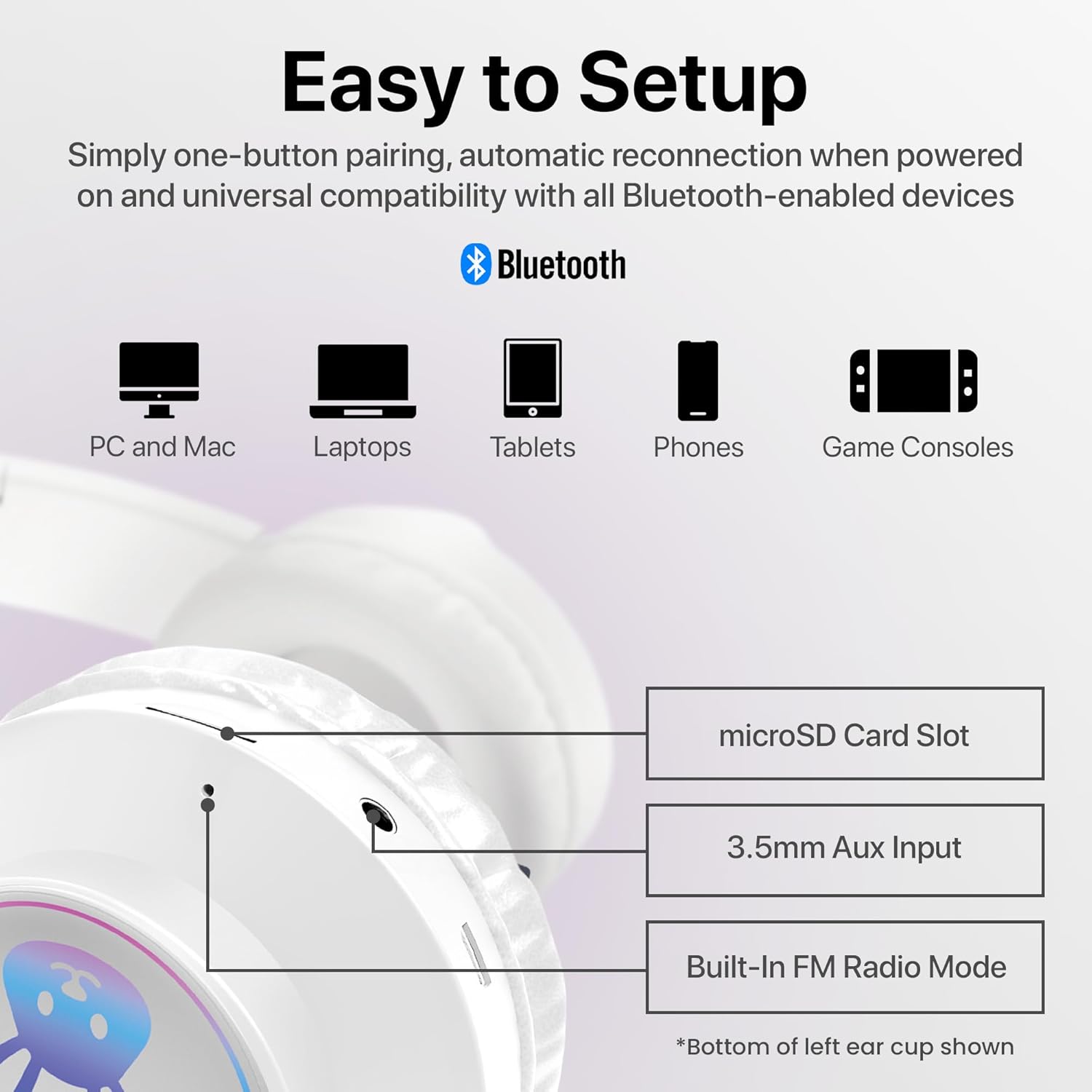
The image shows the various input ports on the bottom of the left ear cup, including a microSD card slot for direct audio playback, a 3.5mm Aux input for wired connections, and an indication of the built-in FM radio mode.
Setup Instructions
1. Charging the Headphones
- Connect the included charging cable to the charging port on the headphones.
- Plug the other end of the charging cable into a USB power source (e.g., computer USB port, USB wall adapter).
- The LED indicator will illuminate during charging and turn off or change color when fully charged. A full charge takes approximately 2 hours.
2. Powering On/Off
- To Power On: Press and hold the Power button (usually combined with Play/Pause) until the LED indicator lights up and you hear an audible prompt.
- To Power Off: Press and hold the Power button until the LED indicator turns off and you hear an audible prompt.
3. Bluetooth Pairing
- Ensure the headphones are fully charged and powered off.
- Press and hold the Power button for approximately 3-5 seconds until the LED indicator flashes blue and red, indicating pairing mode.
- On your device (smartphone, tablet, computer), enable Bluetooth and search for available devices.
- Select "HyperGear Bunny Tracks" from the list of found devices.
- Once paired, the LED indicator will typically show a solid blue light or flash blue slowly, and you will hear a confirmation tone.
4. Wired Connection (Aux Mode)
To use the headphones in wired mode:
- Connect one end of a 3.5mm audio cable (not always included, check packaging) to the Aux input port on the headphones.
- Connect the other end to the audio output jack of your device.
- The headphones will automatically switch to Aux mode. Bluetooth functionality will be disabled in this mode.
5. microSD Card Playback
To play audio directly from a microSD card:
- Insert a microSD card with MP3 audio files into the microSD card slot on the headphones.
- The headphones will automatically switch to microSD mode and begin playing audio.
6. FM Radio Mode
To use the built-in FM radio:
- Power on the headphones.
- Press the 'M/EQ' button (Mode/Equalizer) to switch to FM radio mode.
- Use the Volume Up/Down buttons to scan for stations. A short press may change frequency, while a long press might auto-scan. Refer to the control image for specific button functions.

This image depicts a young girl wearing the headphones while interacting with a laptop, suggesting use for online learning or entertainment.
Operating Instructions
Basic Controls (Bluetooth/microSD Mode)
| Button/Action | Function |
|---|---|
| Power Button (Short Press) | Play/Pause music; Answer/End phone calls. |
| Power Button (Long Press) | Power On/Off. |
| '+' Button (Short Press) | Next Track. |
| '+' Button (Long Press) | Volume Up. |
| '-' Button (Short Press) | Previous Track. |
| '-' Button (Long Press) | Volume Down. |
| 'M/EQ' Button (Short Press) | Switch Audio Mode (Bluetooth, FM, microSD, Aux). |
| 'M/EQ' Button (Long Press) | Activate Equalizer (if available, check product specifications for details). |
Phone Call Management
- Answer Call: Short press the Power button when a call comes in.
- End Call: Short press the Power button during a call.
- Reject Call: Long press the Power button when a call comes in.
LED Rabbit Ears
The LED rabbit ears illuminate automatically when the headphones are powered on, adding a visual element to the listening experience. There are no specific controls for the LED lights; they operate in conjunction with the headphone's power state.

A boy is shown wearing the headphones and holding a game controller, illustrating the headphones' suitability for gaming.
Maintenance
Cleaning
- Wipe the headphones with a soft, dry, lint-free cloth.
- Do not use abrasive cleaners, solvents, or strong chemicals.
- Avoid getting moisture into any openings.
Storage
- Store the headphones in a cool, dry place away from direct sunlight and extreme temperatures.
- Utilize the foldable design for compact storage and to protect the ear cups.
Battery Care
- Charge the headphones regularly, even if not in frequent use, to maintain battery health.
- Avoid fully discharging the battery for extended periods.
Troubleshooting
| Problem | Possible Solution |
|---|---|
| Headphones do not power on. | Ensure the headphones are fully charged. Connect to a power source and try again. |
| No sound from headphones. | Check volume levels on both the headphones and the connected device. Ensure headphones are correctly paired via Bluetooth or properly connected via Aux cable. Verify the correct audio mode is selected. |
| Cannot pair via Bluetooth. | Ensure headphones are in pairing mode (flashing blue/red LED). Turn off and on Bluetooth on your device. Move headphones closer to the device. Clear previous Bluetooth connections on your device. |
| Poor sound quality. | Ensure the headphones are within Bluetooth range (10 meters). Check for interference from other wireless devices. Try a different audio source or file. |
| LED rabbit ears not lighting up. | Ensure the headphones are powered on. If the issue persists, contact customer support. |
Specifications
| Feature | Detail |
|---|---|
| Model Name | Bunny Tracks Headphones |
| Item Model Number | 15866 |
| Connectivity Technology | Wireless (Bluetooth) |
| Wireless Communication Technology | Bluetooth 4.0 |
| Bluetooth Range | 10 Meters |
| Earpiece Shape | Over-Ear |
| Audio Driver Type | Dynamic Driver (40mm, inferred from image) |
| Frequency Range | 20 Hz - 20,000 Hz |
| Battery Life | Up to 10 Hours |
| Charging Time | Approximately 2 Hours (inferred from A+ content) |
| Control Type | Media Control, Touch |
| Special Features | Adjustable Comfy Fit, Ultra-Soft Plush Memory Foam Ear Cushions, LED Light-Up Rabbit Ears, Easy One-Button Setup, Foldable & Portable, Microphone Included |
| Material | Plastic |
| Item Weight | 7.2 ounces (0.45 Pounds) |
| Product Dimensions | 7.1 x 2.9 x 10.6 inches |
| UPC | 633755158667 |

An internal view of the headphone ear cup, illustrating the 40mm dynamic driver responsible for audio output, designed for clear sound and bass.
Warranty and Support
For warranty information or technical support, please refer to the official HyperGear website or contact HyperGear customer service directly. Keep your purchase receipt as proof of purchase for any warranty claims.
Manufacturer: HYPERGEAR