
Introduction
Thank you for choosing the Kuayvan Wireless CarPlay Adapter. This device is designed to upgrade your driving experience by bringing advanced smartphone integration and entertainment directly to your vehicle's display. Compatible with 2016+ OEM wired CarPlay and Android Auto cars, this adapter transforms your car's infotainment system into a versatile smart hub.
What's in the Box
Upon unboxing your Kuayvan Wireless CarPlay Adapter, you should find the following components:
- Kuayvan Wireless CarPlay Adapter Unit
- USB-C Power Cable with Cigarette Lighter Adapter
- Adhesive Dashboard Mount
- Suction Cup Windshield Mount
- Rear View Backup Camera (with wiring)
- Wedge Tool for cable routing
- Cable Organizers
- Reset Tool

Image: The Kuayvan Wireless CarPlay Adapter shown with its various accessories, including mounting options and cables.
Setup and Installation
The Kuayvan Wireless CarPlay Adapter is designed for easy plug-and-play installation. Follow these steps to get started:
- Mount the Adapter: Choose your preferred mounting method. You can use the adhesive dashboard mount for a semi-permanent fixture or the suction cup windshield mount for flexibility. Ensure the mounting surface is clean and dry before application.
- Connect USB Dongle: Plug the USB dongle of the adapter into your car's existing wired CarPlay/Android Auto USB port.
- Power On: Connect the USB-C power cable to the adapter and plug the cigarette lighter adapter into your car's 12V power outlet. The device should power on automatically.
- Initial Setup: On the adapter's screen, select your preferred language and region. Follow any on-screen prompts for initial configuration.
- Connect to Phone: Turn on WLAN (Wi-Fi) and Bluetooth on your smartphone. Search for the adapter's Bluetooth name (e.g., "T88-RX46356") and pair with it. Allow contact and sync permissions.
- Activate CarPlay/Android Auto: Once paired, the device will prompt you to use CarPlay or Android Auto. Tap to confirm. Wait 5-30 seconds, and the system will automatically enter CarPlay or Android Auto mode.
- Rear View Camera (Optional): If you wish to install the rear view backup camera, route the camera's wiring to the back of your vehicle and connect it to the designated input on the adapter. The camera will activate automatically when your vehicle is in reverse.
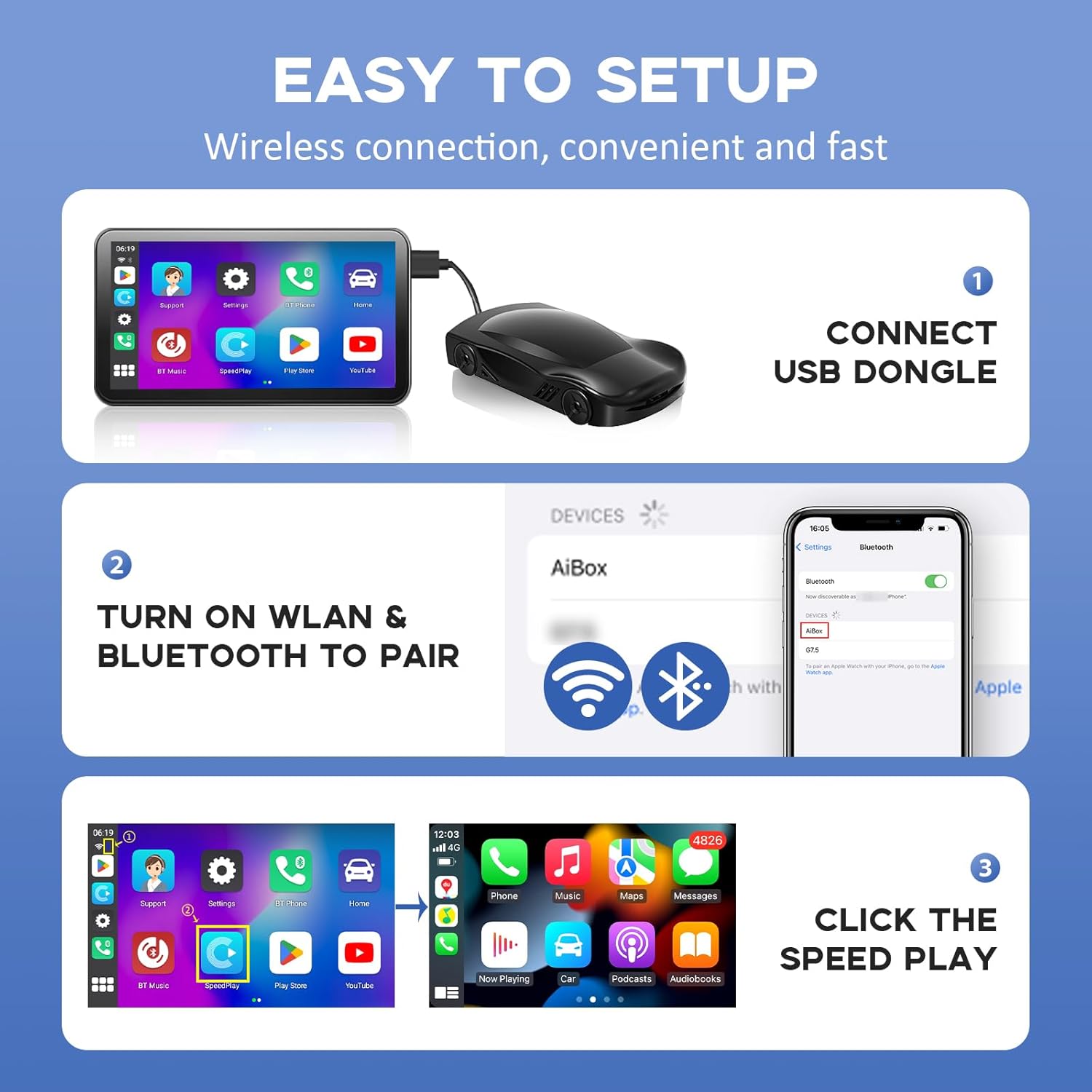
Image: Visual guide showing the three main steps for easy setup: connect USB dongle, turn on WLAN & Bluetooth to pair, and click Speed Play.
Video: A demonstration of the wireless CarPlay adapter's setup process, showing how to connect and pair the device with a smartphone.
Operating Instructions
Once connected, the Kuayvan Wireless CarPlay Adapter offers a range of functionalities:
- Accessing Apps: Navigate through your favorite apps like Netflix, YouTube, TikTok, and the Play Store directly on the adapter's screen. Ensure your phone's hotspot is active for internet-dependent apps.
- Voice Control: Utilize your car's original voice control features (e.g., "Hey Siri" or "OK Google") to manage music, navigation, and calls hands-free.
- Split-Screen Mode: The device supports split-screen functionality, allowing you to use navigation (GPS) on one side of the screen while simultaneously enjoying entertainment or other apps on the other side.
- Automatic Resume: The adapter is designed to automatically resume from where you left off when the car is turned back on, providing a seamless user experience.
- Screen Mirroring: For iPhone users, the device supports screen mirroring, allowing you to display your iPhone's screen directly on the adapter.

Image: The adapter displaying video content, highlighting its TF card support for offline viewing and screen mirroring capabilities.

Image: The adapter showcasing voice control integration, along with touch screen, steering wheel, and OEM knob control options.
Video: A demonstration of the screen mirroring feature for iPhone users, showing how content from the phone is displayed on the adapter.
Key Features and Performance
- Dual Connectivity: Converts existing wired CarPlay/Android Auto to wireless functionality.
- High-Speed Performance: Equipped with 5GHz WiFi and 5.1 Bluetooth for stable and fast data transfer, minimizing lag.
- Powerful Processor: Features a CPU: QCM2290, quad-core 64-bit ARM, Cortex-A53@2.0GHz.
- Ample Memory: Includes 2GB LPDDR3 + 16GB eMMC for smooth operation.
- Wide Compatibility: Designed for 2016+ OEM wired CarPlay and Android Auto cars.

Image: The adapter's advanced performance features are displayed, including 5G WiFi, fast connection, Android 11.0, no lag, and detailed CPU/memory specifications.
Image: The adapter demonstrating its ability to convert wired CarPlay to wireless CarPlay or wireless Android Auto, with icons for map, music, call, and voice assistant.
Maintenance
To ensure the longevity and optimal performance of your Kuayvan Wireless CarPlay Adapter, please follow these maintenance guidelines:
- Cleaning: Gently wipe the screen and device exterior with a soft, dry, lint-free cloth. Avoid using harsh chemicals or abrasive materials.
- Temperature: Avoid exposing the device to extreme temperatures, direct sunlight for prolonged periods, or excessive humidity.
- Cable Management: Ensure all cables are properly routed and secured to prevent damage or interference with driving. Use the provided cable organizers if necessary.
Troubleshooting
If you encounter any issues with your Kuayvan Wireless CarPlay Adapter, please refer to the following common solutions:
- No Power: Ensure the USB-C power cable is securely connected to both the adapter and the car's 12V outlet. Check if the car's 12V outlet is functioning correctly.
- Connection Issues: Verify that your phone's Wi-Fi and Bluetooth are enabled. Try unpairing and re-pairing the device with your phone. Ensure your car's wired CarPlay/Android Auto port is active.
- App Compatibility: Some applications may have compatibility issues or may not adapt perfectly to the screen resolution or split-screen mode. It is recommended to contact the developer of the specific application for support.
- Lag or Slow Performance: Check your phone's hotspot signal strength. Ensure no other devices are heavily utilizing your phone's data connection. Restarting both the adapter and your phone may resolve temporary performance issues.
- Rear Camera Not Displaying: Ensure the rear camera is properly connected to the adapter. Check the camera's wiring for any damage. The camera should activate automatically when the car is put into reverse.
Specifications
| Feature | Detail |
|---|---|
| Compatible Devices | 2016+ OEM wired CarPlay and Android Auto cars |
| Specific Uses For Product | Cell Phone Integration |
| Connector Type | Lightning, USB Type C |
| Color | Black |
| Brand | kuayvan |
| Number of Ports | 2 |
| Current Rating | 2.1 Amps |
| Power Plug Type | No Plug (uses car's 12V outlet) |
| Nominal Power | 25.2 Watts |
| Model Number | 85f37668-ba01-440b-bdc7-fc476bec1dcb |
| UPC | 717242978706 |
Warranty and Support
The Kuayvan Wireless CarPlay Adapter comes with a Limited Warranty. For specific details regarding warranty coverage, claims, or technical support, please refer to the warranty information provided in your product packaging or contact Kuayvan customer service directly.