
1. Product Overview
The TROND Surge Protector Power Strip Flat Plug (Model Prime IV) is designed to expand your wall socket capacity and protect your electronic devices from power surges. It features multiple AC outlets and USB charging ports, a long extension cord with a flat plug, and a wall-mountable design for versatile use in various environments such as home, office, or garage.

Image 1.1: Overview of the TROND Surge Protector Power Strip.
2. Key Features
- 10-in-1 Power Expansion: Provides 7 standard AC outlets and 3 USB charging ports (2 USB-A, 1 USB-C) from a single wall socket.
- Widely-Spaced Outlets: AC outlets are designed with ample space to accommodate larger power adapters without blocking adjacent ports.
- 15ft Long Extension Cord with Flat Plug: Features a durable 14 AWG pure copper cord for extended reach and a low-profile, 45-degree right-angle flat plug to prevent obstruction of other wall receptacles.
- Smart USB Charging: USB ports automatically detect connected devices to deliver optimal charging speeds, with a total output of 5V/3.0A (15W).
- 1700J Surge Protection: Safeguards connected electronics from voltage spikes and surges, indicated by a 'Protected' light.
- ETL Listed & Flame-Retardant Material: Certified for safety and constructed from UL94 V-0 flame-retardant material for enhanced protection.
- Wall Mountable Design: Includes four screw-mounting tabs for secure installation on walls, under desks, or other surfaces.

Image 2.1: Illustration of widely-spaced outlets for accommodating large plugs.

Image 2.2: Detail of the 15ft extension cord and flat plug design.
3. Setup Instructions
- Unpack: Carefully remove the power strip from its packaging.
- Placement: Choose a suitable location for the power strip. Ensure it is away from water sources, heat, and direct sunlight.
- Plug In: Insert the flat plug of the power strip into a standard 3-prong grounded wall outlet. The 45-degree angle of the plug allows for easy placement behind furniture.
- Power On: Flip the main power switch to the 'ON' position. The 'Power' indicator light should illuminate.
- Verify Surge Protection: Check that the 'Protected' indicator light is also illuminated. This confirms that the surge protection feature is active.
- Connect Devices: You can now plug your AC-powered devices into the 7 AC outlets and your USB-powered devices into the 2 USB-A and 1 USB-C ports.
Wall Mounting (Optional)
The TROND Surge Protector can be securely mounted to a wall or other surface using its integrated mounting tabs.
- Marking: Hold the power strip in the desired mounting location and mark the positions of the four screw-mounting tabs on the surface.
- Drilling: Drill pilot holes at the marked locations. Ensure the drill bit size is appropriate for the screws you will use (screws are typically included).
- Mounting: Insert screws into the pilot holes, leaving them slightly protruding. Align the mounting tabs of the power strip with the screw heads and slide the power strip down to secure it. Tighten the screws until the power strip is firmly in place.
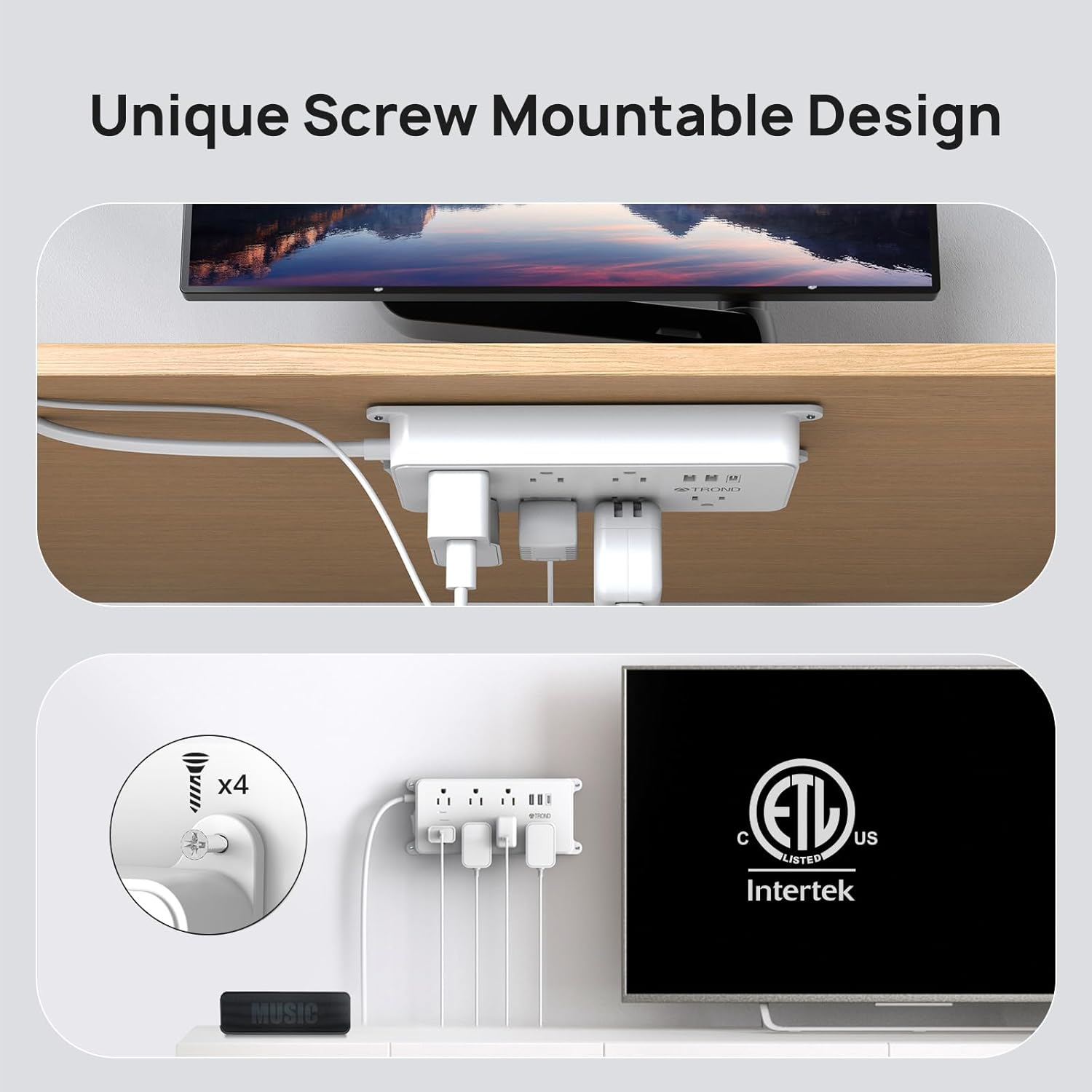
Image 3.1: Wall mounting the power strip.
4. Operating Instructions
Using AC Outlets
Plug your electronic devices directly into any of the 7 AC outlets. The widely-spaced design allows for larger power adapters to be used simultaneously without interference.
Using USB Charging Ports
Connect your USB-powered devices (smartphones, tablets, etc.) to the 2 USB-A ports or the 1 USB-C port. The smart charging technology will automatically detect your device's power requirements and deliver the optimal charging current up to 3A total.

Image 4.1: USB-A and USB-C charging ports in use.
Power and Protected Indicators
- Green 'Power' Light: Indicates that the power strip is receiving power and is turned on.
- Green 'Protected' Light: Indicates that the surge protection feature is active and functioning correctly. If this light is off, the surge protection has been compromised, and the unit should be replaced.
Reset/Off Switch
The integrated switch functions as both a power ON/OFF control and a circuit breaker reset button. If the power strip experiences an overload, the switch may trip to the 'OFF' position to protect connected devices. To reset, simply switch it back to 'ON' after reducing the load.

Image 4.2: Surge protection and power indicator lights.
5. Maintenance
- Cleaning: Disconnect the power strip from the wall outlet before cleaning. Use a dry, soft cloth to wipe the surface. Do not use liquid cleaners or abrasive materials.
- Inspection: Periodically inspect the power cord and the unit for any signs of damage, such as frayed wires or cracks. If damage is found, discontinue use immediately.
- Storage: When not in use for extended periods, store the power strip in a cool, dry place, away from direct sunlight and moisture.
Safety Precautions
- Do not exceed the maximum power rating of 1875W (125V/15A).
- Do not use in wet environments or near water.
- Do not disassemble or modify the unit.
- Keep out of reach of children and pets.
- Ensure the plug is fully inserted into the wall outlet.
6. Troubleshooting
- No Power to Devices:
- Check if the power strip's main switch is in the 'ON' position.
- Ensure the power strip is securely plugged into a functioning wall outlet.
- If the switch has tripped, reduce the total load of connected devices and reset the switch.
- 'Protected' Light is Off:
- If the 'Protected' indicator light is off, it means the surge protection component has absorbed a significant surge and is no longer providing protection. The power strip will still function as an extension cord, but your devices will not be protected from future surges. It is recommended to replace the unit to ensure continued surge protection.
- USB Devices Not Charging:
- Ensure the USB cable is properly connected to both the device and the power strip.
- Verify that the power strip is turned on and receiving power.
- Check if the total current draw of all connected USB devices exceeds the maximum USB output (3A total).
7. Specifications
| Attribute | Value |
|---|---|
| Model Number | Prime IV |
| Product Dimensions | 7.36 x 3.54 x 0.04 inches |
| Item Weight | 2.07 pounds |
| Total AC Outlets | 7 |
| USB Ports | 2 USB-A, 1 USB-C |
| USB Total Output | 5V/3.0A (15W) |
| Cord Length | 15 feet |
| Voltage Rating | 125 Volts |
| Current Rating | 15 Amps |
| Maximum Power | 1875 Watts |
| Surge Protection Rating | 1700 Joules |
| Material | UL94 V-0 Flame-Retardant |
| Certifications | ETL Listed |
8. Warranty and Support
TROND products are designed for reliability and performance. For specific warranty details, please refer to the documentation included with your purchase or visit the official TROND website. If you encounter any issues or have questions regarding your TROND Surge Protector Power Strip, please contact TROND customer support through their official channels.
You can visit the official TROND store for more information and support: TROND Official Store


