
Introduction
This manual provides detailed instructions for the setup, operation, and maintenance of your RAPIQUE R-03 Bluetooth Wireless Mouse. Designed for dual-mode connectivity (Bluetooth 5.1 and 2.4G USB-C receiver), this rechargeable mouse offers a lightweight, silent, and ergonomic experience for various devices.
Package Contents
Please verify that all items are present in the package:
- 1 x RAPIQUE R-03 Bluetooth Wireless Mouse
- 1 x 2.4G Type-C Wireless Receiver (stored in the mouse bottom slot)
- 1 x USB-C Charging Cable
- 1 x Instruction Manual
Product Overview and Key Features
The RAPIQUE R-03 mouse is engineered for comfort and versatility, featuring:
- Special Hollow Design: Ensures optimal airflow to keep hands cool and ventilated during prolonged use. The ergonomic round shape provides comfortable extended use.
- Dual-Mode Connectivity: Seamlessly switch between Bluetooth 5.1 and 2.4G wireless connection via the easy-to-use Type-C receiver.
- Quiet Clicking & Scrolling: Reduced noise by up to 90% for a distraction-free environment.
- Rechargeable & Auto Sleep: Equipped with a 600 mAh lithium battery, offering up to a week of continuous use on a single charge. Features an intelligent auto-sleep function and on-off switch for battery conservation.
- Universal Compatibility: Supports a wide range of devices including MacBooks, iPads, laptops, tablets, and Chromebooks. Bluetooth mode is compatible with Windows 8/10, iOS 13+, Mac OS 10.10+, and Android 5.0+. 2.4GHz mode works with any device featuring a Type-C port.
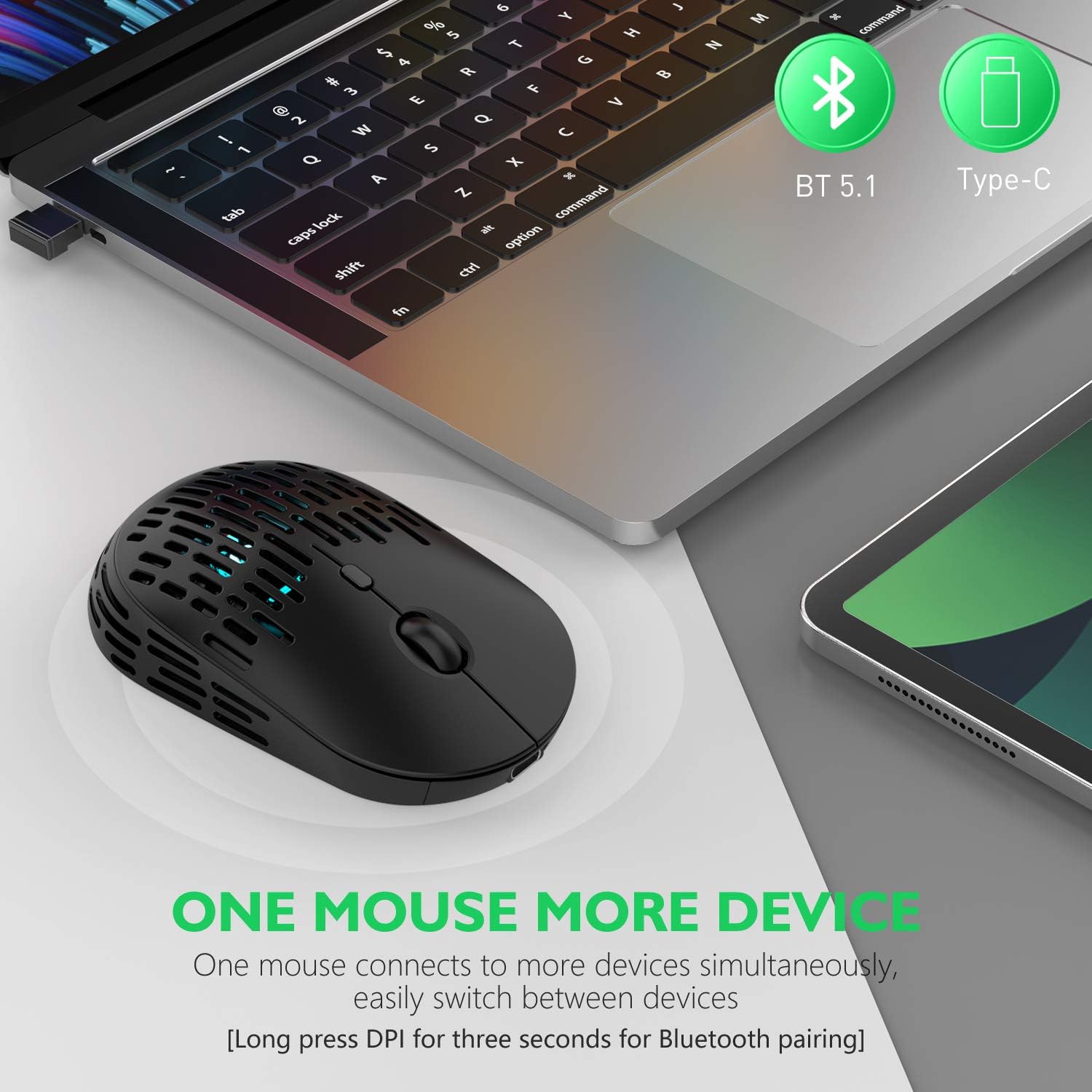
Image: The RAPIQUE R-03 mouse demonstrating dual-mode connectivity with a laptop and tablet.
Setup Instructions
1. 2.4G Wireless Connection (USB-C Receiver)
- Locate the Type-C receiver: The 2.4G Type-C wireless receiver is stored in a dedicated slot at the bottom of the mouse. Gently slide it out.
- Insert the receiver: Plug the Type-C receiver into an available Type-C port on your computer, laptop, or tablet.
- Switch to 2.4G mode: On the bottom of the mouse, slide the switch to the "2.4G" position. The mouse should automatically connect to your device.

Image: The underside of the RAPIQUE R-03 mouse, highlighting the storage compartment for the Type-C receiver.
Video: Demonstrates how to connect the RAPIQUE Type C Wireless Bluetooth Mouse using the 2.4G USB-C receiver.
2. Bluetooth Connection
- Switch to Bluetooth mode: On the bottom of the mouse, slide the switch to the "BT" position.
- Activate pairing mode: Press and hold the DPI button (located near the scroll wheel) for three seconds until the indicator light on the mouse starts flashing, indicating it's in pairing mode.
- Enable Bluetooth on your device:
- For Windows 8/10: Go to Settings > Devices > Bluetooth & other devices, and turn on Bluetooth. Select "BT5.1 Mouse" from the list of available devices and click "Connect".
- For iPad/iPhone (iOS 13+): Go to Settings > Accessibility > Touch > AssistiveTouch and enable it. Then, go back to Settings > Bluetooth, turn on Bluetooth, and select "BT5.1 Mouse" to connect and pair.
- For Mac OS 10.10+: Go to System Preferences > Bluetooth, turn on Bluetooth. Select "BT5.1 Mouse" from the list and click "Connect".
- For Android 5.0+: Go to Settings > Connected devices > Bluetooth, turn on Bluetooth, and select "BT5.1 Mouse" from the list and pair.
- Confirm connection: Once successfully paired, the indicator light on the mouse will stop flashing and remain solid or turn off, depending on the model.
Video: A user demonstrates how to pair the RAPIQUE mouse via Bluetooth and shares their thoughts on its quiet operation.
Operating Instructions
DPI Adjustment
The RAPIQUE R-03 mouse features 3 adjustable DPI levels (800-1200-1600) to customize cursor sensitivity. To change the DPI, simply press the DPI button located below the scroll wheel. Each press will cycle through the available sensitivities.

Image: The RAPIQUE R-03 mouse highlighting its adjustable DPI settings for customized cursor speed.
Silent Clicking and Scrolling
This mouse is designed with silent click and scroll technology, reducing operational noise by up to 90%. This feature is ideal for quiet environments such as offices, libraries, or late-night use at home.
Auto Sleep Function
To conserve battery life, the mouse is equipped with an intelligent auto-sleep function. If inactive for a period, the mouse will enter sleep mode. To wake it up, simply move or click the mouse.
Charging Instructions
The RAPIQUE R-03 mouse features a built-in 600 mAh rechargeable lithium battery. When the mouse pointer becomes erratic, unresponsive, or disconnects frequently, it indicates a low battery and requires charging.
- Connect the USB-C charging cable: Insert the small end of the provided USB-C charging cable into the charging port located at the front of the mouse.
- Connect to power source: Plug the USB-A end of the cable into a computer's USB port or a 5V adapter (do not use mobile phone or computer chargers with higher voltage outputs, as this may damage the mouse).
- Charging indicator: A red light next to the scroll wheel will illuminate to indicate that charging is in progress.
- Full charge: The red light will turn off once the mouse is fully charged. A full charge typically takes 2-3 hours and provides approximately one week of continuous use.
Note: It is recommended to fully charge the mouse for 2-3 hours before its first use.

Image: The RAPIQUE R-03 mouse being charged via its USB-C port.
Video: Demonstrates the charging process for the RAPIQUE Type C Wireless Bluetooth Mouse.
Maintenance
- Keep the mouse clean: Regularly wipe the mouse surface with a soft, dry cloth to remove dust and debris.
- Avoid liquids: Do not expose the mouse to water or other liquids.
- Store properly: When not in use, store the 2.4G USB-C receiver in its designated slot at the bottom of the mouse to prevent loss.
- Optimal charging: Always use the provided USB-C cable and a compatible 5V power source for charging to ensure battery longevity.
Troubleshooting
- Mouse not connecting via 2.4G:
- Ensure the Type-C receiver is securely plugged into your device's Type-C port.
- Verify the switch on the bottom of the mouse is set to the "2.4G" position.
- Try plugging the receiver into a different Type-C port or restarting your device.
- Mouse not connecting via Bluetooth:
- Ensure the switch on the bottom of the mouse is set to the "BT" position.
- Confirm Bluetooth is enabled on your device and the mouse is in pairing mode (flashing indicator light).
- Remove any previously paired "BT5.1 Mouse" entries from your device's Bluetooth settings and attempt to pair again.
- Ensure your device's operating system meets the minimum requirements (e.g., iOS 13+ for Apple devices).
- Mouse not charging:
- Check that the USB-C charging cable is properly connected to both the mouse and the power source.
- Ensure the power source is a standard 5V USB port or adapter. Avoid high-voltage chargers.
- Verify the red charging indicator light is on. If not, try a different cable or power source.
- Cursor movement is erratic or unresponsive:
- Check the battery level and charge the mouse if necessary.
- Ensure the mouse is used on a suitable surface (not highly reflective or transparent).
- Adjust the DPI sensitivity using the DPI button.
Specifications
| Brand | RAPIQUE |
| Model Name | R-03 |
| Color | Matte Black |
| Connectivity Technology | Bluetooth 5.1, 2.4G Type C Receiver |
| Movement Detection Technology | Optical |
| DPI Sensitivity | 800, 1200, 1600 (Adjustable) |
| Button Quantity | 3 |
| Hand Orientation | Ambidextrous |
| Battery Type | 600 mAh Lithium Polymer (Rechargeable, Included) |
| Battery Average Life | 168 Hours (approx. 1 week) |
| Charging Port | USB-C |
| Wireless Range | 10.0 meters |
| Compatible Devices | Mac, Laptop, Tablet, Chromebook |
| Operating System Compatibility | Chrome OS, Mac OS, Windows 10/11, iOS 13+, Android 5.0+ |
| Item Weight | 0.09 Kilograms |
| Material | Plastic |
Warranty and Support
The RAPIQUE R-03 mouse comes with a 1-year warranty from the manufacturer. For technical assistance, troubleshooting, or warranty claims, please contact RAPIQUE customer support through the retailer where the product was purchased or visit the official RAPIQUE store on Amazon: RAPIQUE Store.
We are committed to providing reliable service and support. If you have any questions or are not satisfied with your mouse, please reach out for a solution.
