
1. Introduction
Thank you for choosing the GOOJODOQ Mechanical Gaming Keyboard. This manual provides detailed instructions for setting up, operating, and maintaining your new keyboard. Please read this manual carefully before use to ensure optimal performance and longevity of your device.
2. Safety Information
- Keep the keyboard away from water, moisture, and excessive heat.
- Do not attempt to disassemble or repair the keyboard yourself. Refer to qualified service personnel.
- Use only the specified power source or connection cables.
- Avoid dropping or subjecting the keyboard to strong impacts.
- Clean the keyboard with a soft, dry cloth. Do not use liquid cleaners.
3. Package Contents
Please check the package contents upon opening. If any items are missing or damaged, contact your retailer.
- GOOJODOQ Mechanical Gaming Keyboard
- USB-C to USB-A Cable (for wired connection and charging)
- 2.4G Wireless Receiver
- User Manual
4. Product Overview
The GOOJODOQ Mechanical Gaming Keyboard offers a versatile and responsive typing experience with multiple connectivity options and customizable features.
- Transparent Shafts: Enhanced transparency for improved lighting effects.
- Three Connection Modes: Supports 2.4G wireless, Bluetooth 5.0, and wired USB connection.
- Stable Bluetooth 5.0: Ensures stable transmission and energy efficiency.
- Multi-Device Connectivity: Connect up to three devices simultaneously via Bluetooth.
- Wide Compatibility: Adapts to various operating systems.
- Effective Range: Up to 10 meters in wireless modes.
- Smart Alerts & Auto-Hibernation: Features intelligent power management.
- Pre-lubricated Gold Switches: Provides low pressure, fast trigger, and zero delay.
- Full Hot-Swap Support: Easily change switches without soldering.
- 19 Backlight Effects: Customizable lighting options.
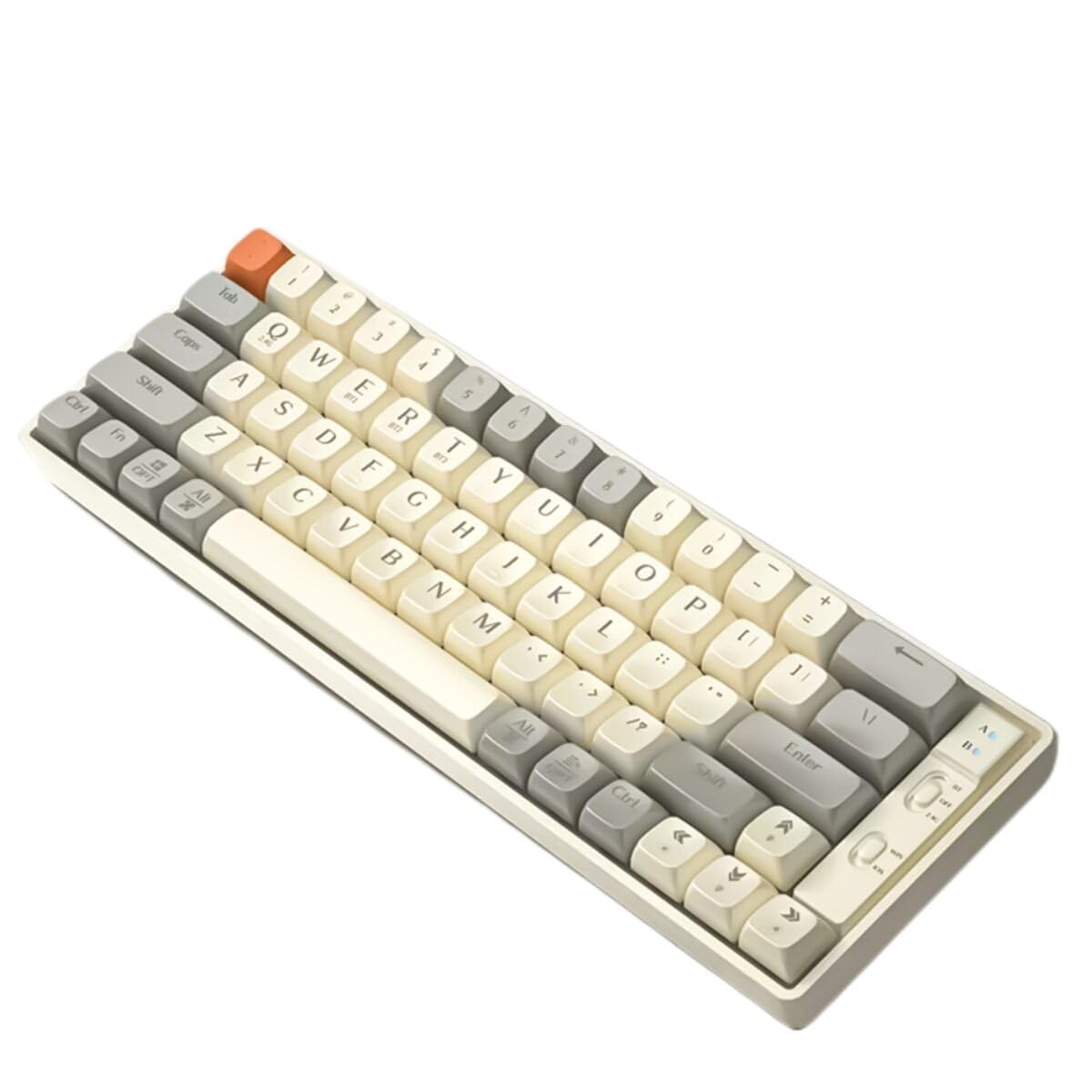
Figure 1: GOOJODOQ Mechanical Gaming Keyboard. This image shows the keyboard layout and design.
5. Setup
5.1. Charging the Keyboard
Before first use, it is recommended to fully charge the keyboard. Connect the USB-C end of the provided cable to the keyboard's port and the USB-A end to a power source (e.g., computer USB port, USB wall adapter). The charging indicator will show the charging status.
5.2. Connection Modes
Your GOOJODOQ keyboard supports three connection methods:
- 2.4G Wireless Mode: For a stable, low-latency wireless connection using the included USB receiver.
- Bluetooth 5.0 Mode: For connecting to up to three Bluetooth-enabled devices.
- Wired Mode: For a direct, reliable connection and simultaneous charging.
5.3. 2.4G Wireless Connection
- Locate the 2.4G wireless receiver, usually stored in a compartment on the keyboard.
- Plug the 2.4G receiver into an available USB port on your computer.
- Switch the keyboard's mode selector to 2.4G wireless mode (refer to the keyboard's physical switch, often labeled with a wireless icon).
- The keyboard should automatically connect. If not, press the designated pairing key combination (e.g., Fn + 4) to initiate pairing.
5.4. Bluetooth 5.0 Connection
The keyboard can store up to three Bluetooth profiles.
- Switch the keyboard's mode selector to Bluetooth mode (often labeled with a Bluetooth icon).
- Select a Bluetooth channel (e.g., Fn + 1, Fn + 2, or Fn + 3) by pressing the corresponding key combination. The indicator light for the selected channel will blink.
- On your device (computer, tablet, smartphone), enable Bluetooth and search for new devices.
- Select "GOOJODOQ Keyboard" (or similar name) from the list of available devices.
- Follow any on-screen prompts to complete the pairing process. The indicator light will become solid once connected.
- To switch between paired Bluetooth devices, press Fn + 1, Fn + 2, or Fn + 3.
5.5. Wired Connection
- Connect the USB-C end of the provided cable to the keyboard's port.
- Connect the USB-A end to an available USB port on your computer.
- Switch the keyboard's mode selector to wired mode (often labeled with a cable icon or USB icon).
- The keyboard will be recognized by your computer and ready for use.
6. Operating Instructions
6.1. Key Functions
The keyboard features various functions. Many functions are accessed via the Function (Fn) key combinations.
- Fn + F1-F12: Multimedia controls (e.g., volume, play/pause, track skip). Refer to the keycap legends for specific functions.
- Fn + Backlight Key: Cycle through different backlight effects.
- Fn + Arrow Keys: Adjust backlight brightness or speed (e.g., Fn + Up/Down for brightness, Fn + Left/Right for speed).
- Fn + 1/2/3: Switch between Bluetooth devices.
- Fn + 4: Initiate 2.4G pairing (if applicable).
Note: Specific key combinations may vary. Please refer to the keyboard's keycap legends or a dedicated function key guide if provided with your product.
6.2. Backlight Effects
Your keyboard features 19 distinct backlight effects. Use the designated backlight key (often combined with Fn) to cycle through these effects. Adjust brightness and speed using Fn + Arrow keys as described above.
6.3. Hot-Swappable Switches
The keyboard supports full hot-swappable switches, allowing you to easily change mechanical switches without soldering. This enables customization of typing feel and sound. Use the provided switch puller tool (if included) to carefully remove switches and insert new ones. Ensure the new switches are compatible with the keyboard's sockets.
7. Maintenance
7.1. Cleaning
- Disconnect the keyboard from all power sources before cleaning.
- Use a soft, lint-free cloth to wipe the surface of the keyboard.
- For dust and debris between keycaps, use compressed air or a small brush.
- Do not use harsh chemicals, abrasive cleaners, or excessive moisture.
- Keycaps can be removed for deeper cleaning using a keycap puller.
7.2. Storage
When not in use for extended periods, store the keyboard in a cool, dry place, away from direct sunlight and extreme temperatures. Ensure it is fully charged before long-term storage to preserve battery health.
8. Troubleshooting
| Problem | Possible Cause | Solution |
|---|---|---|
| Keyboard not responding in wireless mode. | Low battery, incorrect mode selected, receiver not plugged in, out of range, pairing issue. | Charge the keyboard. Ensure correct mode (2.4G or Bluetooth) is selected. Plug in the 2.4G receiver. Move closer to the receiver/device. Re-pair the keyboard. |
| Bluetooth connection unstable or disconnecting. | Interference, low battery, device compatibility, too many paired devices. | Ensure no strong interference sources nearby. Charge the keyboard. Try pairing with another device. Clear old Bluetooth profiles if necessary. |
| Keys not registering or double-typing. | Dust/debris under keycap, faulty switch, software issue. | Clean under keycaps with compressed air. If hot-swappable, try replacing the switch. Restart your computer. |
| Backlight not working or stuck. | Backlight disabled, software glitch, low battery. | Press Fn + Backlight key to cycle effects. Charge the keyboard. Try resetting the keyboard (if a reset function exists). |
9. Specifications
| Brand | GOOJODOQ |
| Keyboard Description | Mechanical |
| Color | White and Brown |
| Connectivity | 2.4G Wireless, Bluetooth 5.0, Wired (USB-C) |
| Wireless Range | Up to 10m |
| Backlight Effects | 19 |
| Switches | Pre-lubricated Gold Switches, Hot-swappable |
| ASIN | B0CMRKRHFC |
10. Warranty and Support
For warranty information and technical support, please refer to the documentation provided with your purchase or visit the official GOOJODOQ website. Keep your proof of purchase for warranty claims.


