
QSICISL RAM3G+ROM32G
QSICISL Android 11.0 CarPlay Ai Box Streaming 3.0 User Manual
Model: RAM3G+ROM32G
1. Introduction
Thank you for choosing the QSICISL Android 11.0 CarPlay Ai Box Streaming 3.0. This device is designed to enhance your in-car entertainment and connectivity by providing wireless CarPlay, wireless Android Auto, and a full Android 11.0 operating system directly on your vehicle's infotainment screen. With its powerful 4-core Qualcomm processor, 3GB RAM, and 32GB ROM (expandable to 128GB), you can enjoy 4K video playback, access the Google Play Store, and utilize various streaming applications like Netflix, YouTube, and Hulu.
This manual provides detailed instructions for setting up, operating, and maintaining your Ai Box, along with troubleshooting tips to ensure a smooth user experience. Please read this manual thoroughly before using the product.

Image: The QSICISL Android 11.0 CarPlay Ai Box, showing its compact design and connectivity options, alongside a smartphone illustrating its wireless CarPlay and Android Auto capabilities.
2. Safety Information
Always prioritize safety while driving. Avoid distractions caused by the device. Ensure the device is securely placed and does not obstruct your view or interfere with vehicle controls. Refer to your vehicle's manual for any specific safety warnings related to accessories.
- Visible screen diagonal: 3 inches / 8 cm.
- Do not attempt to disassemble or modify the device.
- Keep the device away from water, extreme temperatures, and direct sunlight.
- Use only the provided cables and adapters.
3. What's in the Box
Verify that all items are present in the package:
- Car AI Box (1 unit)
- USB-C to USB-A Cable (1 unit)
- Adapter (USB to Type-C) (1 unit)
- User Manual (1 unit)

Image: Visual representation of the package contents, showing the AI box, user manual, USB-C data cable, and USB to Type-C adapter.
4. Setup
The QSICISL Android 11.0 CarPlay Ai Box is designed for plug-and-play convenience. Follow these steps for initial setup:
- Connect the Car AI Box: Use the provided USB-C to USB-A cable to connect the Car AI Box to your vehicle's USB port. If your vehicle only has a Type-C port, use the included USB to Type-C adapter. Ensure your vehicle supports wired CarPlay for the AI Box to function.
- Power On: Once connected, the AI Box will power on automatically.
- Bluetooth and Wi-Fi Pairing: On your vehicle's infotainment screen, navigate to the Bluetooth settings. Turn on Bluetooth and Wi-Fi on your smartphone. Search for the AI Box's Bluetooth signal (e.g., "smartbox") and pair with it.
- Automatic Connection: After the first successful connection, the AI Box will automatically recognize and connect to your smartphone for subsequent uses.

Image: Step-by-step guide illustrating the simple pairing process for the AI Box.

Image: Illustration of the two primary connection methods for the AI Box to your vehicle's USB ports.
5. Operating Instructions
5.1 Wireless CarPlay and Android Auto
Once connected, the AI Box provides seamless wireless CarPlay (for iPhone 6 or later with iOS 10+) and wireless Android Auto (for Android 11+ devices). The Bluetooth 5.0 channels ensure stable connectivity.
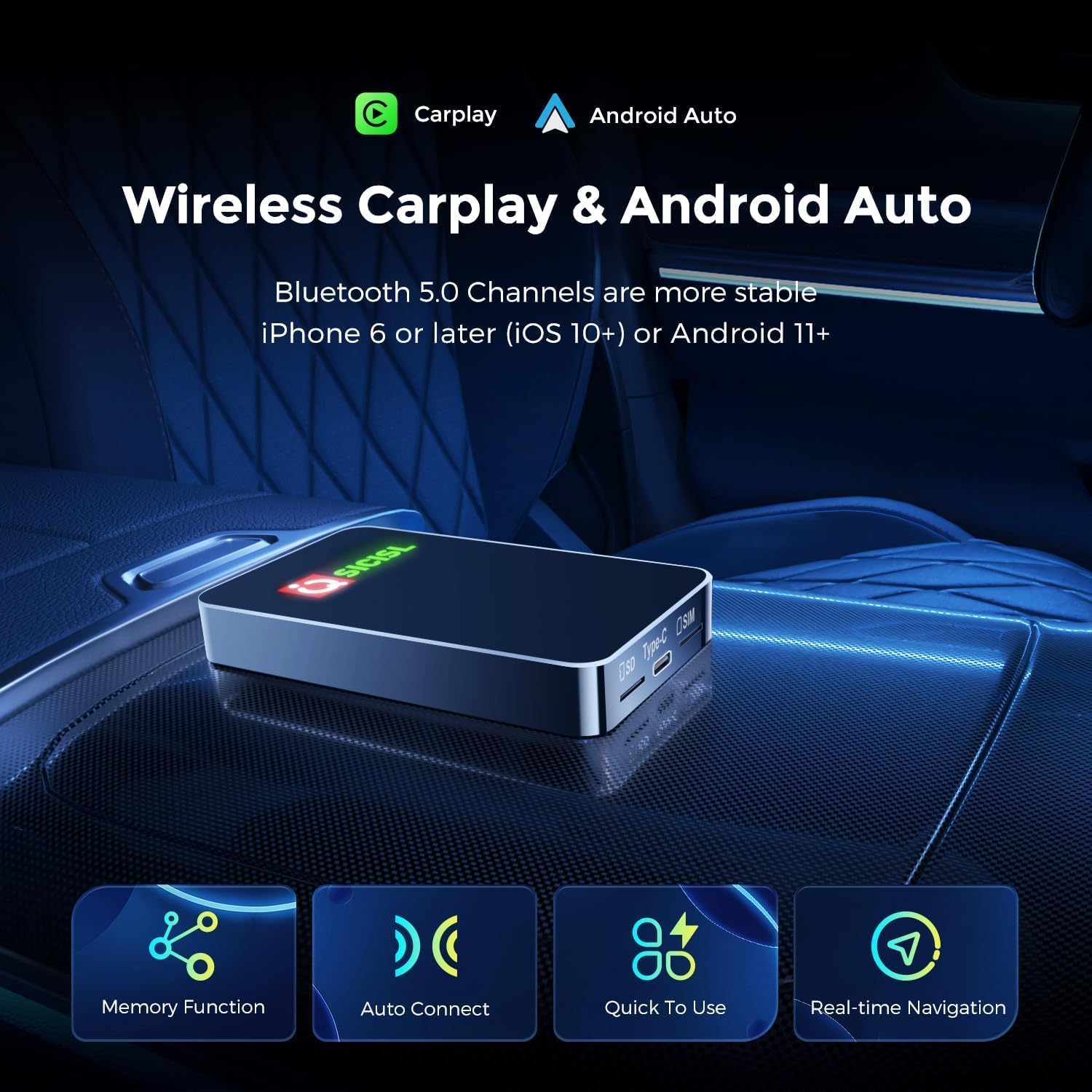
Image: Key features of the wireless CarPlay and Android Auto functionality, including memory function, auto-connect, quick use, and real-time navigation.
5.2 Android 11.0 System and App Usage
The AI Box runs on Android 11.0, offering a full Android experience on your car screen. You can access the built-in Google Play Store to download and install various entertainment software. Additionally, you can manually install APK files.
- Pre-installed Apps: The device comes with popular streaming apps like YouTube, Netflix, and Hulu.
- App Downloads: Use the Google Play Store to download more applications.
- 4K Video Playback: Supports 4K video playback for a high-quality viewing experience.
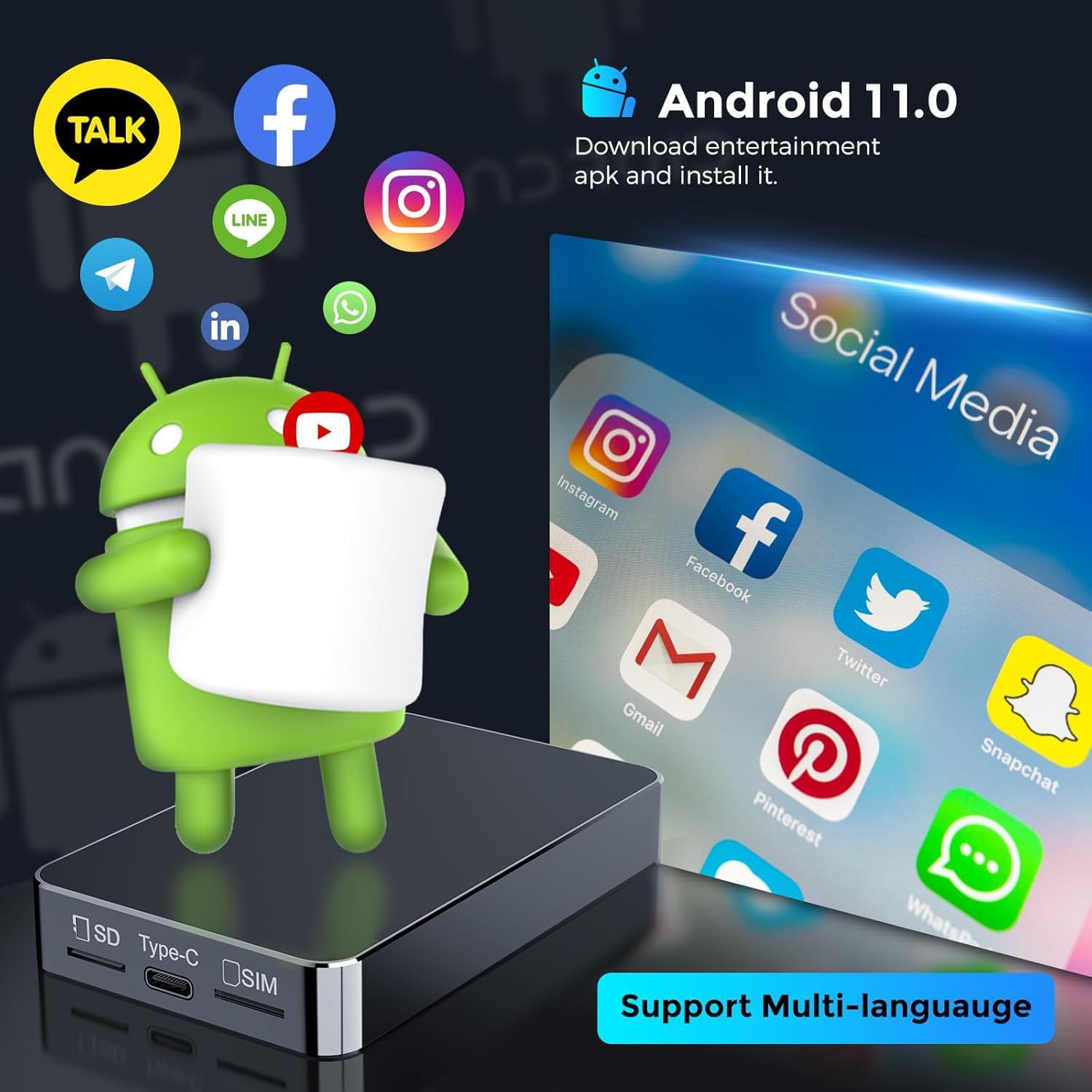
Image: The Android 11.0 interface displaying various app icons, demonstrating the ability to download and install entertainment applications.

Image: The in-car entertainment screen showcasing support for 1080P Full HD video playback.
5.3 Split Screen Function & Mirroring
The device supports split-screen functionality, allowing you to view two applications simultaneously and adjust the split ratio. It also features wireless projection technology for mobile phone screen mirroring, providing an adaptive high-definition resolution for an in-car theater experience.

Image: The split-screen interface displaying two apps concurrently, along with various shortcut keys for quick access to functions.
5.4 4G Connectivity and GPS
Equipped with a Qualcomm super chip, the AI Box supports 4G internet access via a dedicated 4G card slot. It also features GPS signal reception for navigation and dual Bluetooth channels (BT5.0) for phone calls and music streaming.

Image: The AI Box integrated into a car interior, showcasing its advanced features like Qualcomm processing, 5G WiFi, 4G card slot, and Bluetooth 5.0.
5.5 Voice Control
The device supports voice control, allowing you to use commands like "Ok, Google. Navigate home." or "Hey, Siri. Find a restaurant." for hands-free operation. Voice control sensitivity has been increased by 30% for improved responsiveness.

Image: Illustration of voice control functionality in a car, demonstrating commands for navigation and search, with improved sensitivity.
5.6 User Interface
The California-designed private user interface offers day and night functionality for optimal visibility. It provides an intuitive layout for easy navigation through apps and settings.

Image: Overview of the 4-core processor and various UI interface screens, demonstrating the device's performance and user-friendly design.
5.7 Product Video
Watch the official product video for a visual guide on the AI Box's features and operation:
Video: Official demonstration of the Magic Box 3 in 1 Wireless CarPlay/Android Auto, showcasing its features and ease of use.
6. Maintenance
To ensure the longevity and optimal performance of your QSICISL Android 11.0 CarPlay Ai Box, follow these maintenance guidelines:
- Cleaning: Use a soft, dry cloth to clean the exterior of the device. Avoid using abrasive cleaners or solvents.
- Storage: When not in use for extended periods, store the device in a cool, dry place away from direct sunlight and extreme temperatures.
- Cable Care: Handle cables gently. Avoid bending or twisting them excessively to prevent damage.
- Software Updates: Periodically check for software updates to ensure the device has the latest features and bug fixes.
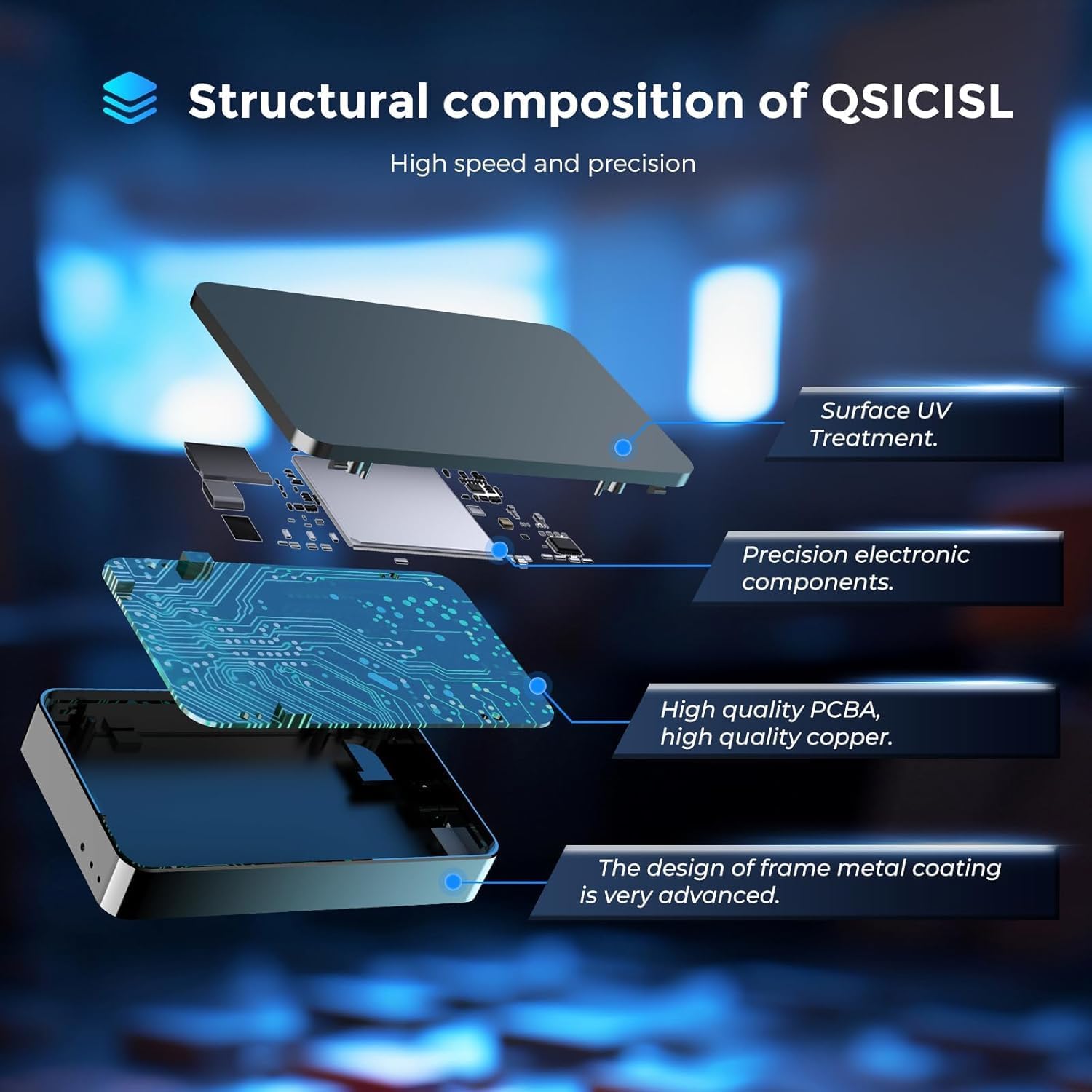
Image: Diagram illustrating the internal and external structural components, emphasizing the quality materials and construction.
7. Troubleshooting
If you encounter issues with your AI Box, refer to the following common problems and solutions:
| Problem | Possible Cause / Solution |
|---|---|
| Device does not power on. |
|
| Cannot connect to Wireless CarPlay/Android Auto. |
|
| Audio delay or sync issues. |
|
| Apps are slow or crashing. |
|
If the issue persists, please contact customer support as described in the "Warranty and Support" section.
8. Specifications
| Feature | Detail |
|---|---|
| Operating System | Android 11.0 |
| Processor | 4-Core Qualcomm 2290 |
| RAM | 3GB |
| ROM | 32GB (expandable up to 128GB) |
| Connectivity | Wireless CarPlay, Wireless Android Auto, 4G Slot, 5G WiFi, Bluetooth 5.0, SD Card, USB |
| Video Playback | Supports 4K video playback |
| Dimensions | 5.9 x 2.3 x 0.8 inches |
| Item Weight | 4.5 ounces |
| Material | Surface UV + Gold Plating Technology |
| Special Features | APK Download/Install, CarPlay/Android Auto Memory Function, Screen Adaptive, Split Screen, Mirroring Function, Voice Control |
9. Warranty and Support
The manufacturer, QSICISL, provides pre-sales and after-sales service for this AI Carplay box. If you have any questions about the product or if it does not work properly after purchase, please contact them immediately.
You can typically reach support by visiting the QSICISL store page on Amazon and clicking "Ask a question." Provide pictures or videos of the technical or installation issues you are facing for prompt assistance.

Image: Guide on how to contact QSICISL customer support through the Amazon platform.
The product has passed FCC certification of the United States Federal Communications Commission and European CE safety Certification, ensuring quality and safety standards.
Ask a question about this manual
Ask about setup, troubleshooting, compatibility, parts, safety, or missing instructions. Manuals+ will review the question and use this page’s manual context to help answer it.