
MP myPhone myPhone N23
myPhone N23 Smartphone User Manual
Model: myPhone N23 (IN-FL-TLMYN236BLK)
1. Introduction
Welcome to the user manual for your new myPhone N23 Smartphone. This manual provides essential information on how to set up, operate, maintain, and troubleshoot your device. Please read this manual carefully before using your smartphone to ensure optimal performance and longevity.
2. Safety Information
To prevent injury to yourself and others, or damage to your device, read all safety information before using the device.
- Do not expose the device to extreme temperatures (below 0°C or above 35°C).
- Avoid direct contact with water or other liquids.
- Use only manufacturer-approved chargers, batteries, and accessories.
- Do not disassemble, modify, or repair the device yourself.
- Keep the device away from medical devices.
- Dispose of the device and its components responsibly according to local regulations.
3. Package Contents
Ensure all items are present in your product box:
- myPhone N23 Smartphone
- USB Type-C Cable
- Power Adapter
- SIM Ejector Tool
- Quick Start Guide
- Warranty Card
4. Device Overview

Front and back view of the myPhone N23 Smartphone, showcasing its sleek design and camera module.

An illustration highlighting key specifications of the myPhone N23, including Android 13, Helio G36 processor, 12GB RAM, 128GB storage, 50MP camera, 5000mAh battery, and 6.5-inch display.
Physical Buttons and Ports:
- Power Button: Located on the right side, used to turn the device on/off or wake/sleep the screen.
- Volume Buttons: Located above the power button, used to adjust media and call volume.
- USB Type-C Port: Located at the bottom, used for charging and data transfer.
- SIM/MicroSD Card Tray: Located on the left side, for inserting SIM and memory cards.
- Camera Module: Rear-facing 50 Mpx main camera and additional sensors. Front-facing 5 Mpx camera.
5. Setup
5.1 Initial Charging
Before first use, fully charge your myPhone N23.
- Connect the USB Type-C cable to the phone's charging port.
- Connect the other end of the cable to the power adapter.
- Plug the power adapter into a wall outlet.
- The battery indicator on the screen will show charging progress.
Note: Use only the charger provided with your device or a certified compatible charger.
5.2 SIM Card Installation
Your myPhone N23 supports dual SIM cards.
- Power off the device.
- Locate the SIM card tray on the left side of the phone.
- Insert the SIM ejector tool into the small hole next to the tray and push gently until the tray pops out.
- Place your Nano-SIM card(s) into the designated slots on the tray, ensuring the gold contacts face down.
- Carefully push the tray back into the slot until it clicks into place.
5.3 MicroSD Card Installation (Optional)
Expand your storage up to 256GB with a MicroSD card.
- Follow steps 1-3 from SIM Card Installation to open the tray.
- Place the MicroSD card into its designated slot on the tray.
- Carefully push the tray back into the slot.
5.4 Powering On/Off
- To Power On: Press and hold the Power button until the myPhone logo appears.
- To Power Off: Press and hold the Power button until the power options appear, then tap "Power off".
- To Restart: Press and hold the Power button until the power options appear, then tap "Restart".
5.5 Initial Setup Wizard
Upon first power-on, the device will guide you through the initial setup process. Follow the on-screen prompts to:
- Select your language.
- Connect to a Wi-Fi network.
- Set up your Google account.
- Configure screen lock (PIN, pattern, password, fingerprint, face unlock).
- Review and accept terms and conditions.
6. Operating Your Smartphone
6.1 Navigation
- Touch Gestures: Tap, double-tap, long press, swipe, pinch-to-zoom.
- Home Screen: Access apps, widgets, and notifications.
- Notification Panel: Swipe down from the top of the screen to view notifications and quick settings.
- App Drawer: Swipe up from the bottom of the screen to access all installed applications.
6.2 Calls & Contacts
- Making Calls: Open the Phone app, enter the number, and tap the call icon.
- Answering/Rejecting Calls: Swipe up to answer, swipe down to reject.
- Managing Contacts: Use the Contacts app to add, edit, or delete contacts.
6.3 Messaging
Use the Messages app to send and receive SMS/MMS messages.
- Tap the '+' icon to compose a new message.
- Enter recipient(s) and your message.
- Tap the send icon.
6.4 Camera Usage
Your myPhone N23 features a 50 Mpx main camera with AI support and a 5 Mpx front camera.

An image illustrating the myPhone N23's camera capabilities, including the 50MP main camera and 5MP rear camera, along with an additional 0.3MP sensor.
- Open the Camera app.
- Select your desired mode (Photo, Video, Portrait, etc.).
- Tap the shutter button to capture a photo or start/stop recording a video.
- Use the AI features for enhanced photo quality.
6.5 Connectivity
- Wi-Fi: Go to Settings > Network & internet > Wi-Fi to connect to available networks.
- Bluetooth: Go to Settings > Connected devices > Bluetooth to pair with other Bluetooth devices.
- NFC: Enable NFC in Settings > Connected devices > Connection preferences > NFC for contactless payments and data exchange.
- Mobile Data (4G): Ensure your SIM card is active and mobile data is enabled in Quick Settings or Settings > Network & internet > Mobile network.
6.6 Apps & Notifications
- Installing Apps: Download apps from the Google Play Store.
- Managing Apps: Go to Settings > Apps to manage permissions, storage, and uninstall apps.
- Notifications: Customize notification settings for individual apps in Settings > Notifications.
6.7 Security Features
Your myPhone N23 runs on Android 13, offering enhanced data security.
- Screen Lock: Set up PIN, pattern, or password in Settings > Security & privacy > Device unlock.
- Fingerprint Unlock: Register your fingerprints for quick and secure access in Settings > Security & privacy > Fingerprint unlock.
- Face Unlock: Configure face recognition for convenient unlocking in Settings > Security & privacy > Face unlock.
6.8 Battery Management
The 5000 mAh battery provides long-lasting power.
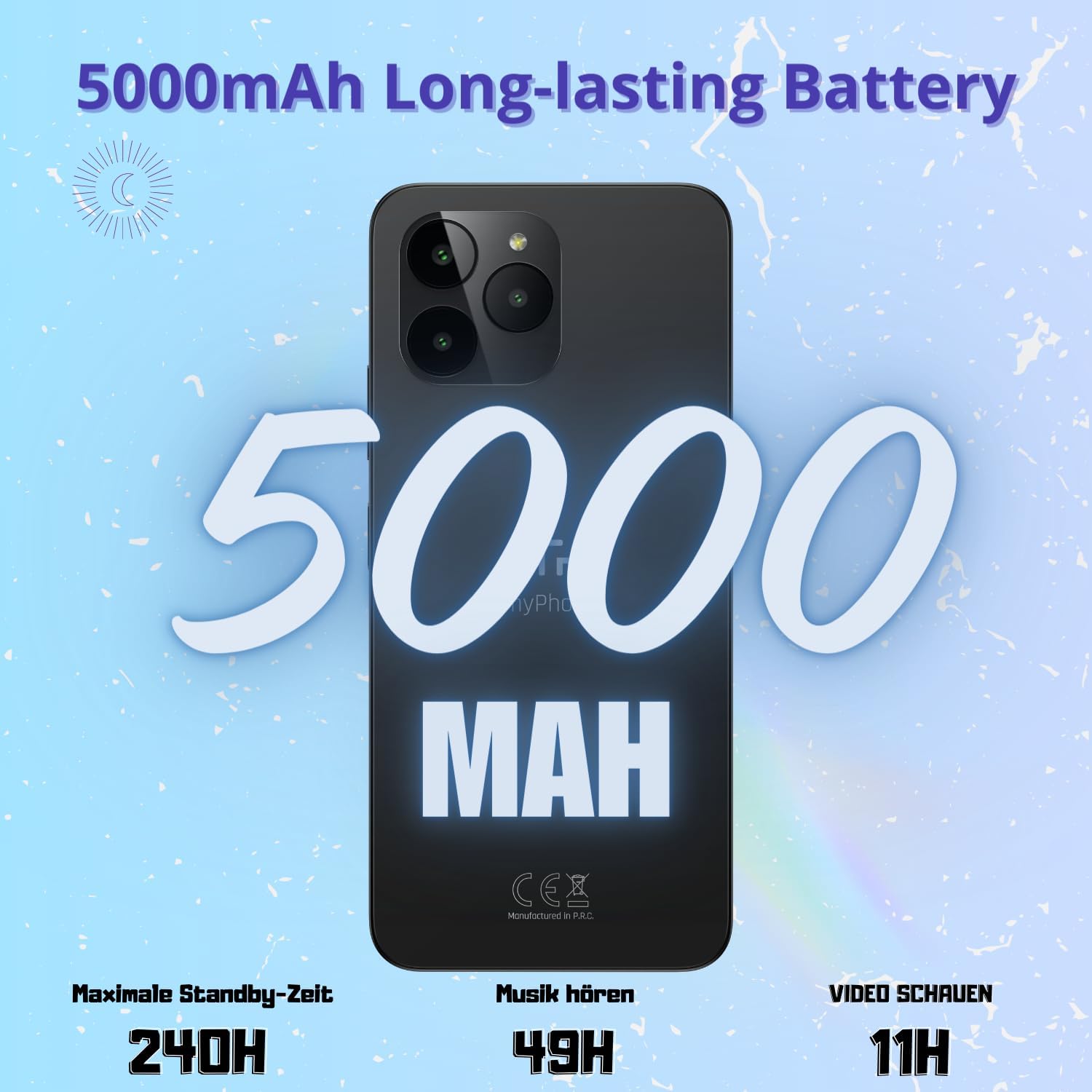
An image detailing the myPhone N23's 5000mAh battery life, showing up to 240 hours standby, 49 hours music playback, and 11 hours video playback.
- Battery Saver: Enable in Settings > Battery > Battery Saver to extend battery life.
- Battery Usage: Monitor app battery consumption in Settings > Battery > Battery usage.
- Charging Tips: Avoid overcharging and extreme temperatures to prolong battery lifespan.
7. Maintenance
7.1 Cleaning Your Device
To keep your device clean and functioning properly:
- Use a soft, lint-free cloth to wipe the screen and body.
- Avoid using harsh chemicals, cleaning sprays, or abrasive materials.
- Gently clean ports with a dry, soft brush if necessary.
7.2 Software Updates
Regularly check for software updates to ensure your device has the latest features and security patches.
- Go to Settings > System > System update.
- Connect to a stable Wi-Fi network before downloading updates.
- Ensure your battery is sufficiently charged before installing updates.
7.3 Storage Management
Your device comes with 128GB of internal storage, expandable with a MicroSD card.
- Go to Settings > Storage to view storage usage.
- Clear cache data and uninstall unused apps to free up space.
- Move large files (photos, videos) to your MicroSD card or cloud storage.
8. Troubleshooting
8.1 Common Issues and Solutions
| Issue | Possible Solution |
|---|---|
| Device won't turn on | Ensure battery is charged. Press and hold the Power button for 10-15 seconds. |
| Apps are crashing or freezing | Clear app cache/data (Settings > Apps), update the app, or reinstall it. Restart the phone. |
| Poor battery life | Reduce screen brightness, close background apps, enable Battery Saver, check for rogue apps in Battery Usage. |
| Cannot connect to Wi-Fi/Bluetooth | Toggle Wi-Fi/Bluetooth off and on. Restart the phone and the router/device. Forget and reconnect to the network/device. |
| Phone is slow or unresponsive | Clear storage, uninstall unused apps, restart the device. |
8.2 Factory Reset
A factory reset will erase all data from your device and restore it to its original factory settings. Backup your data before proceeding.
- Go to Settings > System > Reset options.
- Tap "Erase all data (factory reset)".
- Confirm your decision and enter your PIN/pattern/password if prompted.
- The device will restart and begin the reset process.
9. Specifications
Detailed technical specifications for the myPhone N23 Smartphone:
| Feature | Detail |
|---|---|
| Brand | MP myPhone |
| Model Name | myPhone N23 |
| Model Number | IN-FL-TLMYN236BLK |
| Operating System | Android 13.0 |
| Display Size | 6.51 Inches HD+ (1600 x 720 resolution) |
| Processor | 8-core CPU, 2 GHz speed (Helio G36 based on image) |
| RAM | 12 GB (dynamic memory, likely 6GB physical + 6GB virtual) |
| Internal Storage | 128 GB |
| Expandable Storage | Up to 256 GB via MicroSD card |
| Rear Camera | 50 Mpx (with AI support) + 0.3 Mpx additional sensor |
| Front Camera | 5 Mpx |
| Battery Capacity | 5000 mAh Lithium-polymer |
| Connectivity | 4G Cellular, Wi-Fi, Bluetooth, NFC |
| SIM Support | Dual SIM |
| Special Features | Expandable Memory, Integrated GPS, Robust Body, Mobile Hotspot Functionality |
10. Warranty and Support
10.1 Warranty Information
Your myPhone N23 Smartphone comes with a standard manufacturer's warranty. Please refer to the warranty card included in your package for specific terms and conditions, including warranty period and coverage details. Keep your proof of purchase for warranty claims.
Note: The warranty may be voided if the device is damaged due to misuse, unauthorized repairs, or exposure to liquids.
10.2 Customer Support
For technical assistance, troubleshooting beyond this manual, or warranty inquiries, please contact myPhone customer support.
- Online Support: Visit the official myPhone website for FAQs, support articles, and contact forms.
- Email Support: Refer to your warranty card or the official website for the support email address.
- Phone Support: Check the official myPhone website for regional phone support numbers.
When contacting support, please have your device model number (IN-FL-TLMYN236BLK) and purchase details ready.
Ask a question about this manual
Ask about setup, troubleshooting, compatibility, parts, safety, or missing instructions. Manuals+ will review the question and use this page’s manual context to help answer it.