
Western Digital WD80EAAZ
Western Digital 8TB WD Blue PC Internal Hard Drive (Model WD80EAAZ) Instruction Manual
For reliable everyday computing and storage
1. Introduction
This manual provides essential information for the installation, operation, and maintenance of your Western Digital 8TB WD Blue PC Internal Hard Drive (Model WD80EAAZ). Designed for desktop PCs, this 3.5-inch hard drive offers substantial storage capacity and reliable performance for various applications.

Image: Front view of the Western Digital 8TB WD Blue PC Internal Hard Drive, showing the blue label with 'WD Blue 3.5" PC HDD 8TB' and the Western Digital logo.
2. Key Features
- Reliable Everyday Computing: Engineered for consistent performance in office and web applications.
- Western Digital Quality: Built to Western Digital's standards for durability and reliability.
- Acronis True Image WD Edition: Includes cloning software for easy drive upgrades and data migration.
- High Capacity: Offers up to 8TB of storage for photos, videos, documents, and other files.
- Standard Form Factor: 3.5-inch size compatible with most desktop PC enclosures.

Image: A banner highlighting 'Reliable Everyday Computing', featuring the WD Blue hard drive and individuals using computers.
3. Setup and Installation
Follow these general steps to install your WD Blue internal hard drive into a desktop PC. Always ensure your computer is powered off and unplugged before beginning installation.
- Prepare Your System: Power down your computer and disconnect all cables. Open the computer case to access the internal drive bays.
- Mount the Drive: Secure the 3.5-inch hard drive into an available drive bay using appropriate screws. Ensure it is firmly seated to prevent vibration.
- Connect Cables:
- Connect a SATA data cable from the hard drive to an available SATA port on your motherboard.
- Connect a SATA power cable from your power supply unit (PSU) to the hard drive.
- Close Case and Power On: Close your computer case, reconnect all external cables, and power on your system.
- Initialize and Format: For new drives, especially those over 2TB, you will need to initialize and format the drive through your operating system's Disk Management utility before it can be used. Refer to your operating system's documentation for detailed instructions on disk initialization and formatting.

Image: Rear view of the WD Blue hard drive, illustrating the SATA data and power connection ports.
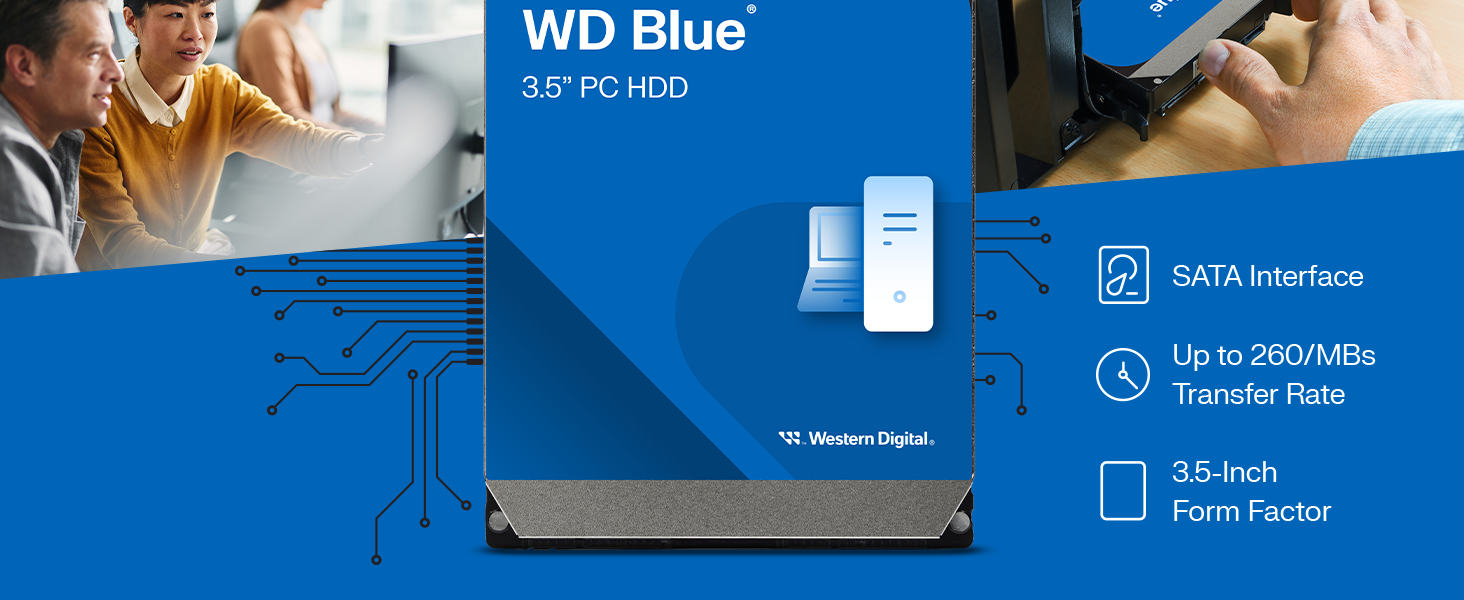
Image: A banner detailing the WD Blue 3.5-inch PC HDD, highlighting its SATA interface, transfer rate, and form factor.
4. Operating the Hard Drive
Once installed and formatted, your WD Blue hard drive functions as standard internal storage. You can use it for:
- Primary Storage: Install your operating system and applications for responsive computing.
- Secondary Storage: Store large files such as media libraries, game installations, and important documents.
- Backup Solutions: Utilize the drive for regular backups of your critical data.
The included Acronis True Image WD Edition software facilitates cloning your existing drive to the new WD Blue drive, simplifying system upgrades and data migration.

Image: A computer screen displaying the Acronis True Image WD Edition software, illustrating its functionality for easy upgrades and cloning.
Video: An official product overview of the Western Digital 8TB WD Blue Internal Hard Drive, showcasing its features and benefits.
5. Maintenance
To ensure the longevity and optimal performance of your WD Blue hard drive, consider the following maintenance practices:
- Regular Backups: Periodically back up important data to another storage device to prevent data loss.
- Proper Shutdown: Always shut down your computer properly to allow the hard drive to park its heads safely. Avoid sudden power loss.
- Physical Protection: Internal hard drives are sensitive to physical shock. Ensure your computer case is stable and avoid moving it while the drive is operating.
- System Updates: Keep your operating system and drivers updated to ensure compatibility and optimal performance with your hard drive.
6. Troubleshooting
If you encounter issues with your WD Blue hard drive, consider these basic troubleshooting steps:
- Drive Not Detected:
- Check all SATA data and power cable connections to ensure they are secure.
- Verify that the SATA port on the motherboard is enabled in the BIOS/UEFI settings.
- Ensure the drive is initialized and formatted in Disk Management (for Windows) or Disk Utility (for macOS).
- Slow Performance:
- Check for sufficient free space on the drive.
- Run a disk defragmentation utility (for HDDs) or check disk health using diagnostic tools.
- Ensure your system drivers are up to date.
- Unusual Noises: If the drive emits clicking, grinding, or other unusual noises, power down your system immediately to prevent further damage and contact Western Digital support.
For advanced troubleshooting or persistent issues, refer to the Western Digital support website or contact their customer service.
7. Specifications
| Feature | Specification |
|---|---|
| Model Number | WD80EAAZ |
| Capacity | 8 TB (Terabytes) |
| Form Factor | 3.5 Inches |
| Interface | SATA 6 Gb/s |
| Rotational Speed | 5640 RPM |
| Cache Size | 256 MB |
| Item Weight | 1.65 pounds |
| Product Dimensions (LxWxH) | 11.81 x 11.81 x 11.81 inches |
| Manufacturer | Western Digital Technologies, Inc. |
| What's in the Box | Internal Hard Drive |
Note: Actual user capacity may be less depending on the operating environment. 1TB = 1 trillion bytes.
8. Warranty and Support
Your Western Digital 8TB WD Blue PC Internal Hard Drive (Model WD80EAAZ) is covered by a 2-year limited warranty. This warranty ensures that your product is free from defects in material and workmanship under normal use during the warranty period.
For warranty claims, technical support, or to access the latest drivers and software, please visit the official Western Digital website. You may need your product's model number (WD80EAAZ) and serial number (found on the drive label) when contacting support.

Image: The WD Blue hard drive accompanied by a graphic indicating a '2 Years' limited warranty.
For additional information and resources, visit the Western Digital website.
Related documentsWD80EAAZ


Ask a question about this manual
Ask about setup, troubleshooting, compatibility, parts, safety, or missing instructions. Manuals+ will review the question and use this page’s manual context to help answer it.