
Introduction
The MoKo Foldable Bluetooth Keyboard is a versatile and portable input device designed for enhanced productivity across multiple platforms. Featuring an upgraded 2-in-1 design, it combines a full-size keyboard with a multi-functional touchpad that can also convert into a numeric keypad. Its compact, tri-fold design makes it ideal for travel and on-the-go use, ensuring a comfortable and efficient typing experience wherever you are.
Package Contents
- 1 x MoKo Wireless Folding Keyboard
- 1 x Stand Holder for Phones or 12.9" Tablets
- 1 x USB Type-C Charging Cable
- 1 x User Manual
Product Overview
The MoKo Foldable Bluetooth Keyboard features a durable ABS material construction with a sleek dark gray finish. Its tri-fold design allows for extreme portability, folding down to a palm-sized unit. The keyboard integrates a full QWERTY layout with a dedicated touchpad/numeric keypad section on the right.

Figure 1: MoKo Foldable Bluetooth Keyboard in its unfolded state, showcasing the full keyboard layout and the integrated touchpad/numeric keypad. A phone stand is visible in the background.
Key Features:
- Folding Design: Tri-fold mechanism for compact storage and portability.
- 2-in-1 Touchpad & Numeric Keypad: Seamlessly switch between touchpad mode for mouse functions and numeric keypad mode for data entry.
- Multi-Device Connectivity: Pair and switch between up to 3 Bluetooth-enabled devices simultaneously.
- Scissor Keys: Low-profile scissor-switch keys provide a quiet, comfortable, and precise typing experience.
- Rechargeable Battery: Built-in 140mAh lithium battery offers up to 60 hours of working time on a single charge.
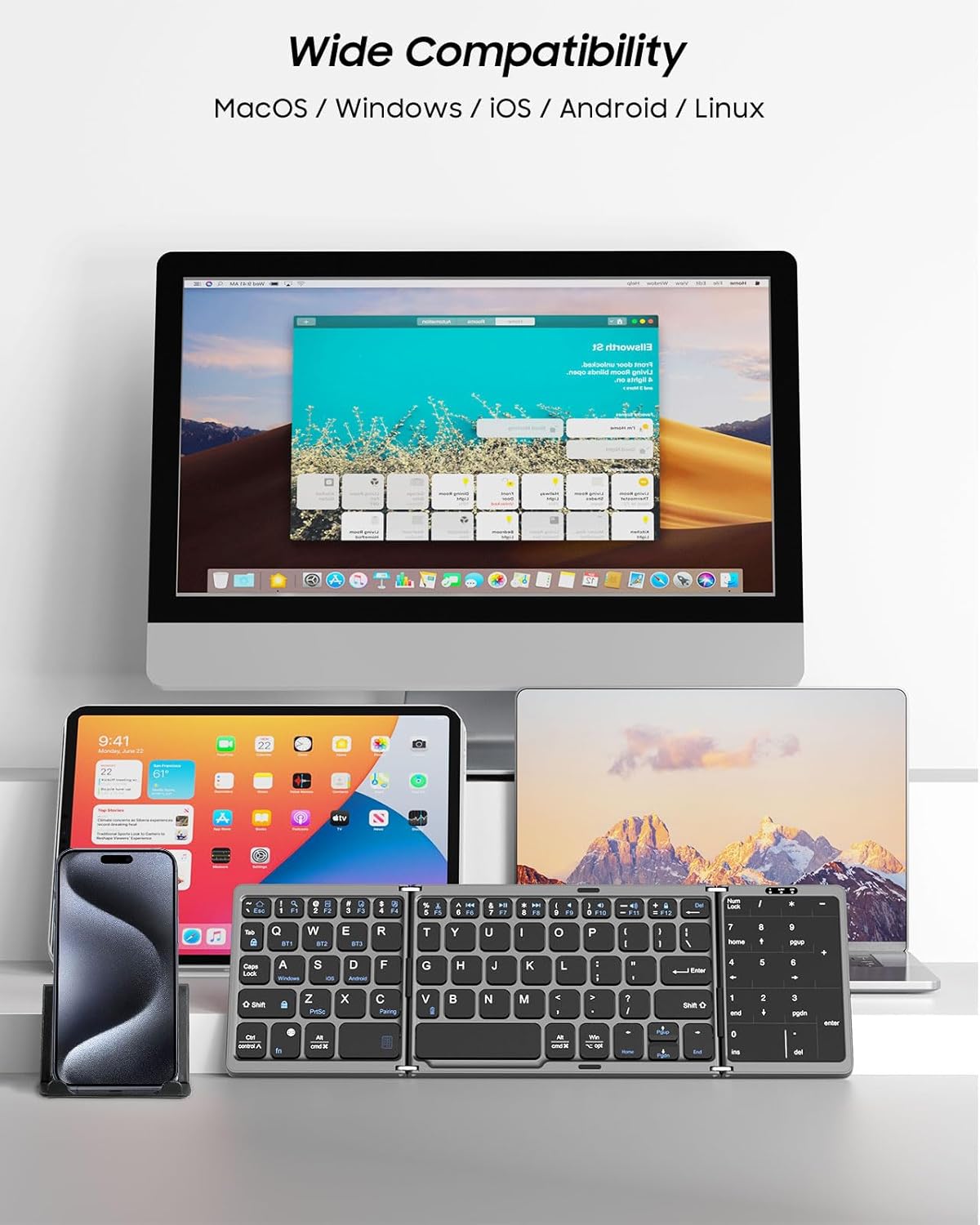
Figure 2: Detailed dimensions of the keyboard when folded and unfolded, highlighting its compact and portable nature.
Setup
1. Charging the Keyboard
Before first use, fully charge the keyboard using the provided USB Type-C cable. Connect the USB-C end to the keyboard's charging port and the USB-A end to a compatible power source (e.g., computer USB port, wall adapter).
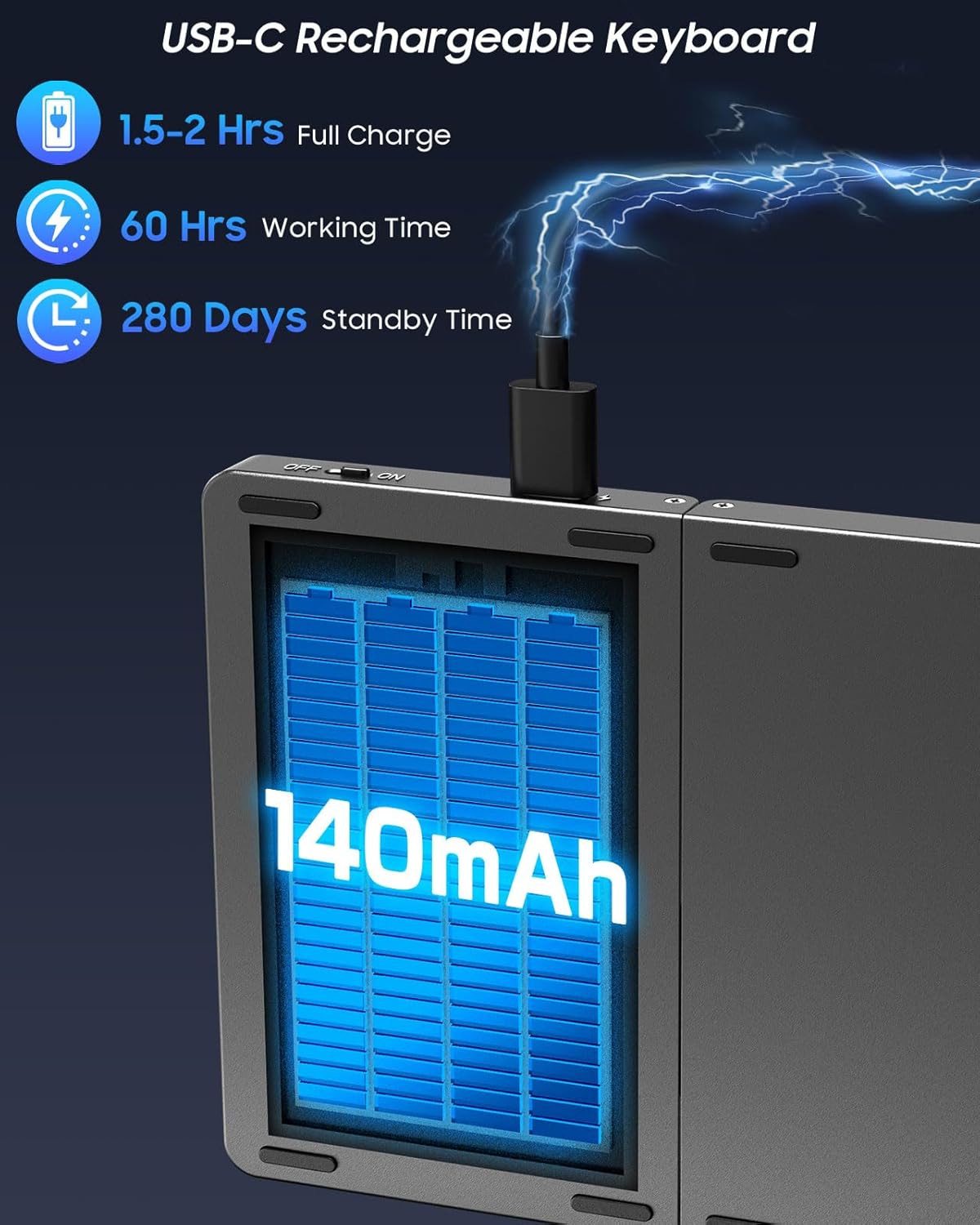
Figure 3: The keyboard's USB-C charging port, illustrating the connection for recharging the internal battery.
A full charge typically takes 1.5-2 hours. The indicator light will turn red during charging and turn off when fully charged.
2. Power On/Off
To power on the keyboard, simply unfold it. The power indicator light will illuminate. To power off, fold the keyboard closed.
3. Bluetooth Pairing
The keyboard supports pairing with up to three devices simultaneously. Follow these steps to pair your devices:
- Select a Channel: Press Fn + Q for Channel 1 (BT1), Fn + W for Channel 2 (BT2), or Fn + E for Channel 3 (BT3). The selected channel's indicator light will flash.
- Enter Pairing Mode: Press Fn + C to enter pairing mode. The indicator light for the selected channel will flash rapidly.
- Enable Bluetooth on Your Device: On your smartphone, tablet, or laptop, go to Bluetooth settings and turn on Bluetooth.
- Connect: Search for "MoKo Foldable Keyboard" (or similar name) in the list of available devices and select it to connect. The indicator light will stop flashing once successfully paired.
- Repeat for Additional Devices: To pair another device, select a different channel (e.g., BT2) and repeat steps 1-4.

Figure 4: The keyboard demonstrating simultaneous Bluetooth connectivity with a laptop, tablet, and smartphone, highlighting the multi-device capability.
Video 1: Demonstrates the multi-device pairing process and quick switching between connected devices for the MoKo Wireless Portable Keyboard.
Operating Instructions
1. Touchpad Mode
The integrated touchpad supports various multi-gesture commands, functioning as a mouse replacement. It supports left and right mouse button functions. Refer to the user manual for a complete list of supported gestures for Windows, iOS, and Android systems.

Figure 5: Illustrates the two primary modes of the right-hand section: Touchpad Mode for navigation and Number Pad Mode for numerical input.
2. Numeric Keypad Mode
To switch the touchpad to numeric keypad mode, press Fn + Space. The touchpad area will then function as a dedicated number pad, greatly improving efficiency for data input. Press Fn + Space again to revert to touchpad mode.
3. System Switching
The keyboard is compatible with Windows, Mac OS, iOS, and Android devices. To optimize key functions for your operating system, use the following shortcuts:
- Windows: Press Fn + A
- iOS/Mac OS: Press Fn + S
- Android: Press Fn + D
Video 2: Shows the MoKo Portable Folding Wireless Keyboard in action, demonstrating its compact design and ease of use for various tasks.
Maintenance
Cleaning
To clean the keyboard, gently wipe the surface with a soft, damp cloth. Avoid using harsh chemicals or abrasive materials that could damage the finish or internal components. Ensure the keyboard is powered off before cleaning.
Battery Care
The keyboard is equipped with a 140mAh lithium rechargeable battery. To prolong battery life:
- Avoid fully discharging the battery frequently.
- Store the keyboard in a cool, dry place when not in use for extended periods.
- The keyboard features an auto-sleep function, entering sleep mode after 10 minutes of inactivity to conserve power. Press any key to wake it up.
Troubleshooting
Connection Issues
- Ensure the keyboard is fully charged and powered on.
- Verify Bluetooth is enabled on your device and the keyboard is in pairing mode (rapidly flashing channel light).
- If the keyboard was previously paired, try forgetting the device on your host device and re-pairing.
- Ensure no other Bluetooth devices are causing interference.
Typing Errors / Unresponsive Keys
- Ensure the keyboard is placed on a flat, firm surface to prevent accidental folding or instability during use.
- Check the selected operating system mode (Windows, iOS, Android) to ensure it matches your device. Incorrect mode can lead to unexpected key behavior.
- If specific keys are unresponsive, ensure no debris is lodged beneath them.
Touchpad / Numeric Keypad Not Working
- Ensure you are in the correct mode. Press Fn + Space to toggle between touchpad and numeric keypad modes.
- For touchpad gestures, ensure you are using the correct number of fingers and swipe direction as per the user manual.
Specifications
| Feature | Detail |
|---|---|
| Brand | MoKo |
| Model Number | P840401404331 |
| Connectivity Technology | Bluetooth |
| Compatible Devices | Laptop, PC, Tablet, Smartphone, iPhone, iPad, Mac |
| Operating System | Mac OS, iOS, Android, Windows |
| Item Weight | 7.2 ounces |
| Product Dimensions (unfolded) | 12.01 x 3.88 x 0.79 inches |
| Color | Dark Gray |
| Power Source | Battery Powered (1 Lithium Ion battery included) |
| Battery Capacity | 140mAh |
| Working Time | Up to 60 hours |
| Standby Time | Up to 280 days |
| Material | Acrylonitrile Butadiene Styrene (ABS) |
Warranty & Support
MoKo products are designed and manufactured to the highest quality standards. For warranty information or technical support, please refer to the contact details provided in your product packaging or visit the official MoKo website. You can also visit the MoKo Store on Amazon for additional resources and customer service.