
Introduction
This manual provides essential information for the safe and efficient use of your Dopesplay DR158W 15.6-inch Portable Laptop Screen. Please read these instructions thoroughly before operating the device and retain them for future reference.
The Dopesplay DR158W is a versatile 15.6-inch portable touchscreen display designed to extend your workspace or enhance your mobile computing experience. It features a built-in battery, wireless charging capabilities, and multiple connectivity options, allowing you to transform your smartphone, mini-computer, or game console into a powerful workstation.
Product Overview
The Dopesplay DR158W combines a compact, portable design with a high-resolution display and integrated features for enhanced productivity and entertainment on the go.
Key Features:
- 15.6-inch FHD 1080p IPS Display: Offers a clear and vibrant visual experience with a 1920 x 1080 resolution.
- Touchscreen Functionality: Provides intuitive interaction with compatible devices.
- Integrated Keyboard and Trackpad: Transforms your mobile device into a laptop-like setup.
- Built-in 12900 mAh Battery: Ensures extended usage without external power.
- Wireless Charging: Conveniently charge compatible smartphones.
- Wired & Wireless Connectivity: Supports USB Type-C, Mini HDMI, Bluetooth, and Wi-Fi.
- 360-Degree Convertible Design: Allows for flexible viewing modes.
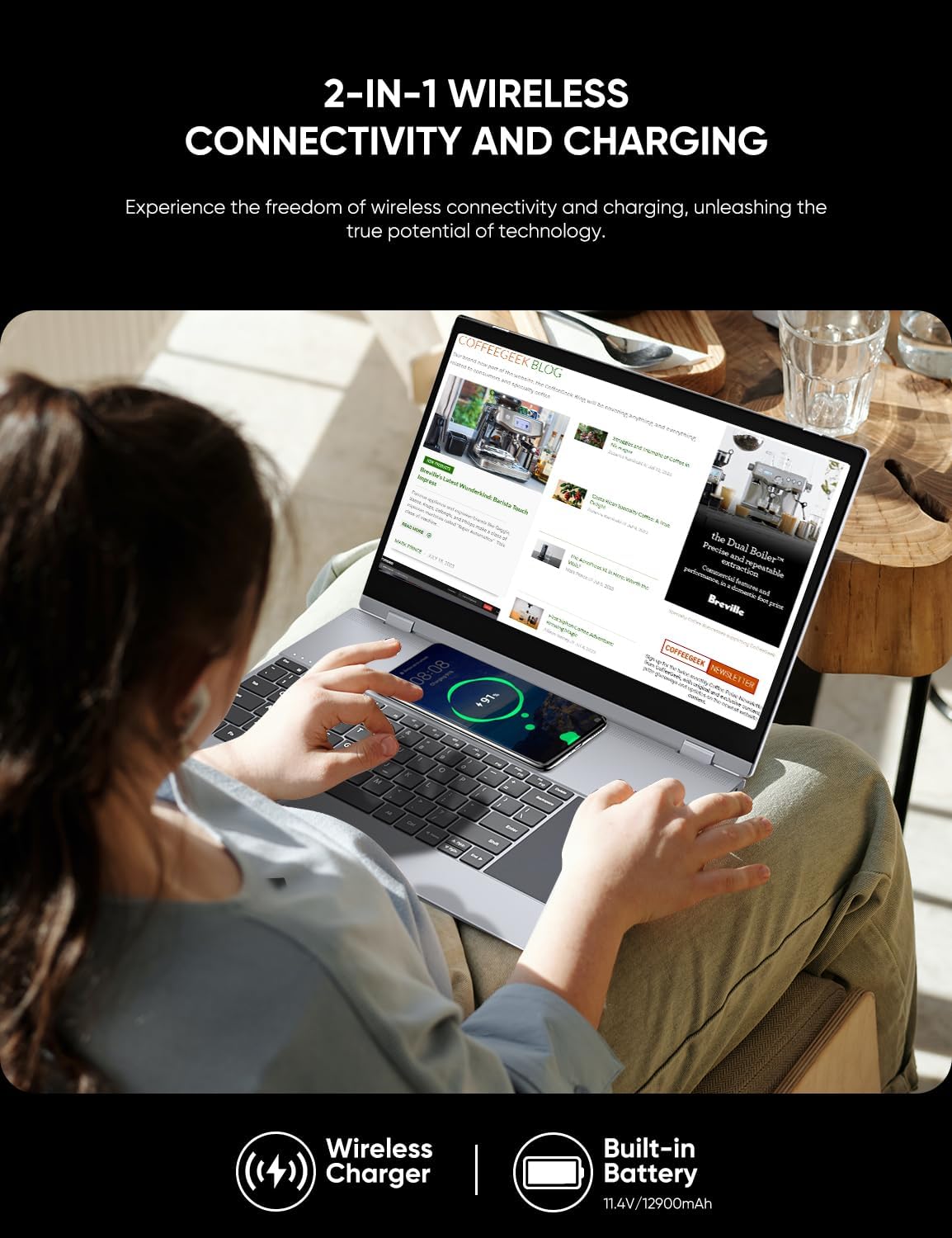
Image: Visual representation of the Dopesplay DR158W's display specifications, highlighting its 1920x1080 resolution, 15.6-inch IPS panel, 300 Nits brightness, 800:1 contrast ratio, HDR support, Low Blue Light feature, 16.7 million colors, 100% sRGB color gamut, and 60Hz refresh rate.

Image: The Dopesplay DR158W portable monitor displayed in multiple configurations, illustrating its 360-degree rotating capability for flexible use as a laptop, tablet, or presentation display.
Setup
Identifying Ports:
Familiarize yourself with the available ports on your Dopesplay DR158W to ensure correct connections.
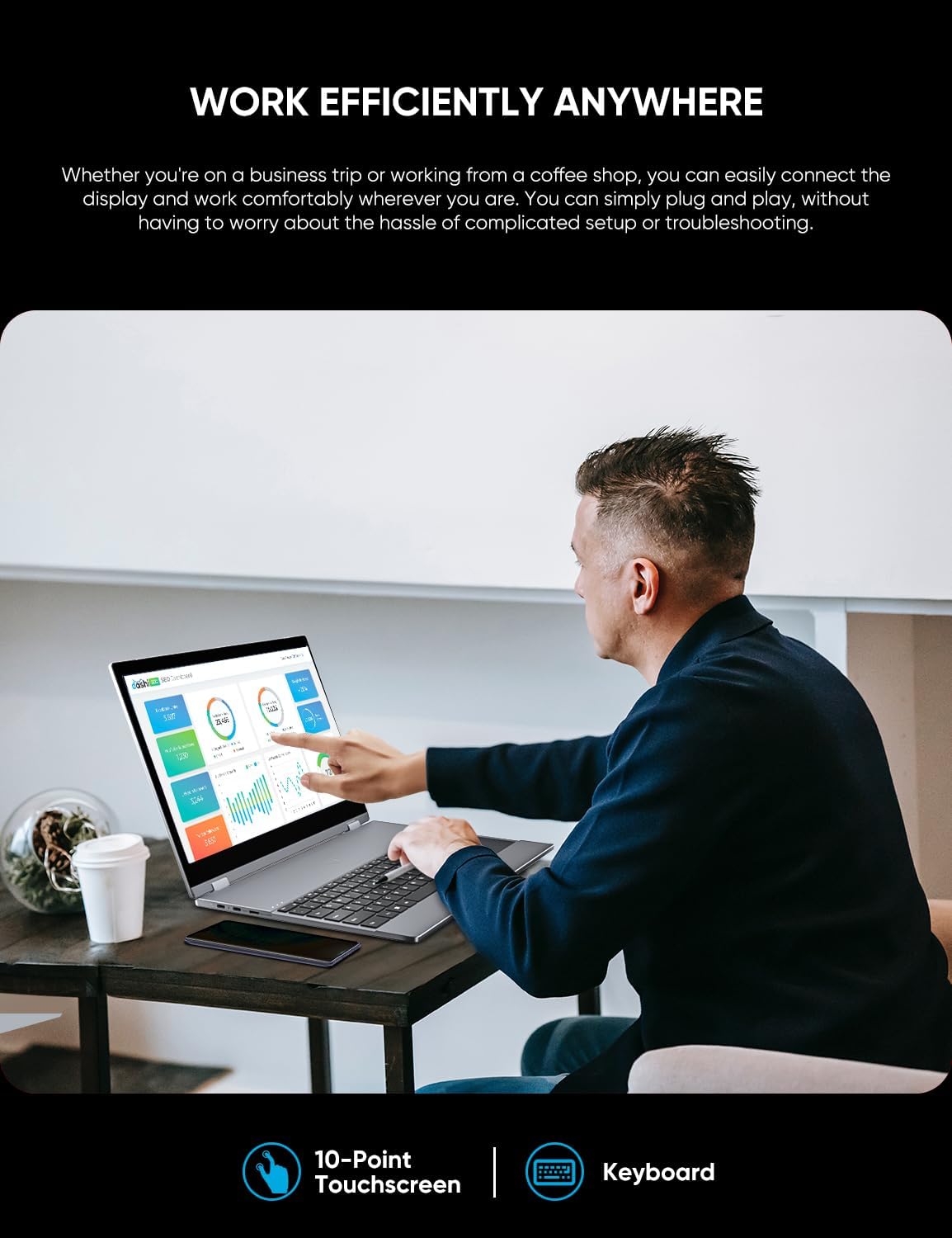
Image: A detailed view of the Dopesplay DR158W's connectivity ports. Labels indicate: A) Power on/off button, B) Micro SD card slot, C) Standard USB port, D) Headphone jack, E) USB-C port for charging, F) USB-C port for data input, and G) Mini HDMI input port.
Connecting Your Device:
The DR158W offers both wired and wireless connection options.

Image: Illustration detailing the wired connection methods for the Dopesplay DR158W. It shows that devices with a full-functional USB-C port can connect with a single USB-C cable, while devices without can use a USB-A and HDMI cable combination.
- USB Type-C Connection: If your device has a fully functional USB-C port (supporting video output and power delivery), connect it directly to the monitor using a single USB-C cable. This provides both power and display signal.
- HDMI & USB-A Connection: For devices without a full-functional USB-C port, connect the monitor via a Mini HDMI cable for video and a USB-A cable for power and touch functionality.
- Wireless Connection: The DR158W supports fast wireless connection via Bluetooth 4.1 and Wi-Fi 5.8 GHz. Refer to the 'Operating Instructions' section for detailed steps on wireless pairing.
Powering On:
Press and hold the Power On/Off button (A) located on the side of the device until the screen illuminates.
Operating Instructions
Wireless Connectivity:
The DR158W allows for seamless wireless connection to your mobile devices, eliminating cable clutter.
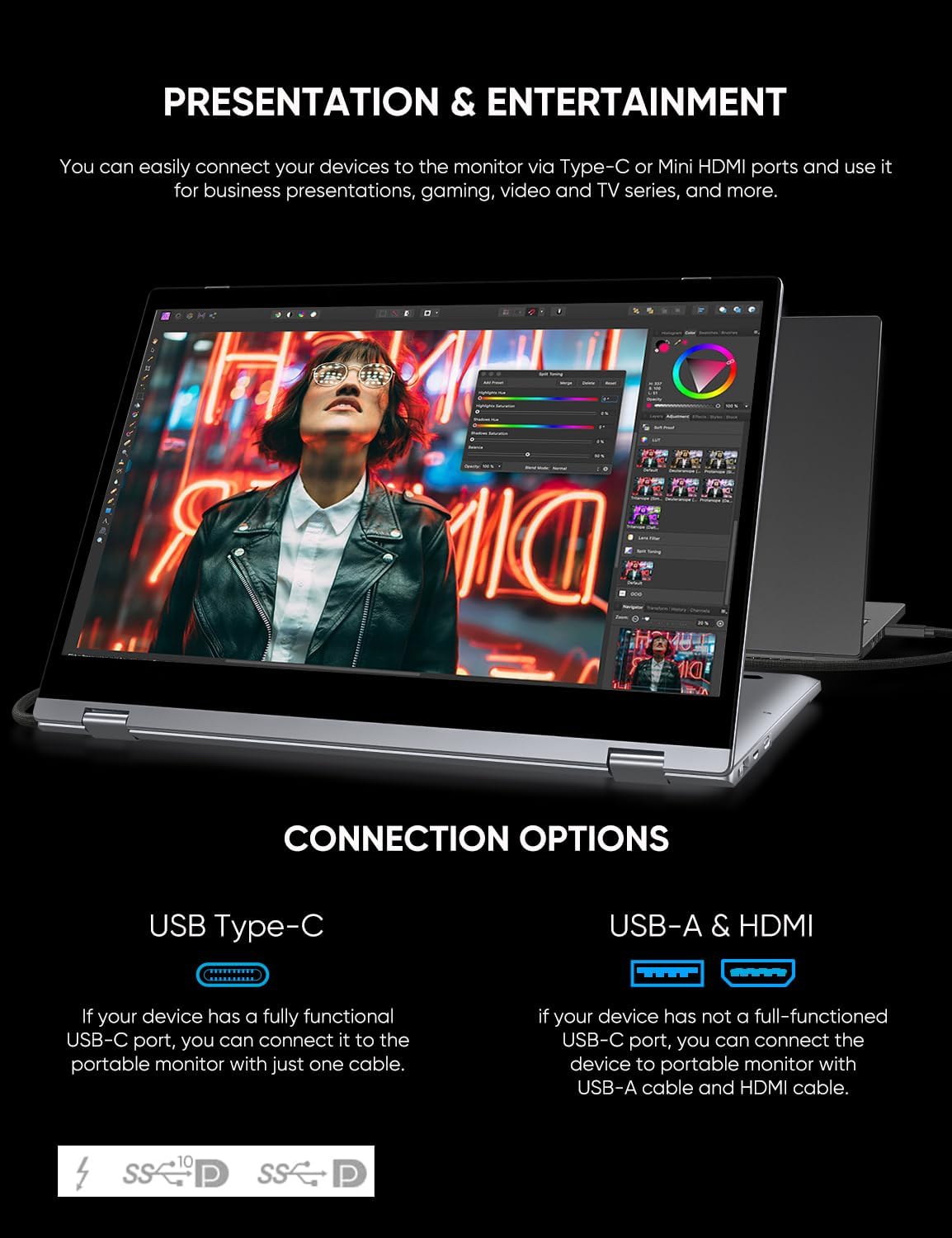
Image: A user interacting with the Dopesplay DR158W, which is wirelessly connected to a smartphone, demonstrating its use for productivity. The image emphasizes its Wi-Fi 5.8 GHz and Bluetooth 4.1 wireless connection features.
- Ensure both the DR158W and your mobile device (smartphone, tablet) have their wireless functions (Bluetooth, Wi-Fi) enabled.
- On your mobile device, search for available Bluetooth or Wi-Fi devices and select the DR158W.
- Follow any on-screen prompts to complete the pairing process.
- Once connected, your mobile device's display will be mirrored or extended to the DR158W.
Note: Touch functionality may vary or be unavailable for certain operating systems or devices when connected wirelessly (e.g., Mac and iPhone).
Using the Integrated Keyboard and Touchscreen:
The DR158W features an integrated keyboard and a 10-point touchscreen for intuitive control.
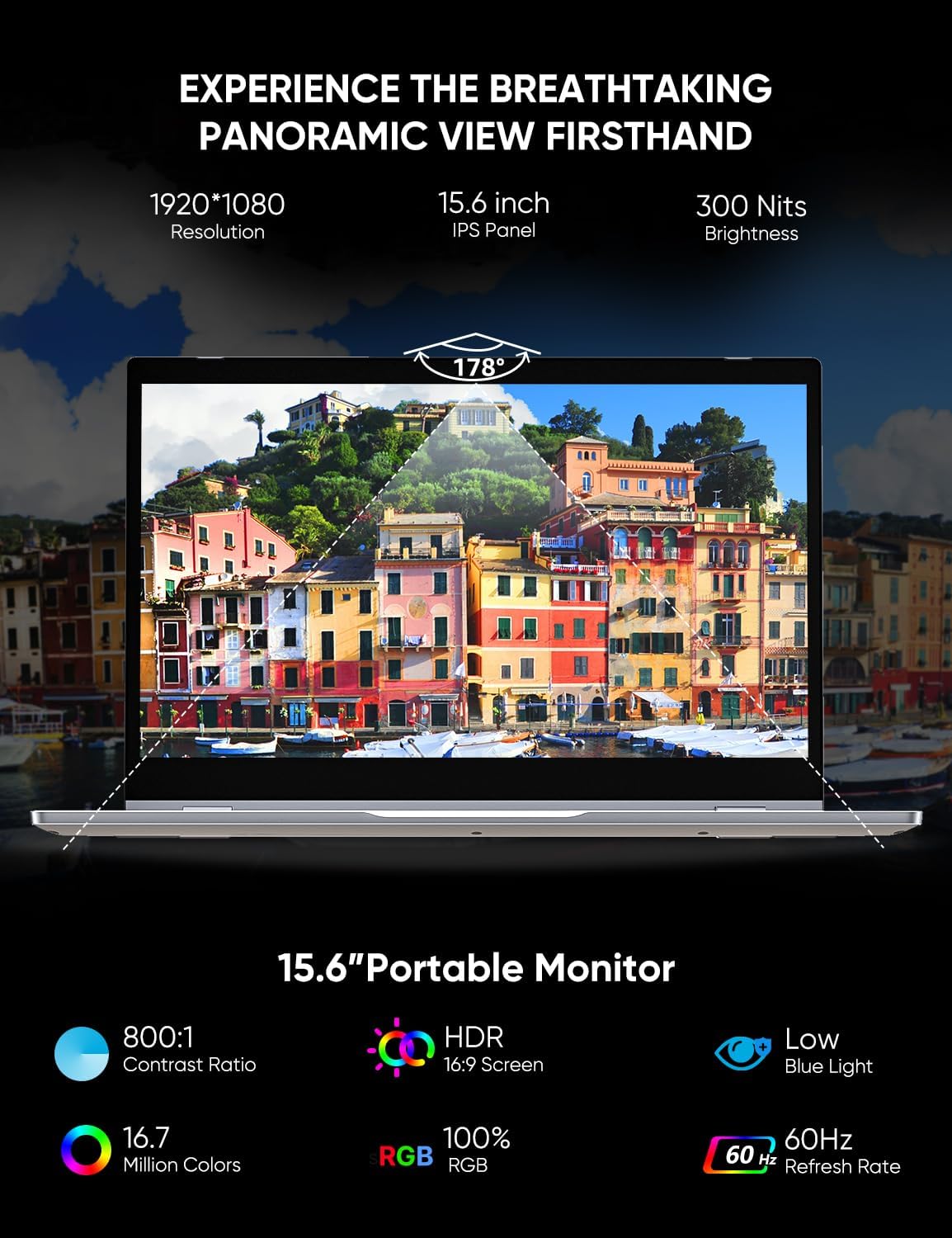
Image: A user operating the Dopesplay DR158W portable monitor, demonstrating its 10-point touchscreen and integrated keyboard for efficient work on a productivity application.
- Keyboard: Use the physical keyboard for typing and text input, similar to a standard laptop.
- Touchscreen: Interact directly with the display using touch gestures. The 10-point touchscreen allows for multi-touch commands.
- Trackpad: The integrated trackpad provides mouse-like control for navigation and selection.
Wireless Charging:
The DR158W includes a wireless charging pad for compatible devices.

Image: The Dopesplay DR158W portable monitor in use, with a smartphone placed on its keyboard area, actively charging wirelessly. This image also highlights the device's built-in 11.4V/12900mAh battery.
- Place your Qi-compatible smartphone on the designated wireless charging area, typically located on the keyboard deck.
- Ensure the phone is properly aligned for charging to begin. A charging indicator may appear on your phone's screen.
Note: Wireless charging speed may vary. For optimal charging, ensure the phone is centered on the charging pad.
Maintenance
- Cleaning: Use a soft, lint-free cloth to clean the screen and exterior. For stubborn smudges, slightly dampen the cloth with water or a screen-safe cleaner. Avoid harsh chemicals or abrasive materials.
- Storage: When not in use, store the device in a cool, dry place away from direct sunlight and extreme temperatures.
- Handling: Handle the device with care to prevent drops or impacts. Avoid placing heavy objects on top of the screen.
- Battery Care: To prolong battery life, avoid fully discharging the battery frequently. Charge the device regularly, even if not in constant use.
Troubleshooting
| Problem | Possible Cause | Solution |
|---|---|---|
| Screen does not turn on. | Low battery; Power cable not connected; Device not powered on. | Charge the device; Ensure power cable is securely connected; Press and hold the power button. |
| No display signal. | Incorrect cable connection; Source device not outputting video; Incorrect input selected. | Check USB-C or HDMI cable connections; Ensure source device is configured for external display; Select correct input source on the monitor (if applicable). |
| Wireless connection issues. | Bluetooth/Wi-Fi not enabled; Device out of range; Interference. | Ensure wireless functions are enabled on both devices; Move devices closer; Reduce interference from other wireless devices. |
| Touchscreen not responding. | Incompatible device/OS; Loose USB connection (for wired); Software glitch. | Verify device/OS compatibility for touch; Reconnect USB cable; Restart both devices. |
| Screen is too dim. | Brightness settings; Power saving mode. | Adjust brightness settings on the monitor or connected device. Ensure power saving mode is not active. |
| Wireless charging not working. | Phone not Qi-compatible; Incorrect placement; Foreign objects. | Ensure phone supports Qi wireless charging; Realign phone on the charging pad; Remove any objects between phone and pad. |
Specifications
| Feature | Detail |
|---|---|
| Brand | Dopesplay |
| Model Number | DR158W |
| Display Screen Size | 15.6 inches |
| Maximum Display Resolution | 1920 x 1080 Pixels (FHD 1080p) |
| Aspect Ratio | 16:9 |
| Screen Surface Description | Glossy |
| Image Contrast Ratio | High (specific value not provided) |
| Response Time | 5 milliseconds |
| Refresh Rate | 60 Hz |
| Special Features | Glossy screen, Touchscreen, Portable, Built-in speakers |
| Color | Silver |
| Form Factor | Laptop (referring to its convertible nature) |
| Product Dimensions | 37.34 x 26.8 x 6.4 cm |
| Item Weight | 2.83 Kilograms |
| Wireless Type | 5.8 GHz Radio Frequency (Wi-Fi), Bluetooth 4.1 |
| Voltage | 5 Volts |
| Built-in Battery | 12900 mAh (11.4V) |
Warranty and Support
For warranty information and technical support, please refer to the documentation included with your purchase or visit the official Dopesplay website. Keep your proof of purchase for warranty claims.