
OMOTON WK014 (DE-Layout)
OMOTON WK014 Semi-Mechanical Gaming Keyboard User Manual
Model: WK014 (DE-Layout)
1. Introduction
Thank you for choosing the OMOTON WK014 Semi-Mechanical Gaming Keyboard. This manual provides detailed instructions for setting up, operating, maintaining, and troubleshooting your new keyboard. Please read this manual thoroughly before use to ensure optimal performance and longevity of your device.
The OMOTON WK014 is designed to enhance your gaming and typing experience with its customizable RGB backlighting, ergonomic design, and programmable keys. Its durable construction and high compatibility make it a versatile tool for various computing environments.
2. Product Overview
The OMOTON WK014 keyboard features a QWERTZ layout, semi-mechanical keys, and a range of customizable options. Key components include:
- RGB Backlighting: 9 lighting modes and 3 brightness levels.
- Magnetic Wrist Rest: Ergonomically designed for comfort during extended use.
- Programmable Keys: 6 custom keys (G1-G6) and 4 macro recording keys.
- Volume Control Wheel: For quick audio adjustments.
- Braided USB Cable: Ensures stable and reliable connection.
- Anti-Ghosting: 26-key anti-ghosting for precise input.

Figure 2.1: OMOTON WK014 Semi-Mechanical Gaming Keyboard with its detachable magnetic wrist rest and vibrant RGB backlighting.
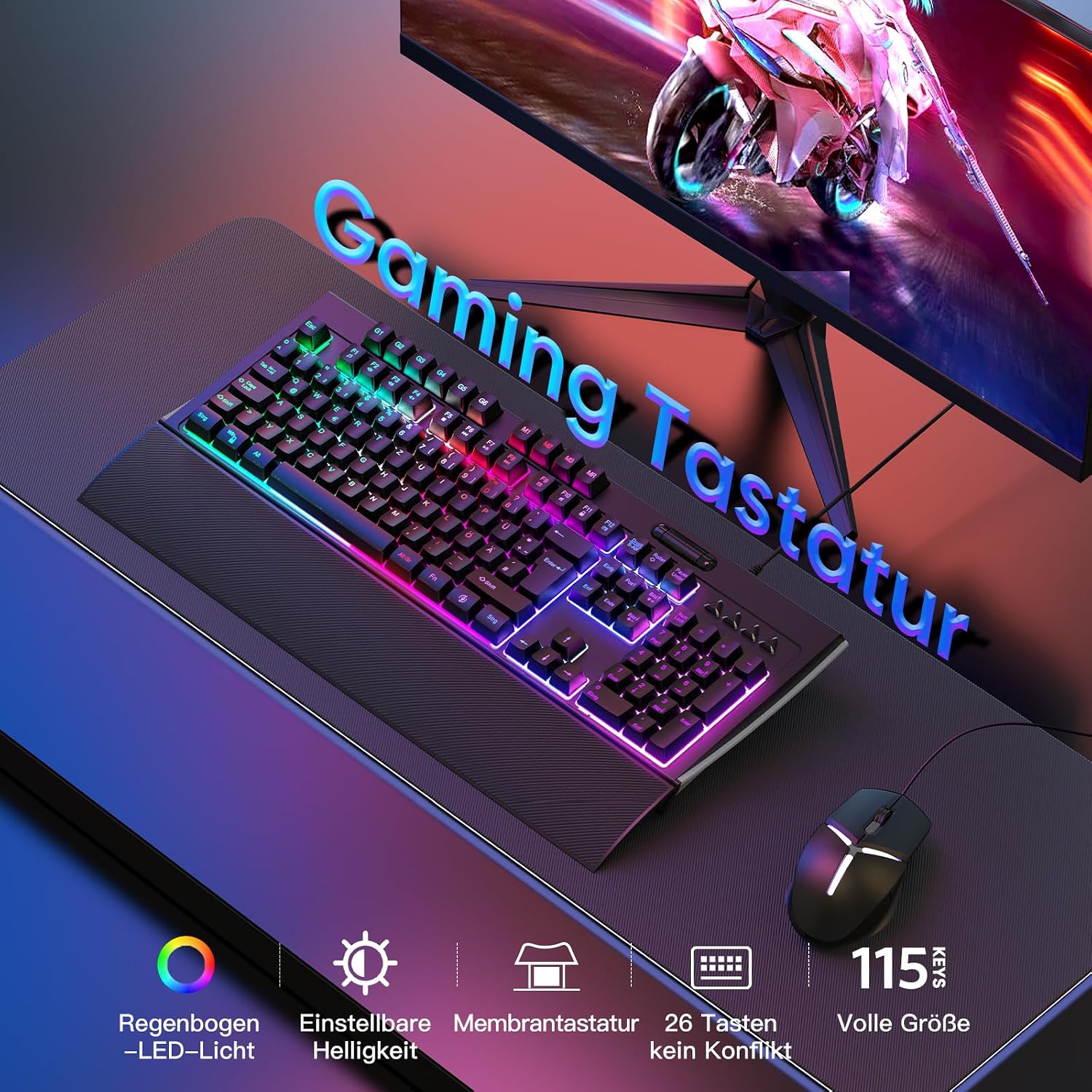
Figure 2.2: The OMOTON WK014 keyboard set up on a desk, illustrating its full size (115 keys) and key features such as adjustable RGB lighting, membrane keys, and anti-ghosting capabilities.
3. Setup
Follow these steps to set up your OMOTON WK014 Gaming Keyboard:
- Unpack the Keyboard: Carefully remove the keyboard and its accessories from the packaging.
- Attach the Wrist Rest: The magnetic wrist rest can be easily attached to the front edge of the keyboard. Align the magnetic points for a secure fit.
- Connect to Device: Plug the braided USB cable from the keyboard into an available USB port on your PC, laptop, PS4, or PS5.
- Driver Installation (Automatic): The keyboard is plug-and-play. Your operating system (Windows, etc.) should automatically detect and install the necessary drivers. No manual driver installation is typically required.
- Positioning: Place the keyboard on a flat, stable surface. Adjust the rear feet for a comfortable 12° tilt angle if desired.

Figure 3.1: Illustration of the ergonomic 12° tilt angle and proper hand positioning with the magnetic wrist rest to ensure comfort and reduce fatigue.
4. Operating Instructions
4.1. Backlight Control
The OMOTON WK014 offers 9 different lighting modes and 3 brightness levels. You can control the backlight using the FN key combinations:
- Change Lighting Mode: Press FN + 1~9 to cycle through the 9 different lighting effects.
- Adjust Brightness: Press FN + Page Up to increase brightness, and FN + Page Down to decrease brightness. There are 3 levels of brightness.
- Turn Backlight On/Off: Press the dedicated backlight toggle key (often indicated by a light bulb icon) to turn the backlight on or off.

Figure 4.1: Diagram illustrating the FN key combinations for switching lighting modes (FN+F1-F8), adjusting brightness (FN+Page Up/Down), and toggling the backlight on/off.
4.2. Customizable Programming and Macros
The keyboard supports customizable programming and macro recording through its dedicated software. This allows you to personalize key assignments and create complex macro sequences.
- Custom Keys (G1-G6): These 6 keys can be assigned custom functions or macros using the software.
- Macro Recording (MR Key): Use the MR key to initiate macro recording directly on the keyboard. Refer to the software manual for detailed instructions on macro creation and assignment.
- Profile Keys (M1-M3): These keys allow you to switch between different custom profiles, each with its own set of key assignments and macros.

Figure 4.2: Overview of the keyboard's dedicated macro keys (G1-G6), profile keys (M1-M3), and the macro recording key (MR), along with indicators for various lock functions.

Figure 4.3: Screenshot of the customizable software interface, demonstrating options for user-defined profiles, key assignments, and macro programming for the OMOTON WK014 keyboard.

Figure 4.4: Detailed view of the dedicated macro/profile keys on the left side of the keyboard and the convenient volume control wheel located on the top right.
4.3. Volume Control
The keyboard features a dedicated volume control wheel, typically located on the top right side of the keyboard. Rotate the wheel to adjust the system volume directly.
4.4. Lock Indicators
The keyboard includes LED indicators for:
- Num Lock
- Caps Lock
- Scroll Lock
- Win Lock (disables Windows key to prevent accidental presses during gaming)
5. Maintenance
Proper maintenance ensures the longevity and optimal performance of your keyboard:
- Cleaning:
- Disconnect the keyboard from your device before cleaning.
- Use a soft, lint-free cloth slightly dampened with water or a mild cleaning solution to wipe the surface.
- For dust and debris between keys, use compressed air.
- Avoid harsh chemicals, abrasive cleaners, or excessive moisture.
- Liquid Spills: The keyboard is designed to be waterproof to effectively prevent liquid penetration. In case of a spill, immediately disconnect the keyboard, wipe off the liquid, and allow it to dry completely before reconnecting.
- Storage: Store the keyboard in a cool, dry place away from direct sunlight and extreme temperatures when not in use for extended periods.
6. Troubleshooting
If you encounter issues with your OMOTON WK014 keyboard, refer to the following common solutions:
| Problem | Possible Cause | Solution |
|---|---|---|
| Keyboard not responding | Loose USB connection, faulty USB port, driver issue. |
|
| Backlight not working | Backlight turned off, brightness set to minimum. |
|
| Keys not registering or ghosting | Software conflict, physical obstruction, excessive dust/debris. |
|
| Macro/custom keys not working | Incorrect software configuration, macro not saved. |
|
If the problem persists after trying these solutions, please contact OMOTON customer support for further assistance.
7. Specifications
| Feature | Detail |
|---|---|
| Brand | OMOTON |
| Model Number | WK014 (DE-Layout) |
| Connectivity Technology | Wired USB (Braided Cable) |
| Keyboard Description | Gaming, Semi-Mechanical Membrane |
| Number of Keys | 115 |
| Backlight | RGB (9 modes, 3 brightness levels) |
| Special Features | Ergonomic, Programmable Keys, Backlit, Magnetic Wrist Rest, Volume Control Wheel, Waterproof Design |
| Compatible Devices | PC, Laptop, Game Console (PS4, PS5) |
| Included Components | USB Cable |
8. Warranty and Support
OMOTON products are designed and manufactured to the highest quality standards. For warranty information and technical support, please refer to the warranty card included with your product or visit the official OMOTON website. Please have your product model number (WK014) and purchase details ready when contacting support.
For the latest drivers and software for customizable programming, please visit the official OMOTON support page.
Related documentsWK014 (DE-Layout)

Ask a question about this manual
Ask about setup, troubleshooting, compatibility, parts, safety, or missing instructions. Manuals+ will review the question and use this page’s manual context to help answer it.