1. Introduction
The DonosHome DH300 OBD2 Scanner is a professional diagnostic tool designed to help car owners and enthusiasts diagnose and troubleshoot engine-related issues in OBDII-compliant vehicles. This manual provides detailed instructions on how to set up, operate, and maintain your DH300 scanner to ensure accurate and efficient vehicle diagnostics.

Image 1: DonosHome DH300 OBD2 Scanner, a compact and user-friendly diagnostic tool.
2. Key Features
- Unique & Beautiful Appearance Design: Full-color LCD screen with clear icons and a compact size for portability. Features high-quality rubber front buttons and a 65cm OBD2 cable.
- Professional Functional Applications: Covers engine system diagnostics including O2 sensor test, EVAP system test, and on-board monitoring. Includes DTC lookup library, read/erase codes, view freeze frame, I/M Readiness, vehicle information, data flow, and real-time curve display.
- New Upgraded with New Technology: Supports 10 built-in languages (English, German, Spanish, French, Italian, Dutch, Polish, Portuguese, Russian, Finnish). Added one-button (I/M) test, DTC search key, voltmeter function, and battery power indicator test.
- Wide Scope of Application: Suitable for engine systems of American cars since 1996, European cars after 2003, and Asian cars since 2008. Features 3 fault lights (red, yellow, green) and corresponding light strip display.
- Excellent Design & After-sales Support: Comes with a 2-year warranty and dedicated customer support via email.
3. Package Contents
Upon opening the package, please verify that all items are present and in good condition:
- 1 x DonosHome DH300 OBD2 Scanner
- 1 x User Manual
- 1 x Package Box

Image 2: Contents of the DonosHome DH300 OBD2 Scanner package, including the scanner, user manual, and box.
For a visual guide on unboxing and initial product demonstration, please refer to the video below:
Video 1: DH300 OBD2 Code Reader Unboxing and Product Demonstration. This video provides a visual overview of the product and its components.
4. Setup and Initial Configuration
4.1 Connecting the Scanner
The DH300 scanner is designed for plug-and-play operation. It draws power directly from your vehicle's OBDII port.
- Locate the 16-pin OBDII diagnostic port in your vehicle. This port is typically found under the dashboard on the driver's side.
- Ensure the vehicle's ignition is OFF before connecting the scanner.
- Firmly plug the DH300's OBDII connector into your vehicle's OBDII port.
- Turn the vehicle's ignition to the ON position (engine can be off or running, depending on the test). The scanner will power on automatically.

Image 3: Steps for connecting the DonosHome DH300 OBD2 Scanner to your vehicle's OBD2 port.
4.2 Language Setting
The DH300 supports 10 languages. To change the language:
- From the main menu, navigate to 'Tool Setup'.
- Select 'Language'.
- Choose your desired language (e.g., English, Spanish, German) and press 'OK'.

Image 4: The DH300 scanner supports 10 languages, easily selectable from the settings menu.
For a visual guide on setting the language and performing initial tests, please refer to the video below:
Video 2: Test Before Using - Languages, LEDs, Keys. This video demonstrates how to set the language and perform basic screen and button tests.
5. Operating Instructions
5.1 Basic Navigation
The DH300 scanner is operated using the physical buttons on the device:
- OK Button: Confirms selections or enters a menu.
- ESC Button: Returns to the previous screen or exits a function.
- Up/Down Arrow Buttons: Navigates through menu options or data.
- I/M Button: Quick access to I/M Readiness status.
5.2 DTC Lookup
The built-in DTC lookup library helps you understand diagnostic trouble codes (DTCs).
- From the main menu, select 'DTC Lookup'.
- Enter the DTC code using the Up/Down buttons to change digits and OK to confirm.
- The scanner will display the definition of the code.

Image 5: The DH300 allows convenient lookup of over 30,000 error codes to quickly understand their meaning.
For a visual guide on DTC Lookup, please refer to the video below:
Video 3: DTC Lookup Functions and Special Function-Voltage Test. This video demonstrates how to use the DTC lookup feature and the voltage test function.
5.3 I/M Readiness Test
The I/M Readiness function checks if the various emissions-related systems on the vehicle are operating correctly and are ready for inspection and maintenance testing.
- From the main menu, select 'I/M Readiness' or press the dedicated 'I/M' button.
- The scanner will display the status of various monitors (e.g., MIL, DTC, MIS, FUE, CCM, CAT, HCAT, IGN, EVAP, O2S, HRT, EGR).
- A green checkmark indicates the monitor has completed its test, while a red 'X' indicates it has not or has failed.

Image 6: The DH300 supports one-click I/M readiness query, providing instant results on emission system status.
For a visual guide on I/M Readiness, please refer to the video below:
Video 4: Two Ways to Test I/M in DH300 OBD2 Car Diagnostic Tool. This video illustrates two methods for checking I/M readiness.
5.4 Read and Erase Codes
This function allows you to read current, pending, and permanent diagnostic trouble codes, and clear them after repairs.
- From the main menu, select 'Diagnose'.
- Select 'Read Codes' to view existing DTCs. The scanner will display Current, Pending, and Permanent DTCs.
- After addressing the underlying issue, select 'Erase Codes' from the 'Diagnostic Menu'.
- Confirm the erasure. This will turn off the Check Engine Light (MIL).
For a visual guide on reading and erasing error codes, please refer to the video below:
Video 5: Error Code Reading Step of DH300 OBD2 Code Reader. This video demonstrates the process of reading and clearing error codes.
5.5 Live Data Stream
The Live Data Stream function allows you to view real-time sensor data from your vehicle's engine control unit (ECU).
- From the 'Diagnostic Menu', select 'Data Stream'.
- You can choose to 'View All Items' or 'Select Items' to view specific parameters.
- The scanner will display live data such as engine RPM, vehicle speed, coolant temperature, O2 sensor readings, etc.

Image 7: The DH300 provides powerful real-time data streaming for monitoring various engine components.
5.6 Voltmeter and Charging System Test
This function allows you to test the vehicle's battery voltage and charging system.
- From the main menu, select 'Voltmeter' or 'Charging'.
- The scanner will display the current battery voltage.
- Follow on-screen prompts to perform a charging test, which assesses the alternator's performance.
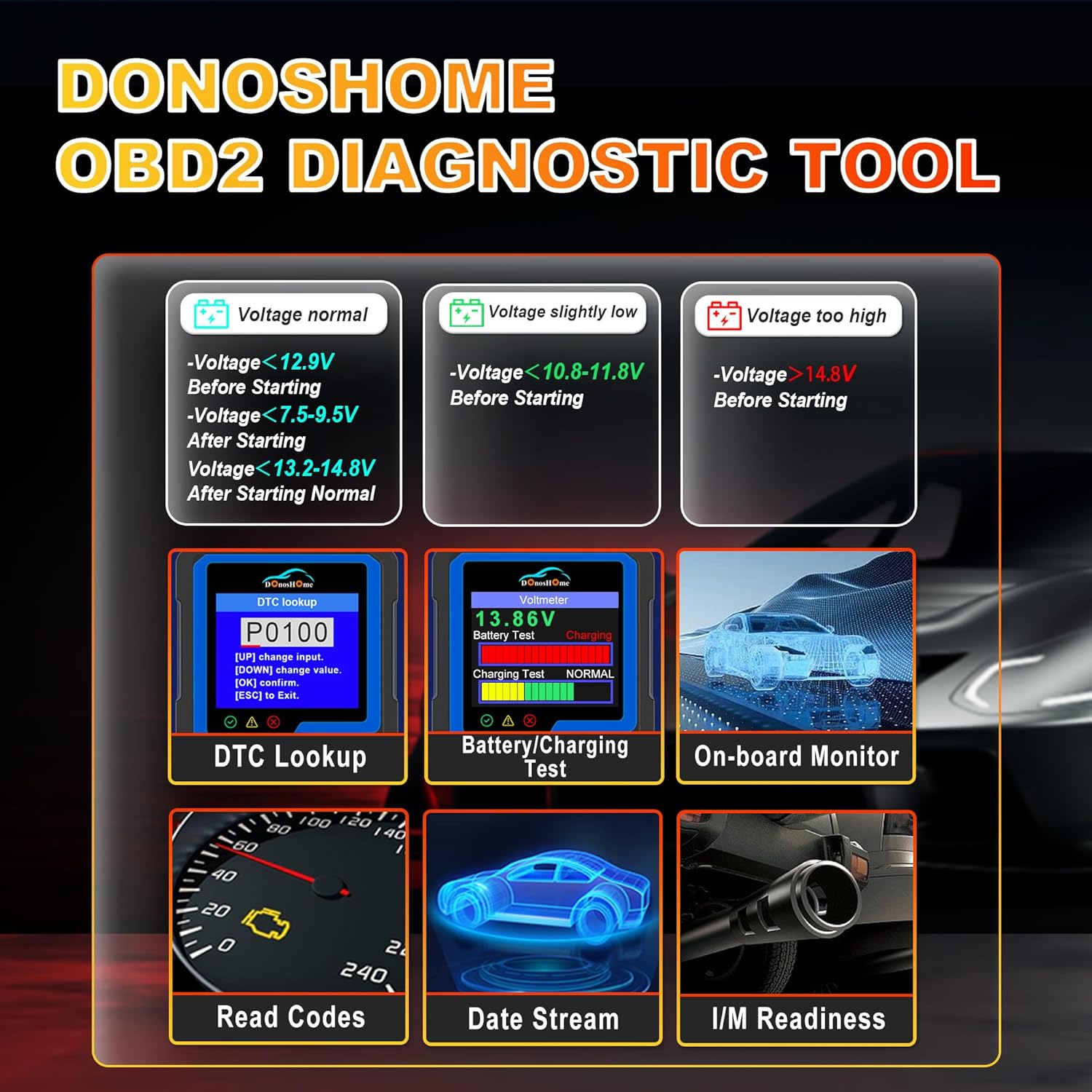
Image 8: The DH300 offers a voltmeter function and battery/charging system test for comprehensive power system diagnostics.
5.7 EVAP System Test
The EVAP (Evaporative Emission Control System) test checks for leaks in the vehicle's fuel vapor recovery system.
- From the 'Diagnostic Menu', select 'EVAP System Test'.
- Follow the on-screen instructions to initiate and complete the test.

Image 9: The EVAP test function helps detect and identify problems within the evaporative system, such as leaks or sensor failures.
6. Compatibility
The DonosHome DH300 OBD2 Scanner is compatible with a wide range of vehicles that support the OBDII standard. This includes:
- American Cars: Since 1996 (e.g., Ford, Chevrolet, Dodge, Tesla, Cadillac, Lincoln, Chrysler, Hummer, Buick).
- European Cars: After 2003 (e.g., Volkswagen, Seat, Audi, BMW, Citroen, Renault, Porsche, Peugeot, Fiat, Opel, Jaguar, Maserati).
- Asian Cars: Since 2008 (e.g., Toyota, Honda, Hyundai, Lexus, Mazda, Kia, Isuzu, Mitsubishi, Suzuki, Nissan, Mahindra, Subaru).
It supports various OBD2 protocols including J1850 VPM, J1850 PWM, ISO 9141, KWP 2000, and CAN.

Image 10: The DH300 scanner supports over 100 car brands and multiple OBD2 protocols for broad compatibility.
Important Note: The DH300 can only diagnose OBDII systems (primarily engine-related). It cannot diagnose non-OBDII systems such as ABS, airbags, oil lights, or other vehicle-specific modules.
7. Specifications
| Specification | Value |
|---|---|
| Model | DH300 |
| Product Dimensions | 8 x 5 x 15 cm |
| Item Weight | 190 g |
| Operating System | Linux |
| Display Resolution | 320x240 |
| OBD2 Cable Length | 65 cm (approx. 26.77 inches) |
8. Maintenance
To ensure the longevity and optimal performance of your DonosHome DH300 scanner, follow these maintenance guidelines:
- Keep the device clean by wiping it with a soft, dry cloth. Avoid using abrasive cleaners or solvents.
- Store the scanner in a cool, dry place away from direct sunlight, extreme temperatures, and excessive moisture.
- Avoid dropping the device or subjecting it to strong impacts.
- Ensure the OBDII connector pins are clean and free from debris before connecting to the vehicle.
9. Troubleshooting
If you encounter issues with your DH300 scanner, consider the following common troubleshooting steps:
- Scanner does not power on: Ensure the OBDII connector is firmly plugged into the vehicle's port and the vehicle's ignition is in the ON position. The scanner draws power directly from the vehicle.
- No communication with vehicle: Verify that your vehicle is OBDII compliant (American cars since 1996, European after 2003, Asian after 2008). Check the vehicle's fuse for the OBDII port. Ensure the connection is secure.
- Incorrect readings or erratic behavior: Disconnect the scanner, turn off the vehicle's ignition, wait a few minutes, then reconnect and try again. Ensure the vehicle's battery is adequately charged.
- Cannot clear codes: Ensure the underlying issue causing the DTC has been resolved. Some codes (Permanent DTCs) may take several drive cycles to clear automatically after repair.
- Limited diagnostic functions: Remember that the DH300 is designed for OBDII engine system diagnostics only. It cannot access or diagnose non-OBDII systems like ABS, airbags, or transmission control modules.
10. Warranty and Support
DonosHome is committed to customer satisfaction. Your DH300 OBD2 Scanner comes with a 2-year warranty from the date of purchase.
For any questions regarding connection, operation, troubleshooting, or warranty claims, please do not hesitate to contact our dedicated customer support team via email:
Email: support@donoshome.com
Our professional team is ready to provide timely and sincere assistance.


