
1. Introduction
This user manual provides clear and concise instructions for setting up and effectively using your new Apple MacBook Pro, equipped with either the M3 Pro or M3 Max chip. Designed for both new Mac users and those familiar with the ecosystem, this guide covers essential operations and advanced features of macOS Sonoma on the 14-inch and 16-inch MacBook Pro models.
Refer to this manual to familiarize yourself with the device, navigate macOS Sonoma, and utilize its powerful capabilities.
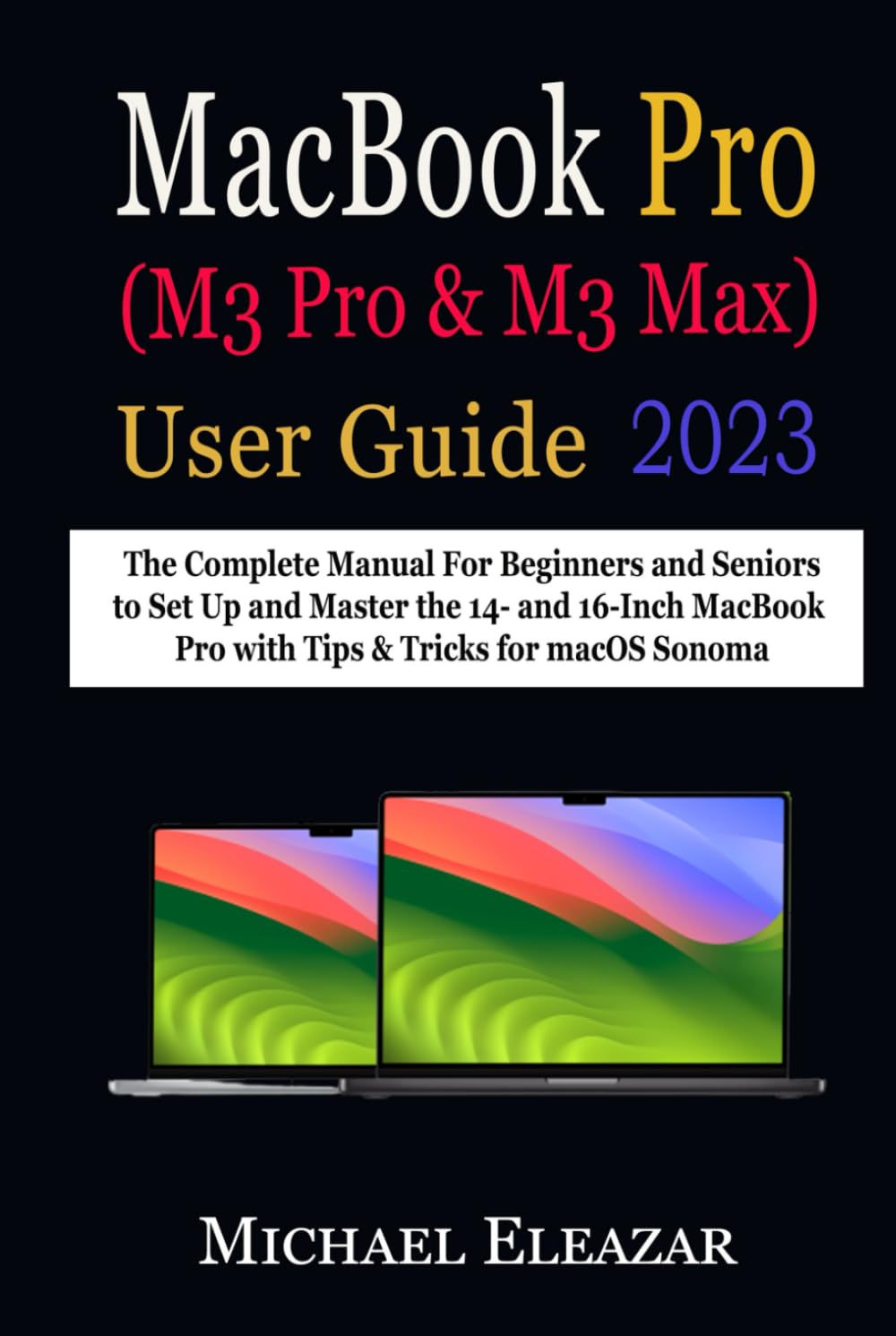
Image 1.1: Front cover of the Apple MacBook Pro User Guide, illustrating the 14-inch and 16-inch MacBook Pro models.
2. Setup and Initial Configuration
This section guides you through the initial setup process of your MacBook Pro, from first power-on to personalizing your environment.
2.1. First-Time Setup
- Power On: Open your MacBook Pro lid or press the power button.
- Language and Region: Follow the on-screen prompts to select your preferred language and region.
- Connect to the Internet: Select your Wi-Fi network and enter the password.
- Data Transfer: Choose to migrate data from another Mac, Windows PC, or restore from a Time Machine backup, or set up as a new Mac.
- Apple ID: Sign in with your Apple ID or create a new one. This is essential for App Store, iCloud, and other Apple services.
- Terms and Conditions: Read and accept the macOS terms and conditions.
- Create a User Account: Set up your administrator account with a username and password.
- Touch ID/Face ID: Configure Touch ID for secure login and purchases (if applicable).
- Siri: Enable or disable Siri and configure its settings.
- Analytics & Privacy: Review and adjust privacy settings.
2.2. Personalizing Your Mac
- System Settings: Access System Settings (formerly System Preferences) to customize various aspects of your Mac.
- Background Image: Change your desktop background image through System Settings > Wallpaper.
- Widgets: Add and modify widgets to your desktop or Notification Center for quick access to information.
- Screen Saver: Configure a screen saver in System Settings > Screen Saver.
- Login Image: Customize your login screen image.
3. Operating Your MacBook Pro with macOS Sonoma
This section details the daily operation and key features of your MacBook Pro running macOS Sonoma.
3.1. Navigating the Desktop and Interface
- Desktop Familiarization: Understand the layout of the macOS desktop, including the Dock, Menu Bar, and desktop icons.
- Menu Bar: Explore the Menu Bar at the top of the screen for application-specific menus, system status icons, and Control Center.
- Spotlight Search: Use Spotlight (Command + Space bar) to quickly find files, launch applications, perform calculations, and get information.
- Control Center: Access Control Center from the Menu Bar for quick toggles of Wi-Fi, Bluetooth, display, sound, and more.
- Notification Centre: View notifications and widgets by clicking the date/time in the Menu Bar or swiping left from the right edge of the trackpad.
3.2. Essential Functions and Applications
- Internet Browsing with Safari: Utilize Safari for secure and efficient web browsing.
- File Management:
- Quick Look: Preview files without opening them by selecting a file and pressing the Space bar.
- Desktop Stacking: Organize cluttered desktops by automatically grouping files into stacks.
- Arranging Files in Folders: Create and manage folders to keep your files organized.
- Using Tags: Apply tags to files and folders for easy categorization and searching.
- Combine Documents into a PDF: Select multiple image or PDF files in Finder, right-click, and choose Quick Actions > Create PDF.
- Screenshots and Screen Captures: Use Command + Shift + 3 for full screen, Command + Shift + 4 for selection, or Command + Shift + 5 for more options.
- Volume Adjustment: Control system volume using the F11/F12 keys or the Control Center.
- Trackpad and Mouse Motions: Learn multi-touch gestures for navigation and interaction.
- Printing Documents: Connect to a printer and use the Print dialog from any application.
- Keyboard Shortcuts: Familiarize yourself with common macOS keyboard shortcuts to enhance productivity.
3.3. Productivity and Communication
- Focus Modes: Create custom Focus modes to minimize distractions.
- Screen Time: Monitor and manage your usage and set limits for apps and websites.
- Dictate Text: Use voice dictation to type text in any application.
- Mac Mail: Send and receive emails using the built-in Mail application.
- FaceTime Calls: Make and receive video and audio calls using FaceTime.
- RTT Calls: Place and receive Real-time Text (RTT) calls via FaceTime.
3.4. Media and Creativity
- Editing Photos: Use the Photos app to organize, edit, and share your images.
- Live Text: Interact with text in photos, allowing you to copy, translate, or look up information.
- Quick Notes: Create quick notes from anywhere on your Mac.
3.5. Apple Ecosystem Integration
- Continuity Features: Seamlessly work across your Apple devices (Mac, iPhone, iPad, Apple Watch).
- Using iPhone as Webcam: Utilize your iPhone as a high-quality webcam for video calls on your Mac.
- Universal Control: Control both your Mac and iPad with a single keyboard and mouse.
- Apple Watch Authorization: Use your Apple Watch to unlock your Mac and authorize requests.
- Content Syncing: Sync content between your Mac and other Apple devices like iPod Touch, iPad, or iPhone.
4. Maintenance and Backup
Regular maintenance ensures the longevity and optimal performance of your MacBook Pro.
- Time Machine Backup: Set up and regularly use Time Machine to back up your files to an external drive. This is crucial for data recovery.
- Restoring Files: Learn how to restore backed-up files using Time Machine in case of data loss or system issues.
- Software Updates: Keep macOS and all applications updated to the latest versions for security and performance improvements.
- Cleaning: Use a soft, lint-free cloth to clean the screen and exterior. Avoid harsh chemicals.
5. Troubleshooting Common Issues
This section addresses common problems you might encounter and provides basic troubleshooting steps.
- Mac Not Responding: Force quit applications (Command + Option + Esc) or restart your Mac.
- Wi-Fi Connectivity Issues: Check Wi-Fi settings, restart your router, or try forgetting and rejoining the network.
- Application Crashes: Ensure the application is updated. If issues persist, reinstall the application.
- Slow Performance: Check Activity Monitor for resource-intensive processes, free up disk space, or restart your Mac.
- Display Problems: Check display settings, external cable connections, or restart your Mac.
6. Specifications
Key technical specifications for the Apple MacBook Pro (M3 Pro & M3 Max) models.
| Feature | Detail |
|---|---|
| Model | MacBook Pro (14-inch, 16-inch) |
| Processor | Apple M3 Pro or M3 Max chip |
| Operating System | macOS Sonoma |
| Display Sizes | 14-inch and 16-inch Liquid Retina XDR Display |
Specifications for this User Guide document:
| Manual Detail | Value |
|---|---|
| Publisher | Independently published |
| Publication Date | November 2, 2023 |
| Language | English |
| Number of Pages | 179 pages |
| ISBN-13 | 979-8866316298 |
| Weight | 331 g |
| Dimensions | 15.24 x 1.52 x 22.86 cm |
7. Warranty and Support
For detailed information regarding your MacBook Pro's warranty, please refer to the official Apple website or the documentation included with your device at the time of purchase. Apple provides comprehensive support resources, including online knowledge bases, community forums, and direct customer service.
You can find more information and contact support through the official Apple Support website: support.apple.com


