
Welcome
Thank you for choosing the Guiheng Wireless Bluetooth Mouse. This manual provides essential information for setting up, operating, and maintaining your new mouse, ensuring optimal performance and longevity.

Image: The Guiheng Wireless Bluetooth Mouse, showcasing its sleek grey design and vibrant LED lighting.
Key Features
- Dual Mode Connectivity: Supports Bluetooth 5.2 and 2.4G USB receiver for versatile connection options.
- Rechargeable Battery: Built-in durable lithium-ion battery for extended use.
- Silent Click Design: Reduces click noise by 90% for a quiet working environment.
- Colorful LED Lighting: Features 7 different randomly changing LED colors for an enhanced aesthetic.
- Slim & Lightweight: Portable design for easy carrying and travel.
- Wide Compatibility: Works with Laptops, PCs, Notebooks, Tablets, Macbooks, iPads, iPhones, and other Bluetooth-enabled devices.
- Fingerprint-Proof Surface: Provides a comfortable skin-like touch and maintains a clean appearance.

Image: Visual representation of the mouse's core features: LED lighting, Bluetooth 5.2, 2.4G wireless, and rechargeable capability.
Setup Guide
1. Charging the Mouse
Before first use, fully charge the mouse. Connect the provided USB-C to USB-A charging cable to the mouse's charging port and a power source (e.g., computer USB port, USB wall adapter). A full charge takes approximately 2-3 hours and provides up to 60 days of standby time or 5 days of working time.
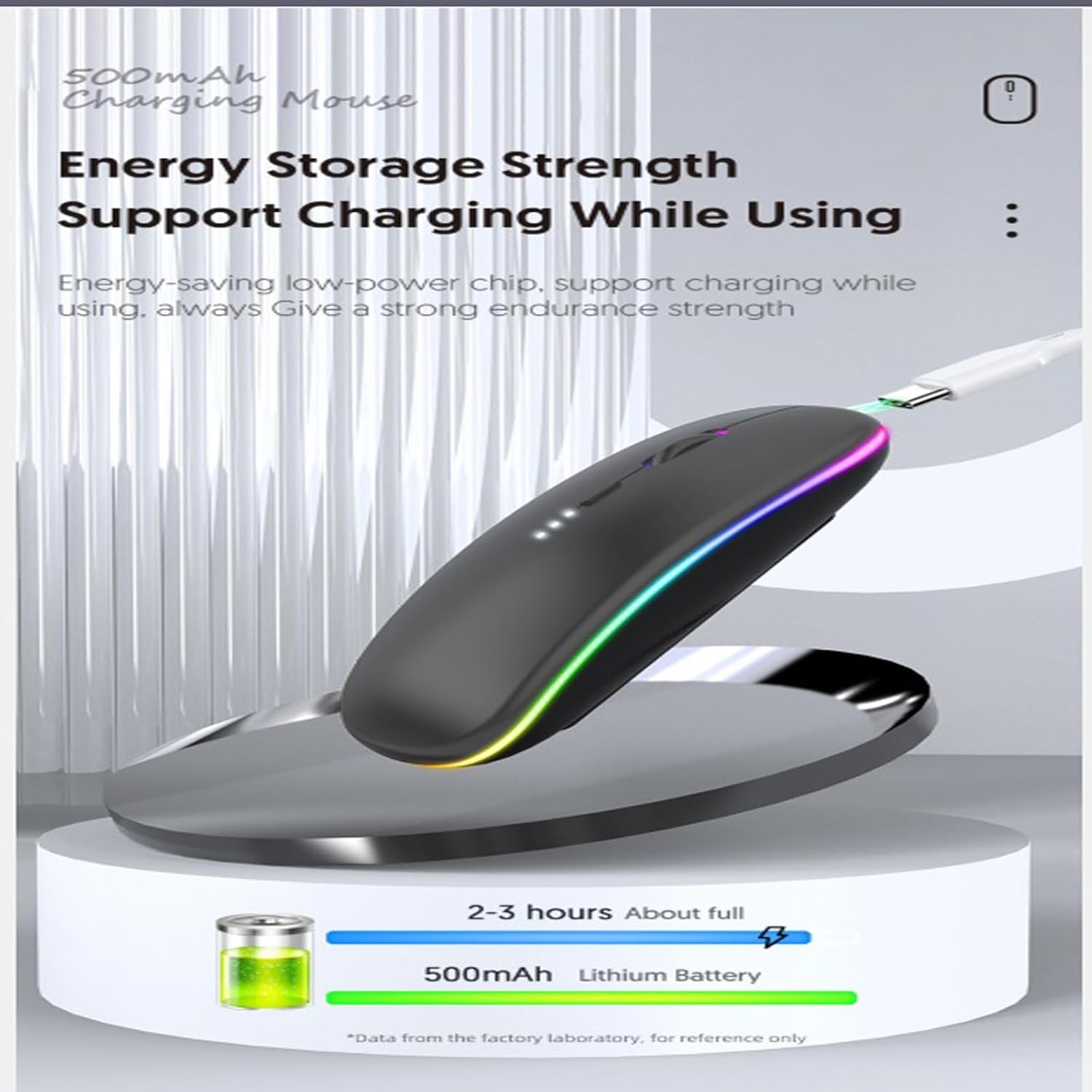
Image: The wireless mouse being charged via a USB cable, highlighting its energy storage and ability to charge while in use.

Image: A graphic illustrating the mouse's 500mAh battery, 2-hour charging time, and approximately 60 days of endurance.
2. Connecting the Mouse
Your Guiheng mouse supports two connection modes: 2.4G Wireless via USB receiver and Bluetooth 5.2.
2.1. 2.4G Wireless Connection
- Locate the USB receiver stored in the compartment at the bottom of the mouse.
- Plug the USB receiver into an available USB port on your computer or device.
- Turn on the mouse using the power switch located on the bottom. Ensure the switch is set to the 2.4G mode (usually indicated by a specific icon or position).
- The mouse should automatically connect to your device. No additional drivers are required.

Image: The underside of the mouse, clearly showing the storage slot for the USB receiver.
2.2. Bluetooth Connection
- Turn on the mouse and switch the mode selector on the bottom to the Bluetooth mode (usually indicated by a Bluetooth icon).
- On your device (laptop, tablet, phone), go to Bluetooth settings.
- Search for new devices. The mouse should appear as "Guiheng Mouse" or a similar name.
- Select the mouse to pair. Once paired, the mouse is ready for use.
To switch between connected devices (e.g., between 2.4G and Bluetooth, or between two Bluetooth devices), simply press the mode switch button at the bottom of the mouse.
Operating Your Mouse
Basic Functions
The mouse features standard left and right click buttons, and a scroll wheel that also functions as a middle click. The silent click design ensures a quiet user experience, reducing 90% of click noise.
DPI Adjustment
The mouse features an adjustable DPI (Dots Per Inch) setting, allowing you to change cursor sensitivity. Press the DPI button (usually located behind the scroll wheel) to cycle through available DPI settings. This allows you to customize the mouse's responsiveness to your preference for different tasks.
LED Lighting
The mouse is equipped with colorful LED lighting effects that change randomly while in use. These breathing lights create a dynamic and visually appealing atmosphere. Please note that the LED colors cannot be set to a specific static color.
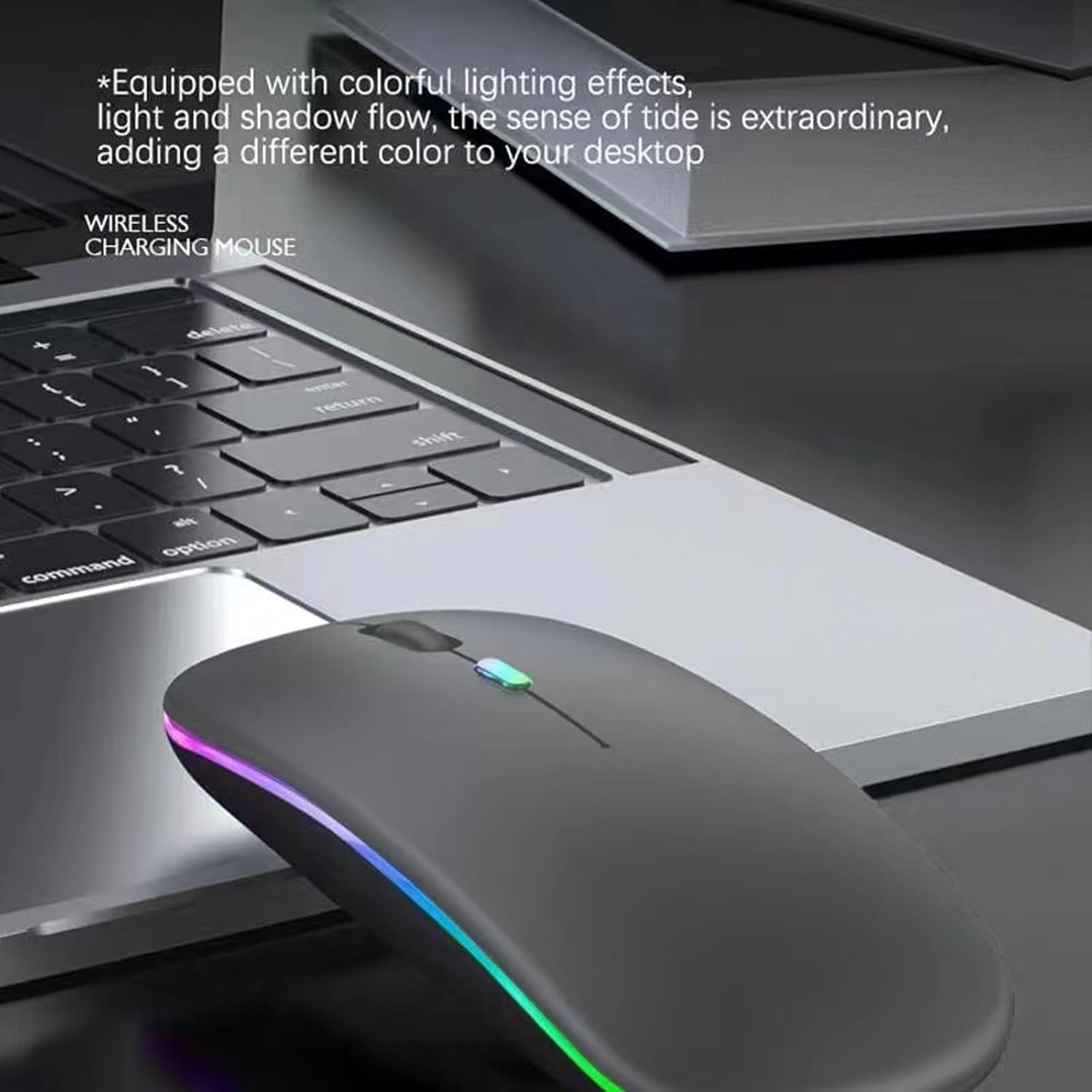
Image: The wireless mouse positioned next to a laptop, illustrating its vibrant, randomly changing LED light strip.
Maintenance and Care
- Cleaning: Use a soft, dry cloth to clean the mouse. For stubborn dirt, slightly dampen the cloth with water or a mild cleaning solution. Avoid harsh chemicals or abrasive materials.
- Battery Care: To prolong battery life, avoid fully discharging the mouse frequently. Recharge it when the battery indicator is low. Do not expose the mouse to extreme temperatures.
- Storage: When not in use for extended periods, turn off the mouse to conserve battery. Store the USB receiver inside its designated slot to prevent loss.
Troubleshooting
| Problem | Possible Cause | Solution |
|---|---|---|
| Mouse not responding | Low battery; Incorrect connection mode; USB receiver not plugged in (2.4G); Bluetooth not paired. | Charge the mouse; Ensure correct mode (2.4G/BT) is selected; Re-insert USB receiver; Re-pair Bluetooth. |
| Cursor movement is erratic or slow | Low battery; Dirty optical sensor; Unsuitable surface; DPI setting too low. | Charge the mouse; Clean the optical sensor; Use on a smooth, non-reflective surface; Adjust DPI setting. |
| LED lights not working | Mouse is off or in sleep mode; Malfunction. | Turn on or wake up the mouse; If problem persists, contact support. |
| Cannot switch between devices | Incorrect button press. | Ensure you are pressing the mode switch button on the bottom of the mouse. |
Product Specifications
| Feature | Detail |
|---|---|
| Brand | Guiheng |
| Model | B0CMDJCZCC |
| Connectivity | Bluetooth 5.2, 2.4G Wireless (USB Receiver) |
| Battery | Rechargeable Lithium-ion (500mAh) |
| Charging Time | Approx. 2-3 hours |
| Working Time | Approx. 5 days (continuous use) |
| Standby Time | Approx. 30-60 days |
| Silent Click | Yes (90% noise reduction) |
| LED Lighting | 7-color random breathing lights |
| Movement Detection Technology | Optical |
| Item Weight | 3.17 ounces |
| Package Dimensions | 4.8 x 4.29 x 1.54 inches |
Warranty and Support
For warranty information, technical support, or any inquiries regarding your Guiheng Wireless Bluetooth Mouse, please refer to the contact details provided on the product packaging or the official Guiheng website. Keep your purchase receipt for warranty claims.


