
1. Introduction
This manual provides detailed instructions for the installation, operation, and maintenance of your Rraycom 3-Pack 5G/2.4G Wireless 2K Security Cameras. Please read this manual thoroughly before using the product to ensure proper functionality and safety. Keep this manual for future reference.

Image: The Rraycom 3-Pack 5G/2.4G Wireless 2K Security Cameras.
2. Product Overview
2.1 Key Features
- Dual-Band Connectivity: Supports both 5GHz and 2.4GHz Wi-Fi for stable and fast connections.
- 2K UHD Resolution: Captures clear and detailed video footage.
- Color Night Vision: Provides full-color video even in low-light conditions.
- IP65 Weatherproof: Designed for reliable indoor and outdoor use, resistant to rain and dust.
- AI Detection: Features human detection and advanced bird recognition (subscription may be required for bird recognition).
- Siren and Spotlight: Integrated deterrents for enhanced security.
- Two-Way Audio: Allows for real-time communication through the camera.
- Alexa Integration: Compatible with Amazon Alexa for voice control and live feed viewing.
- Flexible Storage: Supports local storage via Micro SD card (up to 256GB, not included) and offers 1-day complimentary cloud storage.
- Battery Powered: Built-in 5200mAh battery for true wireless installation.
2.2 Package Contents
- 3 x Rraycom 5G/2.4G Wireless 2K Security Cameras
- 3 x Mounting Brackets
- 3 x USB Charging Cables
- 1 x User Manual
- Mounting Screws and Anchors
3. Setup
3.1 Charging the Camera
Before initial use, fully charge each camera using the provided USB charging cable. Connect the cable to the camera's charging port and a standard 5V/2A USB power adapter (not included). The charging indicator light will show the charging status.

Image: Internal view highlighting the 5200mAh battery.
3.2 App Installation and Account Creation
- Download the companion app from your smartphone's app store (search for "O-KAM Pro" or refer to the QR code in the quick start guide).
- Register for a new account or log in if you already have one.
3.3 Connecting the Camera to Wi-Fi
- Ensure your smartphone is connected to a 2.4GHz or 5GHz Wi-Fi network. The camera supports both bands.
- In the app, tap "Add Device" and follow the on-screen instructions.
- Use the 1-tap Bluetooth pairing feature for a quicker connection process.
- Scan the QR code displayed on your phone with the camera lens when prompted.
- Wait for the camera to connect to your Wi-Fi network. A voice prompt will confirm successful connection.

Image: Dual-band Wi-Fi support for stable connectivity.
3.4 Mounting the Camera
The cameras are IP65 weatherproof, suitable for both indoor and outdoor installation. Choose a location with good Wi-Fi signal and a clear view of the area you wish to monitor.
- Mark the drill holes using the mounting bracket as a template.
- Drill holes and insert wall anchors if mounting on masonry or drywall.
- Secure the mounting bracket to the surface with screws.
- Attach the camera to the mounting bracket and adjust the angle as needed.

Image: IP65 weather resistance for year-round outdoor use.
4. Operating Instructions
4.1 Live View and Playback
- Open the app to view live feeds from your cameras.
- Access recorded footage from the cloud or local SD card storage via the playback function.
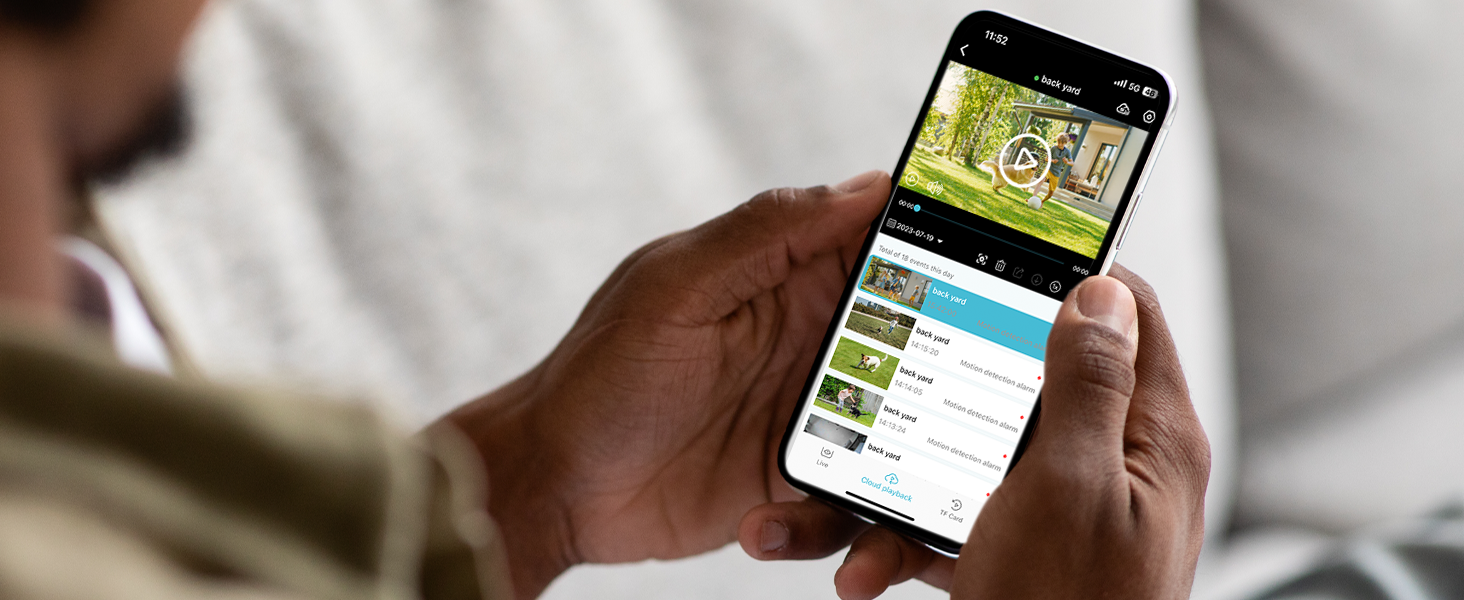
Image: App interface for live viewing and playback.
4.2 Two-Way Audio
To use the two-way audio feature:
- In the live view, tap the microphone icon.
- Speak into your phone to communicate through the camera's speaker.
- Tap the icon again to end communication.

Image: Two-way audio functionality.
4.3 Motion Detection and Alerts
- The camera detects motion and sends instant notifications to your smartphone.
- Customize detection zones within the app to focus on specific areas and reduce false alarms (e.g., ignoring pets or passing cars).
- When motion is detected, the camera can automatically activate a siren and spotlight to deter intruders.

Image: Customizing detection zones for precise monitoring.

Image: AI detection for security and bird recognition.
4.4 Color Night Vision
The camera utilizes starlight color night vision technology to provide clear, full-color images even in very low light conditions. This enhances detail and identification compared to traditional black and white night vision.

Image: 2K Color Night Vision in action.
4.5 Alexa Integration
To integrate with Amazon Alexa:
- Enable the Rraycom skill in the Alexa app.
- Link your Rraycom account.
- Use voice commands like "Alexa, show me the front door camera" to view live feeds on compatible Alexa devices (e.g., Echo Show).

Image: Alexa integration for voice control and viewing.
5. Maintenance
5.1 Battery Management
- Monitor battery levels regularly through the app.
- Recharge cameras promptly when battery levels are low to ensure continuous operation.
- For optimal battery life, avoid extreme temperatures.
5.2 Cleaning
- Periodically clean the camera lens and housing with a soft, damp cloth to remove dust and debris.
- Do not use harsh chemicals or abrasive cleaners.
5.3 Storage Management
- If using a Micro SD card, ensure it is properly inserted and formatted via the app.
- Regularly review and back up important footage from the SD card or cloud storage.
- The camera supports up to 256GB Micro SD cards (not included).

Image: Local and cloud storage options.
6. Troubleshooting
6.1 Connectivity Issues
- Camera offline: Ensure the camera is charged and within Wi-Fi range. Restart your router and the camera.
- Failed to connect to Wi-Fi: Verify your Wi-Fi password. Ensure your router supports 2.4GHz or 5GHz and that your phone is connected to the correct band during setup.
6.2 Motion Detection Problems
- No motion detected: Check the camera's sensitivity settings in the app. Ensure detection zones are correctly configured.
- Too many false alarms: Adjust detection zones to exclude high-traffic areas or objects that cause unwanted triggers (e.g., trees swaying). Lower the sensitivity setting.
6.3 Battery Life Concerns
- Short battery life: Frequent motion detection events, live viewing, or two-way audio use can drain the battery faster. Reduce detection sensitivity or frequency of live viewing. Ensure the camera is fully charged.
6.4 Video Quality Issues
- Blurry or unclear video: Clean the camera lens. Ensure there are no obstructions in front of the lens. Check your Wi-Fi signal strength.
- Poor night vision: Ensure the camera's spotlight is enabled if you desire color night vision. Check for any light sources that might interfere with the camera's infrared sensors.
7. Specifications
| Feature | Specification |
|---|---|
| Model | B0CMDH1P1L |
| Brand | Rraycom |
| Connectivity Technology | Wireless (Wi-Fi) |
| Wireless Communication Technology | Wi-Fi (5G/2.4G Dual-Band) |
| Video Capture Resolution | 2K, 1080p |
| Power Source | Battery (5200mAh Lithium Ion, included) |
| International Protection Rating | IP65 |
| Indoor/Outdoor Usage | Outdoor (also suitable for indoor) |
| Special Features | 2-Way Audio, 2K QHD Resolution, Color Night Vision, Local Recording, Built-In Light, Motion Sensor, Portable |
| Compatible Devices | Android, iOS, Amazon Alexa |
| Mounting Type | Wall Mount |
| Local Storage | Micro SD Card (up to 256GB, not included) |
| Cloud Storage | 1-day complimentary playback |
| Item Weight | 1.92 pounds (0.87 Kilograms) |
| Package Dimensions | 12.56 x 4.45 x 2.91 inches |
| Color | Gray |
| Number of Items | 3 |
8. Warranty and Support
For warranty information and technical support, please contact Rraycom customer service directly. Details are typically provided with your product packaging or on the official Rraycom website.
You may also reach out via email:
- Email: aftersale@rraycom.com

Image: Rraycom Customer Service contact information.


