
Introduction
Welcome to the user manual for your Darmoshark EC75 Wireless Mechanical Keyboard. This keyboard features a compact 75% layout with 81 keys, offering versatile connectivity options including 2.4G wireless, Bluetooth 5.0, and USB-C wired modes. Designed for both gamers and typists, it incorporates hot-swappable switches, a high-capacity 4000mAh battery, and a gasket-mounted structure for an enhanced typing experience. This manual will guide you through the setup, operation, maintenance, and troubleshooting of your new keyboard.

This image displays the full layout of the Darmoshark EC75 keyboard, highlighting its compact 75% design with 81 keys and the integrated rotary knob.
Package Contents
Please verify that all items are present in your package:
- Darmoshark EC75 Wireless Mechanical Keyboard
- USB-C Cable
- 2.4G Wireless Receiver
- Keycap Puller
- Switch Puller
- User Manual (this document)
Setup and Connectivity
1. Wired Mode (USB-C)
- Connect the provided USB-C cable to the keyboard's USB-C port.
- Connect the other end of the USB-C cable to an available USB port on your computer.
- The keyboard will automatically be recognized and ready for use.
2. 2.4G Wireless Mode
- Locate the 2.4G wireless receiver (dongle) usually stored in a compartment on the keyboard.
- Plug the 2.4G receiver into an available USB port on your computer.
- Ensure the keyboard's mode switch (if present) is set to 2.4G mode.
- The keyboard should connect automatically. If not, press Fn + 4 to activate 2.4G pairing mode.
3. Bluetooth 5.0 Mode
- Ensure the keyboard's mode switch (if present) is set to Bluetooth mode.
- Press and hold Fn + 1, Fn + 2, or Fn + 3 for 3-5 seconds to enter Bluetooth pairing mode for the desired profile. The indicator light will flash rapidly.
- On your device (computer, tablet, smartphone), open Bluetooth settings and search for new devices.
- Select "Darmoshark EC75" (or similar name) from the list of available devices to pair.
- Once paired, the indicator light will stop flashing and remain solid.
- To switch between paired Bluetooth devices, simply press Fn + 1, Fn + 2, or Fn + 3.

This image illustrates the three connectivity modes: 2.4G Wireless, Bluetooth 5.0, and USB-C Wired, demonstrating the keyboard's versatility.
Operating Instructions
Function Keys (Fn Combinations)
The EC75 keyboard utilizes the Function (Fn) key to access various multimedia and system controls. Below are common Fn key combinations:
- Fn + F1-F12: Standard F-key functions (may vary based on system).
- Fn + 1/2/3: Switch between Bluetooth profiles.
- Fn + 4: Activate 2.4G wireless pairing.
- Fn + Backspace: Delete key.
- Fn + Enter: Right Shift.
- Fn + Right Alt: Right Ctrl.
- Fn + Right Ctrl: Menu key.
- Rotary Knob: Volume control (rotate), Mute/Unmute (press).
RGB Backlighting Control
The keyboard features customizable RGB backlighting. Specific key combinations for lighting control may be available through the official software or direct key presses. Refer to the software for advanced customization.
Software Support
For advanced customization, including key remapping, macro creation, and detailed RGB lighting effects, download the official Darmoshark software from the manufacturer's website. The software allows you to personalize your keyboard experience to suit your preferences.
Hot-Swappable Switches and Keycaps
The Darmoshark EC75 features an all-key hot-swappable design, allowing you to easily change mechanical switches without soldering. It supports 3-pin and 5-pin mechanical switches.
Changing Switches
- Power Off: Ensure the keyboard is disconnected or powered off before changing switches.
- Remove Keycap: Use the provided keycap puller to gently remove the desired keycap.
- Remove Switch: Use the provided switch puller to carefully grip the top and bottom clips of the switch and pull it straight up.
- Insert New Switch: Align the pins of the new switch with the holes on the PCB. Ensure the pins are straight. Gently push the switch down until it clicks into place. Do not force it.
- Replace Keycap: Press the keycap onto the new switch stem.

This image demonstrates the hot-swappable feature, showing how switches can be easily removed and replaced, allowing for customization of typing feel.
Keycap Material and Design
The EC75 keyboard comes with high-quality PBT spherical keycaps, manufactured using a five-sided heat sublimation process. This ensures durability, resistance to oil and wear, and clear, long-lasting characters.

A close-up view of the keyboard's PBT keycaps, highlighting their durable thermal sublimation printing which prevents fading and wear.
Battery Management
The Darmoshark EC75 is equipped with a 4000mAh high-capacity lithium battery, providing extended usage time.
Charging the Keyboard
Connect the keyboard to a USB power source (computer USB port or USB wall adapter) using the provided USB-C cable. The charging indicator light will show the charging status (e.g., solid red while charging, off when fully charged).
Battery Life
A full charge can provide approximately 10 days of daily use, depending on usage patterns and RGB lighting settings. To conserve battery, the keyboard will enter sleep mode after a period of inactivity. Press any key to wake it up.
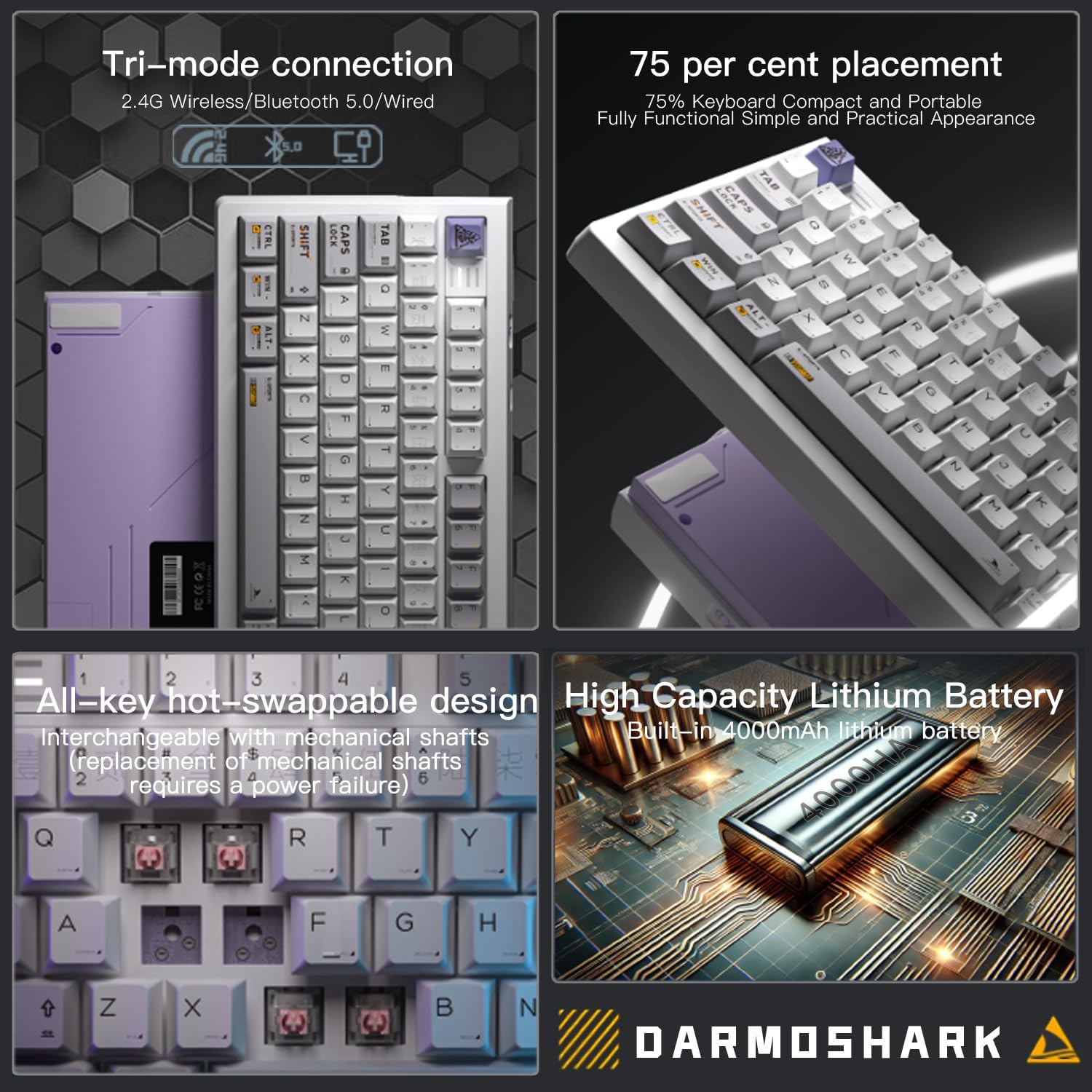
This composite image highlights the keyboard's 4000mAh high-capacity battery, along with its tri-mode connection, 75% layout, and hot-swappable design.
Maintenance and Care
To ensure the longevity and optimal performance of your Darmoshark EC75 keyboard, follow these maintenance guidelines:
- Cleaning Keycaps: Use a soft, damp cloth to wipe down keycaps. For deeper cleaning, remove keycaps using the keycap puller and wash them with mild soap and water. Ensure they are completely dry before reattaching.
- Cleaning the Board: Use compressed air to remove dust and debris from between the keys. A soft brush can also be used.
- Avoid Liquids: Do not spill liquids on the keyboard. If a spill occurs, immediately disconnect the keyboard, power it off, and allow it to dry completely before reconnecting.
- Storage: Store the keyboard in a cool, dry place away from direct sunlight and extreme temperatures.
Troubleshooting
If you encounter issues with your Darmoshark EC75 keyboard, please refer to the following common solutions:
| Problem | Possible Cause | Solution |
|---|---|---|
| Keyboard not responding (Wired) | Loose cable connection, faulty USB port. | Ensure USB-C cable is securely connected. Try a different USB port or cable. |
| Keyboard not connecting (2.4G Wireless) | Receiver not plugged in, keyboard not in 2.4G mode, low battery. | Plug in the 2.4G receiver. Ensure keyboard is in 2.4G mode (Fn + 4). Charge the keyboard. |
| Keyboard not connecting (Bluetooth) | Not in pairing mode, device Bluetooth off, already connected to max devices. | Ensure keyboard is in Bluetooth pairing mode (Fn + 1/2/3). Turn on Bluetooth on your device. Forget previous pairings and re-pair. |
| Keys not registering or double-typing | Dust/debris under switch, faulty switch. | Clean around the switch with compressed air. If issue persists, try hot-swapping the switch with a known good one. |
| RGB lighting not working | Lighting turned off, software issue. | Check keyboard lighting controls (Fn combinations). Reinstall or update keyboard software. |
| Short battery life | High brightness RGB, frequent use, battery degradation. | Reduce RGB brightness or turn it off. Ensure keyboard is fully charged. |
Specifications
| Feature | Detail |
|---|---|
| Model | Darmoshark EC75 (TOP-EC75) |
| Layout | 75% (81 keys) |
| Connectivity | 2.4G Wireless, Bluetooth 5.0, USB-C Wired |
| Switches | Electrostatic Capacitive (Hot-swappable, supports 3-pin/5-pin) |
| Keycaps | PBT Spherical, Thermal Sublimation |
| Battery Capacity | 4000mAh Lithium Ion |
| Structure | Gasket Mounted, TOP Solid Structure |
| Dimensions | Approximately 16 x 13 x 1 inches (Package Dimensions) |
| Weight | Approximately 2.2 pounds |
| Manufacturer | Darmoshark |

A detailed view of the electrostatic capacitive shaft, highlighting its contactless triggering technology for silky smooth and responsive key presses.

This diagram illustrates the keyboard's top-mounted structure, which contributes to its stable, durable feel and excellent sound quality.
Warranty and Support
Darmoshark products come with a standard manufacturer's warranty. For specific warranty terms and conditions, please refer to the warranty card included in your product packaging or visit the official Darmoshark website. For technical support, product inquiries, or warranty claims, please contact Darmoshark customer service through their official channels.
Official Website: Darmoshark Store on Amazon


