
Darmoshark TOP75
Darmoshark TOP75 Wireless Mechanical Keyboard User Manual
Model: TOP75
Introduction
Thank you for choosing the Darmoshark TOP75 Wireless Mechanical Keyboard. This keyboard is designed for versatility and performance, offering triple-mode connectivity (2.4G, Bluetooth 5.0, and USB-C wired), a compact 75% layout, and hot-swappable switches for customization. With its durable construction and long-lasting battery, the TOP75 is suitable for both gaming and professional use across various operating systems.
This manual provides detailed instructions on setting up, operating, maintaining, and troubleshooting your keyboard to ensure optimal performance and longevity.

Figure 1: Darmoshark TOP75 Wireless Mechanical Keyboard (White Version)
Package Contents
- Darmoshark TOP75 Wireless Mechanical Keyboard
- USB-C Cable
- 2.4G Wireless Receiver (dongle)
- Keycap Puller
- Switch Puller
- User Manual (this document)
Setup
Charging the Keyboard
Before first use, it is recommended to fully charge the keyboard. Connect the provided USB-C cable to the keyboard's USB-C port and the other end to a USB power source (e.g., computer USB port, wall adapter). The keyboard features a 4000mAh high-capacity battery.
Connectivity Modes
The TOP75 keyboard supports three connection modes: 2.4G wireless, Bluetooth 5.0, and USB-C wired.

Figure 2: Triple-Mode Wireless Connectivity Overview
1. 2.4G Wireless Mode
- Locate the 2.4G wireless receiver (dongle) in the receiver storage compartment on the back of the keyboard.
- Plug the 2.4G receiver into an available USB port on your computer.
- Switch the mode selector on the keyboard to the "2.4G" position.
- The keyboard should automatically connect. If not, press Fn + 4 to initiate pairing.
2. Bluetooth 5.0 Mode
- Switch the mode selector on the keyboard to the "BT" (Bluetooth) position.
- To enter pairing mode, press and hold Fn + 1, Fn + 2, or Fn + 3 for 3-5 seconds. The indicator light for the selected channel will flash rapidly.
- On your device (computer, tablet, smartphone), enable Bluetooth and search for new devices.
- Select "Darmoshark TOP75" from the list of available devices to pair. The indicator light will become solid once connected.
- You can pair up to three Bluetooth devices and switch between them using Fn + 1, Fn + 2, or Fn + 3.
3. USB-C Wired Mode
- Connect the USB-C cable to the keyboard's USB-C port.
- Connect the other end of the USB-C cable to a USB port on your computer.
- Switch the mode selector on the keyboard to the "USB-C" position.
- The keyboard will be recognized as a standard USB HID device and is ready for use.
Operating Instructions
Function Keys (Fn Combinations)
The TOP75 keyboard utilizes an 81-key layout, which is a compact 75% layout. Many functions are accessed via the Fn key combined with other keys.
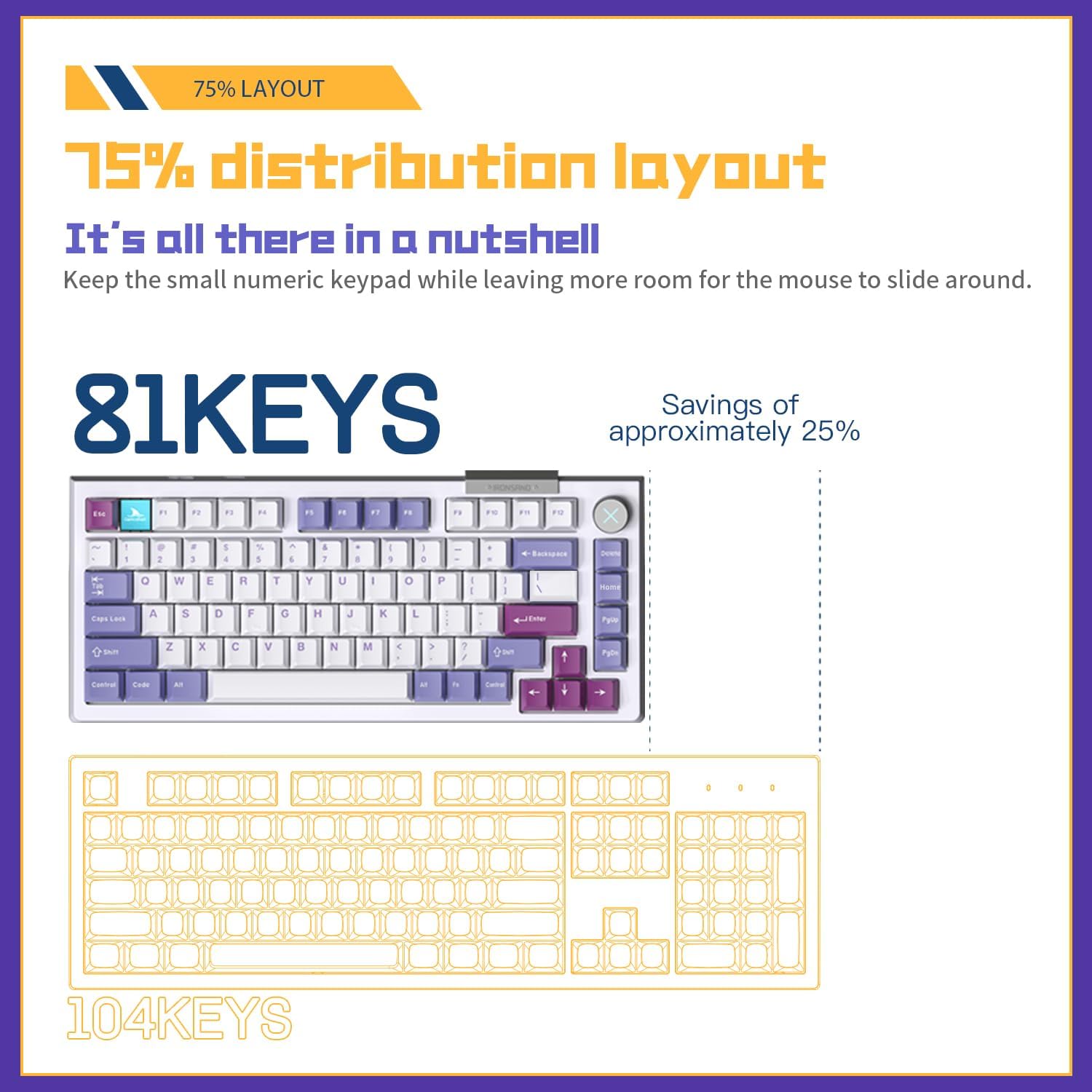
Figure 3: 75% Layout (81 Keys) vs. 104 Keys
| Combination | Function |
|---|---|
| Fn + 1/2/3 | Switch Bluetooth device (BT1, BT2, BT3) |
| Fn + 4 | Activate 2.4G pairing mode |
| Fn + Delete | Toggle Gaming Mode (low latency) |
| Fn + F1-F12 | Multimedia and system functions (e.g., volume, media control, brightness) |
| Fn + Backspace | Toggle backlight effects |
| Fn + Arrow Keys | Adjust backlight brightness and speed |
Refer to the keyboard's keycaps for specific Fn key legends for multimedia and lighting controls.
Hot-Swappable Switches
The TOP75 keyboard features a full hot-swappable PCB, allowing you to easily change mechanical switches without soldering. This supports 95% of 3-pin and 5-pin mechanical switches on the market.

Figure 4: Hot-Swappable Switch Functionality
Changing Switches:
- Using the provided switch puller, gently grip the switch from the top and bottom.
- Pull the switch straight up to remove it from the PCB.
- Align the pins of the new switch with the holes on the PCB. Ensure the pins are straight.
- Gently press the new switch down until it clicks into place. Do not force it.
- Test the key to ensure it functions correctly.
Note: Be careful not to bend the switch pins during insertion. If a pin bends, gently straighten it with tweezers before re-inserting.
RGB Backlighting
The keyboard features customizable RGB backlighting. Use Fn + Backspace to cycle through various lighting effects. Use Fn + Arrow Up/Down to adjust brightness and Fn + Arrow Left/Right to adjust effect speed.
Software Support
The Darmoshark TOP75 keyboard supports dedicated software for advanced customization, including key remapping, macro creation, and detailed RGB lighting control. Please visit the official Darmoshark website to download the latest software for your operating system (Windows 10/11 compatible).
Maintenance
Cleaning the Keyboard
- General Cleaning: Use a soft, lint-free cloth slightly dampened with water or a mild cleaning solution to wipe down the keycaps and keyboard frame. Avoid excessive moisture.
- Dust Removal: Use compressed air to blow away dust and debris from between the keycaps.
- Deep Cleaning (Keycaps): For thorough cleaning, you can remove the keycaps using the provided keycap puller. Wash keycaps with mild soap and water, rinse thoroughly, and ensure they are completely dry before reattaching.
Battery Care
- Avoid fully discharging the battery frequently.
- Store the keyboard in a cool, dry place if not used for extended periods.
- Use only the provided USB-C cable or a certified equivalent for charging.
Troubleshooting
| Problem | Possible Cause / Solution |
|---|---|
| Keyboard not responding in wireless mode. |
|
| Keys not registering or double-typing. |
|
| Backlight not working or stuck. |
|
| Bluetooth connection unstable. |
|
Specifications
| Feature | Detail |
|---|---|
| Model | TOP75 |
| Brand | Darmoshark |
| Layout | 75% (81 Keys) |
| Connectivity | Triple Mode: 2.4G Wireless, Bluetooth 5.0, USB-C Wired |
| Switches | Hot-swappable (supports 3-pin/5-pin mechanical switches) |
| Battery Capacity | 4000mAh Lithium Ion |
| Backlighting | RGB |
| Operating System Support | WinXP/Win7/Win8/Win10/Win11/MacOS |
| Dimensions (Approx.) | 335mm (Length) x 146mm (Width) |
| Weight | 1.68 kg |
| Special Features | Gasket Frame Design, Low Latency Gaming Mode, Software Support |

Figure 5: Keyboard Dimensions
Warranty and Support
Warranty Information
Darmoshark products come with a 1-year worry-free warranty from the date of purchase. Additionally, a 30-day refund policy is offered. This warranty covers manufacturing defects and issues arising from normal use.
The warranty does not cover damage caused by:
- Accidental damage, misuse, abuse, or neglect.
- Unauthorized repairs or modifications.
- Operating the product outside of its specified parameters.
Customer Support
For technical support, warranty claims, or any inquiries regarding your Darmoshark TOP75 keyboard, please contact Darmoshark customer service through their official website or the retailer where you purchased the product. Please have your proof of purchase and product model information ready when contacting support.
Ask a question about this manual
Ask about setup, troubleshooting, compatibility, parts, safety, or missing instructions. Manuals+ will review the question and use this page’s manual context to help answer it.