
Introduction
Thank you for choosing the BENWIS Touch iPad Keyboard Case. This manual provides detailed instructions for setting up, operating, and maintaining your keyboard case to ensure optimal performance and longevity. This case is designed to enhance your iPad experience by offering versatile viewing modes, a responsive keyboard, and a multi-touch trackpad.

Image: BENWIS Touch iPad Keyboard Case with an iPad installed, showcasing its sleek design.
Product Features
- 360° Rotatable Design: Allows for flexible viewing angles in both portrait and landscape orientations.
- 180° Foldable Modes: Supports various configurations including laptop, tent, stand, share, and tablet modes.
- 7-Color Backlit Keyboard: Adjustable backlight with 3 brightness levels for comfortable typing in any lighting condition.
- Detachable Case: The iPad case can be easily detached from the keyboard for standalone tablet use.
- Multi-Touch Trackpad: Integrated trackpad with support for iPadOS gestures for precise navigation.
- Integrated Apple Pencil Slot: Securely holds your Apple Pencil for convenient storage and charging.
- iOS Shortcut Keys: Dedicated keys for quick access to iPad functions.

Image: The keyboard case supports 7 unique modes, including tent, laptop, tablet, protect, share, and stand modes, offering versatile usage.

Image: The case allows for 2-direction 180-degree flip and 360-degree swivel for adjustable viewing angles.

Image: The detachable design allows the iPad to be separated from the keyboard for tablet-only use.

Image: An overview highlighting features like protective case, Apple Pencil slot, 2-way 180-degree flip, magnetic adhesion, 360-degree rotation, 3-level brightness, 7-color backlight, iOS shortcuts, and multi-touch trackpad.

Image: The keyboard features 7 colors of backlighting with 3 adjustable bright modes for enhanced visibility.
Compatibility
This BENWIS Touch iPad Keyboard Case is compatible with the following iPad models:
- iPad Pro 11 inch: 2nd Gen (2020), 3rd Gen (2021), 4th Gen (2022)
- iPad Air 10.9 inch: 4th Gen (2020), 5th Gen (2022)
- iPad 10th Gen: 10.9 inch (2022)
To verify your iPad's model number:
- Method 1: Check the back of your iPad for the model number (e.g., A2757).
- Method 2: Go to iPad Settings App > General > About, then tap on Model Number to display it.
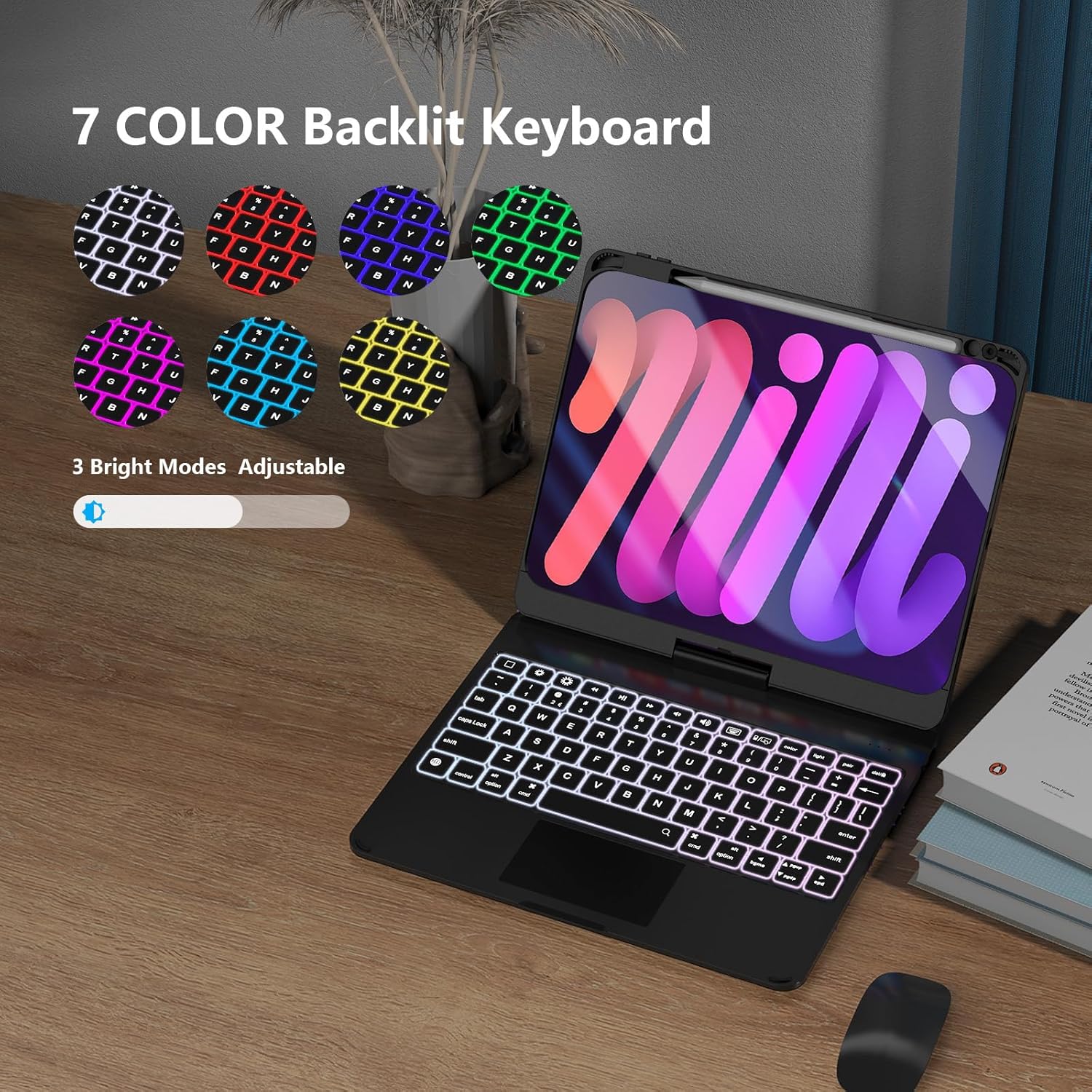
Image: A chart showing compatible iPad models and two methods to verify your iPad's model number.
Setup
1. Installing Your iPad into the Case
- Ensure the keyboard is open and flat.
- Align your iPad with the protective case section.
- Gently press the iPad into the case, ensuring all edges are securely fitted.
2. Removing Your iPad from the Case
- To remove the Apple Pencil, pop it forcefully with your finger through the hole in the case.
- To remove the iPad, pop the iPad with your finger over the camera part of the case.
- Use one hand to hold down the keyboard and the other to pull out the iPad.
- If necessary, pick out the rubber with a pencil to loosen the iPad.
Video: Demonstrates how to install and remove the iPad and Apple Pencil from the keyboard case.
3. Bluetooth Pairing
- Turn on the keyboard by sliding the power switch. The indicator light will flash.
- On your iPad, go to Settings > Bluetooth.
- Turn on Bluetooth and select "BENWIS Keyboard" from the list of available devices.
- Once paired, the indicator light on the keyboard will turn off.
Operating Instructions
1. Adjusting Viewing Angles
- 360° Rotation: The iPad screen can be rotated 360 degrees horizontally while attached to the keyboard base.
- 180° Flip: The screen can be flipped 180 degrees vertically, allowing for various modes like tent or tablet.
2. Using the Multi-Touch Trackpad
The integrated trackpad supports standard iPadOS gestures for navigation and interaction. Refer to your iPad's settings for a full list of supported gestures.
3. Backlight Control
Press the Light Bulb key to cycle through 7 different backlight colors. Use the Brightness keys (usually F5/F6 or dedicated keys) to adjust the 3 brightness levels.
4. Detaching the iPad Case
To use your iPad as a standalone tablet, gently pull the iPad case upwards from the magnetic hinge. The case will detach, allowing you to use the iPad independently while still protected.
Video: Demonstrates the 180-degree flip, 360-degree rotation, trackpad usage, Apple Pencil functionality, and the detachable feature of the keyboard case.
Maintenance
- Cleaning: Use a soft, damp cloth to clean the exterior of the case and keyboard. Avoid harsh chemicals or abrasive materials.
- Charging: Connect the provided USB cable to the keyboard's charging port and a power source. The charging indicator light will illuminate.
- Storage: When not in use for extended periods, ensure the keyboard is fully charged and stored in a cool, dry place.
Troubleshooting
| Issue | Solution |
|---|---|
| Keyboard not connecting via Bluetooth | Ensure the keyboard is charged and turned on. Forget the device in iPad Bluetooth settings and re-pair. |
| Trackpad not responding | Check Bluetooth connection. Ensure iPadOS is updated. Restart both iPad and keyboard. |
| Backlight not working | Press the backlight key to activate. Ensure the keyboard is sufficiently charged. |
| Keys not responding | Recharge the keyboard. Re-establish Bluetooth connection. |
Specifications
| Feature | Detail |
|---|---|
| Brand | BENWIS |
| Compatible Devices | iPad Pro 11 (2nd, 3rd, 4th Gen), iPad Air 10.9 (4th, 5th Gen), iPad 10th Gen 10.9 |
| Connectivity Technology | Bluetooth, USB (for charging) |
| Keyboard Description | Integrated, Foldable, Backlit (7 colors, 3 brightness levels) |
| Keyboard Layout | QWERTY |
| Material | Acrylonitrile Butadiene Styrene |
| Included Components | USB Cable |
| Power Source | USB power |
| Hand Orientation | Ambidextrous |
Warranty and Support
For warranty information and customer support, please refer to the product packaging or contact BENWIS customer service directly. Keep your purchase receipt for warranty claims.