
ODK 140 x 80 cm black
ODK Corner Desk User Manual
Model: 140 x 80 cm Black (B0CMCDZQ35)
Brand: ODK
Introduction
This manual provides comprehensive instructions for the assembly, operation, and maintenance of your ODK Corner Desk. Designed for home office and gaming environments, this L-shaped desk features a reversible design, integrated LED lighting, built-in power outlets, USB charging ports, and ample storage with fabric drawers and a monitor stand. Please read this manual carefully to ensure proper setup and long-term enjoyment of your new desk.

Figure 1: Overview of the ODK Corner Desk, showcasing its L-shape, integrated LED lighting, monitor stand, and storage solutions.
Setup and Assembly
The ODK Corner Desk is designed for straightforward assembly. All necessary parts are clearly labeled, and detailed instructions are included in the packaging.
1. Unpacking and Inventory
- Carefully unpack all components from the packaging.
- Verify that all parts listed in the included assembly guide are present and undamaged.
- Keep the assembly guide handy for reference during the process.
2. Reversible L-Shape Configuration
The desk's L-shape can be configured with the drawer side on either the left or right, allowing you to customize it to your space. Decide on your preferred orientation before beginning assembly.

Figure 2: Illustration of the reversible L-shape design, demonstrating how the desk can be assembled with the drawer unit on either side.
3. Assembly Steps
- Follow the step-by-step instructions provided in the assembly manual.
- Ensure all screws and fasteners are tightened securely, but do not overtighten.
- Attach the fabric drawers according to the instructions.
- Install the monitor stand and LED light strip as directed.
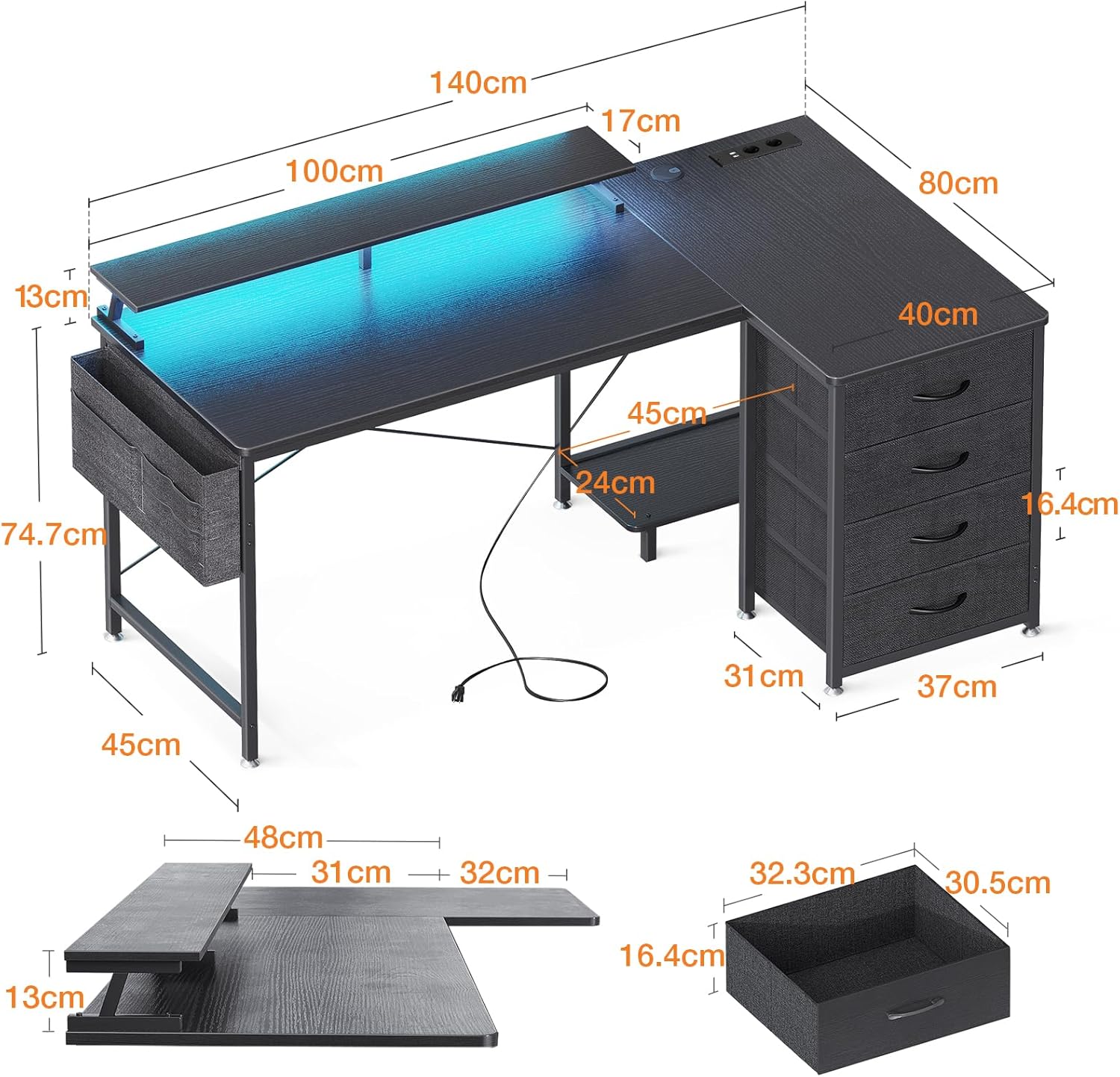
Figure 3: Detailed dimensions of the ODK Corner Desk, useful for planning your space and assembly.
Operating Instructions
1. LED Lighting System
The desk features an integrated LED light strip with various customization options.
- Power On/Off: Use the dedicated button on the control panel to turn the lights on or off.
- Color Selection: Choose from 10 static colors to match your mood or environment.
- Brightness Adjustment: Adjust the brightness across 6 levels.
- Dynamic Modes: Select from 10 dynamic lighting modes for an enhanced experience.
- Memory Function: The system remembers your last setting when powered off.

Figure 4: The LED lighting system and its control panel, illustrating color and mode options.
2. Power Outlets and USB Charging Ports
The desk is equipped with 2 standard power sockets and 2 USB charging ports for convenient access to power for your electronic devices.
- Plug your devices into the 220-250V/16A AC sockets for power.
- Use the 5V-2A USB ports to charge smartphones, tablets, or other USB-powered devices.
- Ensure the desk is connected to a wall outlet using the provided 200cm power cable.

Figure 5: The integrated power strip, showing the AC outlets and USB charging ports for convenient device connectivity.
3. Storage and Monitor Stand
Utilize the four fabric drawers and the side storage bag for organizing your office supplies, documents, and personal items. The ergonomic monitor stand helps maintain a comfortable viewing height.
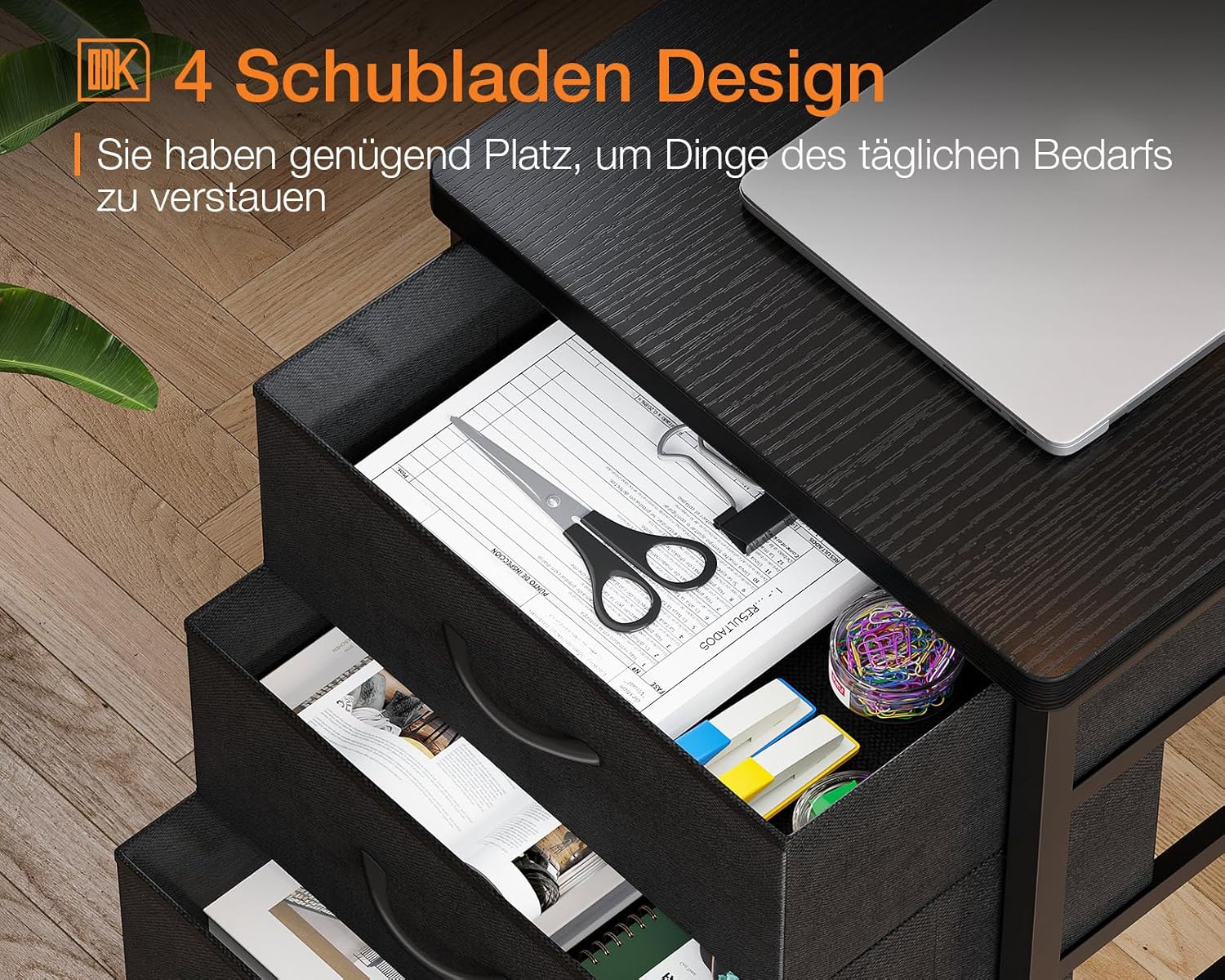
Figure 6: The four fabric drawers, providing ample space for organizing various items.
Maintenance
Regular maintenance will help preserve the appearance and functionality of your ODK Corner Desk.
- Cleaning: Wipe surfaces with a soft, damp cloth. Avoid harsh chemicals or abrasive cleaners, which can damage the laminated finish.
- Spills: Immediately wipe up any spills to prevent staining or damage to the wood.
- Drawer Care: The fabric drawers can be spot cleaned with a mild detergent if necessary. Ensure they are completely dry before reinserting.
- Connections: Periodically check all screws and fasteners to ensure they remain tight.
- Electrical Components: Keep the power outlets and USB ports free from dust and debris. Do not expose electrical components to liquids.
Troubleshooting
If you encounter any issues with your ODK Corner Desk, refer to the following common troubleshooting steps.
| Problem | Possible Cause | Solution |
|---|---|---|
| LED lights not turning on. | Power cable not connected; LED strip not properly plugged in; faulty control panel. | Ensure the desk's power cable is securely plugged into a wall outlet. Check the connection of the LED strip to the control panel. If issues persist, contact customer support. |
| USB ports or AC outlets not working. | Desk not powered; device not properly plugged in; power surge protection tripped. | Verify the desk is plugged into a live wall outlet. Ensure devices are fully inserted into the ports. Try a different device to rule out device issues. If the issue persists, contact customer support. |
| Desk wobbles after assembly. | Loose fasteners; uneven floor. | Check and tighten all assembly screws. Adjust the leveling feet at the bottom of the desk legs if your floor is uneven. |
Specifications
| Feature | Detail |
|---|---|
| Brand Name | ODK |
| Item Shape | L-Shape |
| Desk Design | Computer Desk |
| Item Dimensions (D x W x H) | 80D x 140W x 85.9H centimeters |
| Color | Black |
| Base Material | Engineered Wood |
| Top Material Type | Wood |
| Finish Type | Laminated |
| Special Features | Built-In USB Outlet, Integrated monitor stand, Monitor Stand, With LED lights |
| Room Type | Office |
Warranty and Support
ODK is committed to providing high-quality products and customer satisfaction.
- Customer Support: If your ODK computer desk arrives damaged, a part is missing, or you encounter any issues not covered in this manual, please contact our professional customer support team. We aim to help solve problems within 24 hours.
- Warranty Information: For specific warranty terms and conditions, please refer to the documentation included with your purchase or contact ODK customer support directly.
Related documents140 x 80 cm black


Ask a question about this manual
Ask about setup, troubleshooting, compatibility, parts, safety, or missing instructions. Manuals+ will review the question and use this page’s manual context to help answer it.