
UNITOPSCI 2G+32G
UNITOPSCI 10.1 Inch Android Car Stereo User Manual
For Honda Accord 2003-2007 (Model: 2G+32G)
Brand: UNITOPSCI
Product Overview
The UNITOPSCI 10.1 Inch Android Car Stereo is specifically designed for Honda Accord models from 2003 to 2007. This advanced head unit features a quad-core Android 13.0 system with 2GB RAM and 32GB ROM, ensuring fast and smooth operation. It boasts a 10.1-inch HD capacitive touchscreen with 1024*600 resolution, supporting 1080p video playback and delivering a clear visual experience.
Key features include built-in Wireless Apple CarPlay and Android Auto for seamless smartphone integration, Mirror Link functionality for both Android and iOS devices, and integrated GPS navigation with support for online and offline maps. The unit also offers Bluetooth 4.2 for hands-free calling and audio streaming, FM/RDS radio, and support for steering wheel controls. A backup camera is included for enhanced safety during reversing maneuvers.

Figure 1: UNITOPSCI 10.1 Inch Android Car Stereo Main Unit
Setup and Installation
This car stereo is designed for plug-and-play installation with the appropriate wire harness for your Honda Accord 2003-2007. It is recommended to confirm your car's specific model and year, and provide photos of your car's center console and original radio's rear CD connectors to ensure compatibility and the correct wire harness is used.
Package Contents:
- Android Car Stereo Unit
- AHD Rear Camera
- Power Cable
- Installation Tool
- GPS Antenna
- RCA Cable
- 2 USB Cables
- Microphone
- User Manual
- Accessories (Mounting brackets, etc.)

Figure 2: Package Contents and Unit Dimensions
Installation Steps (General):
- Carefully remove the original car radio unit from the dashboard.
- Connect the provided power cable, RCA cables, USB cables, GPS antenna, and microphone to the new Android car stereo unit.
- If installing the backup camera, route the camera cable to the rear of the vehicle and connect it to the designated camera input on the stereo.
- Secure the new stereo unit into the dashboard using the provided accessories and installation tools.
- Test all functions before fully reassembling the dashboard trim.

Figure 3: Before and After Installation View
Operating Instructions
Wireless Apple CarPlay & Android Auto:
The unit supports both wireless and wired connections for Apple CarPlay and Android Auto. This allows you to access phone contacts, GPS navigation, music, and other apps directly from the stereo's display. Activate Siri or Google Assistant for voice control.
- For Wireless CarPlay: Enable Bluetooth on your iPhone and pair it with the car radio. Then, open the 'ZLink 5' app on the car stereo.
- For Wireless Android Auto: Ensure the Android Auto app is installed on your phone. Connect your phone via Bluetooth or the original USB cable. Open the 'ZLink 5' app on the car stereo. Note: Android Auto may not be compatible with some Samsung phones.
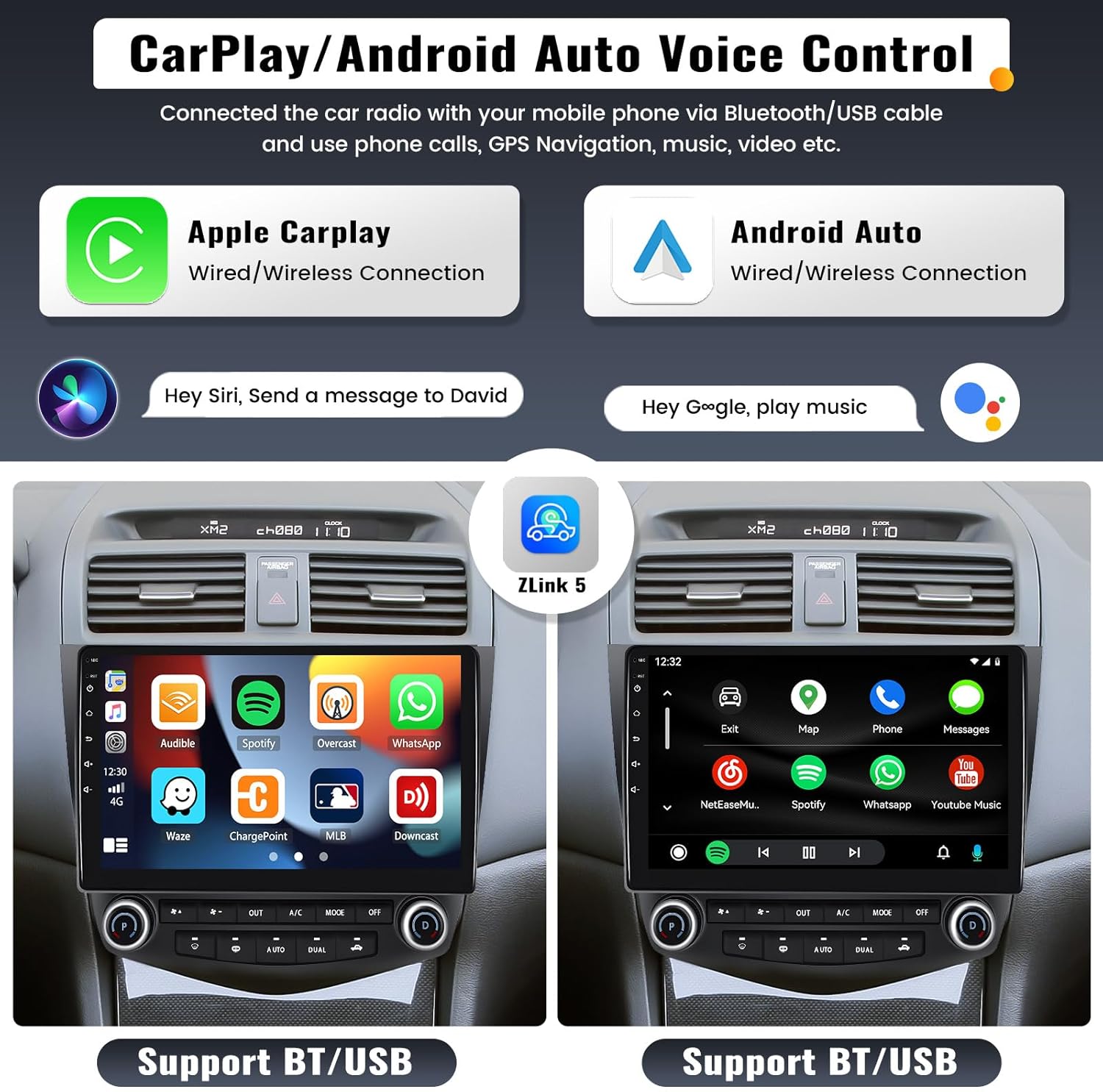
Figure 4: CarPlay and Android Auto Interface
Mirror Link Function:
The Mirror Link function projects your smartphone screen onto the car stereo display, allowing you to view maps, videos, and games. For iOS phones, screen mirroring is via WiFi. For Android phones, it can be via WiFi or USB cable. Note: This function may not work with some Samsung phones.
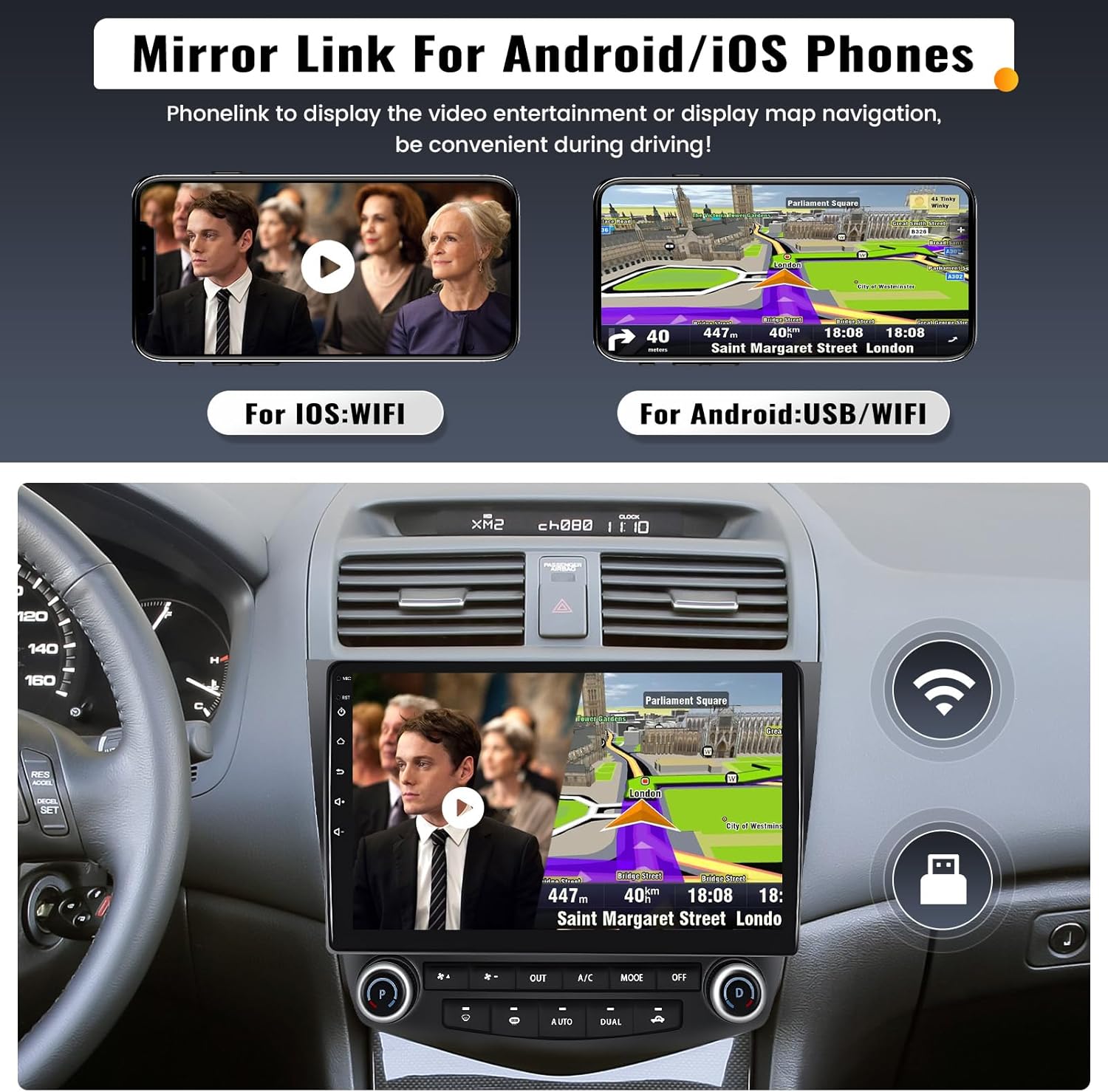
Figure 5: Mirror Link Functionality
Bluetooth & Voice Control Assistant:
Built-in Bluetooth 4.2 with A2DP allows for stable hands-free calling and audio streaming. You can also download your phone book to the unit. The integrated voice control assistant helps manage calls and music while driving.

Figure 6: Bluetooth and Voice Control Features
GPS Navigation & WiFi:
The unit includes a built-in GPS receiver and WiFi module. It supports both online and offline navigation. Offline maps (e.g., HERE WEGO) can be downloaded via WiFi. Connect to a WiFi hotspot from your smartphone to access online functions like video streaming, music, and app downloads.

Figure 7: GPS Navigation and WiFi Connectivity
Steering Wheel Control (SWC) & Backup Camera:
The stereo supports your vehicle's existing steering wheel controls, allowing you to conveniently adjust volume, change songs, and manage calls without taking your hands off the wheel. An AHD backup camera is included, providing a clear reversing image that automatically displays on the screen when the car is put into reverse gear, enhancing parking safety.

Figure 8: Steering Wheel Control and Backup Camera Display
Other Functions:
- FM/RDS Radio: Tune into your favorite FM stations with 18 preset options.
- EQ Audio Setting: Customize your audio experience with various equalizer settings (Classic, Pop, Rock, Jazz, Flat) and audio balance adjustments.
- Split Screen Display: Run two applications simultaneously on the screen, such as navigation and music playback.
- DVR Input: Connect an optional car driving recorder (DVR) to capture driving footage.
Maintenance
To ensure the longevity and optimal performance of your UNITOPSCI car stereo, follow these maintenance guidelines:
- Screen Cleaning: Use a soft, lint-free cloth to gently wipe the touchscreen. For stubborn smudges, slightly dampen the cloth with water or a screen-safe cleaner. Avoid abrasive materials or harsh chemicals.
- Temperature Control: Avoid exposing the unit to extreme temperatures (very hot or very cold) for extended periods, as this can affect electronic components and the display.
- Software Updates: Periodically check for software updates from UNITOPSCI to ensure your system has the latest features and bug fixes. Updates can often improve performance and compatibility.
- Connection Checks: Occasionally check all cable connections to ensure they are secure, especially after any vehicle maintenance or modifications.
Troubleshooting
If you encounter issues with your car stereo, refer to the following common troubleshooting steps:
- No Power:
- Check all power cable connections.
- Verify the vehicle's fuse for the radio is intact.
- Ensure the car battery has sufficient charge.
- No Sound:
- Check speaker wire connections.
- Ensure volume is not muted or set too low.
- Verify audio output settings in the stereo's menu.
- GPS Signal Weak/Lost:
- Ensure the GPS antenna is properly connected and placed in an unobstructed location (e.g., on the dashboard with a clear view of the sky).
- Try restarting the unit.
- Bluetooth Connection Issues:
- Ensure Bluetooth is enabled on both the stereo and your phone.
- Delete previous pairings on both devices and try pairing again.
- Move your phone closer to the stereo.
- Touchscreen Unresponsive:
- Perform a soft reset by pressing the reset button (if available) or turning the car ignition off and on.
- Ensure the screen is clean and free of debris.
If these steps do not resolve the issue, please contact UNITOPSCI customer support for further assistance.
Specifications
| Feature | Detail |
|---|---|
| Model | 2G+32G |
| Operating System | Android 13.0 |
| RAM | 2GB |
| ROM | 32GB |
| Screen Size | 10.1 Inches |
| Display Resolution | 1024*600 |
| Video Playback | 1080p Support |
| Power Output | 4*45W |
| Bluetooth Version | 4.2 |
| Radio Band | FM/RDS (87.5-108.0MHZ) |
| Connectivity | Bluetooth, Wi-Fi |
| Included Components | Android Car Stereo, Backup Camera |
| Item Weight | 4.26 pounds |
| Product Dimensions | 0.39 x 0.39 x 0.39 inches |
Warranty and Support
Your UNITOPSCI car stereo comes with a 2-Year Manufacturer Warranty from the date of purchase. This warranty covers defects in materials and workmanship under normal use.
For technical support, troubleshooting assistance, or warranty claims, please contact UNITOPSCI customer service:
- Email: UNITOPSCI@126.com
- Online Support: Refer to the contact information provided with your purchase or visit the official UNITOPSCI store page on Amazon.
UNITOPSCI is committed to providing high-quality products and satisfactory services. Lifetime after-sales consultation and technical support are available.
Ask a question about this manual
Ask about setup, troubleshooting, compatibility, parts, safety, or missing instructions. Manuals+ will review the question and use this page’s manual context to help answer it.