
Introduction
The Strich BT-FP2 is a wireless page turner pedal designed to enhance your musical performance or presentation by providing hands-free control over digital content. This device allows musicians, presenters, and other users to effortlessly navigate through sheet music, lyrics, chords, or presentation slides on their mobile phones, tablets, or computers via Bluetooth connectivity. By eliminating the need to use your hands for page turning, you can maintain focus on your instrument or presentation, ensuring a smooth and uninterrupted experience.
Setup
Package Contents
Before you begin, please ensure all items are present in the package:
- Strich BT-FP2 Wireless Page Turner Pedal
- Charging Cable
Charging the Device
The BT-FP2 pedal features a built-in rechargeable Lithium-ion battery. For optimal performance, fully charge the device before its first use.
- Connect the provided charging cable to the charging port on the pedal.
- Connect the other end of the charging cable to a standard USB power adapter (not included) or a computer's USB port.
- The charging indicator light will illuminate. Once fully charged, the light may change color or turn off, depending on the model.
- A full charge provides up to 20 hours of continuous use.
Pairing with Your Device
The Strich BT-FP2 uses Bluetooth for wireless connectivity with your mobile phone, tablet, or computer. It is compatible with both Apple iOS and Android platforms.
- Ensure the BT-FP2 pedal is charged and powered on. The power switch is typically located on the central unit.
- On your mobile device or computer, navigate to the Bluetooth settings.
- Enable Bluetooth and search for available devices.
- Select "BT-FP2" from the list of discovered devices to initiate the pairing process.
- Once paired, the device's Bluetooth indicator light will confirm a successful connection. The operating range is up to 10 meters (33 feet).

Figure 1: Front view of the Strich BT-FP2 pedal, showing the two foot pedals and the central control panel with various buttons and indicator lights. This view is useful for identifying the power switch and pairing buttons.
Operating Instructions
Basic Functions
The BT-FP2 pedal features two foot pedals, allowing for intuitive control of your digital content.
- Left Pedal: Typically used for moving backward (e.g., previous page, previous slide).
- Right Pedal: Typically used for moving forward (e.g., next page, next slide).
- Mode Buttons: The central control panel includes buttons to switch between different operating modes, which may emulate various keyboard commands (e.g., page up/down, left/right arrow keys). Refer to your application's settings for optimal configuration.
Application Compatibility
The pedal is compatible with a wide range of applications that support external keyboard or Bluetooth input for navigation. Supported software includes, but is not limited to, GarageBand and CAKEWALK. For other applications, check their settings for options to assign keyboard shortcuts to page turning or navigation functions.

Figure 2: The Strich BT-FP2 pedal shown in a usage scenario, connected to a device via a red cable (likely for charging or wired connection, though primarily wireless). This image illustrates the pedal's compact design and how it might appear during use.

Figure 3: A close-up view of a foot pressing one of the pedals on the Strich BT-FP2. This demonstrates the hands-free operation and the ergonomic design for foot control, highlighting its practical application during a performance.
Maintenance
Proper care and maintenance will extend the life of your Strich BT-FP2 pedal.
- Cleaning: Use a soft, dry cloth to clean the surface of the pedal. Avoid using abrasive cleaners or solvents, as they may damage the finish.
- Storage: Store the pedal in a cool, dry place away from direct sunlight and extreme temperatures.
- Battery Care: To maintain battery health, avoid fully discharging the battery frequently. If storing for an extended period, charge the battery to approximately 50% every few months.
- Water Exposure: This device is not waterproof. Avoid exposure to liquids to prevent damage.
Troubleshooting
If you encounter issues with your Strich BT-FP2 pedal, refer to the following common problems and solutions:
- Device not powering on:
- Ensure the battery is charged. Connect the charging cable and allow it to charge for at least 30 minutes.
- Verify the power switch is in the 'ON' position.
- Unable to pair via Bluetooth:
- Make sure the pedal is powered on and within the 10-meter range of your device.
- Turn off and on Bluetooth on your mobile device or computer.
- Forget the device from your Bluetooth settings and attempt to pair again.
- Ensure no other devices are actively connected to the pedal.
- Pedal not responding in application:
- Check if the pedal is successfully paired with your device.
- Verify the application settings to ensure it supports external input or keyboard shortcuts for navigation.
- Try switching the operating mode on the pedal using the central buttons to see if a different mode is compatible with your application.
- Restart the application and/or your mobile device.
- Short battery life:
- Ensure the device is fully charged before use.
- Battery life can vary based on usage and environmental conditions.
- If the issue persists, the battery may need replacement (contact support).
Specifications
Detailed technical specifications for the Strich BT-FP2 Wireless Page Turner Pedal:
| Feature | Detail |
|---|---|
| Model Number | BT-FP2 |
| Connectivity Technology | Bluetooth |
| Compatible Devices | PC, Laptop, Smartphone, Tablet |
| Supported Software | GarageBand, CAKEWALK (and others supporting keyboard input) |
| Number of Keys/Pedals | 2 |
| Battery Type | 1 Lithium-ion (included) |
| Battery Life | Up to 20 hours |
| Wireless Range | Up to 10 meters |
| Item Weight | 420 g |
| Package Dimensions | 21.3 x 19.2 x 4.2 cm |
| Special Feature | Compact, Portable |
| Manufacturer | Strich |
| Country of Origin | China |
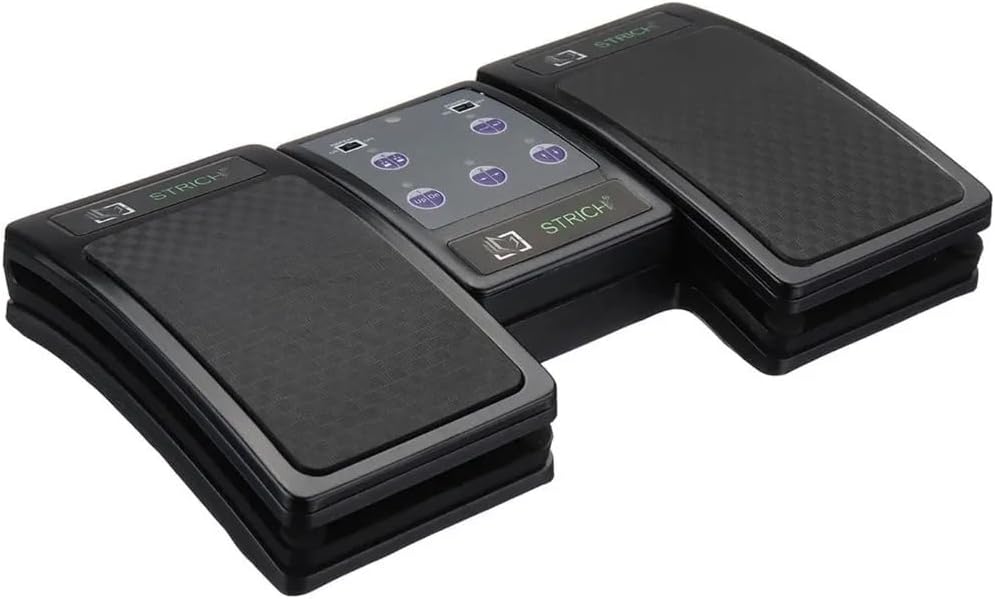
Figure 4: An angled top-down view of the Strich BT-FP2 pedal, showcasing its overall design and footprint. This image provides a comprehensive look at the product's physical characteristics.
Warranty and Support
For warranty information or technical support, please refer to the documentation provided with your purchase or contact the retailer/manufacturer directly. Keep your proof of purchase for any warranty claims.


