
1. Introduction
Thank you for choosing the MageGee Cloud98 Mechanical Keyboard. This manual provides detailed instructions for setting up, operating, and maintaining your keyboard. The Cloud98 features a 98-key layout, triple-mode connectivity (Bluetooth, 2.4GHz wireless, and USB-C wired), RGB backlighting, hot-swappable switches, and PBT keycaps for a premium typing experience.

Image 1.1: MageGee Cloud98 Mechanical Keyboard Overview
2. Package Contents
Please check the package for the following items:
- MageGee Cloud98 Mechanical Keyboard
- USB-C Cable
- 2.4GHz USB Receiver (typically stored in the keyboard's bottom compartment)
- Keycap Puller (if included)
- Switch Puller (if included)
3. Product Features
- 98-Key Layout: Compact yet functional, retaining essential keys.
- Triple Mode Connectivity: Seamlessly switch between Bluetooth, 2.4GHz wireless, and USB-C wired connections.
- RGB Backlight: Customizable full-key RGB backlighting with multiple effects and adjustable brightness.
- Gasket Mounted Design: Enhances typing feel and sound by reducing vibrations and cavity noise.
- PBT Material Keycaps: Durable dual-injection molded keycaps with ASA height for clear legends and ergonomic comfort.
- Hot-Swappable Switches: Compatible with most 3-pin and 5-pin mechanical switches, allowing for easy customization without soldering.
- 4000mAh Battery: Provides extended wireless usage, up to 200 hours with backlight off.
- N-Key Rollover: Ensures every keystroke is registered accurately, even during rapid typing or gaming.
- Wide Compatibility: Supports Win2000, Win XP, Win ME, Vista, Win7, Win8, Win10, Android, Linux, and Mac operating systems.
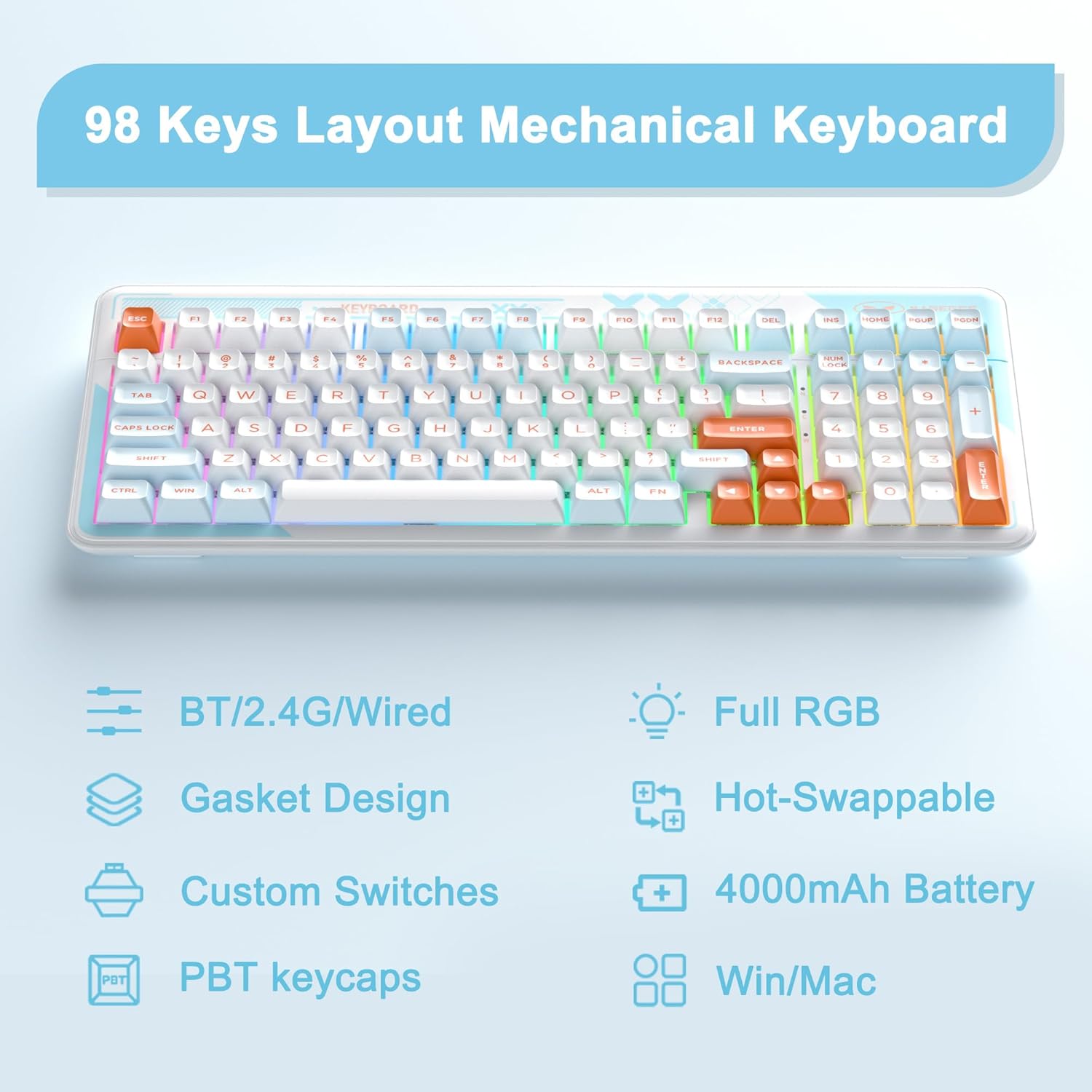
Image 3.1: Key features of the Cloud98 keyboard.

Image 3.2: Exploded view illustrating the gasket-mounted design and internal components.

Image 3.3: Close-up view of a Blue Whale mechanical switch.

Image 3.4: Detail of the dual-color injection PBT keycaps.
4. Setup and Connection
4.1. Wired Mode (USB-C)
- Locate the USB-C port on the keyboard (typically on the top edge).
- Connect one end of the provided USB-C cable to the keyboard.
- Connect the other end of the USB-C cable to an available USB port on your computer.
- The keyboard will automatically be recognized and ready for use.
- Press Fn + 5 for 3 seconds to ensure the keyboard is in wired mode.

Image 4.1: Connecting the USB-C cable to the keyboard.
4.2. 2.4GHz Wireless Mode
- Locate the 2.4GHz USB receiver, usually stored in a compartment on the bottom of the keyboard.
- Plug the 2.4GHz USB receiver into an available USB port on your computer.
- Turn on the keyboard using the power switch (if present, typically on the back or side).
- Press and hold Fn + 4 for 3 seconds to enter 2.4GHz pairing mode. The indicator light will flash.
- Once connected, the indicator light will stop flashing and remain solid.

Image 4.2: The 2.4GHz USB receiver.
4.3. Bluetooth Mode
- Ensure the keyboard is powered on.
- Press and hold Fn + 1, Fn + 2, or Fn + 3 for 3 seconds to enter Bluetooth pairing mode for the respective profile. The indicator light will flash quickly.
- On your device (computer, tablet, smartphone), enable Bluetooth and search for new devices.
- Select "MageGee Cloud98" (or similar name) from the list of available devices to pair.
- Once paired, the indicator light will flash slowly when reconnecting, and then remain solid.
- To switch between paired Bluetooth devices, short press Fn + 1, Fn + 2, or Fn + 3.

Image 4.3: Visual guide for triple mode connection.
5. Operating Instructions
5.1. RGB Backlight Control
The Cloud98 keyboard features full RGB backlighting with 19 RGB modes, 9 monochrome modes, and a custom mode. Use the following key combinations to control the lighting:
- Fn + ← (Left Arrow): Switch backlight flowing direction.
- Fn + → (Right Arrow): Switch backlight color (single color mode).
- Fn + - (Minus): Decrease backlight flowing speed.
- Fn + = (Equals): Increase backlight flowing speed.
- Fn + Del: Turn backlight on/off.
- Fn + Space: Switch backlight color (RGB mode).
- Fn + Ins: Switch backlight modes.
- Fn + ↑ (Up Arrow): Increase backlight brightness.
- Fn + ↓ (Down Arrow): Decrease backlight brightness.

Image 5.1: Keyboard layout showing RGB backlight control key combinations.
5.2. Hot-Swappable Switches
The Cloud98 keyboard supports hot-swappable switches, allowing you to change switches without soldering. This feature enables customization of typing feel and sound.
- Remove Keycap: Use the provided keycap puller to gently remove the desired keycap.
- Remove Switch: Use the provided switch puller to carefully grip the top and bottom clips of the switch and pull it straight up.
- Insert New Switch: Align the pins of the new switch with the holes on the PCB. Ensure the pins are straight. Gently push the switch down until it clicks into place. Do not force it to avoid bending pins.
- Replace Keycap: Press the keycap onto the new switch stem.
Note: Ensure the keyboard is disconnected or powered off before changing switches to prevent accidental input or damage.
5.3. WIN Key Lock Function
To prevent accidental presses of the Windows key during gaming, you can lock it. Press Fn + Win to toggle the WIN key lock function. An indicator light may illuminate when the WIN key is locked.
5.4. N-Key Rollover
The Cloud98 supports N-Key Rollover, meaning all keys pressed simultaneously will be registered. This is particularly beneficial for fast typists and gamers.

Image 5.2: Illustration of N-Key Rollover capability.
6. Battery and Charging
The Cloud98 keyboard is equipped with a 4000mAh battery, providing extended usage in wireless modes.
- Charging: Connect the keyboard to a USB power source using the provided USB-C cable. The charging indicator light will show the charging status.
- Battery Life: The keyboard can last up to 200 hours with the backlight off. Battery life will vary depending on backlight usage and connection mode.
- Low Battery Indicator: The keyboard may indicate low battery status through a flashing light or reduced functionality. Charge the keyboard promptly when this occurs.

Image 6.1: Information regarding the 4000mAh battery capacity.
7. Maintenance
Proper maintenance ensures the longevity and performance of your keyboard.
- Cleaning Keycaps: Use a keycap puller to remove keycaps. Clean them with a mild soap solution and a soft cloth, then dry thoroughly before reattaching.
- Cleaning the Keyboard Body: Use a soft, dry cloth to wipe the keyboard surface. For stubborn dirt, a slightly damp cloth can be used, ensuring no moisture enters the keyboard.
- Dust Removal: Use compressed air to remove dust and debris from between the keycaps and switches.
- Storage: Store the keyboard in a cool, dry place away from direct sunlight and extreme temperatures.
8. Troubleshooting
If you encounter issues with your MageGee Cloud98 keyboard, please refer to the following common solutions:
| Problem | Solution |
|---|---|
| Keyboard not responding in wired mode. | Ensure the USB-C cable is securely connected to both the keyboard and the computer. Try a different USB port or cable. Confirm the keyboard is in wired mode (Fn + 5 for 3s). |
| 2.4GHz wireless connection unstable or not connecting. | Ensure the 2.4GHz USB receiver is plugged in. Press and hold Fn + 4 for 3 seconds to re-pair. Move the receiver closer to the keyboard. Check for interference from other wireless devices. |
| Bluetooth connection issues. | Ensure Bluetooth is enabled on your device. Press and hold Fn + 1/2/3 for 3 seconds to enter pairing mode. Remove previous pairings from your device and try again. Ensure the keyboard battery is charged. |
| Backlight not working or stuck. | Press Fn + Del to toggle the backlight. Adjust brightness with Fn + ↑/↓. Try switching backlight modes with Fn + Ins. Ensure the keyboard battery is charged. |
| Specific keys not working. | If hot-swappable, carefully remove the keycap and switch. Re-seat the switch firmly, ensuring pins are not bent. If the issue persists, try replacing the switch. |
| Keyboard randomly disconnects. | Ensure the battery is sufficiently charged. For wireless modes, ensure the receiver/device is within range and free from interference. Update drivers if available. |
9. Specifications
| Feature | Detail |
|---|---|
| Model Number | Cloud98 |
| Connectivity | Bluetooth, 2.4GHz Wireless, USB-C Wired |
| Keyboard Type | Mechanical |
| Backlighting | Full RGB |
| Keycap Material | PBT (Polybutylene Terephthalate) |
| Special Feature | Ergonomic, Gasket Mounted, Hot-Swappable |
| Battery Capacity | 4000mAh |
| Product Dimensions | 16.5 x 7.87 x 1.57 inches (41.9 x 19.99 x 3.99 cm) |
| Item Weight | 2.66 pounds (1.21 kg) |
| Compatible Devices | Laptop, PC, Android, Mac |
| Operating Systems | Win2000, Win XP, Win ME, Vista, Win7, Win8, Win10, Android, Linux, Mac |
10. Warranty and Support
MageGee products come with a standard warranty. For specific warranty details, please refer to the warranty card included with your product or visit the official MageGee website. If you encounter any issues not covered in this manual or require further assistance, please contact MageGee customer support through their official channels.
You can typically find support contact information on the manufacturer's website or on the product packaging.


