
Zyerch ST092B
Zyerch Stylus Pen Instruction Manual
Model: ST092B
Introduction
This manual provides comprehensive instructions for the Zyerch Stylus Pen, Model ST092B. It covers product features, setup, operation, and troubleshooting to ensure optimal performance with your compatible iPad device. Please read this manual thoroughly before using the stylus pen.
Compatibility
The Zyerch Stylus Pen is compatible with specific iPad models released between 2018 and 2022. Please verify your iPad model number before use. This stylus does not support pressure sensitivity.
Compatible iPad Models:
- iPad (6th, 7th, 8th, 9th, 10th Generation)
- iPad Air (3rd, 4th, 5th Generation)
- iPad mini (5th, 6th Generation)
- iPad Pro 11-inch (1st, 2nd, 3rd Generation)
- iPad Pro 12.9-inch (3rd, 4th, 5th, 6th Generation)
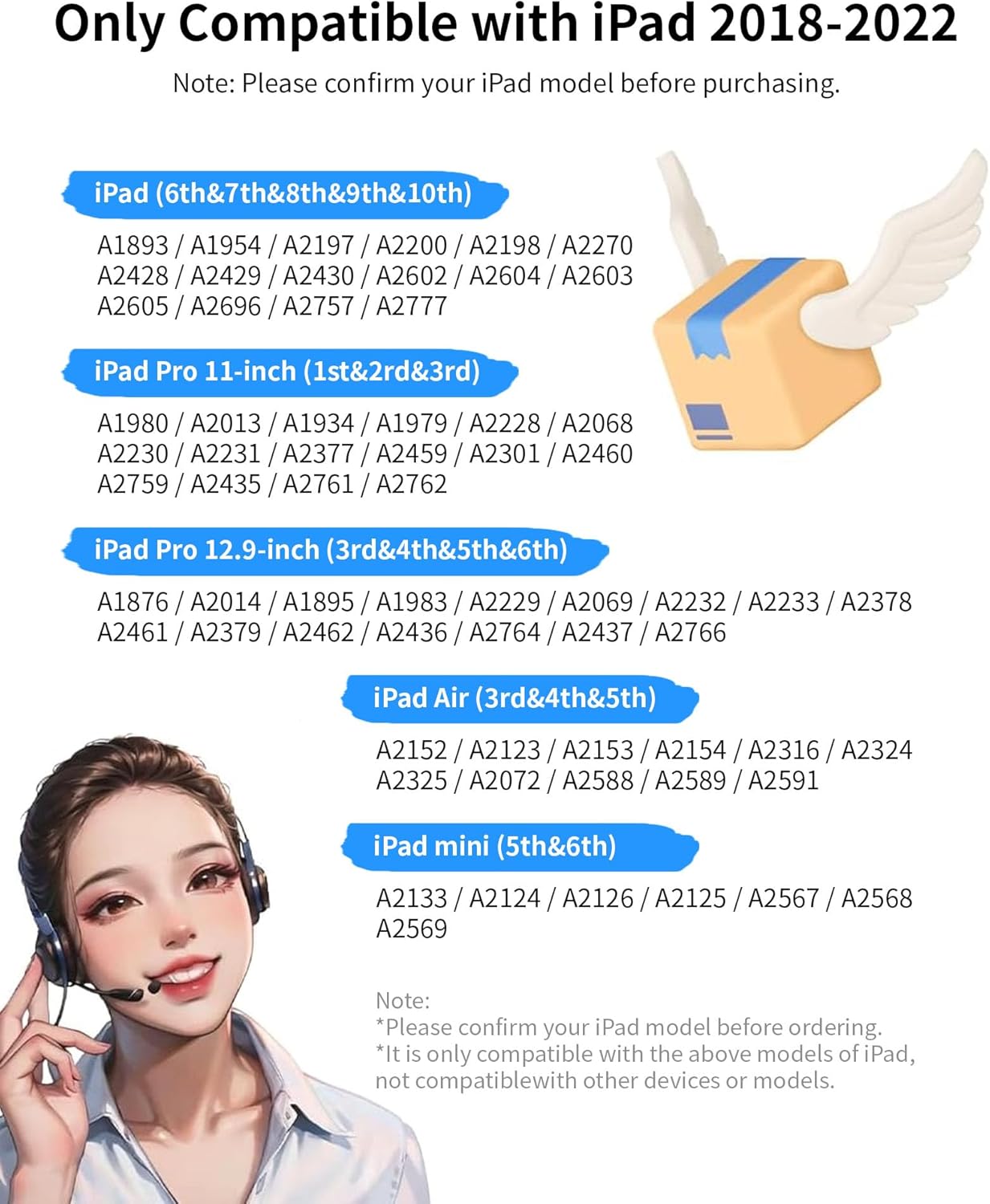
This image illustrates the range of iPad models compatible with the Zyerch Stylus Pen, including specific generation numbers for iPad, iPad Air, iPad mini, and iPad Pro 11-inch and 12.9-inch models.
Setup and Initial Use
Powering On/Off
The Zyerch Stylus Pen does not use Bluetooth for basic functionality. To power on or off, simply press the top button of the stylus. A quick press is sufficient; there is no need to press and hold for several seconds.
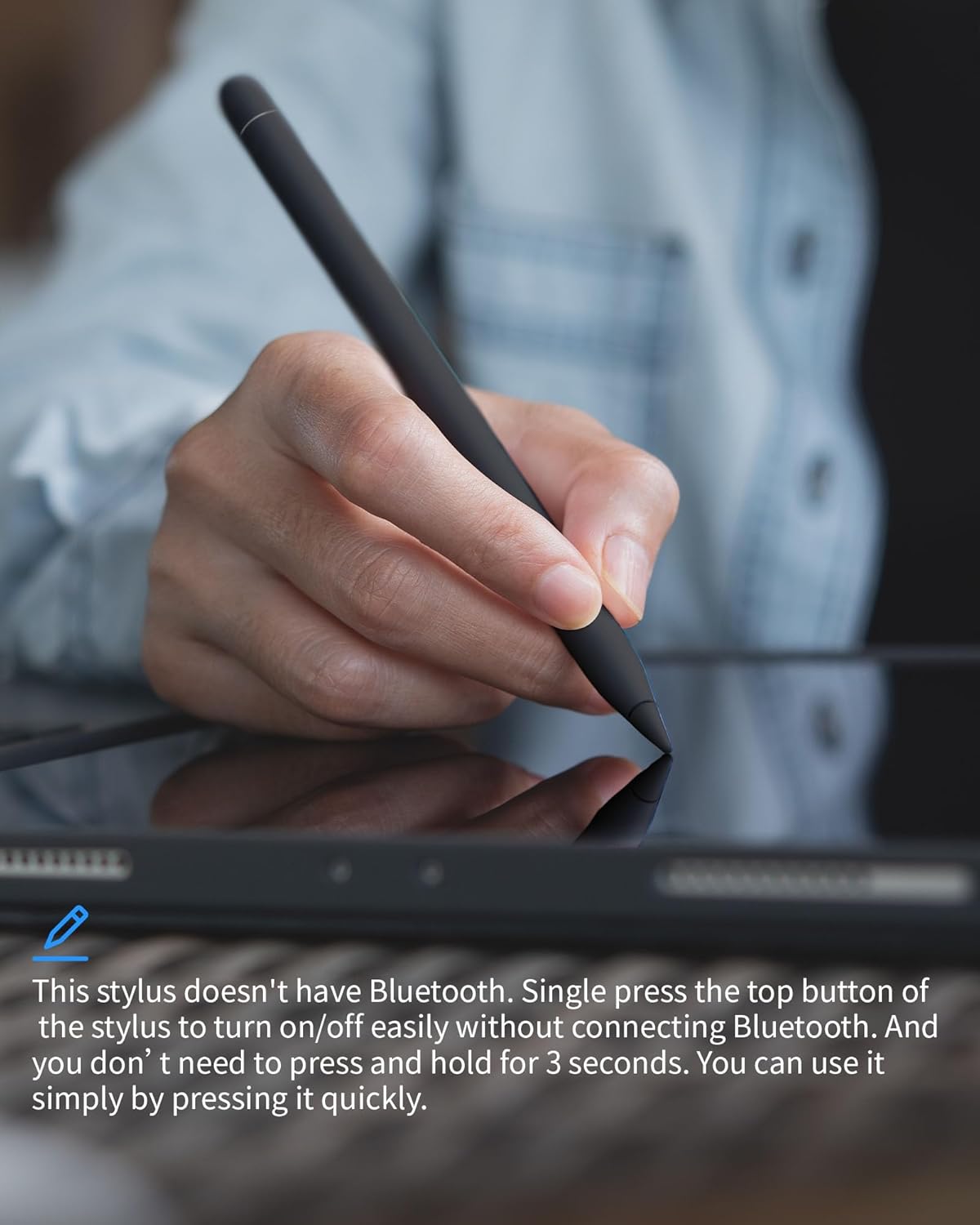
This image demonstrates how to power on or off the stylus pen by pressing the top button. The pen is shown in use, writing on an iPad screen.

This diagram illustrates the simple power-on method by pressing the top of the stylus. It also includes visual steps for troubleshooting Bluetooth interference by turning off Bluetooth on the iPad or forgetting a previously paired Apple Pencil.
Operating Instructions
Palm Rejection
The stylus features palm rejection technology, allowing you to rest your hand comfortably on the iPad screen while writing or drawing without causing unintended marks or actions. This eliminates the need for special gloves.
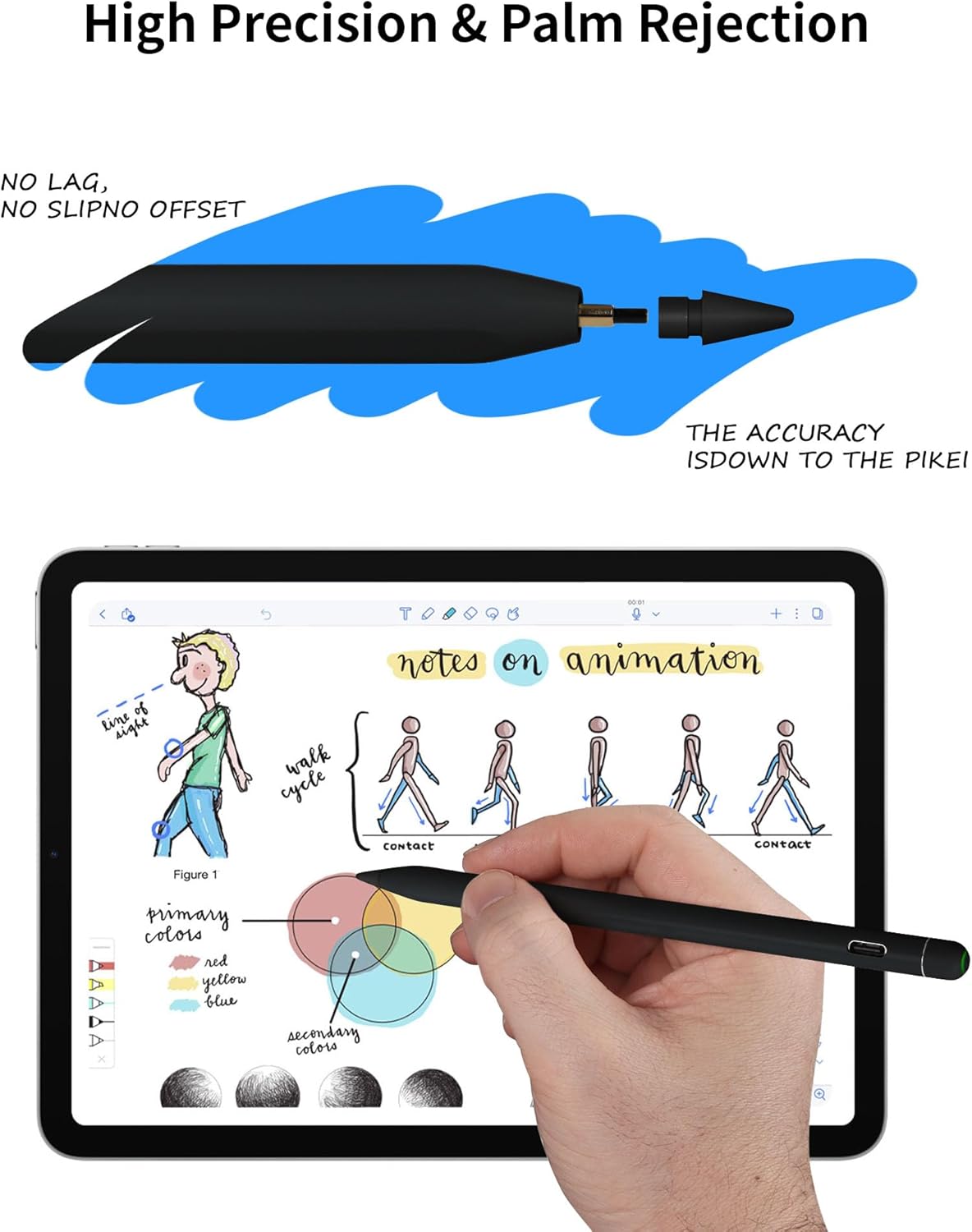
This image shows a hand using the stylus on an iPad, with the palm resting on the screen, illustrating the palm rejection feature in action during note-taking or drawing.
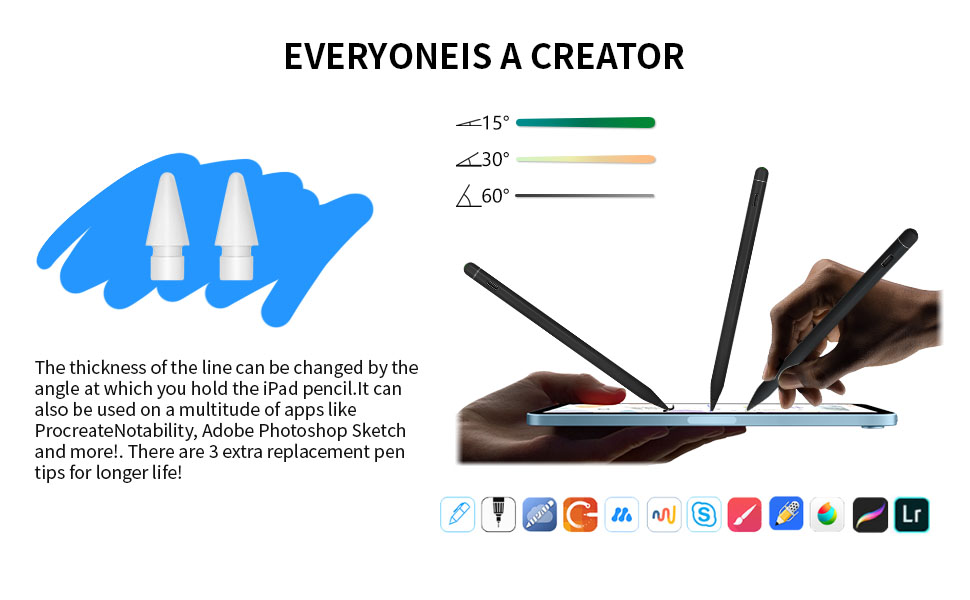
Tilt Sensitivity
The stylus supports tilt sensitivity, enabling you to vary the thickness of lines by changing the angle at which you hold the pen against the screen. This feature is useful for sketching, shading, and creating dynamic strokes.
This diagram visually explains the tilt sensitivity feature, showing how holding the stylus at different angles (15°, 30°, 60°) results in lines of varying thickness, enhancing creative control.
Magnetic Attachment
The stylus features a built-in magnet for convenient attachment to the side of compatible iPad models, including the iPad 10th Generation. This design aids in portability and helps prevent loss.
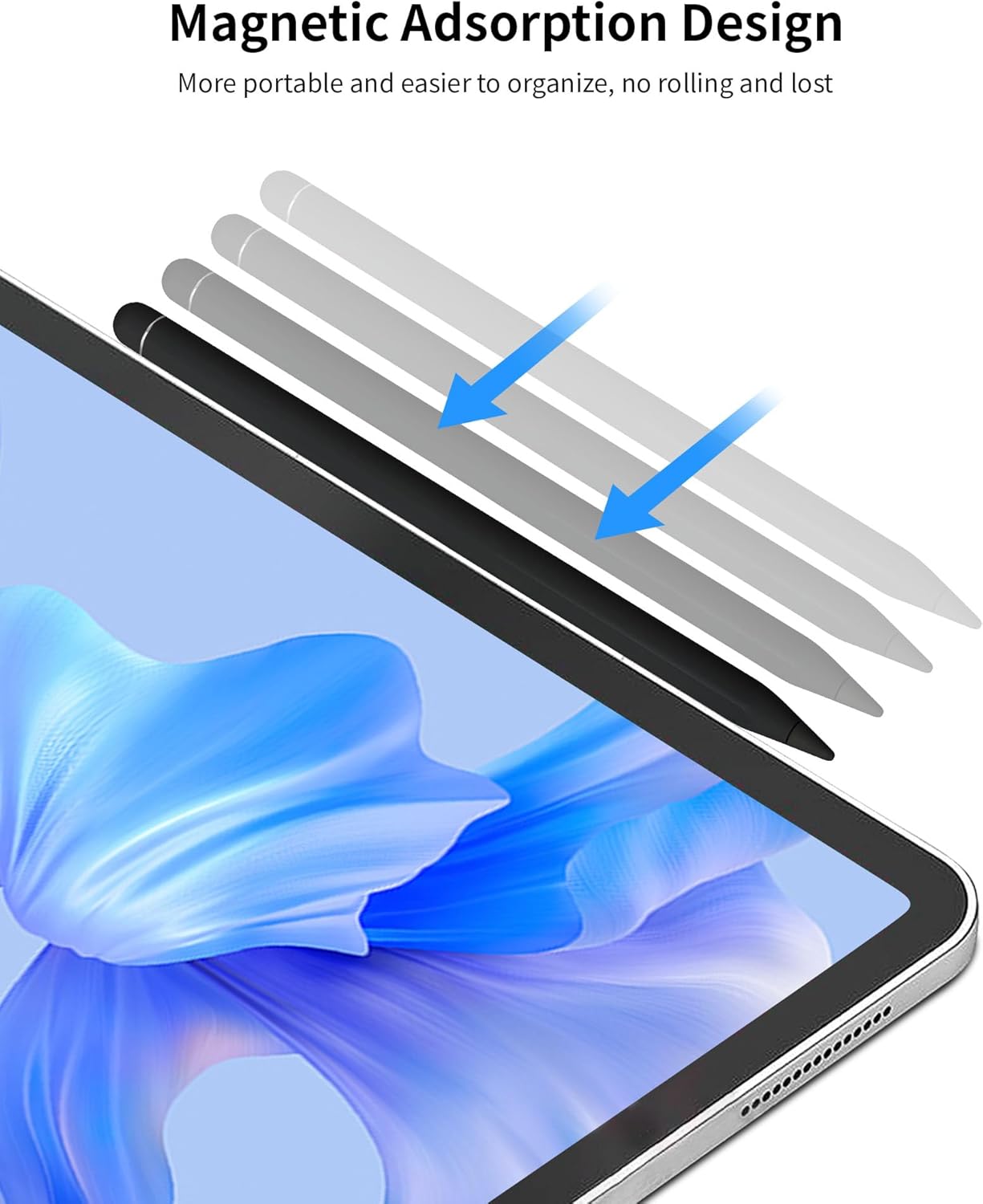
This image shows the stylus pen magnetically adhering to the side of an iPad, demonstrating its magnetic adsorption design for easy storage and transport.
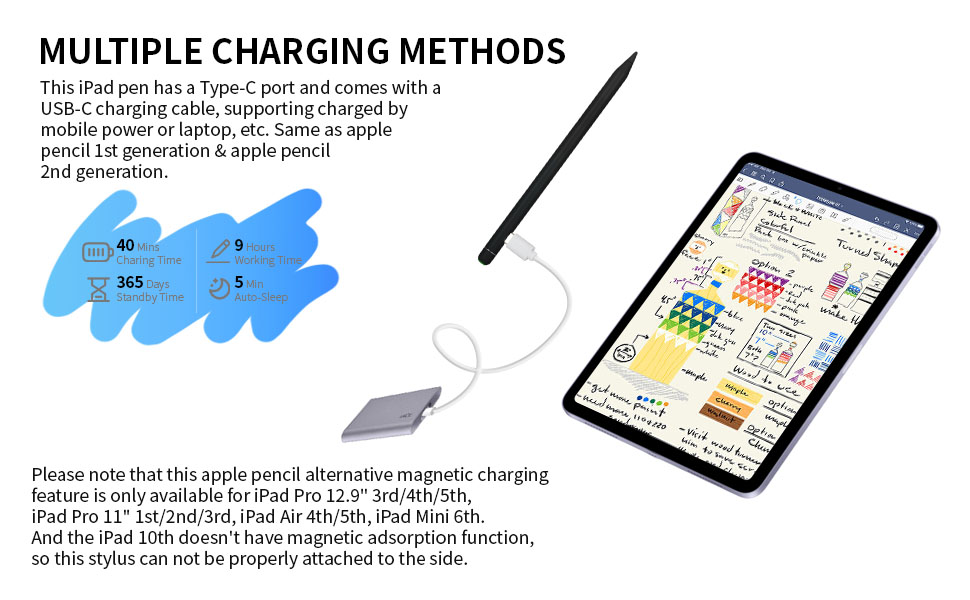
Note: Magnetic charging is only available for iPad Pro 12.9" (3rd/4th/5th Gen), iPad Pro 11" (1st/2nd/3rd Gen), iPad Air (4th/5th Gen), and iPad Mini 6th Gen. The iPad 10th Generation does not support magnetic charging, so this stylus cannot be charged via magnetic attachment on that specific model.
Key Features
- High Precision: The 1.5mm fine tip allows for detailed work without lag or skipping.
- Palm Rejection: Rest your hand on the screen naturally while writing or drawing.
- Tilt Sensitivity: Adjust line thickness by changing the pen's angle.
- Magnetic Adsorption: Attaches to compatible iPads for easy storage.
- USB-C Charging: Convenient charging via a USB-C port.
- Long Battery Life: Designed for extended use with efficient power management.

This diagram labels the key physical features of the stylus pen, including the touch control, indicator light, USB-C charging port, magnetic surface, and the 1.5mm fine tip.
Charging the Stylus Pen
The Zyerch Stylus Pen is equipped with a USB-C charging port. Use the provided USB-C cable to connect the stylus to a power source, such as a wall adapter, power bank, or computer USB port. The indicator light will show charging status.
- Charging Time: Approximately 40 minutes for a full charge.
- Working Time: Up to 9 hours of continuous use.
- Standby Time: Up to 365 days.
- Auto-Sleep: The pen will enter auto-sleep mode after 5 minutes of inactivity to conserve battery.
This image displays the stylus pen being charged via its USB-C port, alongside key battery performance metrics such as charging time, working time, standby time, and auto-sleep duration.
Maintenance
- Cleaning: Use a soft, dry cloth to clean the stylus body. Avoid abrasive materials or harsh chemicals.
- Tip Replacement: The stylus comes with extra replacement tips. If the tip becomes worn or damaged, gently pull it out and insert a new one.
- Storage: Store the stylus in a cool, dry place. Utilize its magnetic attachment feature on your iPad for secure storage when not in use.
Troubleshooting
Stylus Not Working After Powering On
If the stylus does not function correctly after being turned on, it may be due to an active Bluetooth connection with an Apple Pencil or other stylus. Follow these steps:
- Turn off iPad Bluetooth: Go to Settings > Bluetooth > Toggle Bluetooth to OFF.
- Forget Apple Pencil (if previously paired): Go to Settings > Bluetooth > Locate Apple Pencil in "My Devices" > Tap the "i" icon next to it > Select "Forget This Device".
After performing these steps, try using the Zyerch Stylus Pen again. Ensure the stylus is adequately charged.
Specifications
| Brand | Zyerch |
| Model Number | ST092B |
| Material | Aluminum |
| Color | Black |
| Item Weight | 2.39 ounces (0.07 Kilograms) |
| Battery Type | Lithium Metal (1 included) |
| Charging Port | USB-C |
| Tip Size | 1.5mm |
| UPC | 850052859404 |
Warranty and Support
For warranty information or technical support, please refer to the product packaging or contact Zyerch customer service through the retailer where the product was purchased. Keep your purchase receipt for warranty claims.
Ask a question about this manual
Ask about setup, troubleshooting, compatibility, parts, safety, or missing instructions. Manuals+ will review the question and use this page’s manual context to help answer it.